 LeCoqRoti
macOS Catalina is the Intel-era desktop operating system that replaced iTunes with three focused media apps and let an iPad double as a second display.
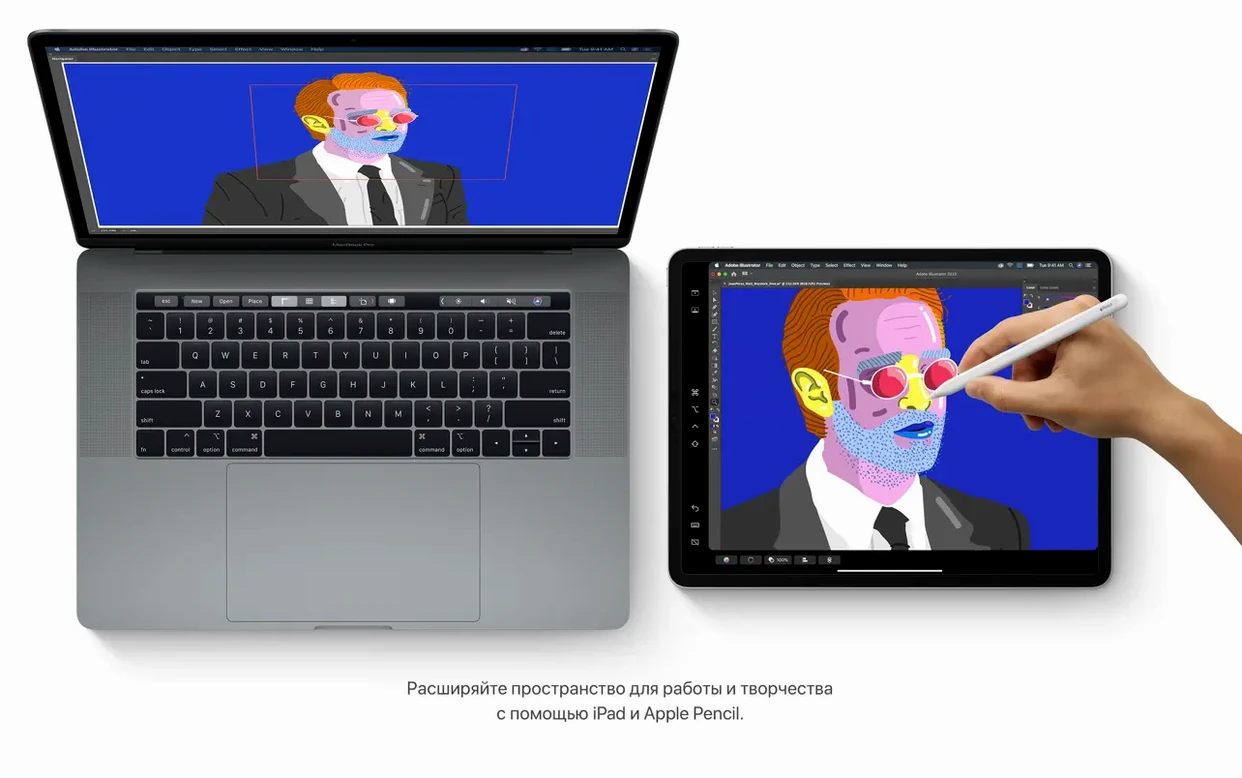
Sidecar — extends the Mac desktop onto a nearby iPad, turning it into a secondary screen for creative tools or palettes. The connection works wired or wirelessly, with Apple Pencil support for apps that benefit from precise input.
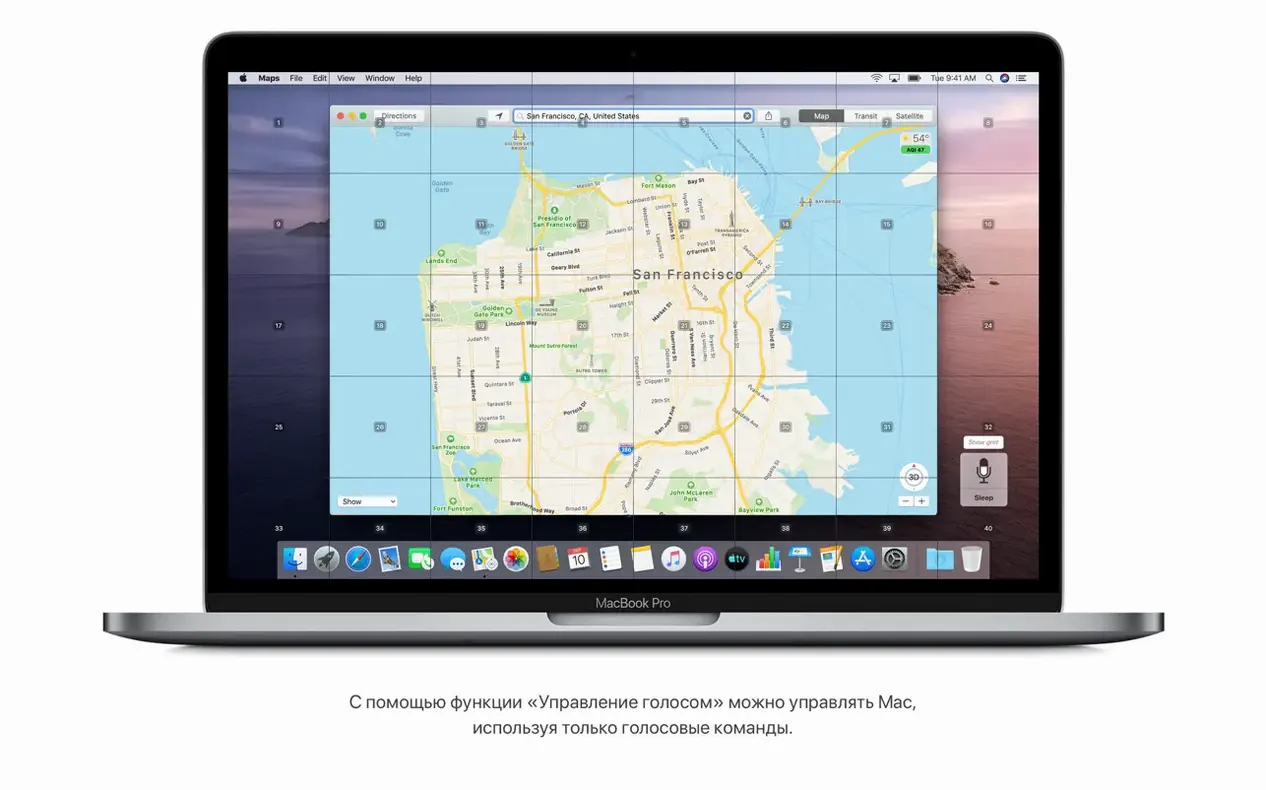
Voice Control — a system-wide speech-to-command engine that lets you navigate the interface, dictate text, and control applications entirely by voice. Numbered labels appear over clickable elements, so you can say a digit to activate it.
Apple Music, Apple TV, Apple Podcasts — three separate apps that took over the roles iTunes once handled alone. The split brought clearer interfaces for each medium: a library for music, a curated watch-now feed for video, and a browsable directory for shows.
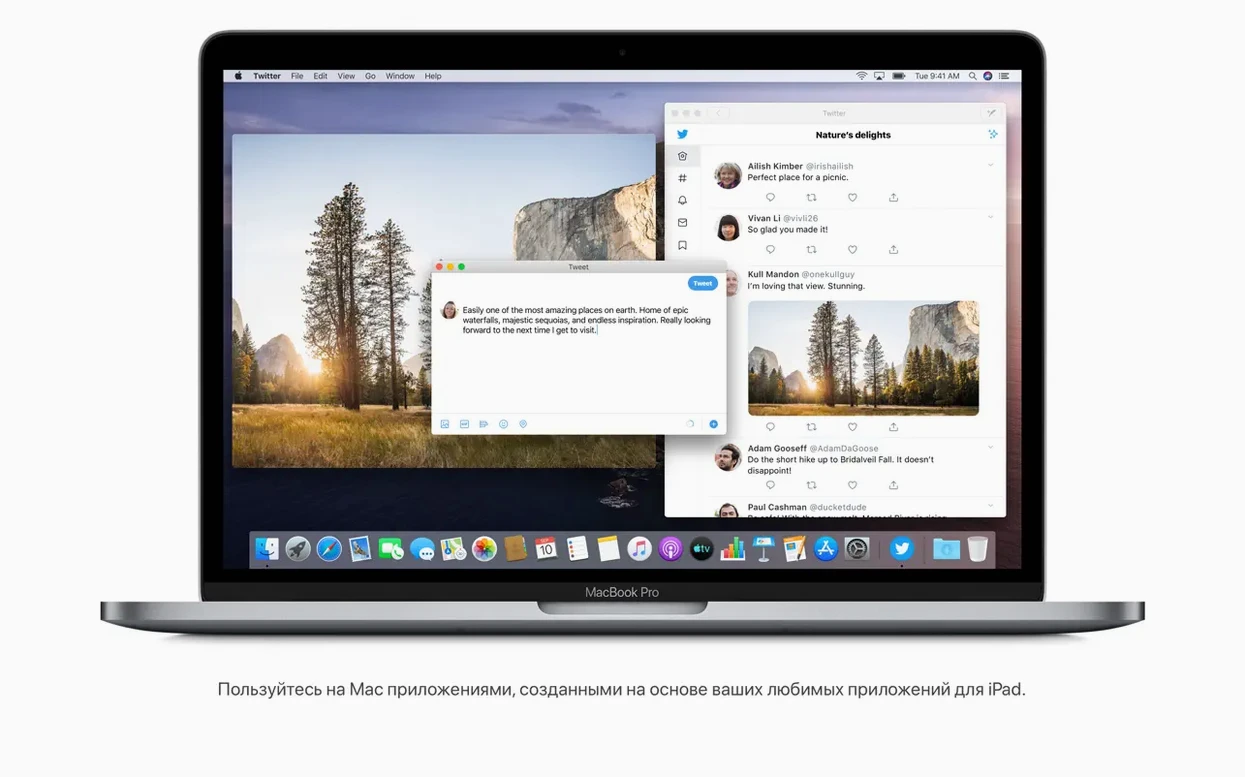
iPad apps on the Mac — using Mac Catalyst, developers could bring their iPad applications to the desktop with shared code, giving the Mac access to a wave of touch-first software redesigned for pointer and keyboard.
Reminders and Notes — both received substantial overhauls. Reminders gained controls for dates, locations, flags, and attachments; Notes introduced a gallery view with visual thumbnails for faster scanning.
Common beginner mistakes: a handful of avoidable stumbles
Sidecar looks straightforward, yet first-time users frequently miss that it requires both devices signed into the same Apple ID with two-factor authentication turned on. Another surprise: the iPad must be within roughly three metres of the Mac for a wireless connection to hold steady. Moving a room away severs the link without warning.
A subtler error involves the new media apps. People hunt for the old iTunes backup workflow, then assume it vanished. It lives inside Finder: connect an iPhone or iPad, select it in the sidebar, and the familiar backup, sync and restore controls appear under the General tab. No third app required, just a mental shift from media player to file manager.
Voice Control trips up newcomers who skip the initial one-time download of the speech model. Without it, recognition stays patchy. The download prompt appears only after enabling the feature in Accessibility, and it needs a broadband connection and a few minutes of patience. Once done, the numbered-label system becomes genuinely usable.
Another misstep: installing the operating system without reading the storage requirement — 12.5 GB available when upgrading from El Capitan or later. Machines with small SSD boot drives, especially older MacBook Air models, can stall halfway if the space isn't cleared beforehand.
Safari start page: rearrange iCloud tabs by section
Safari's redesigned start page is more than a cosmetic refresh. The grid of iCloud tabs, Reading List items and Messages links can be rearranged or hidden per section via a small settings icon in the bottom-right corner. A right-click on any item offers to open it in a new window or pin it, small gestures that accumulate over a browsing day.
In Notes, the gallery view reveals an overlooked power: the search bar now reads text inside scanned documents and identifies objects within photos. Snap a picture of a business card, attach it to a note, then search for the company name weeks later — the note surfaces even if no typed text mentions it.
Reminders gained an editing panel that responds to natural language. Type "Water the plants Friday at 8 am" and the app parses the date, time and even suggests the closest matching list. A long-press on a reminder opens the detail pane with fields for location-based triggers, flags and image attachments, all without leaving the keyboard.
Finder's device-management sidebar is also the gateway to a quiet convenience: wired syncing is faster than Wi-Fi, and the progress bar in the status area shows estimated minutes remaining for a backup. A click on the circle icon beside the device name ejects it cleanly, useful when multiple drives and devices clutter the sidebar.
The media apps share a unified search behaviour that is easy to miss. Typing a title or artist into Spotlight pulls results from Apple Music, Apple TV and Apple Podcasts without opening any of them first. Press Return on a track and it plays immediately, no window switch needed.
32-bit cutoff: Catalina draws a sharper line than Mojave
Set beside macOS Mojave (10.14), Catalina drew a sharper line: Mojave kept iTunes and introduced Dark Mode and Stacks; Catalina removed 32-bit app support, broke iTunes apart, and leaned into the iPad as a companion display. Users who relied on older creative tools — older versions of Adobe apps, legacy audio units — felt the architecture shift more keenly than any new feature could offset. Mojave felt like a refinement; Catalina felt like a structural edit.
Against macOS Big Sur (11), Catalina now reads as the last Intel-native release that still carries the familiar pre-redesign interface. Big Sur brought the iOS-aligned visual language with translucent menus, rounded icons and a higher-contrast palette. Catalina's interface, by contrast, holds onto the squared, slightly denser chrome of earlier versions. For users who prefer that earlier aesthetic or who run software not yet validated for Big Sur's kernel changes, Catalina remains a deliberate choice rather than a compromise.
Linux distributions like Ubuntu offer a different axis of comparison. Where Catalina provides tight hardware integration — Sidecar, Handoff, AirDrop — and a polished media-ecosystem trio, a typical Linux desktop rewards tinkerers with package managers and shell-heavy workflows but lacks equivalent system-wide voice control and tablet-extension features out of the box. The Mac experience trades some open-ended configurability for the convenience of devices recognising each other without manual setup.
Sidecar drawing: pressure-sensitive iPad as Mac canvas
Designers and illustrators who keep a compatible iPad on their desk extract perhaps the most tangible benefit from Catalina: Sidecar turns the tablet into a pressure-sensitive drawing surface for apps like Affinity Designer and Adobe Illustrator, with a responsiveness over USB-C that feels close to native. The colour accuracy on the iPad screen also makes it a reliable secondary reference monitor when the main display is calibrated.
Developers maintaining Intel-based apps find Catalina a useful testbed precisely because it was the first to enforce 64-bit-only execution and notarisation requirements. Running version 10.15.7 (19H15) lets them verify that their software behaves correctly under the tighter code-signing rules without the additional variables Big Sur introduced.
Writers and editors who rely on Voice Control for ergonomic reasons or accessibility gain a system that, once the speech model is downloaded, handles dictation and interface navigation entirely offline. The numbered-labels overlay works across Finder, Safari and most text editors, reducing the need for a pointing device during long drafting sessions.
Users with large local media libraries — audiophiles with ripped CD collections, video editors with archived projects — benefit from the three-app split because each application loads its own database independently. Browsing a music library no longer competes for interface space with podcast episodes and film purchases, and search is scoped to the active app by default.
Finder backups: iPhone snapshots flow into Time Machine
Catalina's Finder-based device management integrates cleanly with Time Machine: connecting an iPhone triggers a local backup, and that backup is then included in the next Time Machine snapshot if the drive is attached. No extra scheduling, no separate archive utility — just a chain of automated copies that covers both the Mac and its tethered devices.
The media apps talk to GarageBand and Final Cut Pro through a shared media library. Audio loops downloaded via Apple Music appear in GarageBand's loop browser automatically; soundtracks purchased through Apple TV show up as licensed tracks in Final Cut's audio inspector. The separation of apps doesn't isolate the content — it organises it by format, then exposes it where other applications expect to find it.
Notes and Reminders connect to Shortcuts, the automation app first introduced in this release for the Mac. A shortcut can create a reminder with an attached URL from Safari's current page, or append a screenshot to a specific note in a shared folder. Because both apps sync through iCloud, changes propagate to an iPhone or iPad without any manual push, making them useful as lightweight capture points that feed into a larger project workflow on another device.
Voice Control layers over third-party software in a way that earlier accessibility tools handled more unevenly. The numbered-labels engine treats every clickable UI element as addressable, whether it belongs to a native Cocoa app or an Electron-based tool. In testing scenarios, dictating field entries into Slack or selecting menu items in Sublime Text worked with the same numeric-prompt pattern as in Finder, giving it reach across the entire application landscape.



Correspondence 0
Take a chair or join the table to send a letter.
No correspondence on this note yet. Letters are read before they appear.