 LeCoqRoti
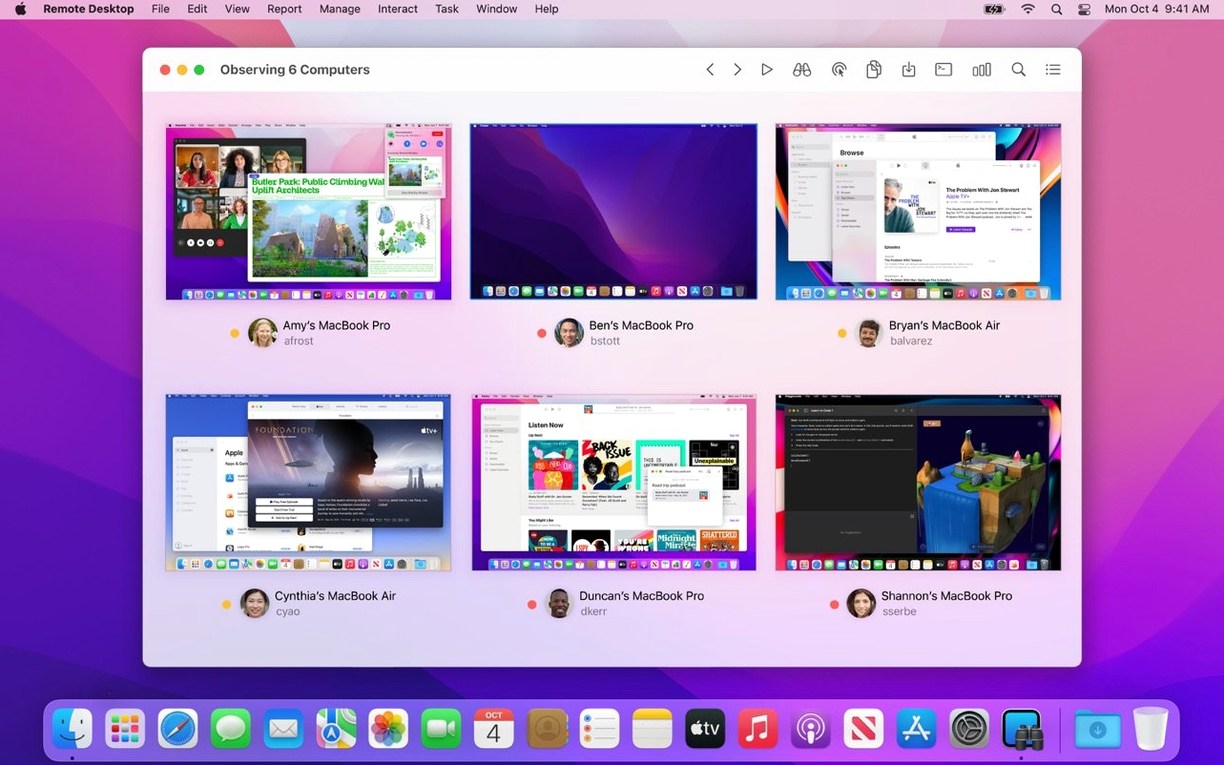
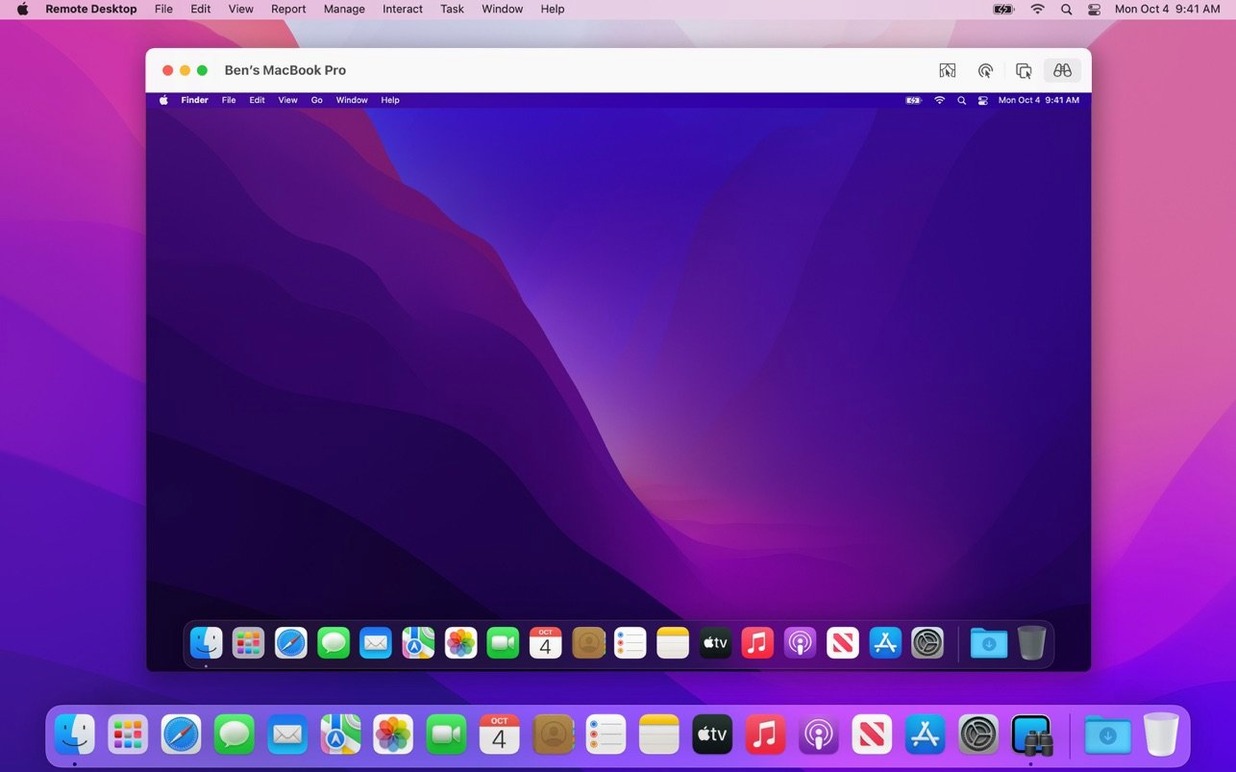
Apple Remote Desktop is the built-for-Mac tool for observing and controlling dozens of computers from a single administrator's screen.
Software deployment: copy once, install everywhere
The task that defines the app: selecting a package and pushing it to every Mac in a lab, a classroom or a design studio. You can schedule installations for machines that are currently offline; they receive the payload the moment they reconnect.
Remote control: seeing what the user sees
Full control requires the Remote Desktop Client on each managed Mac, but the app also speaks VNC, so Windows and Linux machines appear in the same computer list. Copy and paste between the local and remote clipboards works without a second thought.
Reporting: user logins and application use
A report can surface which applications were launched and for how long, or map user login patterns across a fleet. The data arrives as a clean list, ready to be handed to a department head or a compliance officer.
Automation: more than 40 actions
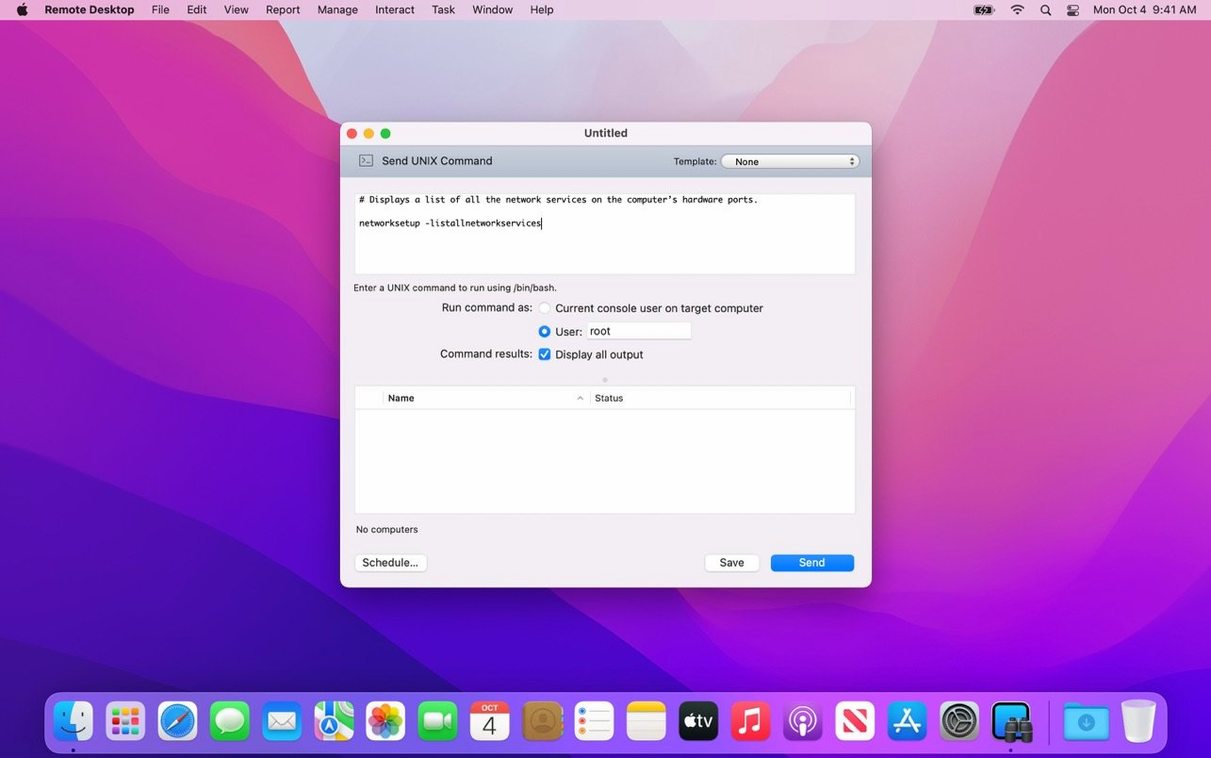
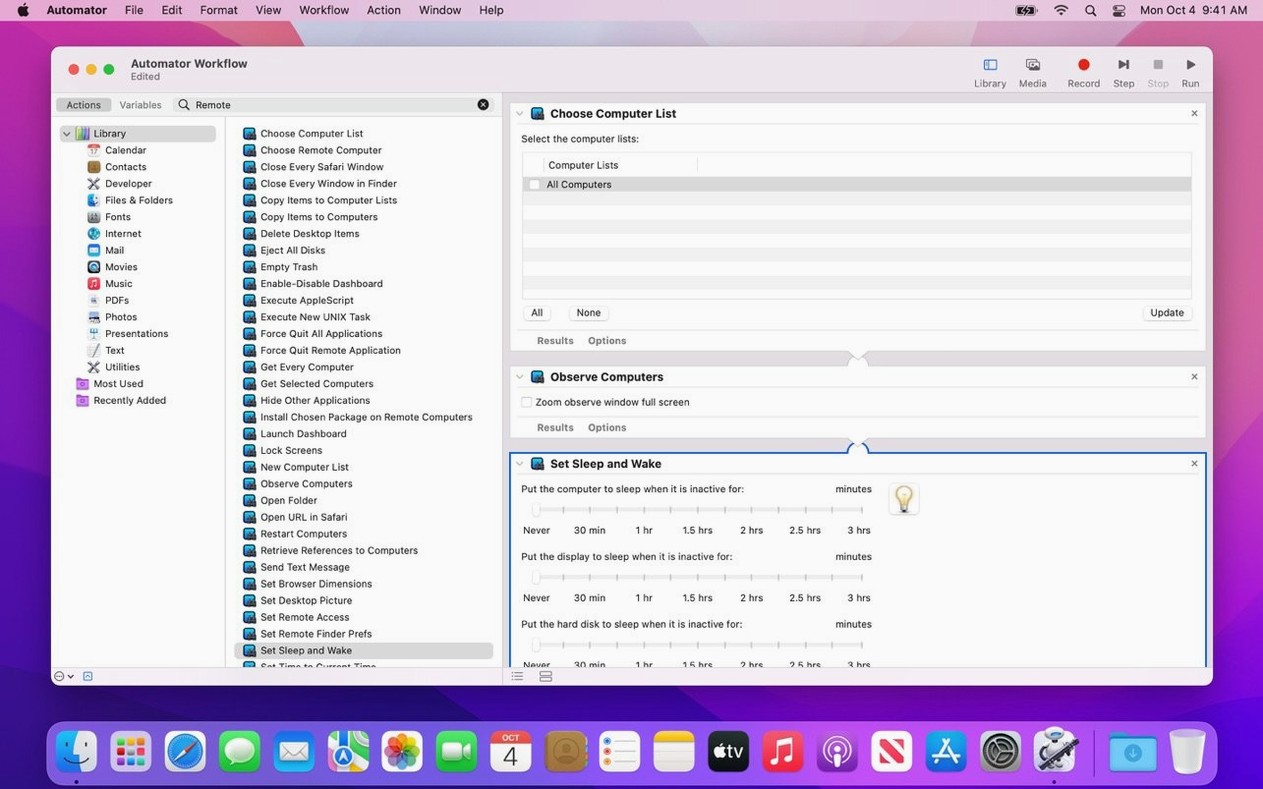
Automator integrates directly: chain together actions like "lock screen," "send Unix command" or "mount shared volume" and trigger them on a schedule. Repetitive housekeeping shrinks to a single click.
A workflow: deploying a printer across a lab
Imagine twenty iMacs in a design classroom, none of them yet aware of a newly arrived wide-format printer. The administrator opens Apple Remote Desktop, selects the lab computer list, and chooses Copy Items. The printer driver package is dragged into the task window and set to copy to /tmp/ on each machine. A second task, Install Packages, points to that same file path and is set to run immediately after the copy completes. Both tasks are saved as a single Automator workflow, so the next time a printer appears the whole sequence is a double‑click. Machines that were asleep during the operation receive the installer on wake; the report pane confirms every installation within a minute of completion.
Client refuses full control: re‑approve Accessibility access
One frequent stumble: the client machine appears in the scanner but refuses full control. The fix, in most cases, is to re‑approve the Remote Desktop Client in the managed Mac’s System Settings under Privacy & Security > Accessibility. Another: software deployments that stall for a subset of machines. This is often tied to FileVault‑encrypted volumes that require an unlock before files can be written; scheduling the task for a time when users are logged in, or pairing it with a wake‑and‑unlock script, avoids the timeout.
When copy‑and‑paste fails between local and remote sessions, the clipboard synchronisation is usually blocked by a mismatched client version. Updating the Remote Desktop Client on the target Mac to match the admin console resolves it. Lastly, Curtain Mode frustrations: if the remote screen remains visible despite the setting being enabled, the client Mac needs a restart of its ARDHelper agent via the admin’s Send Unix Command action with killall ARDHelper.
Curtain Mode: finding a lost research file unseen by students
A member of a university IT team receives a ticket: a lecturer cannot find a research file they saved that morning. From her desk, the operator connects to the lecturer’s Mac, activates Curtain Mode so no student passing by sees the screen, and runs a remote Spotlight search for the file name. The item turns up inside a hidden folder the user had accidentally dragged into a neighbouring directory. The operator copies it to the Desktop, drops a note into TextEdit, and disconnects. The whole interaction takes under two minutes and the lecturer never leaves their office.
Mass package pushes: where Parallels Access leaves off
Parallels Access works well for occasional remote control and file browsing across platforms, but it lacks Apple Remote Desktop’s deep system‑reporting engine and its ability to push packages to many machines in one gesture. It is a remote access tool, not a fleet administration console.
Splashtop Business Access delivers smooth screen sharing and decent multi‑monitor support, yet it offers no equivalent to the 200‑plus hardware characteristics that Apple Remote Desktop can report, nor the Automator integration that turns repetitive admin chores into saved workflows. It is tuned for support sessions, less for unattended bulk management.
TeamViewer excels at cross‑platform reach and handling connections through firewalls without VPN configuration. Where Apple Remote Desktop pulls ahead is in its native macOS reporting, the ability to lock screens, sleep, wake and shut down entire computer lists with a single command, and its capacity to schedule offline installations. For a Mac‑only environment it remains the more integrated administrator.
No section text provided for rewriting
Does it work over the internet or only on a local network?
Apple Remote Desktop is designed primarily for local subnets and campus networks. Remote access over the internet is possible through a VPN connection that places the admin Mac on the same virtual network as the client machines. Without a VPN, the app does not discover or reach computers across the public internet.
Can I manage Windows machines with it?
Yes, through the built‑in VNC viewer. You can observe and control a Windows, Linux or UNIX machine that runs a VNC server, and you can include it in your computer lists. However, the deeper Mac‑specific features — package installation, system reports, Spotlight search, Automator actions — are not available for non‑Mac clients.
Is the connection encrypted?
When the Remote Desktop Client is installed on the target Mac, all traffic — screen sharing, file transfers and commands — is encrypted over the network. For VNC connections to non‑Mac systems, the encryption level depends on the VNC server software in use; Apple Remote Desktop adds its own encryption layer where the protocol allows.
How many computers can it handle at once?
There is no hard limit in the software, and a single administrator routinely manages fleets numbering in the hundreds. The practical ceiling is determined by network bandwidth and the speed of the admin Mac itself. Grouping computers into smaller task lists and staggering bandwidth‑intensive operations like software distribution keeps things responsive.
In short: a quiet, capable administrator that sits in the Dock and reaches every machine on the subnet.







Correspondence 0
Take a chair or join the table to send a letter.
No correspondence on this note yet. Letters are read before they appear.