 LeCoqRoti
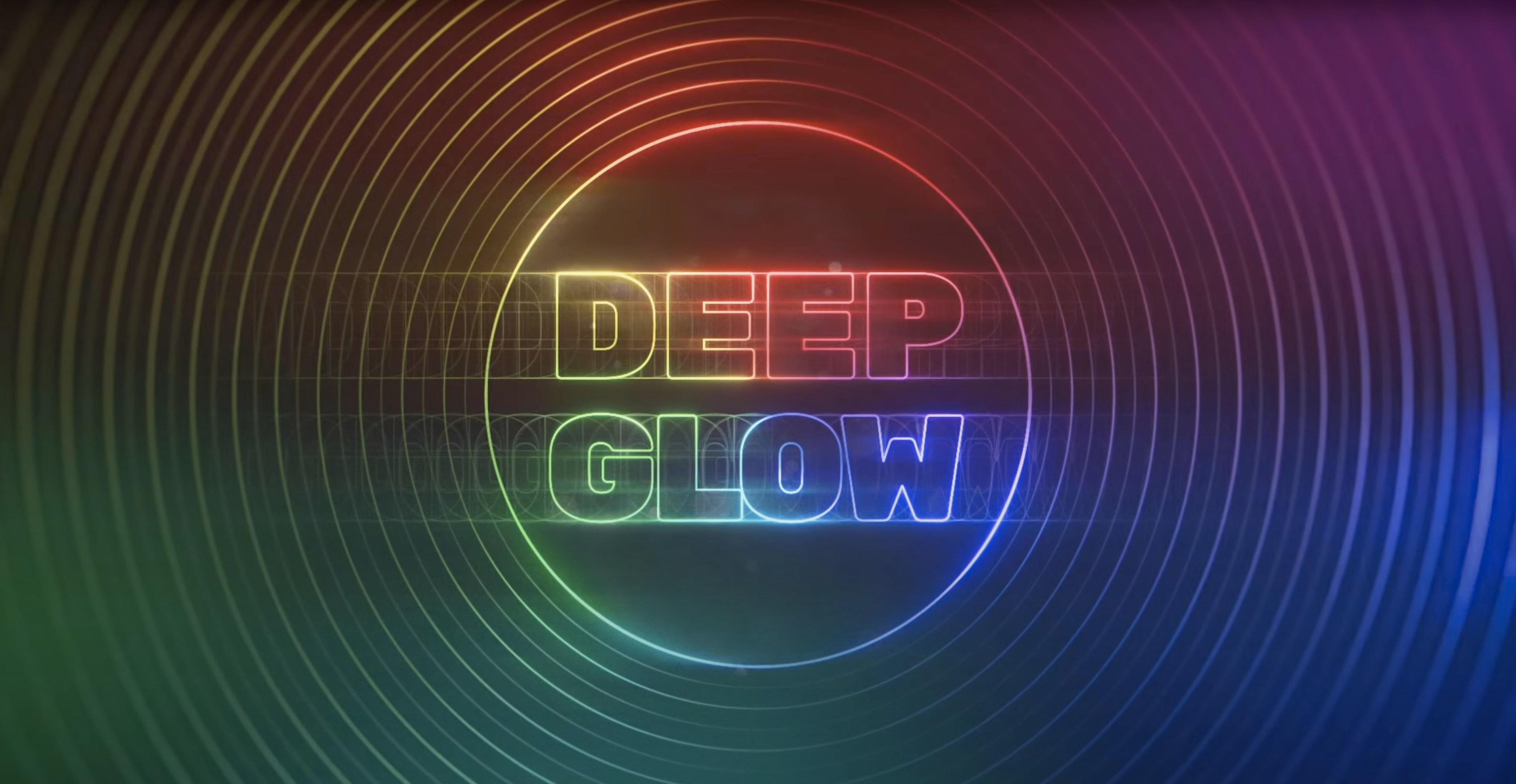
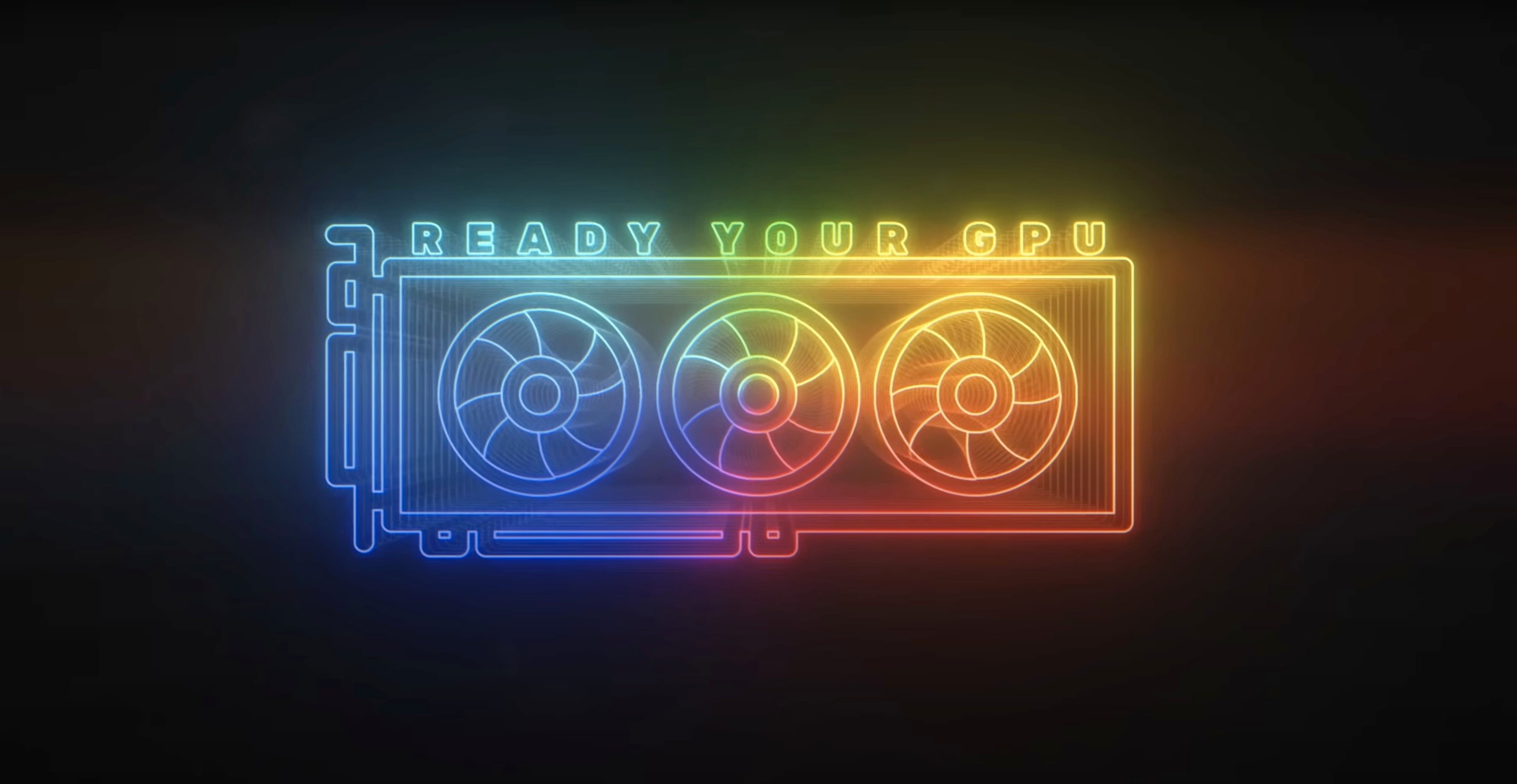
Deep Glow runs on Intel and Apple Silicon Macs, inside Adobe After Effects. The interface is in English, and the current build is version 1.6.
What the plugin does
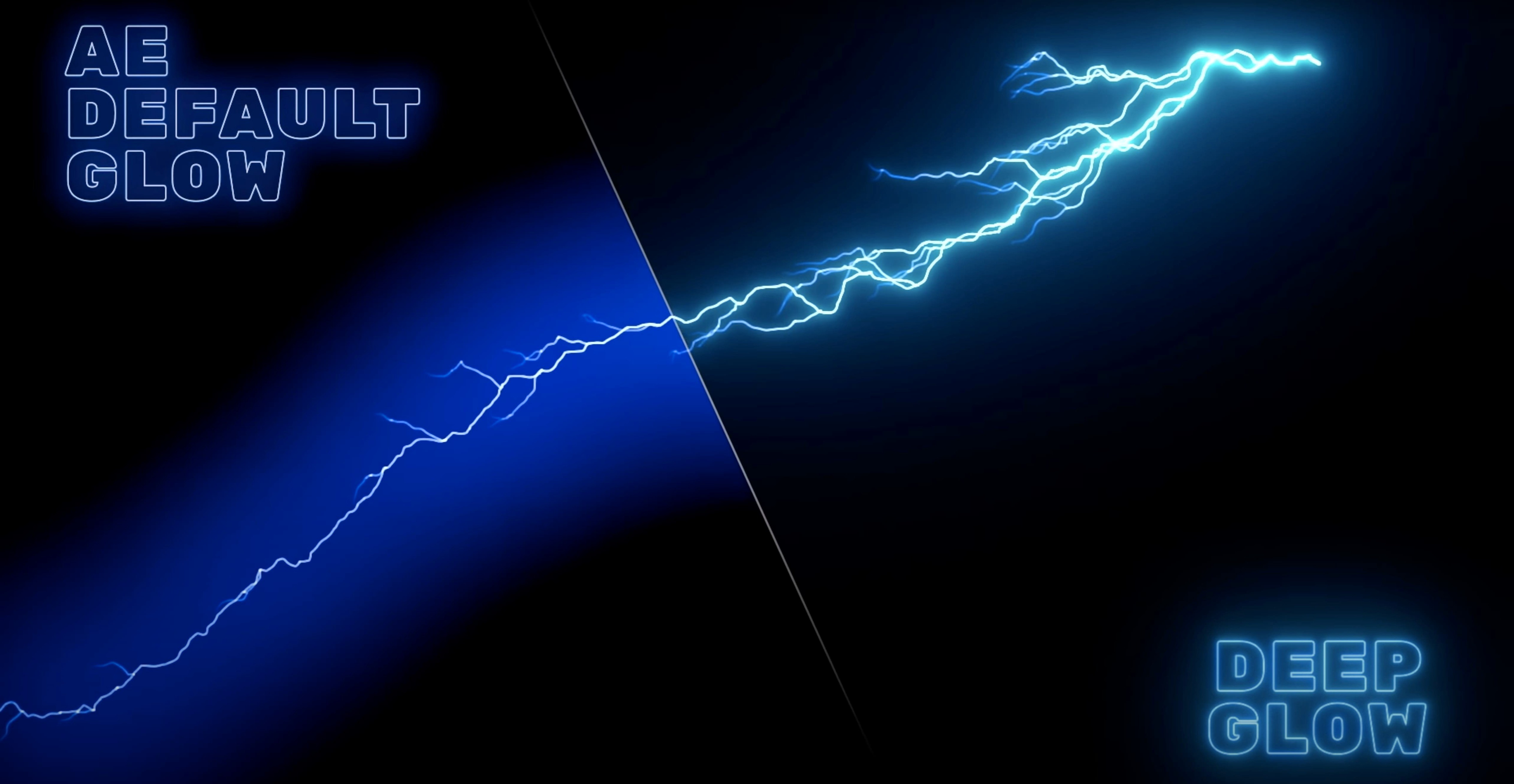
It generates glow effects that follow an inverse-square falloff, so luminance spreads and decays in a physically plausible way rather than as a uniform halo.
Natural falloff: from clean titles to grainy treatments
Compositors and motion designers who want a more natural glow than the built-in effects offer. It suits both clean, modern titles and deliberately grainy, stylised treatments.
What controls you get
Common snags: sorting them out
Most issues with Deep Glow come down to a few recurring causes. The first is expectations around render speed. Because the plugin leans on GPU acceleration, performance depends heavily on the graphics hardware in your Mac and on the downsampling settings you choose. If a composition feels sluggish, check the quality controls before anything else; a modest reduction in sampling quality often restores interactive preview without visibly changing the final result.
A second snag appears when users stack Deep Glow on top of footage that has already been colour-managed. The plugin is designed to work in non-linear colour spaces, but if your project uses a linear workflow and the glow looks blown out or weak, confirm that the effect sits at the right point in the layer stack. Placing it after a colour transform — rather than before — usually gives the luminance values it expects.
Another common complaint is a glow that flickers between frames. This tends to happen with fine detail or high-contrast edges when the downsampling is set too low. Raising the quality slightly, or softening the source with a gentle blur before the effect, settles it in most cases. If you are rendering on a laptop and the fans spin up, that is normal: the GPU is doing the work.
Downsampling first: tweak for quick, responsive feedback
The default state is useful, but a few adjustments make the plugin feel more like your own tool. The first thing I change is the downsampling value. On a desktop Mac with a discrete GPU, I leave it high for final renders and drop it only when I am roughing out timing. On a laptop, I start lower and raise it at the end.
Next, look at the compositing controls. Deep Glow can blend the glow back over the source in several ways, and the default mode is not always the most flattering for every piece of footage. Switching the blend mode once, early in a project, saves a lot of small corrections later. If you work mostly with log footage, test this before you build a preset around it.
Finally, pay attention to the falloff behaviour. The inverse-square simulation is what gives Deep Glow its character, but the intensity and radius interact in ways that are not always obvious. A small change to one often asks for a compensating change to the other. Spend ten minutes with a simple solid layer and a single moving highlight to learn how they pull against each other.
Lower thirds and logos: where the uneven falloff reads best
Motion designers working on title sequences and broadcast graphics tend to benefit immediately. The glow reads well on lower thirds, logo reveals and text animations, especially where a built-in glow would look too uniform. Because the falloff is more natural, letterforms keep their edges instead of dissolving into a flat haze.
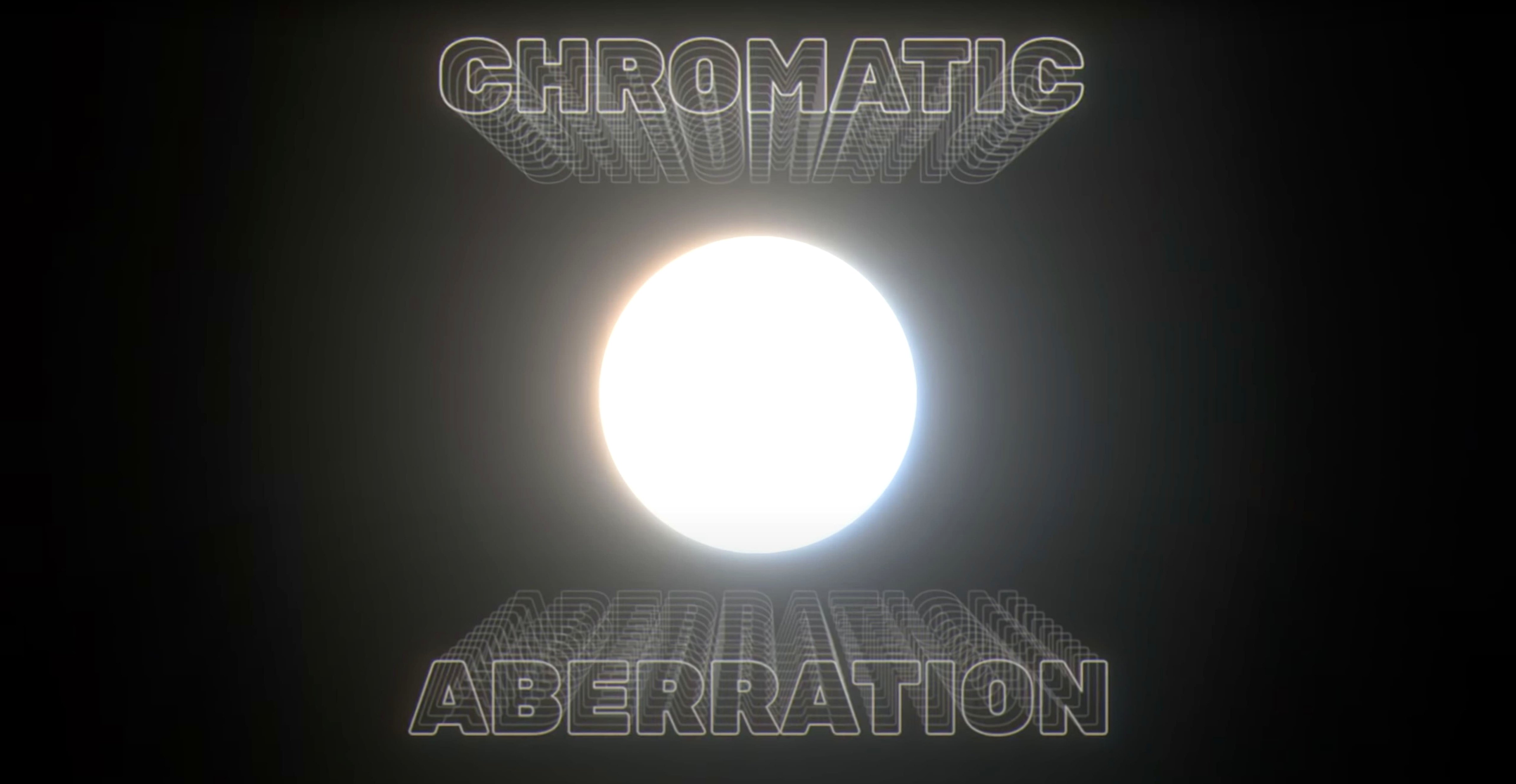
Compositors who blend CG elements into live-action plates also find it useful. The compositing controls make it easier to seat a glowing element in a scene, rather than having it float above the frame. The ability to introduce grain or a slightly rough quality helps here too: a perfectly smooth glow can look synthetic against camera footage, and a touch of texture goes a long way.
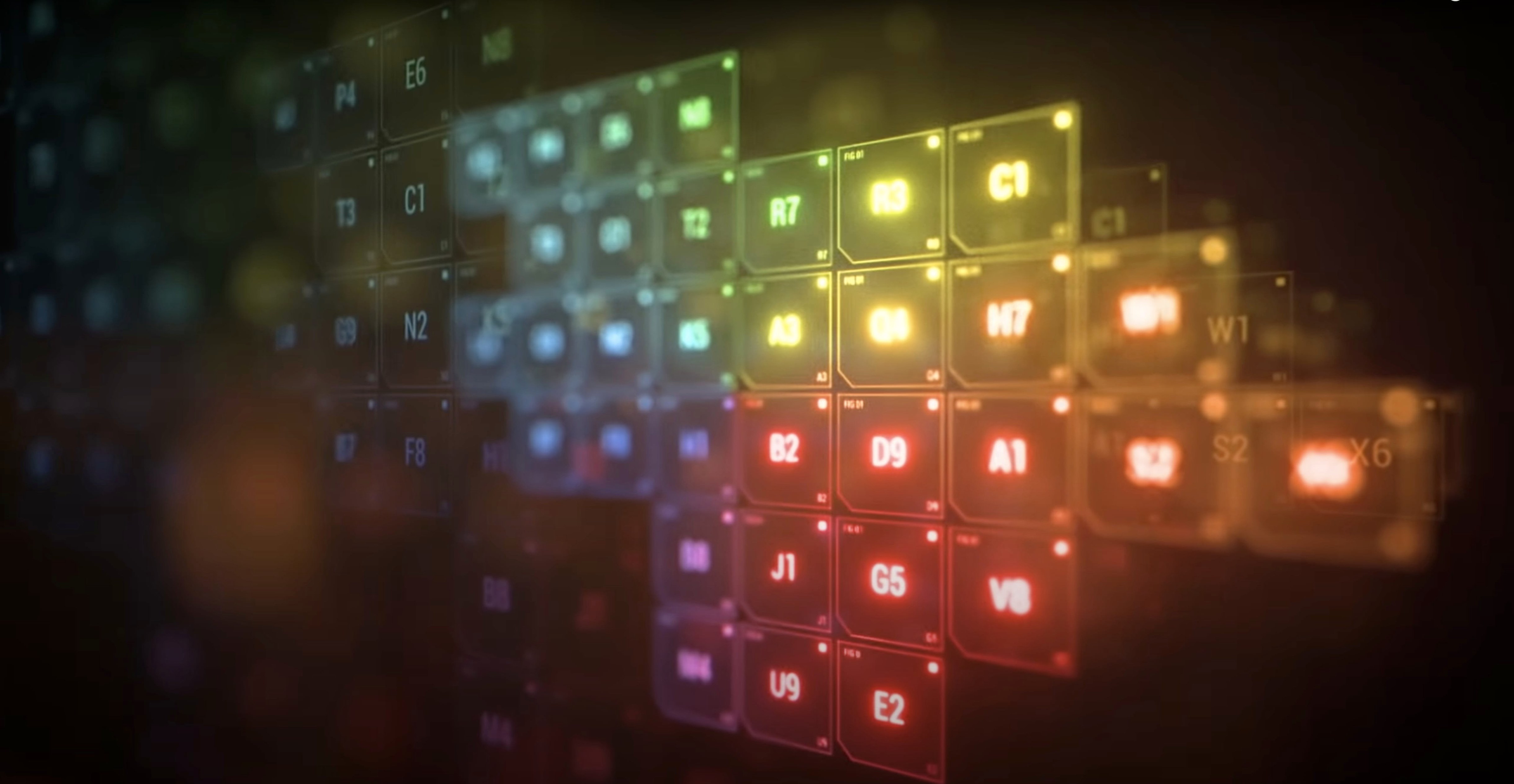
Less obvious but equally well served are designers who work in darker, moodier palettes. Deep Glow handles low-luminance sources with more restraint than many alternatives, which means a subtle ember or a faint neon reflection can be pushed without turning into a white blob. If your work leans on atmosphere rather than spectacle, the effect rewards a light touch.
Replacing built-in glow: a different approach, not a drop-in swap
One of the first questions is whether Deep Glow replaces the native glow effects in After Effects. It does not replace them; it offers a different approach. Some projects still call for the simpler, faster built-in options. Deep Glow earns its place when the falloff, the compositing or the textured quality matters.
Another frequent question concerns the GPU requirement. The plugin uses GPU acceleration for processing, so a Mac with a discrete graphics chip will see the clearest benefit. That said, Apple Silicon machines with integrated graphics handle it well, and Intel Macs remain supported. The architecture builds cover both ARM and x86 64-bit, so installation is straightforward on either side of the transition.
People also ask whether the grain and stylisation are fixed or adjustable. They are adjustable, but they are not the main event. The effect is a glow first; the texture controls let you push it toward a grittier look when the material calls for it. If you want heavy film grain, you will likely pair Deep Glow with a dedicated grain tool.
Finally, there is the question of whether it slows down a project. The honest answer is that any high-quality glow costs render time. The downsampling and quality controls exist precisely so you can choose where to spend that budget. For previews, spend less. For finals, spend more.
Independent downsampling: keep the comp responsive while you dial in detail
Some of the most useful behaviour is easy to overlook. The downsampling control, for example, works independently of the main quality setting, which means you can keep your composition responsive while you adjust other parameters and then restore full detail for the render. It is a small thing, but it becomes second nature.
The compositing controls also reward experimentation. Because they operate within the effect itself, you can try different blend modes without adding extra adjustment layers or duplicating footage. A single instance of Deep Glow often does what would otherwise require a small stack of effects.
If you work with grainy or stylised glows, the texture settings are worth revisiting on each project rather than copying from the last one. Footage with different contrast and noise characteristics responds differently, and a setting that looked right on one shot can feel heavy on another. A quick pass at the start of each job keeps the look consistent.
It is also worth remembering that Deep Glow responds well to pre-composed sources. Feeding it a clean, isolated highlight — a text layer, a logo, a matte — gives you far more control than applying it to a busy frame. The same settings produce very different results depending on what the plugin sees, and a little preparation upstream saves time downstream.
Downsampling and quality settings let you balance render speed against precision. The result stays inside After Effects — no round-tripping to another application.







Correspondence 0
Take a chair or join the table to send a letter.
No correspondence on this note yet. Letters are read before they appear.