 LeCoqRoti
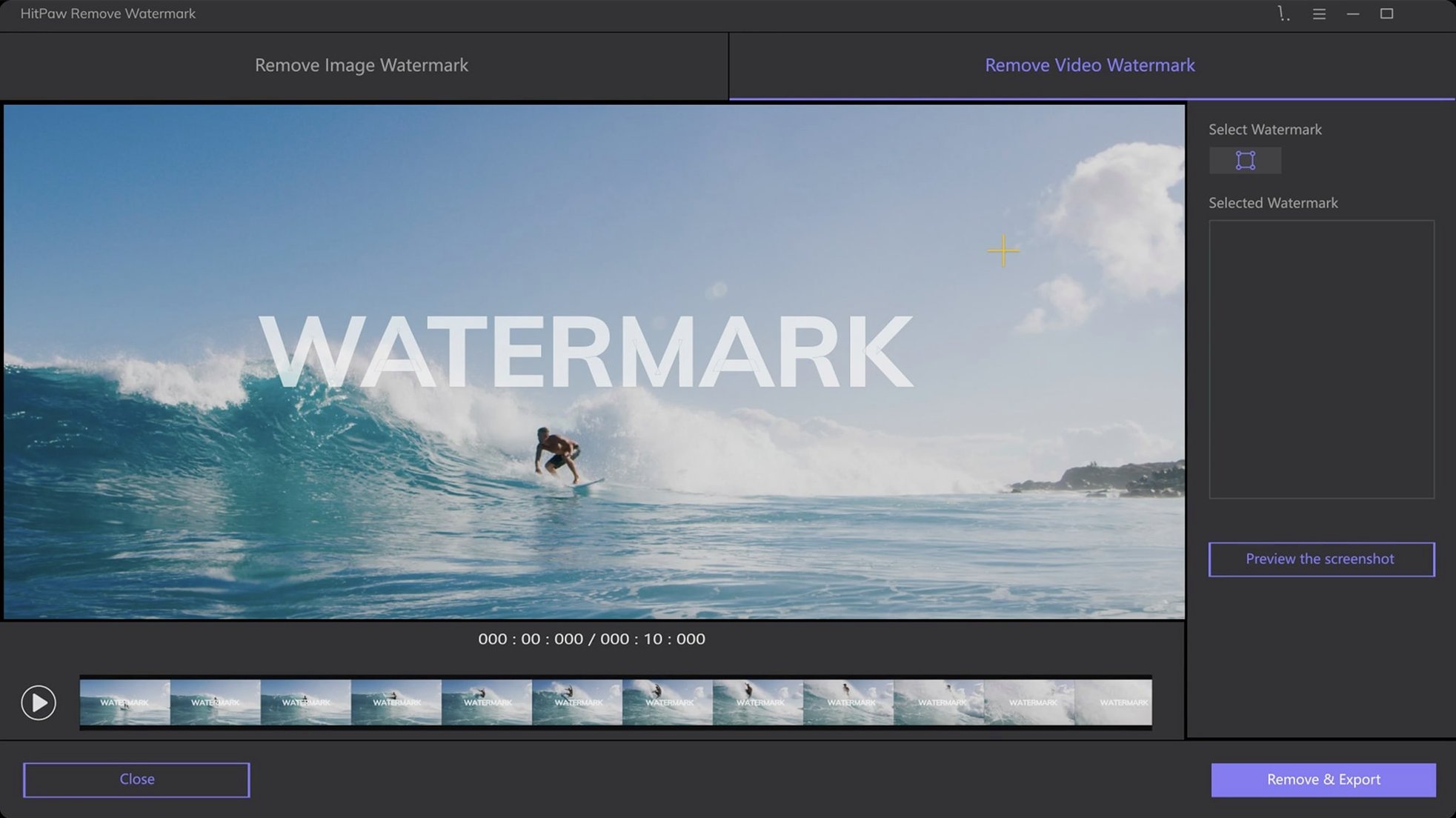
A video editor has just received a batch of drone footage for a short film. The clips are well-composed, but one of them contains a timestamp burnt into the lower-right corner that needs to disappear before the first assembly cut.
One clip, from import to clean export
- File selection: The app accepts a wide range of video containers, including MP4, MOV, AVI, MKV, and WebM. The editor drags the offending clip straight onto the interface.
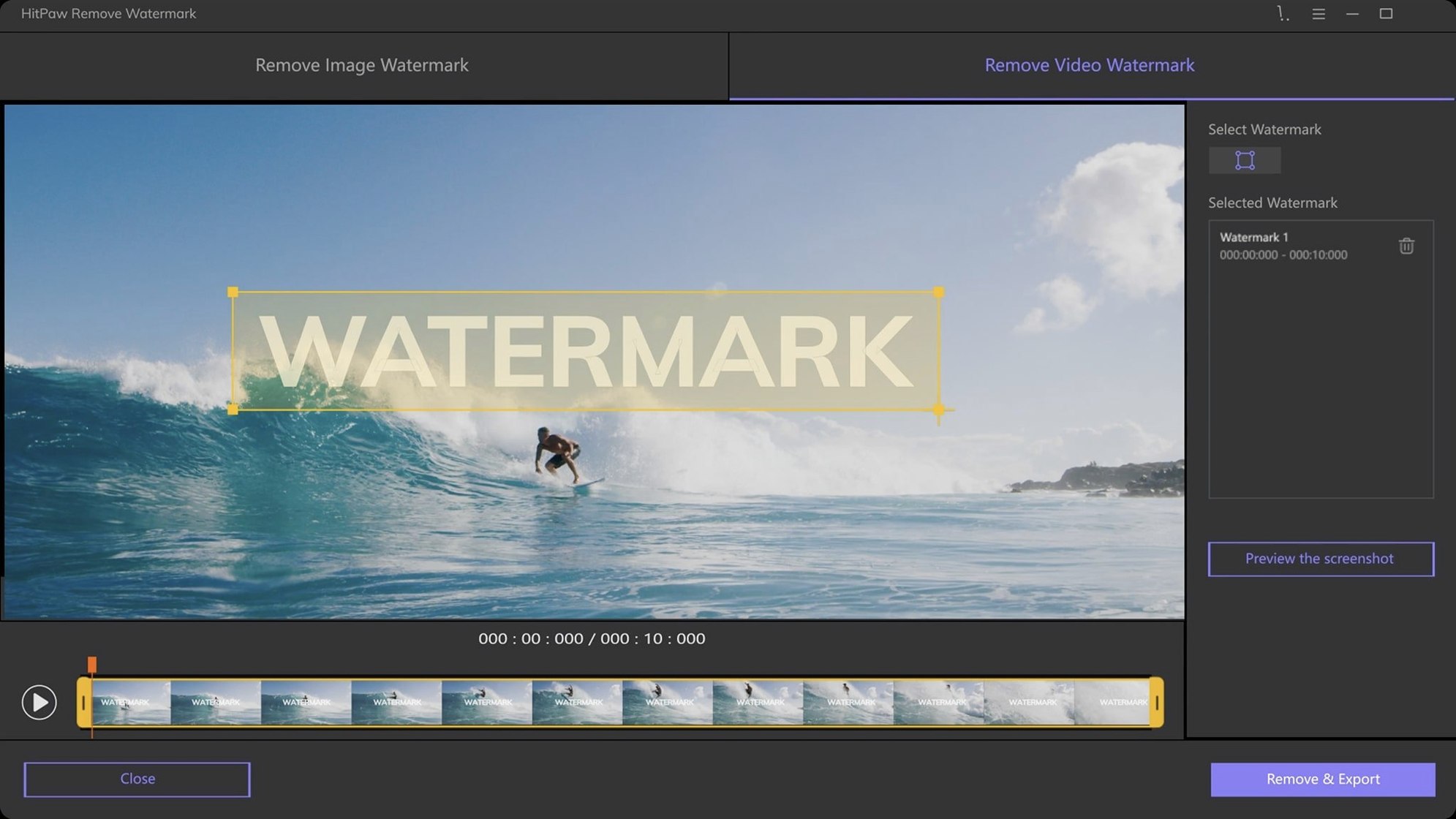
- Marking the object: A rectangular selection tool defines the area of the timestamp. The preview window updates immediately.
- Choosing a removal mode: Three modes are available — smooth filling, edge filling, and texture repair. For a static timestamp against a slowly changing sky, texture repair blends the patch by sampling the surrounding pixels.
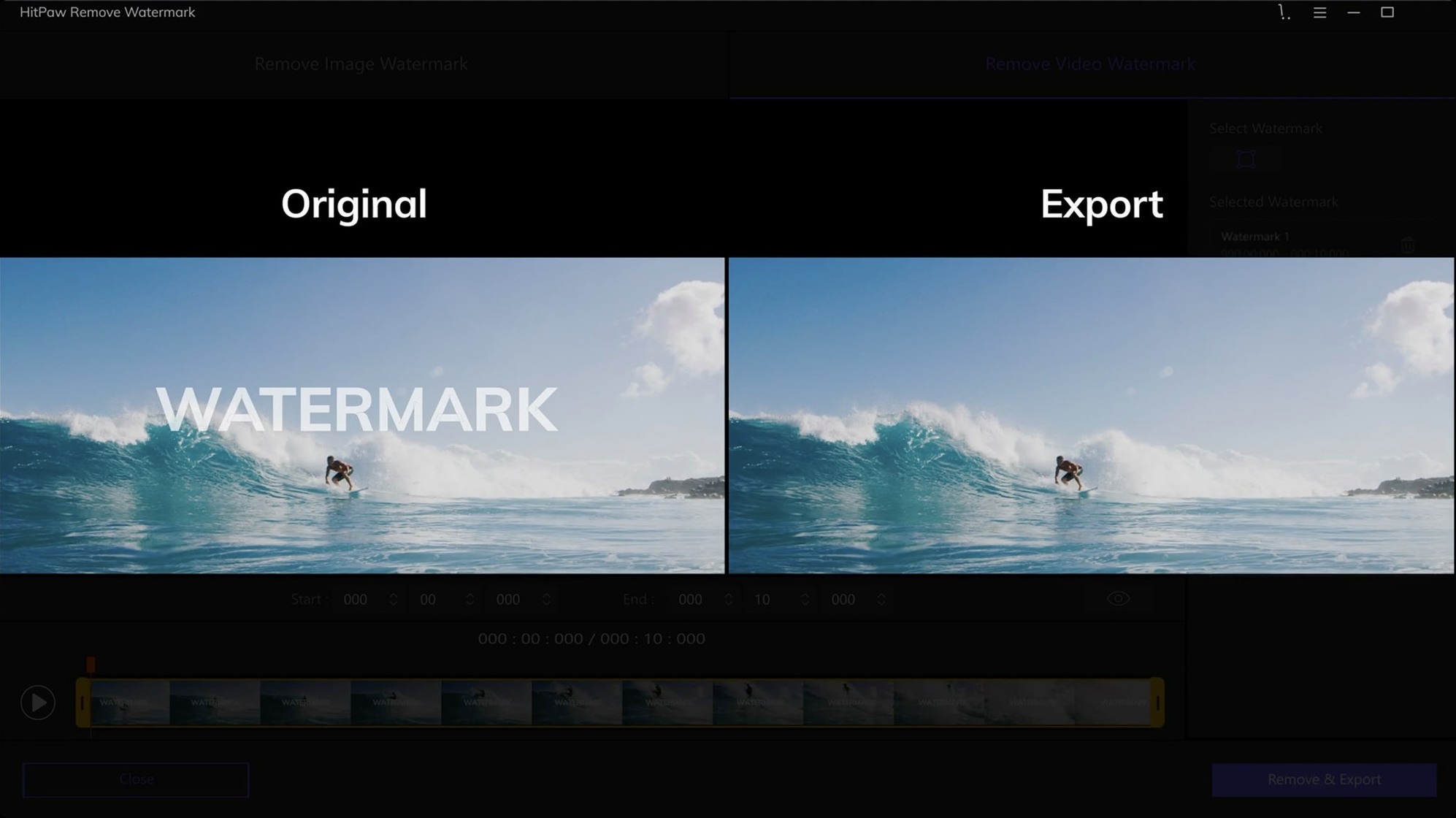
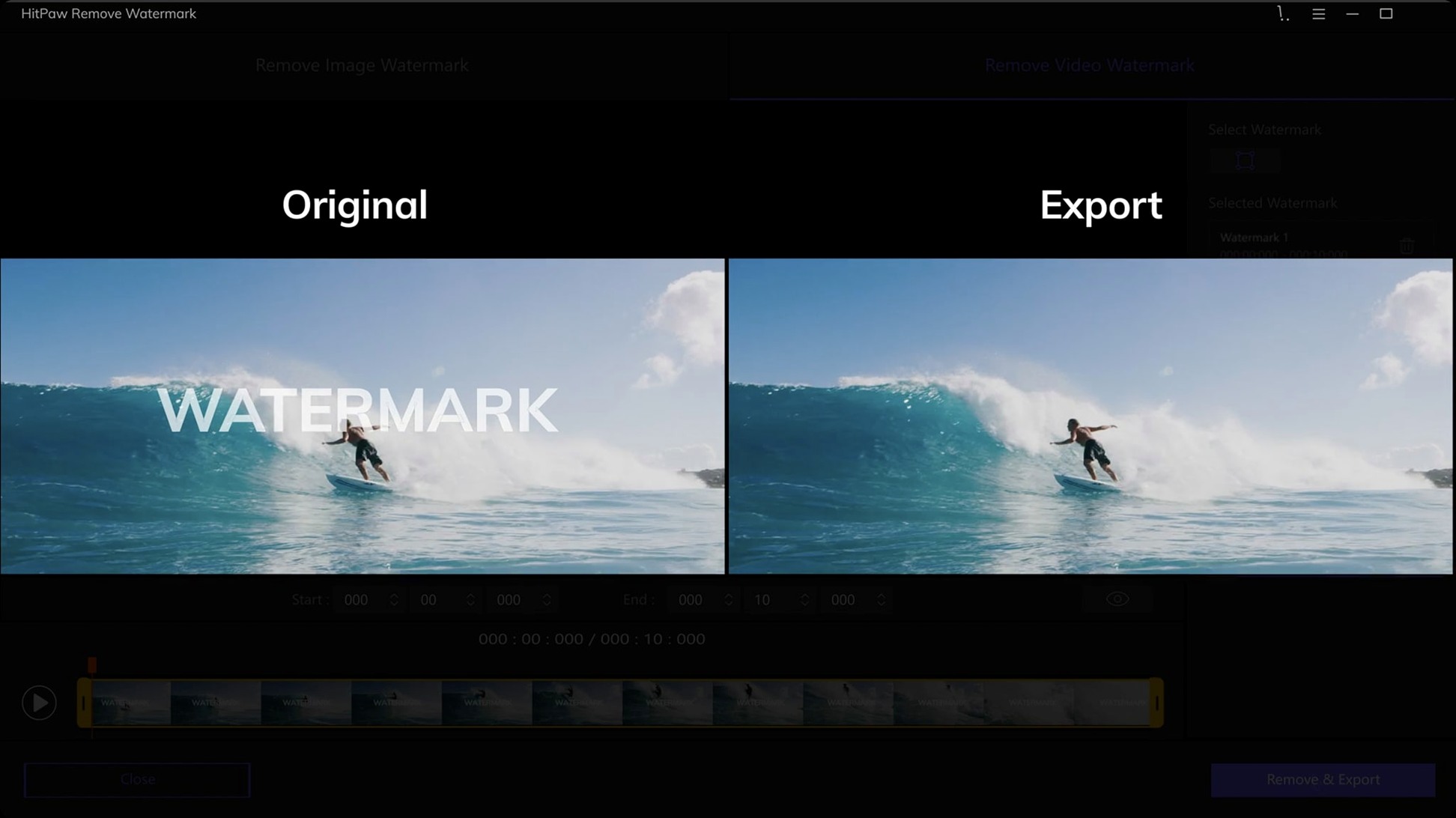
- Processing and review: The app renders the chosen segment. The editor scrubs through the result to check the patch holds across the full duration.
- Export: The cleaned clip is saved as a new file, ready to join the timeline.
Interface: calm and utilitarian
The layout is deliberately simple: a large preview, a timeline strip, and a column of controls. No panels compete for attention. The same toolset applies to still images — JPEG, PNG, WebP, and BMP files are supported — so removing a logo from a photograph follows an identical selection-and-fill logic.
Mistakes beginners make: three habits that waste time
The interface is gentle enough that most people produce a clean result within minutes, but a few early habits can turn a straightforward removal into a frustrating afternoon.
Selecting too tightly around the watermark. When the selection hugs the edges of a logo or timestamp, the fill algorithm has very little surrounding texture to sample from. A looser rectangle — one that includes a margin of background — almost always produces a more natural blend, especially in scenes with gradients or fine detail.
Processing the entire clip without a test segment. A three-minute video with a moving object can take a while to render. Beginners often select the full duration, click process, then discover the fill mode was wrong for frame 200 onwards. Trimming the timeline to a short representative section first — perhaps ten seconds where the background shifts — saves a good deal of waiting.
Using smooth filling on textured surfaces. Smooth filling works well on flat colour fields, but applying it to grass, gravel, or fabric creates a visible blur patch. The texture repair mode is the better choice for those surfaces; edge filling sits somewhere in between, useful when the watermark crosses a distinct boundary like the edge of a building against sky.
Removal philosophies: one-click erase versus granular sampling control
Several tools promise watermark removal on macOS, but the approach differs enough to affect which one suits a particular workflow.
Against Adobe Photoshop (using the Content-Aware Fill workspace), HitPaw occupies a simpler niche. Photoshop offers granular control over sampling areas, rotation adaptation, and mirroring — powerful for a single frame, but it is not a video tool. For a still image with a complex background, Photoshop’s results can be superior; for a two-minute clip, it simply does not apply. HitPaw’s advantage is that it treats video natively, without requiring a round-trip through an editing suite.
iMovie cannot remove watermarks directly — there is no fill tool, no object removal brush. The closest workaround is cropping the frame or placing a blur box over the mark, both of which alter the composition. Users searching for ways to add watermark to iMovie will find built-in title overlays, but the reverse operation demands a dedicated utility. HitPaw fills that gap without touching the project file.
VideoProc Converter AI includes an object removal module that handles moving watermarks better than HitPaw’s current version. Where a logo travels across the frame, VideoProc’s tracking can follow it automatically, whereas HitPaw requires manual repositioning of the selection per segment. On the other hand, HitPaw’s still-image support and drag-and-drop simplicity make it quicker for the one-off jobs — a single timestamp, a static logo in the corner — that dominate most removal requests.
Hidden lasso: freeform selection for irregular marks
A few details in the interface do not announce themselves, but they shape the daily experience once discovered.
- Freeform selection for irregular marks. The rectangle and triangle tools are obvious; the freeform lasso is tucked next to them. It is the right choice for a watermark that wraps around a curved object, like a bottle label or a shirt logo, where a geometric shape would force a compromise.
- Timeline scrubbing with the preview linked. Dragging the playhead updates the preview frame instantly — no need to pause, adjust, and re-preview. This makes it easy to find the exact frame where a background pattern changes and test the fill mode at that moment.
- Multiple selections on the same frame. The app allows placing more than one selection box on a single image or video frame. Removing two separate watermarks in one pass is faster than processing the file twice.
- Drag-and-drop from Finder. The interface accepts files pulled directly from a folder, bypassing the file-picker dialogue entirely. For a project with a dozen watermarked stills, this small gesture cuts the repetitive open-and-navigate steps.
Logo strippers: social media editors repurposing stock and user clips
The tool is not trying to serve everyone, and that focus makes it more useful for a few specific groups.
Social media editors and content repurposers who receive stock footage or user-generated clips often need to strip a platform logo or a creator watermark before the material enters their own timeline. The app handles the common file types — MP4, MOV, WebM — directly, without transcoding, so a quick removal does not turn into a format-conversion chore.
E-commerce photographers working with product images on a plain background benefit from the smooth filling mode. Removing a supplier’s watermark from a JPEG before posting it to a storefront takes under a minute per image; the batch of twenty shots for a catalogue becomes an afternoon task rather than a multi-day retouching project.
Educators and presenters who compile video clips from various sources for lectures or workshops frequently encounter burnt-in timestamps and channel logos. Because the app runs on Intel Macs under macOS 10.13 and later, it fits older classroom machines that cannot run the latest Creative Cloud suite. The straightforward interface also means a teaching assistant can prepare the clips without specialised training.
Users who need automatic moving-object tracking or 4K real-time previews may find the tool too modest, but for the static-mark removal that makes up the bulk of everyday requests, its narrow scope is precisely what keeps it fast and predictable.








Correspondence 0
Take a chair or join the table to send a letter.
No correspondence on this note yet. Letters are read before they appear.