 LeCoqRoti
Working with files stored on a remote server often means juggling a standalone transfer client: download, edit, upload, repeat. The friction is small but constant, and it breaks the rhythm of simply opening a document from a familiar place.
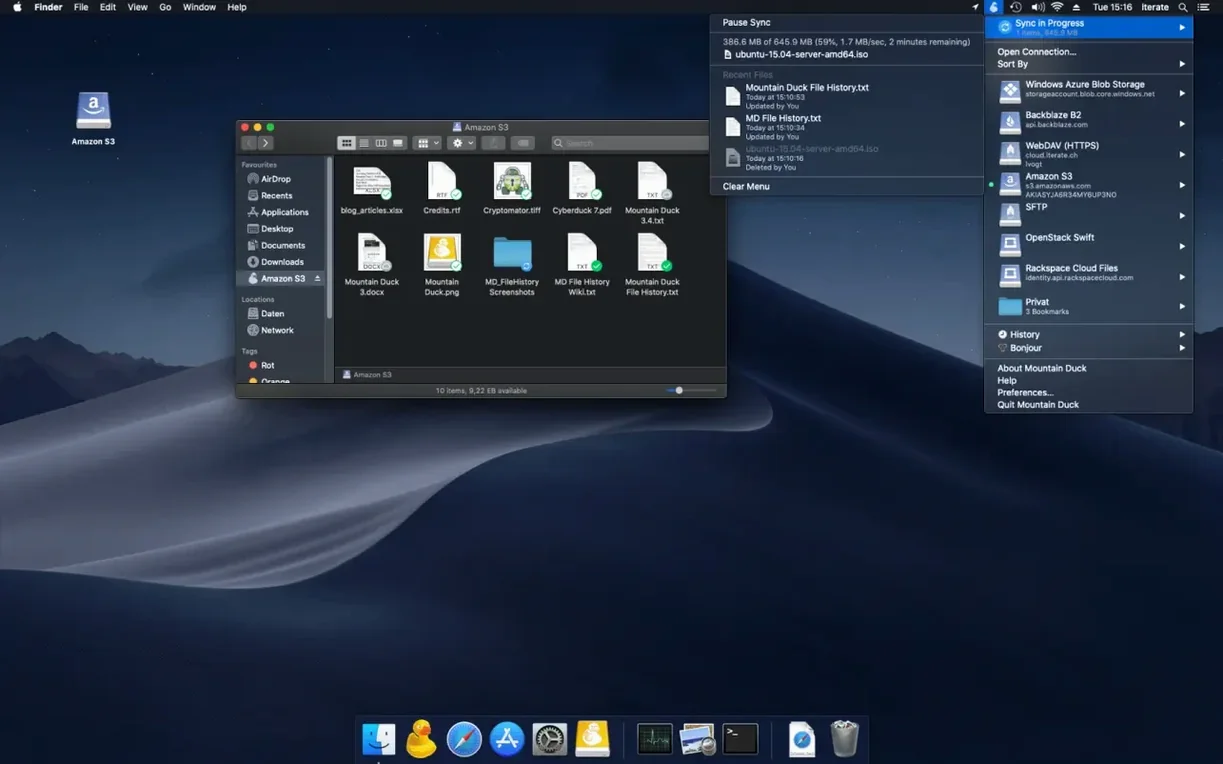
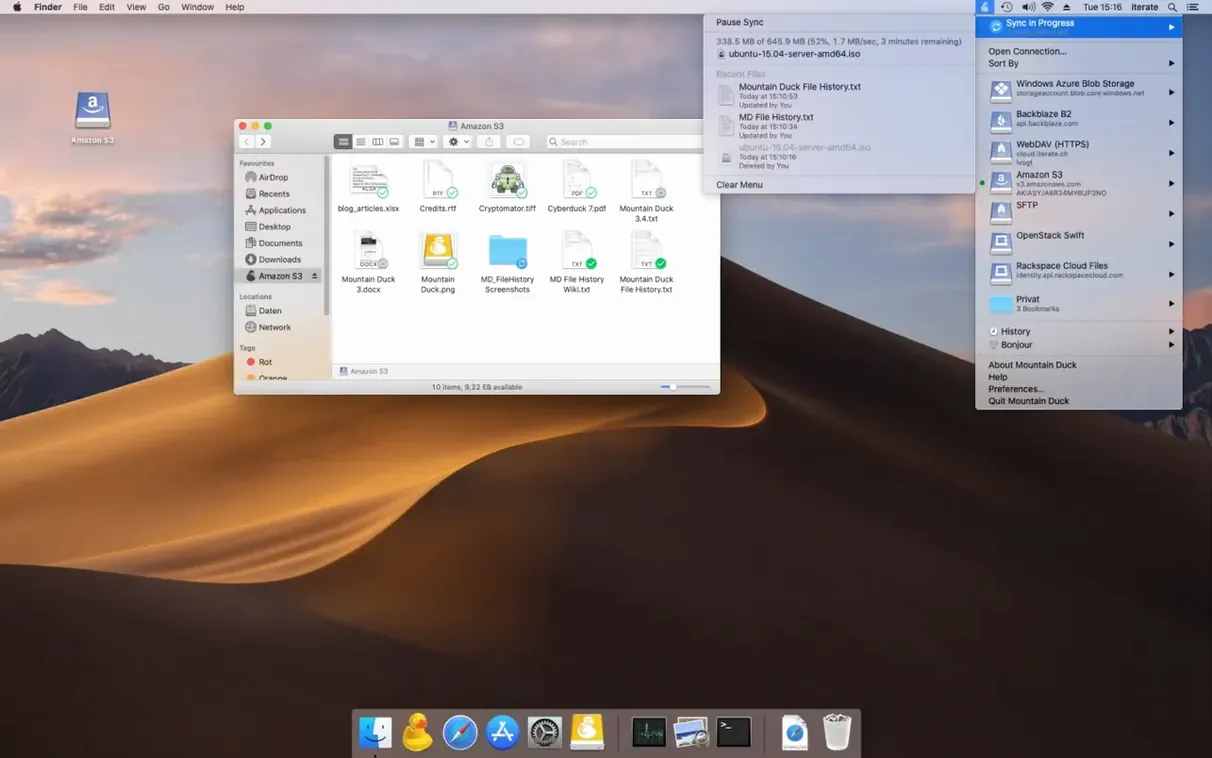
Mountain Duck removes that loop entirely. It mounts remote and cloud storage as a standard disk in Finder. Once connected, a server appears like any external drive, and every application on the Mac can open and save files there directly. Edits are uploaded in the background whenever a connection is available, so the remote copy stays current without an extra step.
The software speaks a broad set of protocols. Version 5 added SMB support alongside existing connections to FTP, SFTP, WebDAV, and cloud services. If you already use Cyberduck, Mountain Duck shares its bookmarks, which makes the transition from a transfer tool to a mounted volume nearly invisible. For sensitive material, the app supports encryption at rest through compatible Cryptomator vaults — the drive is unlocked locally, but the data on the server remains opaque to anyone without the key.
Mountain Duck suits anyone who prefers the Mac they already know over a separate file-transfer interface. It does not sync everything upfront; files are cached only when accessed, so a large remote repository does not flood the local drive.
Finder tags and Quick Look: works like a local disk
Because the mounted volume behaves like any local disk, it slots into workflows that rely on Finder tags, Spotlight indexing, and Quick Look. Tag a remote file with a colour, and that tag travels with the bookmark — Mountain Duck does not strip metadata that the host protocol can carry. Spotlight can index the locally cached portions of a drive, so a search for a client name will surface the relevant proposal even if the original sits on an SFTP server in another time zone.
Applications that watch folders also work without special configuration. A Hazel rule that renames and sorts invoices will fire when a new PDF lands in the mounted Backblaze B2 bucket. Alfred and Raycast launchers see the volume in their file-search scopes once the index is built. It is this ordinariness that makes the tool disappear: after the first connection, you stop thinking about the transport layer and simply work.
If Cyberduck is installed, the shared bookmark library means a server configured in one app appears immediately in the other. This is useful when a task calls for the transfer queue and detailed logs of Cyberduck, but the rest of the day only requires a Finder window left open to the same location.
Local file copies: only created when you open them
Does Mountain Duck duplicate my cloud files locally? Not by design. The app uses smart synchronisation: a file stays on the remote server until you open it, at which point a local copy is cached. Files or folders you explicitly mark as “keep offline” are the exception — those remain on the local disk even when the connection drops. Everything else behaves like a library book checked out only when needed and returned when the cache is cleared.
Will it slow down Finder? Browsing a remote directory can feel a beat slower than a local SSD, because metadata has to cross the network. But the difference is rarely more than a slight pause on first listing. Once the directory contents are cached, scrolling and sorting are immediate. The app does not inject custom columns or overlays into Finder, so window drawing stays native.
Can I use it alongside iCloud or Dropbox’s own sync client? Yes. Mountain Duck mounts as a separate volume; it does not interfere with the sync daemons of other services. You can, for example, keep Dropbox running for shared team folders and also mount an S3-compatible archive through Mountain Duck. The paths do not collide.
Eject button in sidebar: just like a USB drive
Right-click a mounted volume on the desktop and choose “Show in Finder” — the sidebar reveals a subtle eject button next to the server name, identical to the one for a USB drive. Disconnecting is that simple. In the menu bar, the Mountain Duck icon offers a compact list of active mounts; option-click it to reveal the library window without hunting through System Settings.
When you copy a file path from Finder using Option-Command-C, Mountain Duck returns a path that other Mac apps can use, even though the file lives on a remote server. This works because the volume is presented through the file system, not through a custom URL scheme. Dragging a file from the mounted drive into a Terminal window pastes the full POSIX path under /Volumes.
Version 5’s integrated connect mode keeps the connection alive during brief network transitions — walking from Wi-Fi to Ethernet, for instance — without forcing a re-mount. The volume may pause for a few seconds but does not vanish from the Finder sidebar.
Finder sidebar toggle: keep your mount one click away
The default behaviour balances responsiveness with bandwidth, but a few adjustments make the experience feel more personal. In the General preferences, the “Show volume in Finder sidebar” toggle is on by default; leaving it on keeps the mount one click away. The “Automatically open new connection” checkbox, if enabled, will mount your most-used servers at login — a quiet timesaver for a machine that rarely leaves a trusted network.
Under the Sync tab, consider raising the cache size limit if you work with large media files. The default is conservative, and a higher threshold means fewer re-downloads when hopping between a Premiere project and its linked assets. If you handle sensitive material, the “Encrypt cache” option writes the local copy to an encrypted sparse bundle, so a lost laptop does not expose cached remote files.
For anyone experimenting with a mountain duck mac setup through an SMB connection, the Connect Mode selector under the advanced bookmark settings is worth a look. Switching from the default to integrated connect mode can improve stability on networks that drop packets, though it may slightly increase idle traffic. It is a trade-off best evaluated on your own Wi-Fi.
In short: a few minutes with the preferences turn a generic mount into a volume that feels like it was built for your particular desk.






Correspondence 0
Take a chair or join the table to send a letter.
No correspondence on this note yet. Letters are read before they appear.