 LeCoqRoti
Compatibility: which Macs it runs on
MouseBoost Pro requires macOS 10.11 or later and runs natively on both Apple Silicon and 64-bit Intel hardware. If your Mac can open the current Finder, it can run the extension.
Find files and folders: three quick routes
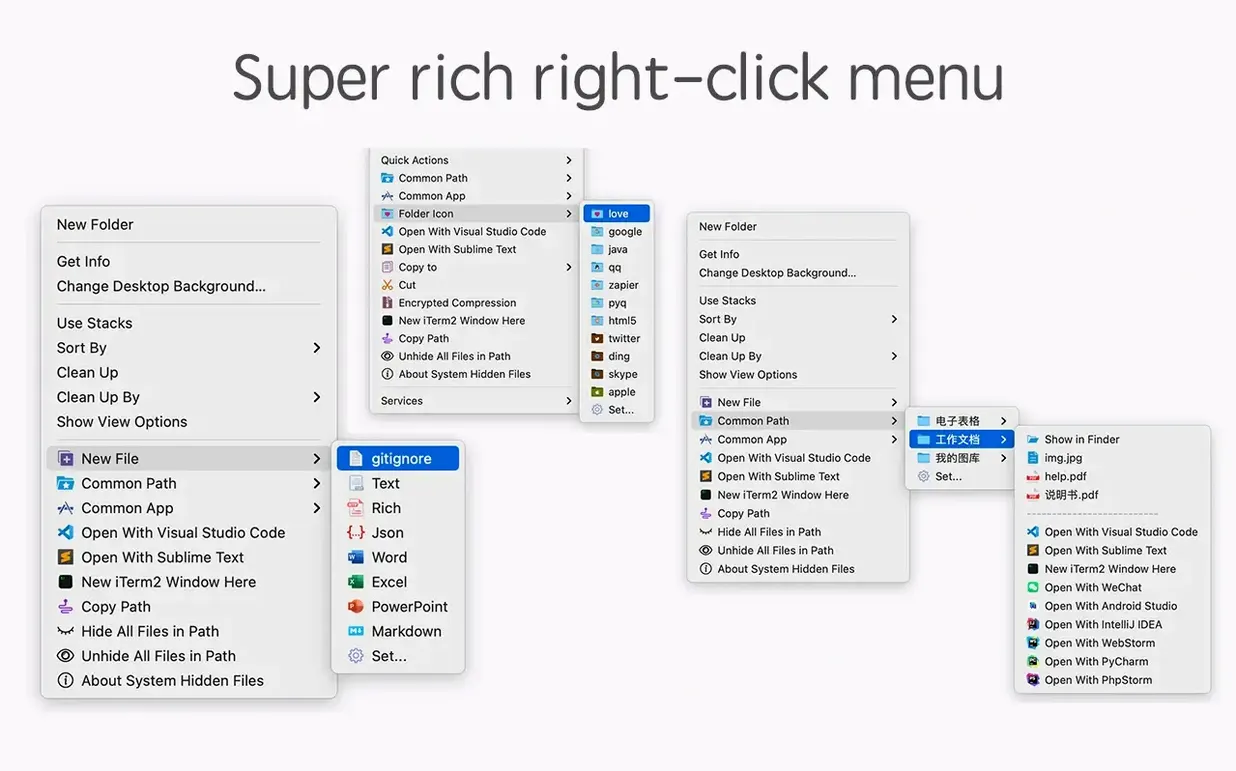
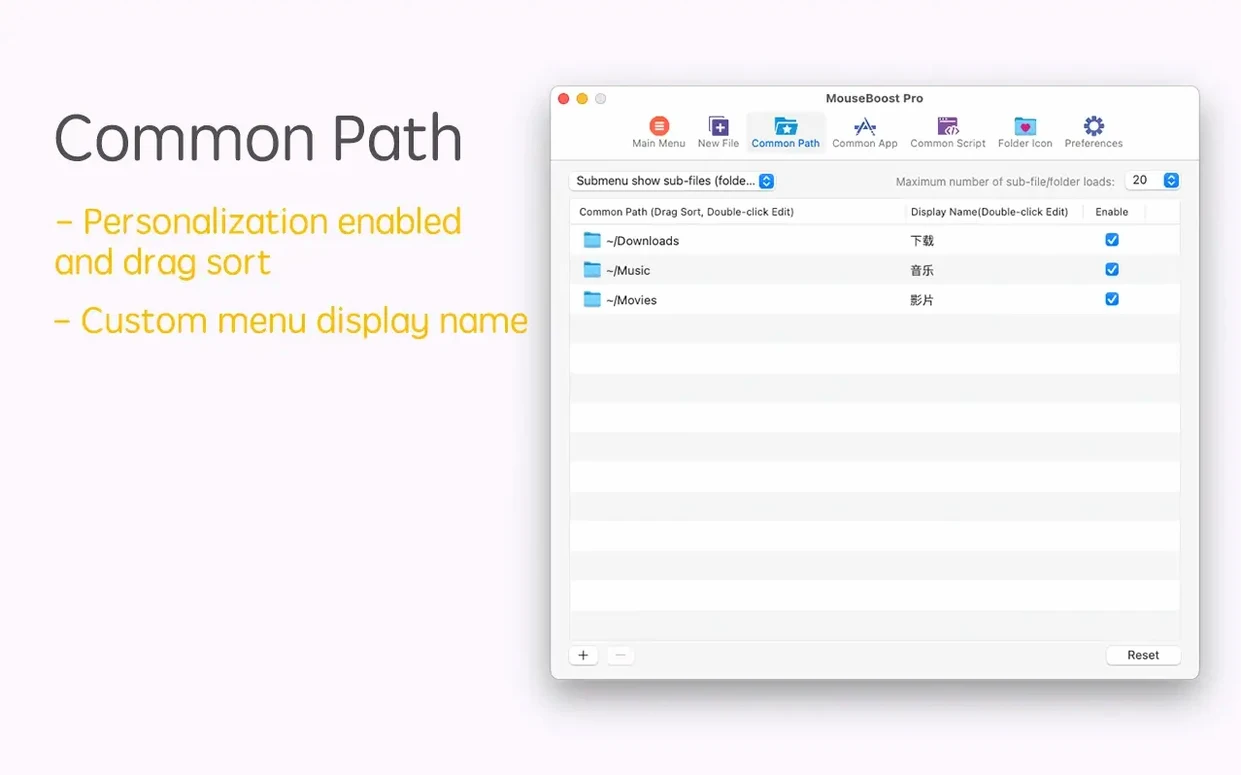
The right-click menu can open a favourite folder directly, reveal hidden files on demand, or generate a file tree with a configurable depth setting. A recent update added quick preview for those folder trees, so you can check the structure before exporting it.
Create and organise: beyond copy and paste
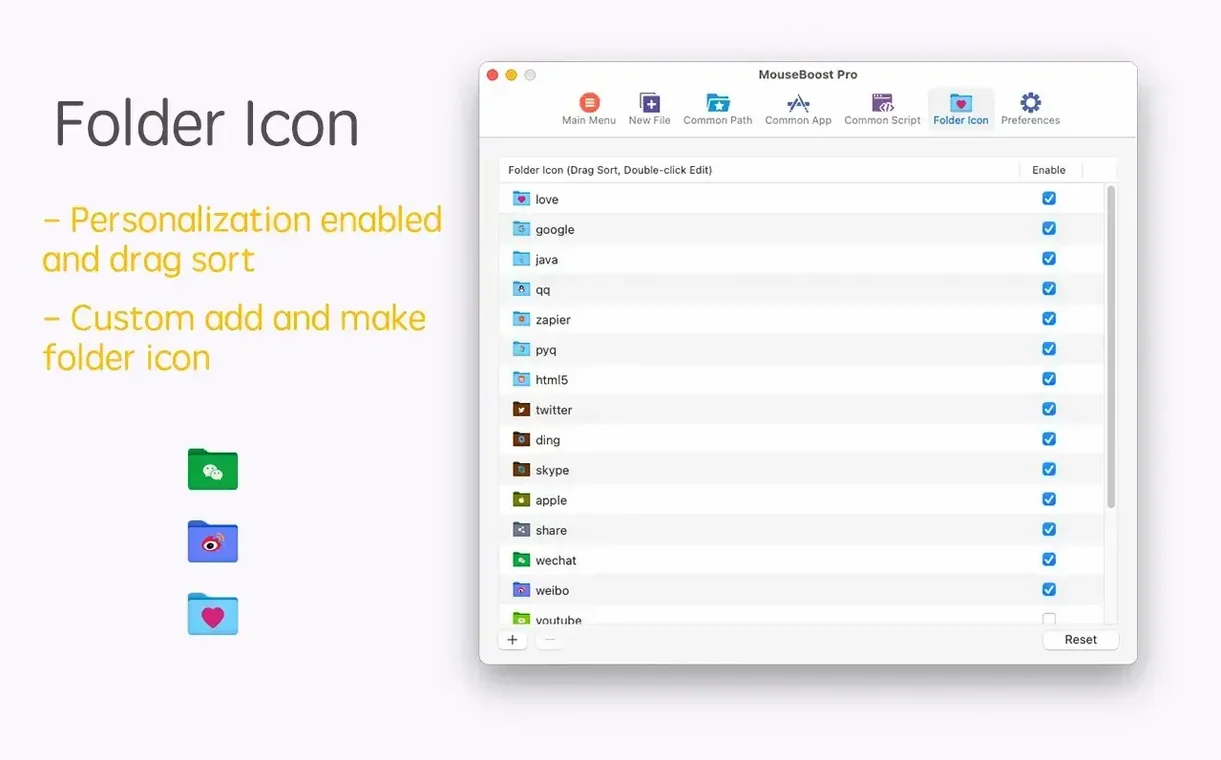
Standard move, copy, and cut actions sit alongside more than thirty small utilities. You can change a folder’s icon without leaving the Finder, create commonly used file types from a custom list, or batch-rename files by inserting text at a specific position — a new addition that makes naming sequences far less manual.
Overlooked touches: small shortcuts that repay attention
A few of MouseBoost Pro’s gestures are subtle enough to miss during a first pass. Right-click a file and choose Copy Path: the path lands on the clipboard in a single step, no ⌥⌘C required. The Permanent Delete command bypasses the Trash entirely — useful when you are clearing build artefacts or duplicates you know you will never reclaim.
When you zip a folder through the context menu, an Encrypted Compress option is right there. It prompts for a password and wraps the archive in AES‑256 encryption without opening a separate utility. Another shortcut: holding a modifier while clicking a favourite folder opens it in a new Finder window instead of replacing the current one. The app never advertises this, but it follows the same muscle memory you already have from the Dock.
Terminal launchers: right-click straight into iTerm2 or VSCode
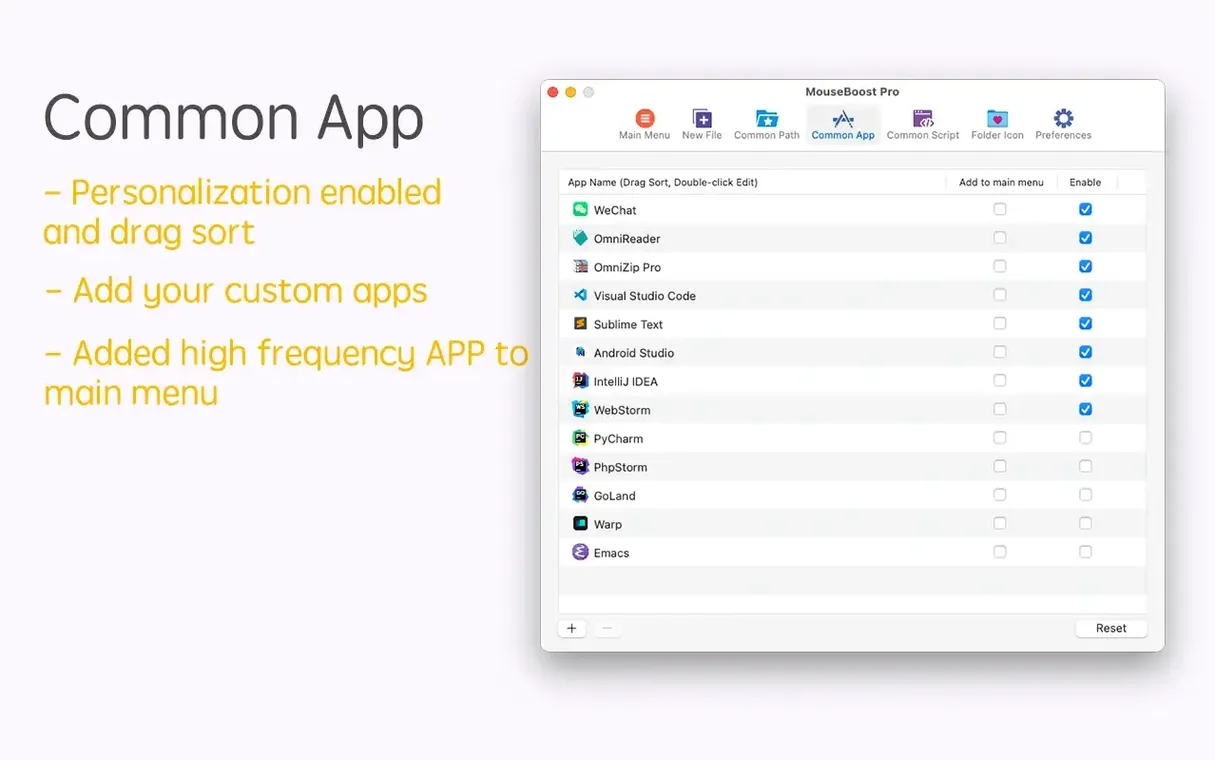
Developers tend to adopt the terminal shortcuts first. Right-click any folder to open iTerm2, VSCode, Sublime Text, or Emacs with the working directory already set. The menu becomes a launcher that saves half a dozen keystrokes twenty times a day. MouseBoost Pro fits neatly into workflows that already centre on the Finder, which is why it quietly appeals to people who live in project directories.
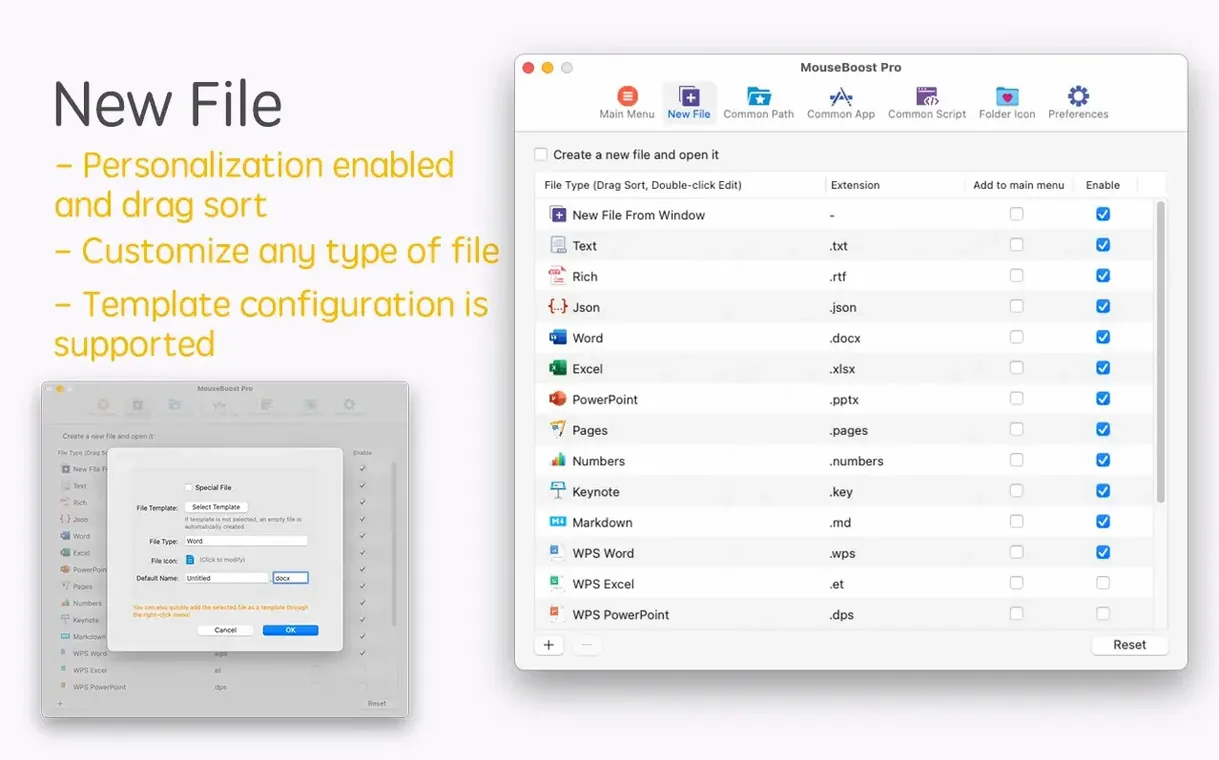
Designers and video editors lean on the file‑creation tools. A custom list of file types — say an Illustrator artboard template, a DaVinci Resolve project, or a folder structure for client assets — appears in the right-click menu and spawns a fresh named file instantly. The folder icon changer, meanwhile, gets heavy use from anyone who colour‑codes client folders or wants a project directory to stand out in list view.
A third group is the detail‑oriented organiser. Batch renaming with Insert Text at Position and Rename from List turns a chaotic folder of screenshots or exported frames into a coherent sequence. The file‑information panel, which calculates MD5, SHA1, and SHA256 checksums on the spot, gives them a quick verification step before sharing large assets. No Terminal window, no dedicated hashing app — just a right-click.
Menu sorting: drag top actions up and collapse the rest
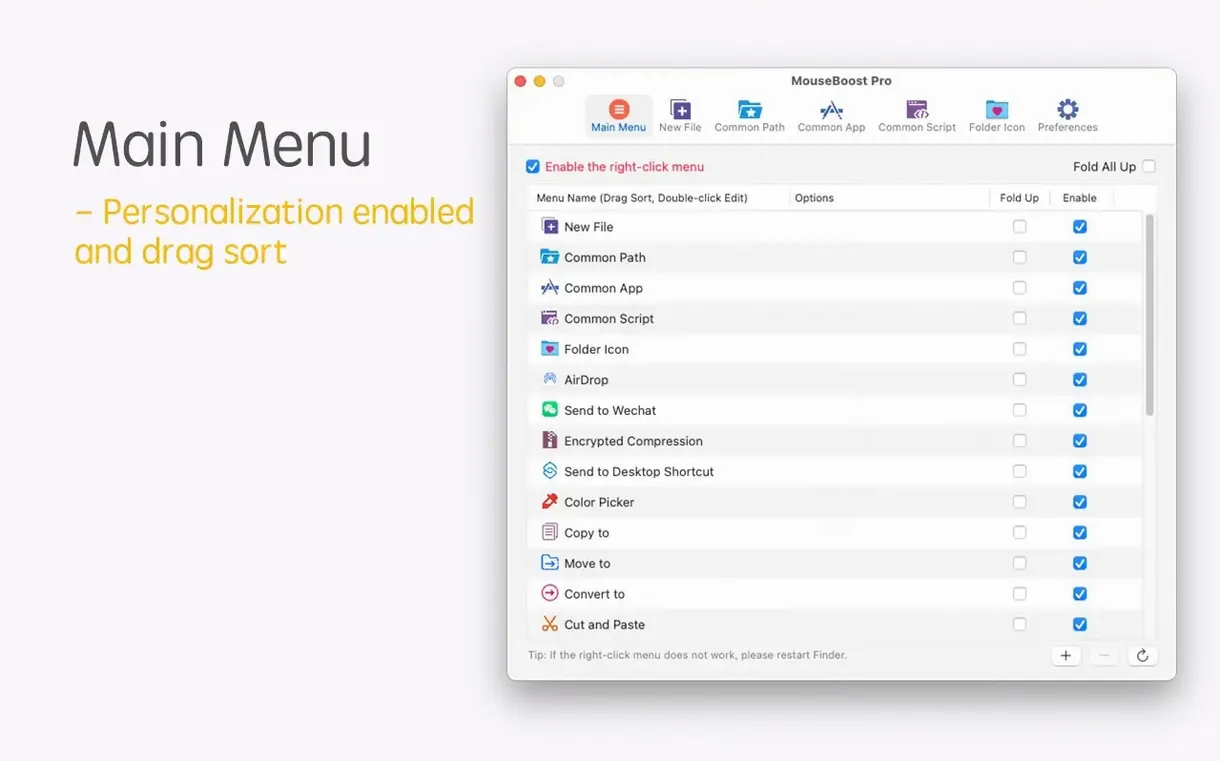
Launch MouseBoost Pro and open its preferences pane. The first productive change is sorting the menu: drag the actions you use most to the top and collapse the ones you never touch into a submenu. The app remembers the order globally, so every right-click reflects your own hierarchy.
Next, set a maximum depth for file and directory trees. The default depth catches everything; dialling it to three or four levels keeps the output readable. If you create custom file types, add their extensions in the New File section with a template file — the app clones it when you invoke the command, preserving layers, artboards, or project settings. Finally, enable Aspect Ratio Selection and Automatic OCR Copy if you capture screenshots often: the former keeps crops proportional, the latter pulls text from a captured region straight onto the clipboard without a separate OCR pass.
Version 5.2.8: what actually changed for daily use
The most immediately felt addition is Quick Preview for Folder Trees. Before, exporting a tree meant committing to a text file before you could check the structure. Now a preview panel shows exactly what the tree will contain, including the depth limit you set, so you can adjust before saving. It is a small shift with an outsized effect on accuracy.
Aspect Ratio Selection and Automatic OCR Copy arrived in the same release. The OCR feature is particularly practical: capture a region of a Zoom slide or a PDF mockup, and the text appears on the clipboard without intermediate steps. The batch‑renaming panel gained Insert Text at a Specific Position and Rename from List, which together handle sequential naming and one‑off replacements with less friction than the Finder’s built‑in tool. Scrolling capture was also improved; long web pages and tall code files stitch together more reliably than in the previous version.








Correspondence 0
Take a chair or join the table to send a letter.
No correspondence on this note yet. Letters are read before they appear.