 LeCoqRoti
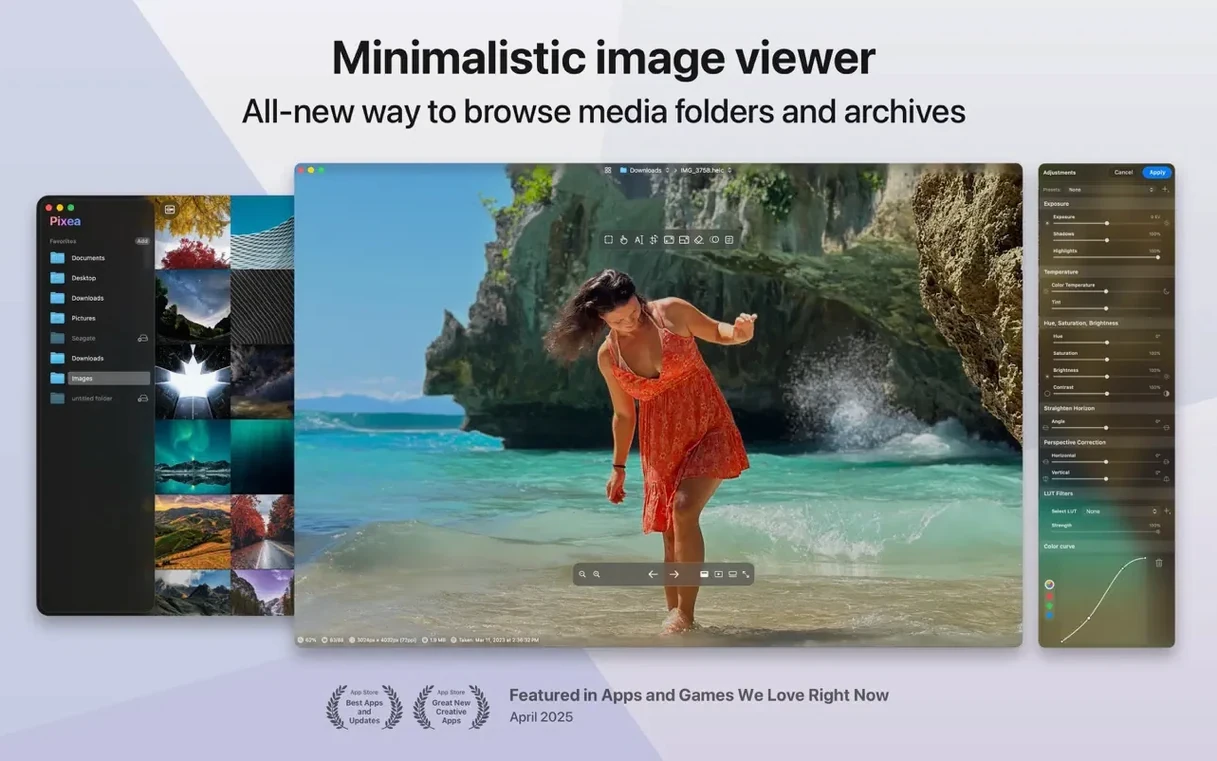
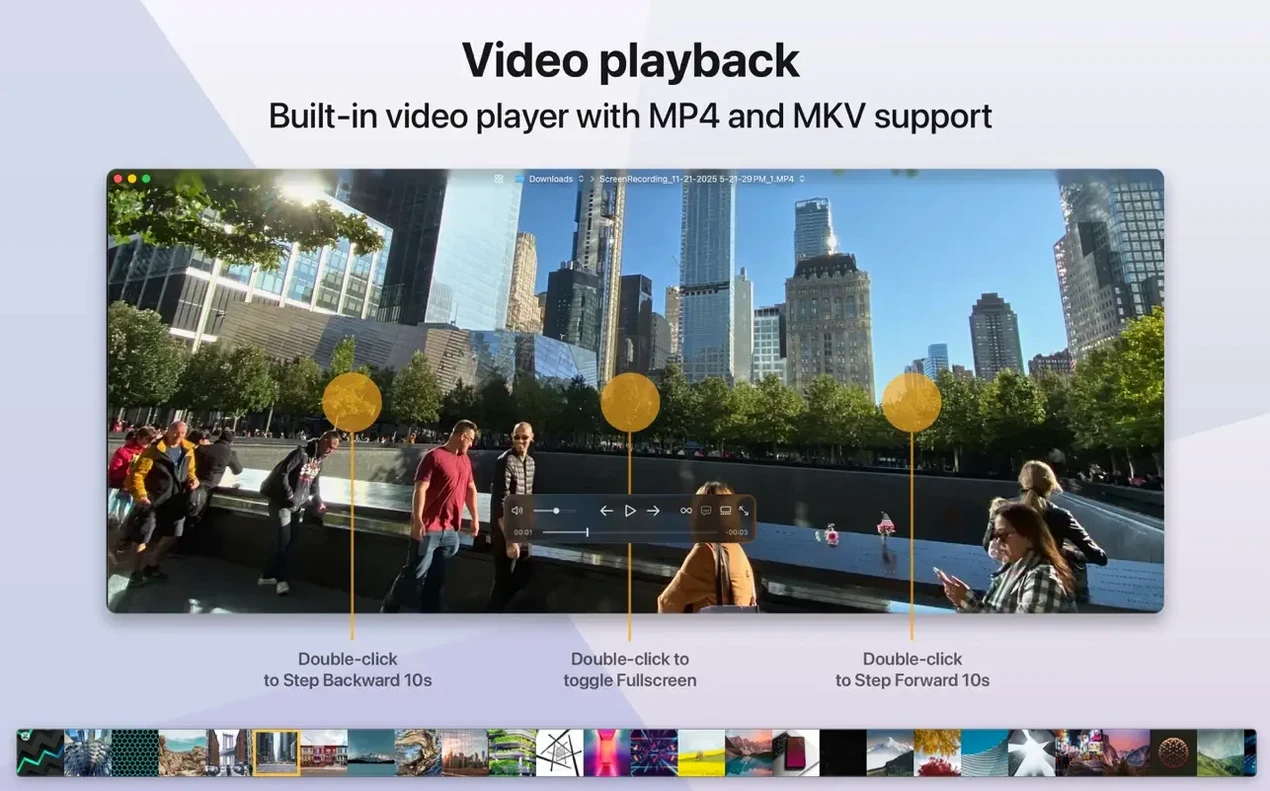
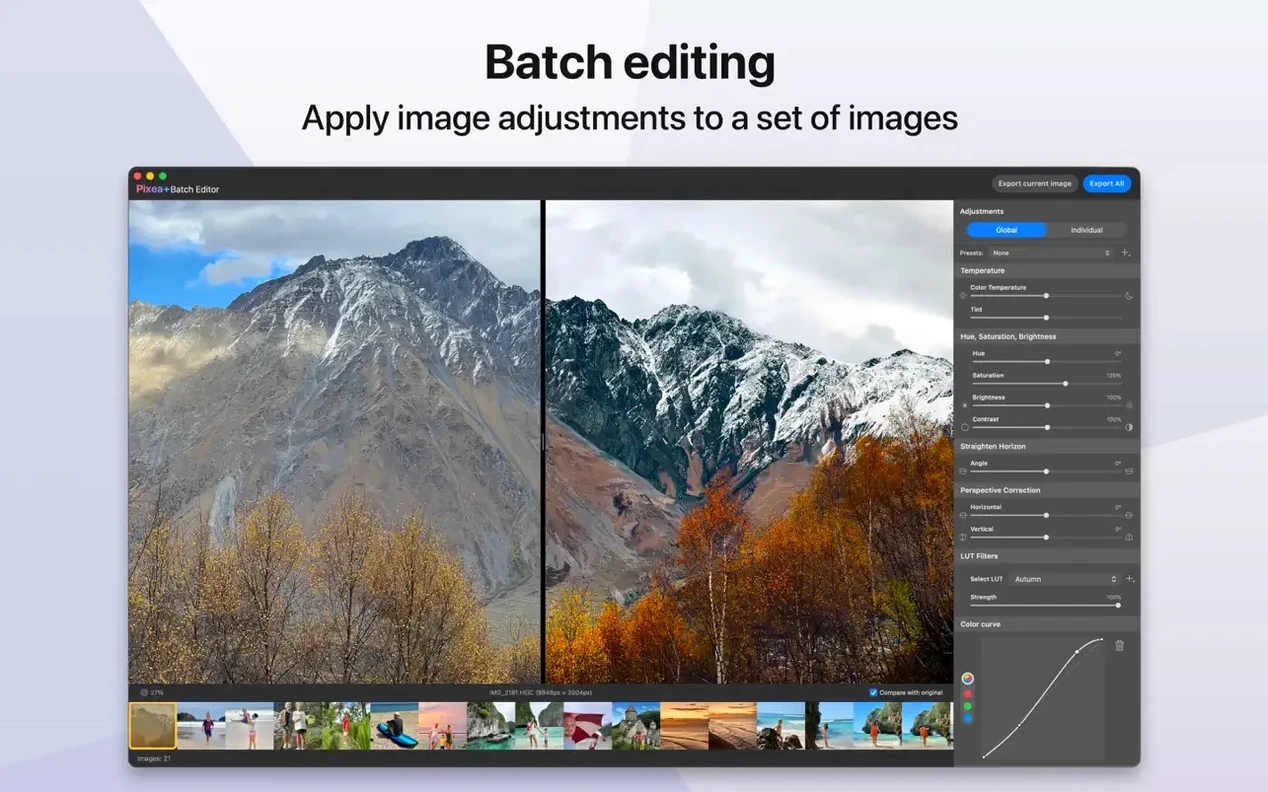
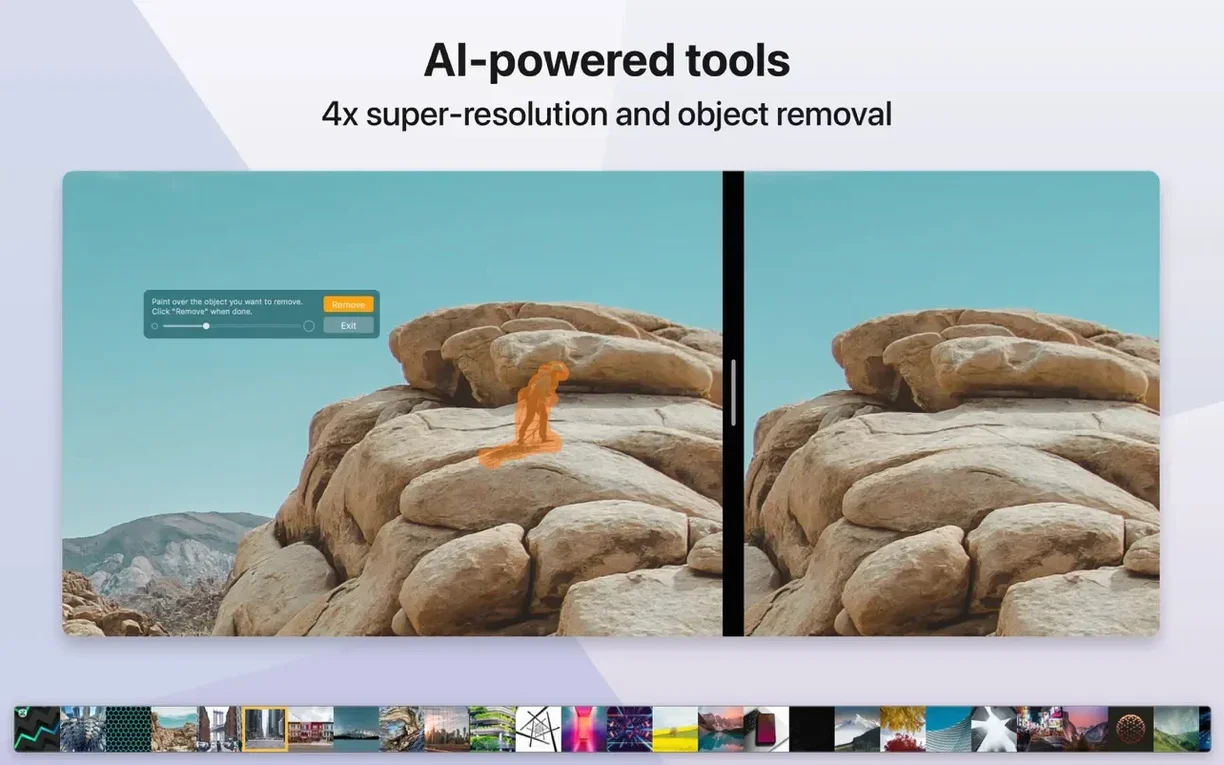
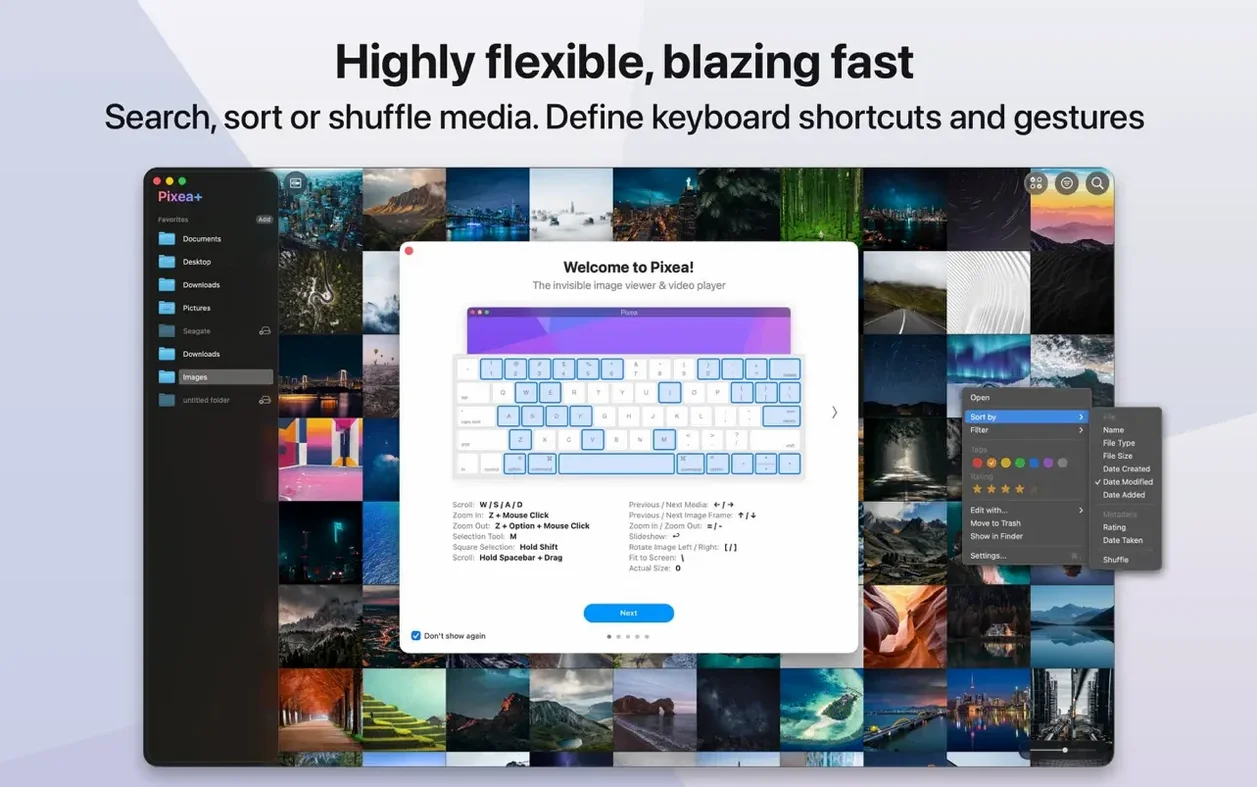
Pixea Plus is a straightforward macOS image viewer built for looking at files, not managing a library.
RAW and archive browsing: a format-friendly viewer
- Opening a wide range of formats: JPEG, HEIC, PNG, GIF, TIFF, PSD, BMP, WEBP, Radiance, and several RAW types.
- Browsing images inside ZIP archives without extracting them first.
- Making quick adjustments with built-in tools for flip, rotate, and the newly added masking.
- Working in a clean, minimal interface on macOS 11 and later, with native support for both Intel and Apple Silicon Macs.
Direct file handling: editing without catalogues
- It is an image viewer with basic editing, not a full photo editor or a catalogue-based library app.
- The feature set centres on direct file handling rather than batch processing or advanced retouching.
Immediate launch: no import dialogs to wait through
When you mount the Pixea dmg and drag the application into place, the viewer is ready to use immediately — no catalogues to build, no import dialogues to wait through. The first thing to notice is that Pixea Plus respects the Finder: double-click any supported image in a folder and it opens, then the arrow keys move you through the rest. That alone makes the first hour feel familiar.
One setting to adjust early is the background colour. The default is a neutral grey, but a pure black surround can change how you read contrast in darker photographs. You will find it under the View menu, and it applies instantly to the current window without affecting others.
A habit that pays off within a day or two: keep the Info panel visible. It shows a colour histogram and EXIF data in a single compact sidebar. For RAW files from a Fuji or Sony body, the lens and exposure details appear right there, which saves a trip to a separate utility. The histogram updates as you apply adjustments, so you see the tonal shift before you commit to saving.
If you regularly receive image archives, point Pixea Plus at a ZIP file. It opens the archive in place and lets you browse the contents as though they were extracted. This is not a feature every viewer offers, and it is useful when a client sends a batch of reference images in a single compressed folder — you can assess them without cluttering your drive with unpacked copies.
Folder structure: your files stay untouched
Does it try to replace the Finder or Photos.app? No. Pixea Plus is a viewer for individual files and folders. It does not import images into a proprietary database, nor does it alter your folder structure. You open what you want, when you want, and close it. Your existing photo library remains untouched.
Will it handle high-resolution RAW files from recent cameras? The supported list includes Leica, Sony, Olympus, Minolta, Nikon, Fuji, Canon, and Hasselblad. Performance on a large Hasselblad RAW is not instantaneous, but the optimised loading in version 8.3 helps: thumbnails appear quickly, and the full-resolution render follows without locking the interface. On an Apple Silicon Mac, the experience is noticeably fluid.
What about layered files — does it flatten them? Pixea Plus reads PSD files and displays the composite image. It does not expose individual layers, so it is better suited to reviewing a finished Photoshop document than to editing its structure. The same applies to the new Pixea Image format: layers are not part of the model, but masks and non-destructive adjustments are saved within the file.
Is there a way to try the masking tools without committing? Yes, and this is where the newly added undo and redo actions earn their place. You can paint an exposure mask, see the result, undo with ⌘Z, and redo to compare. The mask parameters — exposure, hue, saturation — stay adjustable until you save and close, so experimentation carries no risk of overwriting the original.
Space bar preview: quick sharpness checks before moving on
Several shortcuts sit just below the surface and reward a little exploration. Holding the Space bar activates a quick full-screen preview that dismisses when you release it — ideal for checking sharpness on a single image before moving on. The pinch-to-zoom gesture on a trackpad feels precise, and a double-tap resets the zoom to fit the window.
The scroll wheel behaviour changes depending on the modifier key you hold. Scroll alone moves through images in the current folder. Hold ⌘ and scroll to zoom in and out. Hold ⌥ and scroll to step through the image frame by frame in an animated GIF. This last one is particularly handy for reviewing motion design assets without opening a dedicated animation tool.
One hidden bit of polish: right-clicking on the image canvas brings up a contextual menu with Rotate, Flip Horizontal, and Flip Vertical. These operations are non-destructive until you save, so you can straighten a scanned sketch, examine it, and close without altering the file. The menu also offers Copy Image, which places the current view — with any temporary rotations or zoom state — onto the clipboard for pasting into a layout or a message.
For those who prefer the keyboard, the I key toggles the Info panel, and the M key enters mask mode. In mask mode, the brush size adjusts with the bracket keys [ and ], a convention borrowed from pixel-editing applications that feels natural here.
Masking system: independent adjustments over any region
Version 8.3 introduced three substantial additions that shift the application from a pure viewer toward something more versatile. The most visible is the masking system: you can now create a mask over any region of an image and independently adjust exposure, hue, and saturation within that area. The edge of the mask is soft by default, and the brush responds to pressure on a compatible tablet, though it works perfectly well with a mouse or trackpad.
Alongside masks came the Pixea Image format, a native file type that preserves those masks, non-destructive adjustments, and any associated metadata for later editing. When you save a file in this format, you are not baking the changes into the pixels; you are storing a set of instructions that Pixea Plus reads back when you reopen the file. This is especially useful for images that undergo several rounds of review — you can return a week later and still remove or tweak a mask without starting over.
The third pillar of the update is undo and redo. The action history is not infinite, but it covers the typical editing session: apply a mask, adjust saturation, flip the canvas, undo the flip, redo it. The familiar ⌘Z and ⇧⌘Z shortcuts work as expected, and the Edit menu shows the name of the last action, so you always know what you are stepping back through. Together with the optimised image loading and thumbnail generation that arrived in the same release, the application feels more responsive and less tentative in daily use.
If you are looking for a Pixea mac download that gives you a clean window onto your images with just enough editing to make quick adjustments without leaving the viewer, these recent additions make the current version worth attention. The masking tools alone turn what was a viewing utility into a capable lightweight editing companion, while the undo system removes the hesitation that often accompanies trying a new feature for the first time.



Correspondence 0
Take a chair or join the table to send a letter.
No correspondence on this note yet. Letters are read before they appear.