 LeCoqRoti
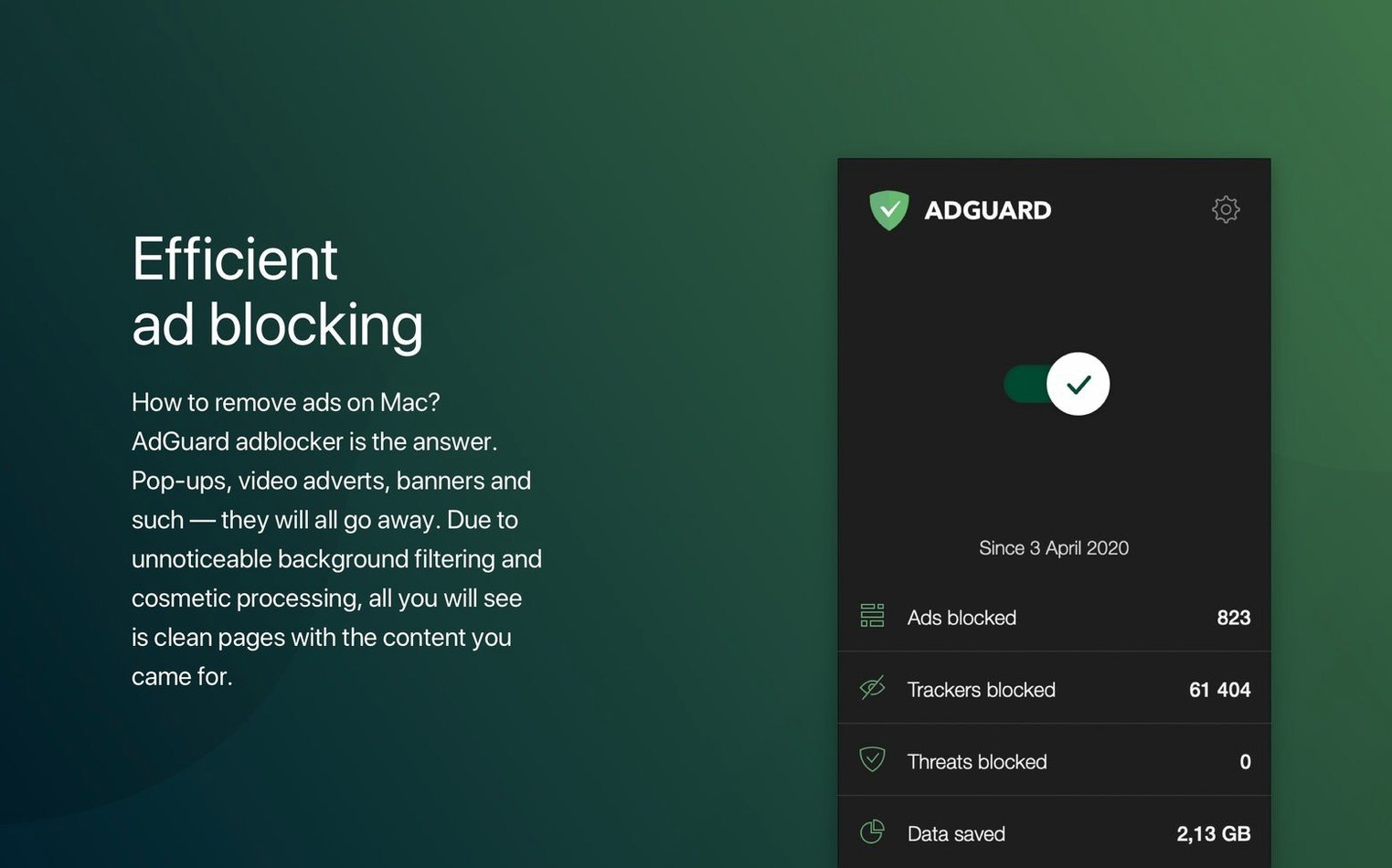
Seeing the web without an ad blocker feels like reading a magazine where someone has glued flyers across every other paragraph. AdGuard for macOS works at the network level, stripping ads and trackers from every browser and application on the machine — not just Safari, but news readers, email clients, and the dozen other places where clutter sneaks in.
Filter HTTPS traffic in every app
Unlike a browser extension, AdGuard installs a local proxy that inspects all outgoing requests. The HTTPS filtering module decrypts and checks secure connections, which means it catches ads inside apps like Reeder or Spotify where a simple content blocker cannot reach. The spyware filter, a separate list you enable once, blocks known telemetry domains that sit well outside the usual ad-network boundaries.
Build a custom blocking palette
Right-click any empty space on a page, choose Block Element, and a selector tool opens over the UI. You draw a rectangle around what you want gone — a sticky header, a social widget, a leftover container where an ad used to be — and AdGuard writes a rule on the spot. The rule editor accepts raw CSS selectors and network-level patterns, so you can refine entries later with the same syntax you would use in a user stylesheet.
Switch between full and lightweight filtering
For people who want a lighter touch, the developer also ships AdGuard Mini for Mac, a standalone Safari content blocker that uses the declarative API and never sees your traffic. The full AdGuard for Mac app remains the choice when you need filtering that covers Chrome, Firefox, Brave, and the three AI-powered browsers added in the latest release.
Daily performance: quiet and unobtrusive
After a week of normal use — design applications, a dozen browser tabs, music streaming and the occasional video call — the AdGuard network extension settles into a background role that rarely asks for attention. Memory usage hovers around 90 to 140 MB on an Apple Silicon machine, which is modest for an application that inspects every encrypted request. CPU spikes are short and tied to page loads; once a page finishes rendering, the process drops back to near zero. I notice no perceptible delay in page drawing compared to browsing unfiltered, and applications that rely on persistent connections, like Slack or Telegram, continue without hiccups.
The local proxy architecture means AdGuard sits between your applications and the network, so stability depends on how cleanly it handles that position. Version 2.18.0.2089 has been, in my experience, uneventful in the best sense: no sudden filtering dropouts, no certificate warnings after waking from sleep. The one thing worth knowing is that some VPN clients also want control of the network stack. Running both simultaneously can produce a brief standoff until you decide which tool claims the primary tunnel. AdGuard provides a toggle to switch between automatic proxy configuration and a manual PAC file, which helps when you need to stack tools in a particular order.
Three protections to activate immediately
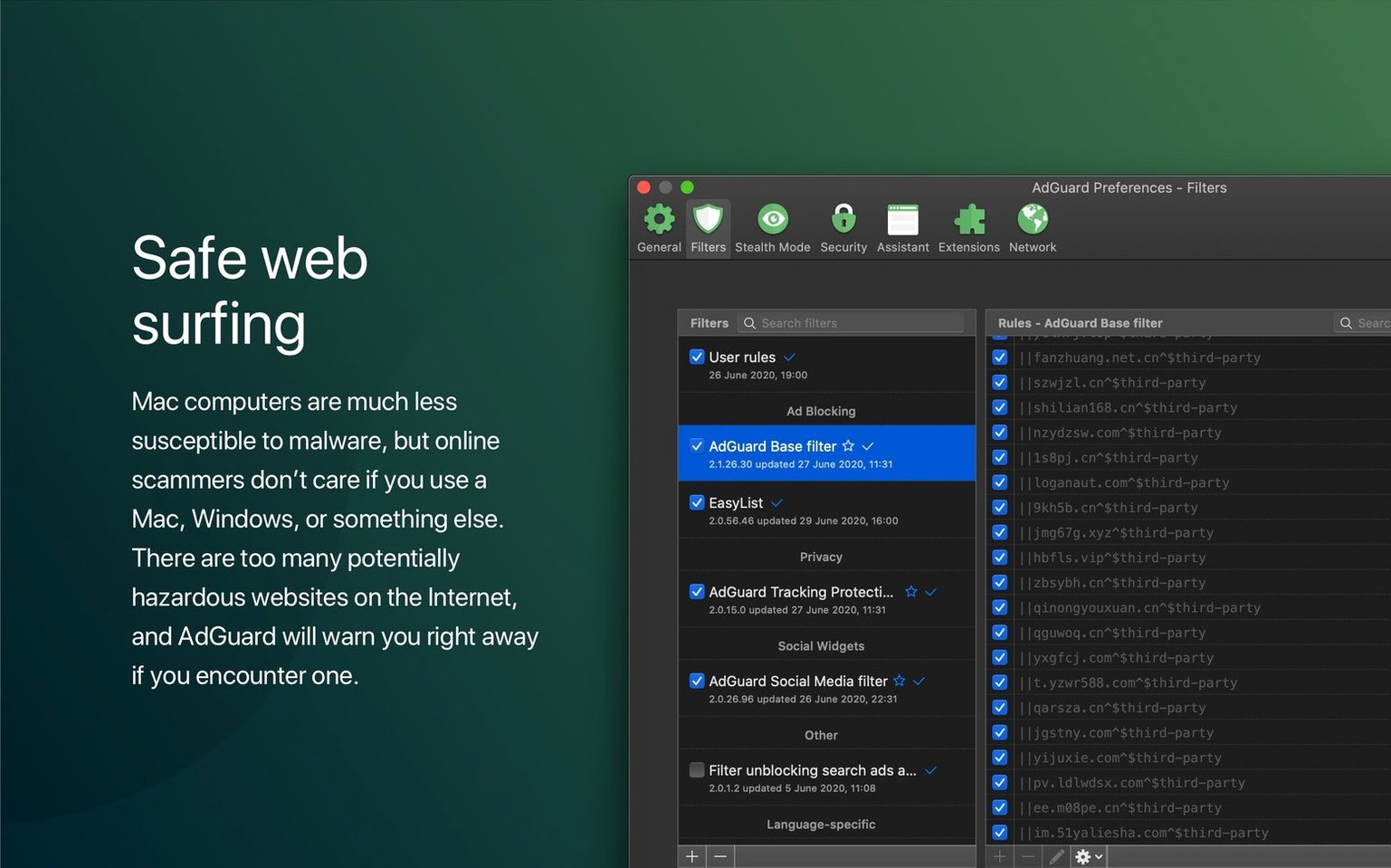
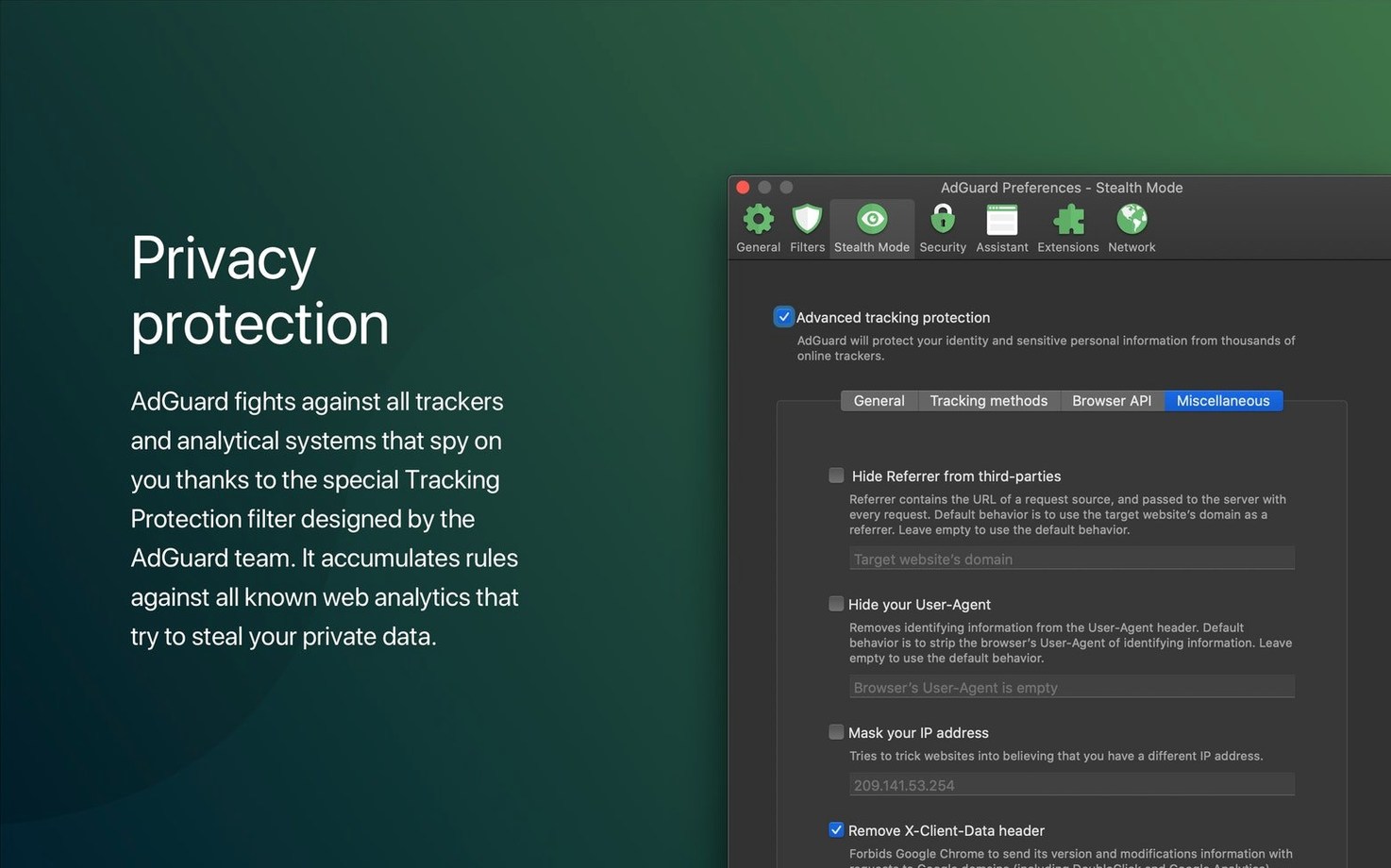
A fresh install enables the default English filter list and a handful of language-specific options, but several useful protections are switched off out of the box. I suggest visiting the Protection tab within the first hour and turning on three things: the spyware filter, the phishing and fraud protection, and the DNS privacy module. The DNS module lets you point queries at Quad9, Cloudflare or a custom encrypted resolver, and it prevents your internet provider from building a log of every domain you visit — a privacy layer that works even when the main filtering engine is paused.
Another setting worth changing is the filter update interval. The default is set to 48 hours, which is fine, but shortening it to 12 hours keeps the rule lists fresher against domains that rotate overnight. Under Network settings, lower the maximum number of concurrent filtered connections from the default 256 only if you are on older hardware; on any Mac from the last five years the default is comfortable.
Checking every filter list creates self-inflicted breakage
The most common misstep is enabling every filter list at once. AdGuard ships with dozens of regional and specialised lists — social media blockers, annoyance removers, cookie notice killers — and the impulse to check all of them is strong. The result is a browsing experience that breaks more pages than it cleans, because overlapping rules can strip functional elements like checkout buttons or login forms. Start with the base filter, the language list for your region, and the annoyance filter; add specialised lists one at a time when you encounter a specific nuisance that the base set misses.
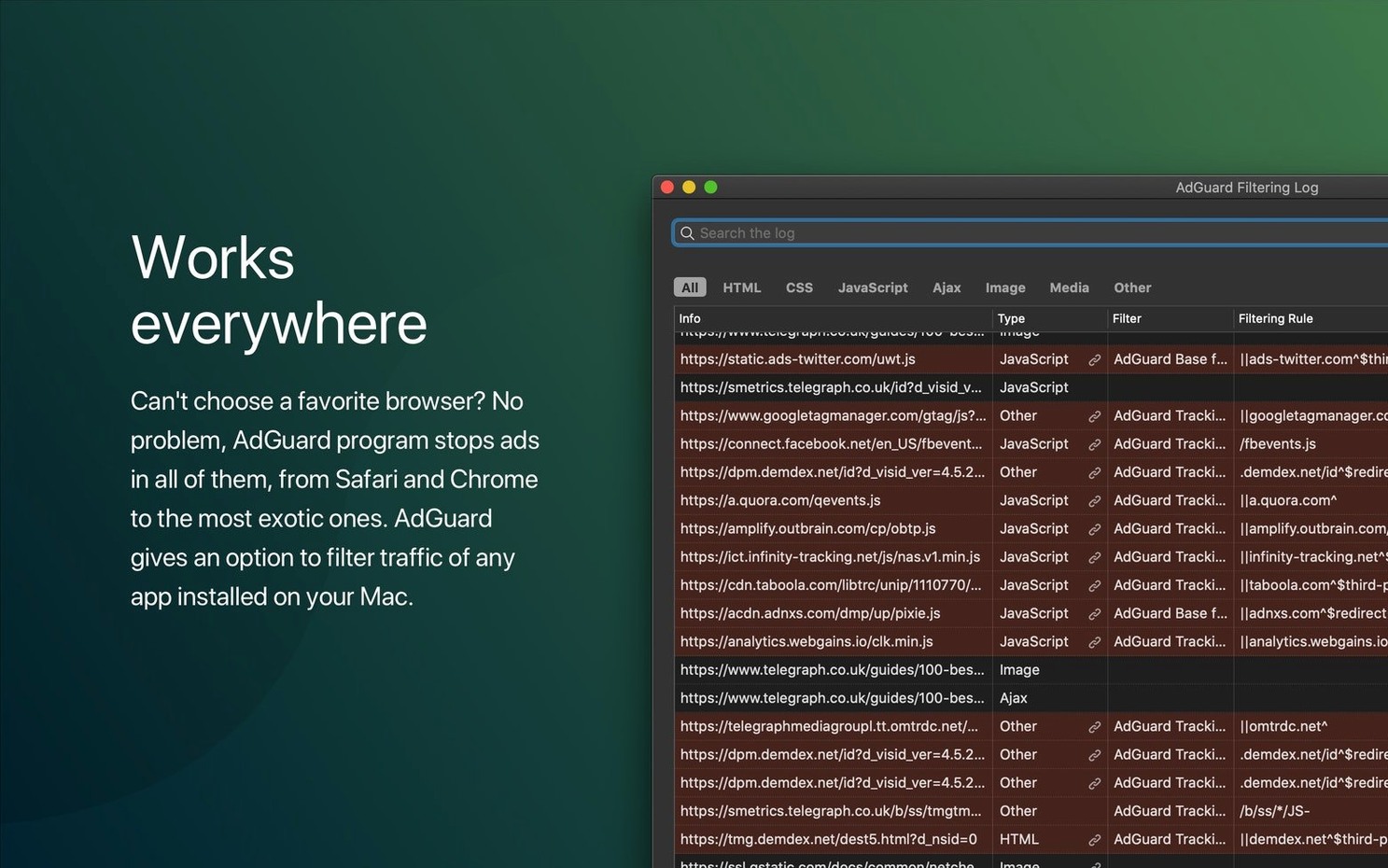
Another early error: mistaking the pause button for a permanent configuration change. Clicking the menu bar icon and choosing Pause Protection stops filtering globally until you resume it, and people sometimes leave it paused for days assuming they have created a site-specific exception. If you want a particular domain to load unfiltered, open the Protection log, find the blocked request, and add a whitelist rule from there. The log is also the place to diagnose why a page looks broken — it shows which rule caught which request, and you can disable or adjust that rule without touching the rest of your setup.
People occasionally worry that AdGuard conflicts with other ad blockers. Running a browser extension alongside the system-wide app creates a double-filtering situation: the extension blocks what it can, then the local proxy inspects what remains. The overhead is small, but it makes troubleshooting harder because you have two separate logs and two rule sets. Pick one approach and commit to it; the system-wide app already covers every browser, so the extension is redundant.
Proxy filtering won't distort your speed-test results
One question I hear often is whether the local proxy will slow down internet speed tests. It does not, or at least not in any way a speed test can measure above the margin of error. The filtering engine processes headers and URL patterns, not payloads, so a large file transfer or a streaming video passes through without additional buffering. Bandwidth remains unaffected; the only metric that changes is the number of tracking scripts that never fire.
Another common concern involves battery life on a laptop. Because AdGuard runs as a network extension rather than a traditional user-space process, macOS handles its scheduling efficiently. On battery power, the extension spends most of its time idle, waking only when an application makes a network request. My own fourteen-inch MacBook Pro shows no meaningful difference in estimated remaining time with filtering active versus paused over a full workday of writing, email and light image editing.
People also ask whether the app phones home or collects browsing data. The interface includes a statistics panel that tallies blocked requests, saved bandwidth and tracker counts, but those numbers stay local to your machine. The filter list updates download rule definitions from AdGuard's servers — the same mechanism any content blocker uses — and no browsing history leaves the device. The DNS privacy module, if enabled, routes queries through your chosen encrypted resolver, so even the domain lookups are opaque to outside observers.
Finally, some users wonder if they can install the app and forget about it. The answer is largely yes: once the initial filter selection and the three recommended protections are enabled, AdGuard runs without daily intervention. The menu bar icon shows a running tally of blocked items if you want to glance at it, and the occasional prompt to update the application itself is the only interruption you are likely to see. For anyone who wants a quieter browsing environment across all applications, the setup effort is front-loaded and brief — after that, the software simply removes what you did not ask to see.








Correspondence 0
Take a chair or join the table to send a letter.
No correspondence on this note yet. Letters are read before they appear.