 LeCoqRoti
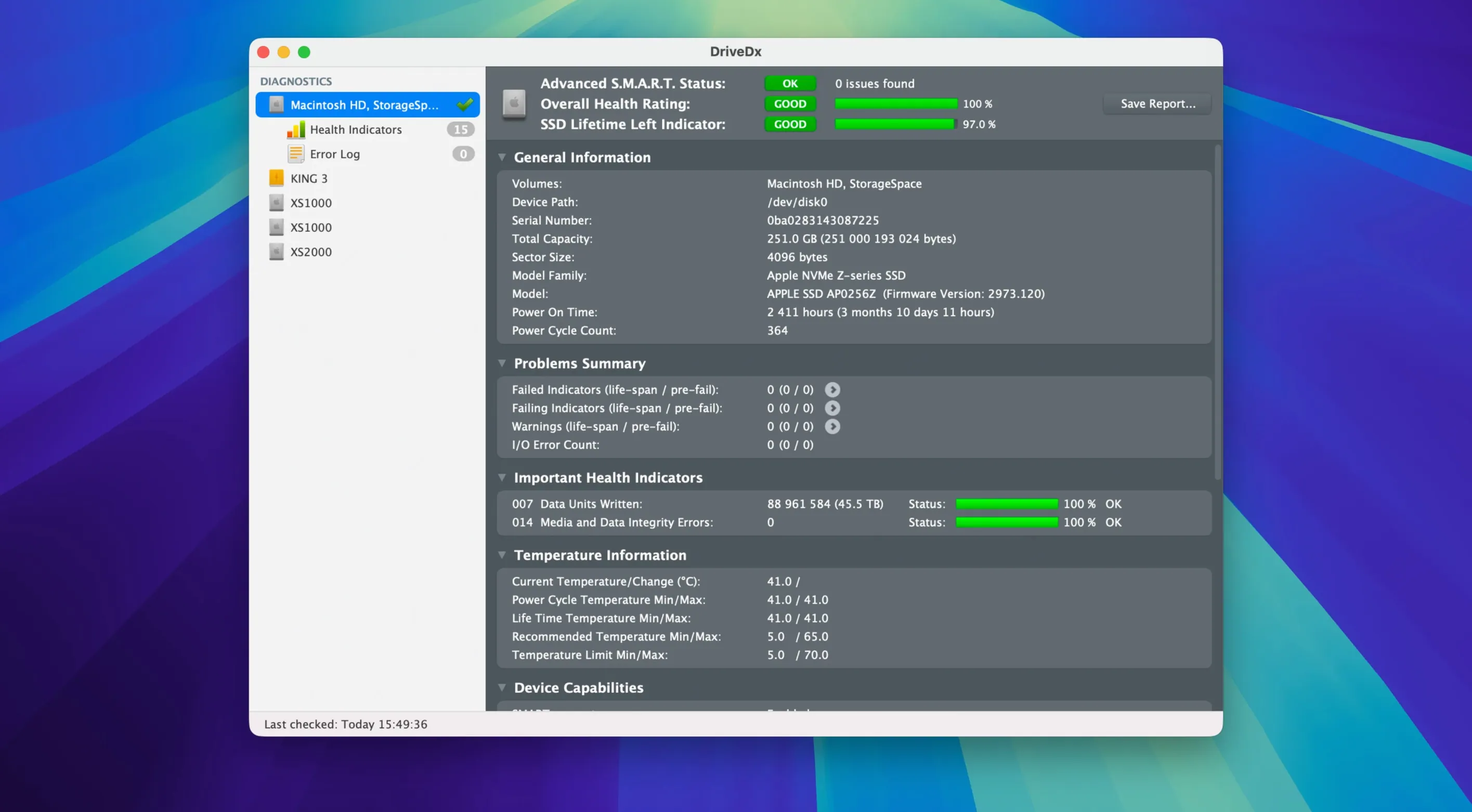
The latest maintenance release refines the diagnostic algorithms and heuristics that sit at the core of the application. Version 1.12.1 also updates the health change notification thresholds, so the utility is less likely to nudge you about fluctuations that do not signal a real problem. For anyone running Patriot P200 SSDs, the device-specific support has been improved.
Beyond the standard SMART readouts that many tools offer, DriveDx distinguishes between OK, Warning, Failing, and Failed states. The warning tier matters: it flags attributes that are drifting outside normal ranges before they cross into outright failure. This lets you schedule a replacement on your terms, not the drive’s.
You can let it run in the background as a periodic monitor. It polls the drives on a schedule you define and raises a notification only when a health indicator changes meaningfully—a quieter alternative to constantly checking a dashboard. The raw SMART values are still accessible for those who want to interpret them directly, but the real value is in the heuristics that translate those figures into a plain-language health assessment.
In short: a utility that respects the difference between a noisy sensor and a genuine warning, and gets out of the way the rest of the time.
Retiring a Time Machine drive: when the menu bar icon turns orange
External backup drives tend to fade quietly until the moment they do not. I keep an ageing 4 TB USB-C desktop drive connected for Time Machine, and recently the DriveDx menu bar icon shifted from green to orange. The overall health rating had moved to Warning (50 %). Here is how I confirmed the diagnosis and acted on it, start to finish.
The main window showed two problems: Reallocated Sector Count had risen to 16, and Current Pending Sector Count sat at 3. A handful of reallocated sectors is not a crisis on a mechanical drive — every platter ships with spare sectors — but pending sectors are trickier. Those are reads the drive has not yet managed to remap. Together, they pointed to surface degradation that was still in progress.
I ran the Short Self-test from the DriveDx menu. It completed in two minutes and returned a clean result, which is not unusual: short tests exercise the electronics and a quick seek pattern, not the full surface. For a drive that already shows pending sectors, a clean short test means little. I followed it with the Extended Self-test, which took just over six hours on a 4 TB spinner. It found one additional unreadable block. The drive was degrading, slowly but measurably.
Armed with that data, I purchased a replacement drive, connected it alongside the old one, and let Time Machine copy the existing backup history overnight. Once the new volume appeared in DriveDx with a crisp OK (100 %) rating, I ejected the old drive. No data was lost, no backup chain was broken, and I never had to guess whether the noise was mechanical trouble or normal vibration.
USB bridges stripping SMART commands: what blocks drive health reports
The utility is transparent, but a few things routinely trip people up. Here are the ones I see most often.
External drives not showing any SMART data. Many USB-to-SATA bridges strip SMART commands before they reach the drive. If DriveDx shows “SMART not supported” for an external enclosure, the enclosure chipset is almost certainly the culprit — not the drive and not the software. The fix is to connect the drive directly via SATA (on a Mac Pro or a dock with a bare SATA port) or to use a Thunderbolt enclosure, which passes SMART through as a rule. Some USB-C enclosures with ASMedia chipsets do work; trial is the only way to know.
SSD “Lifetime Left” indicator stuck at 100 % for months. Flash wear is non-linear. A drive might write several terabytes before the first percentage point drops, then accelerate. This is normal behaviour and not a bug in the heuristics. If you want a more granular view, switch to the Raw Values tab and track Media Wearout Indicator or Total Bytes Written over time.
Notification spam after upgrading macOS. A major system update can reset drive permission prompts. If DriveDx starts complaining that it cannot access a drive after a Sonoma upgrade, open System Settings > Privacy & Security > Full Disk Access and confirm the application is still listed and toggled on. You may need to remove and re-add it.
Health rating drops sharply, then stabilises. A single high-temperature event or one burst of write errors can push a drive into Warning territory. The updated thresholds in version 1.12.1 are designed to reduce these false positives. If the rating stays low for 48 hours, take it seriously. If it recovers, the drive was probably fine all along.
Background resource use: 35 MB of RAM and near-zero idle CPU
DriveDx is a background citizen. On an M1 MacBook Air with three drives connected, the resident process consumes roughly 35 MB of RAM and hovers near zero CPU when idle. During a periodic poll — which takes about 15 seconds — CPU usage spikes to 3–4 % on a single efficiency core. You will not notice it.
The extended self-test is a different matter. It saturates the drive’s I/O queue for hours and makes the volume sluggish for any other task. I schedule these tests overnight, with the drive unmounted if it is not the boot volume. The short self-test is lightweight enough to run during a coffee break without consequence.
Stability has been uneventful across two major macOS versions. The driver installer in 1.12.1 is native for Apple Silicon, so it no longer triggers a Rosetta 2 prompt — a small but welcome polish. I have not seen a kernel panic or a hung scan in eighteen months of daily use, and the application has never corrupted a SMART log or misreported a value that Disk Utility later contradicted.
One quirk: if you hot-plug a drive while the main window is open, the detection takes about eight seconds. That is longer than Finder, which mounts the volume in under two. It is a minor delay, but worth knowing if you are swapping drives quickly during a testing session.
Polling interval for a RAID array: a smarter first-week habit
A few habits make the first week with DriveDx more useful than a passive install-and-forget approach.
Set the polling interval sensibly. The default of 60 minutes is fine for most setups. If you are monitoring a RAID array or a production server, drop it to 30 minutes. For a laptop with a single internal SSD, 120 minutes is enough — flash drives rarely fail without warning, and you are saving a sliver of battery.
Customise the menu bar icon. By default it shows the overall health colour of your boot drive. If you care more about an external work array, you can point the icon at that volume instead. It is a small setting in Preferences that saves you from opening the full window daily.
Export a baseline report. As soon as the application has completed its first scan of all drives, go to File > Save Drive Health Report and store the text file somewhere safe. Later, if you suspect degradation, you can compare raw attribute values against that baseline rather than relying on memory. The heuristics are good, but a second opinion from your own data is better.
Let it learn your SSDs. For the first 72 hours, the health rating on an SSD may bounce slightly as the algorithms correlate write amplification, wear levelling behaviour and idle time. Do not act on any single reading during this window. The improved heuristics in version 1.12.1 settle faster than earlier releases, but patience still pays.
No audible warning before failure: three groups who gain the most
The obvious audience is anyone who has ever lost data to a drive that gave no audible warning. Beyond that, three groups stand out.
Photographers and video editors with multi-drive setups. A working drive and an archive drive have different risk profiles. The archive drive may spin up only once a week, so its SMART attributes change slowly. The working drive takes a beating daily. DriveDx lets you set different notification thresholds for each, so you are not ignoring a failing scratch disk because you mentally filed it under “the quiet one.”
System administrators managing Mac labs or small offices. With a dozen or more Macs in circulation, manually checking disk health is impractical. The background monitoring and email-capable notifications mean a failing drive surfaces before the user notices a beachball. The plain-language health states save time when explaining to a finance department why a three-year-old iMac needs a new SSD.
Vintage Mac enthusiasts running older hardware. Spinning hard drives in machines from 2012–2015 are now deep into their bathtub-curve wear-out phase. If you maintain a cMP or an early Retina MacBook Pro, the difference between an OK state and a Warning state on the reallocated sector count is the difference between a weekend clone-and-swap and a Monday morning panic. The macOS 10.9 compatibility floor means even machines stuck on El Capitan or High Sierra can run the utility natively.
If you are running a single modern MacBook with a soldered SSD and a cloud backup, the utility is still useful — but you will likely glance at it once a month rather than once a day. The value scales with the number of drives you manage and the cost of losing any one of them.





Correspondence 0
Take a chair or join the table to send a letter.
No correspondence on this note yet. Letters are read before they appear.