 LeCoqRoti
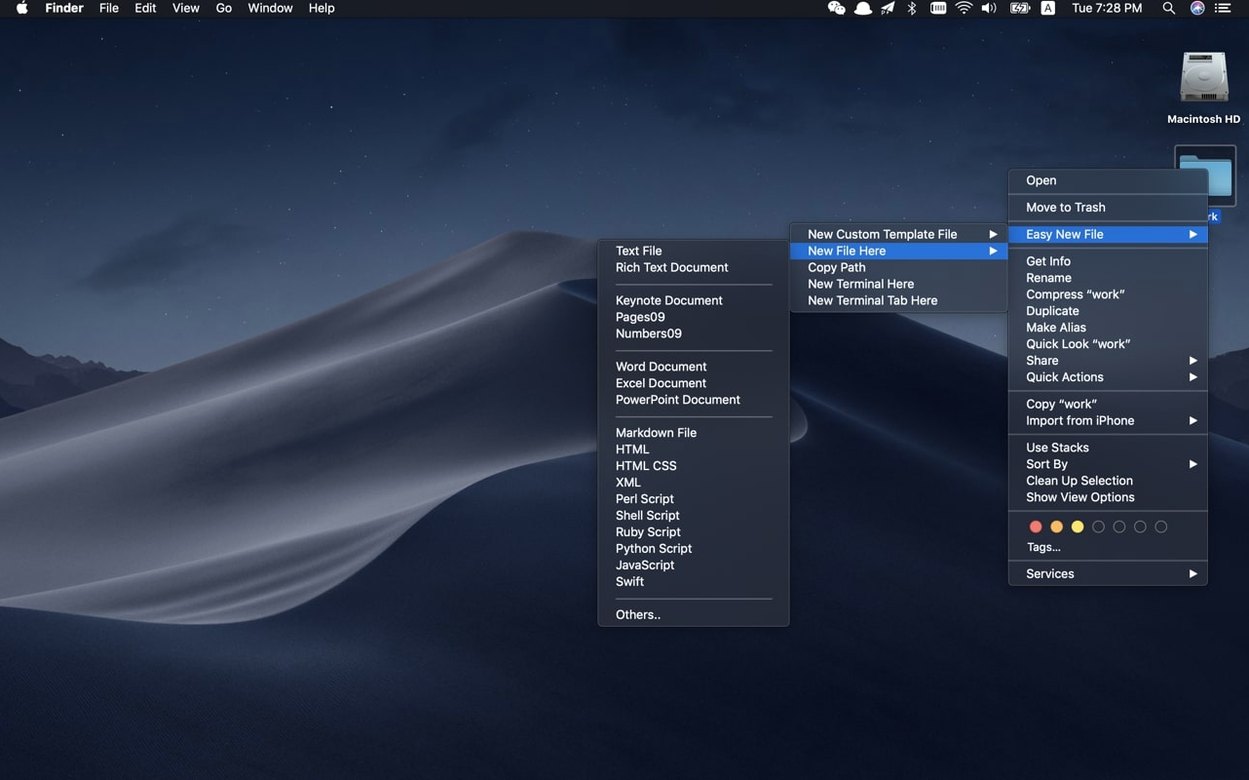
Easy New File is for anyone who finds the Mac's built-in 'New Folder' command oddly incomplete. Designers, developers, and writers who think with files—a quick text note, a starter script, a blank sketch document—will appreciate what it adds: a simple, right-click way to create a new file exactly where you are, without leaving the Finder. It extends the desktop rather than replacing it, living quietly as a Finder extension enabled in System Settings.
New file creation: the core gesture
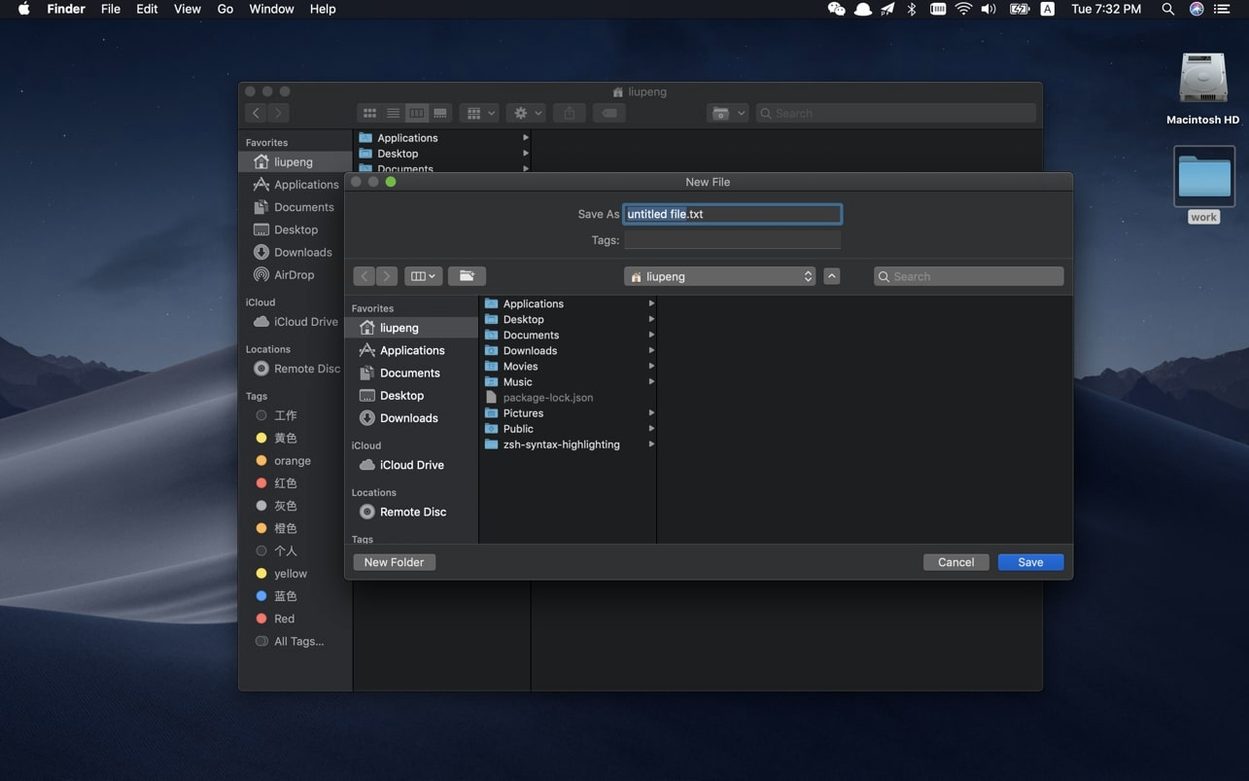
The standout feature is, naturally, the file creation itself. After enabling the extension, a new item appears in your Finder context menu. Select it and a save dialog opens directly at your current location. The interface feels native, almost as though Apple had included it all along. Version 6.2 refines this further, fixing a focus issue where the save dialog could hide behind other windows—a small correction that makes the whole gesture feel more polished. You name the file, confirm, and it appears instantly, ready to be opened or shared.
Instant Terminal access from the current folder
Another practical detail is the quick Terminal command. Rather than navigating manually through directory paths, you can right-click any folder in the Finder and open a Terminal window already pointed there. For a developer fetching dependencies or a designer running a build script, this cuts out a repetitive, error-prone step. It is a feature that understands context: the right tool, in the right place, without ceremony.
Settings: three things to adjust first
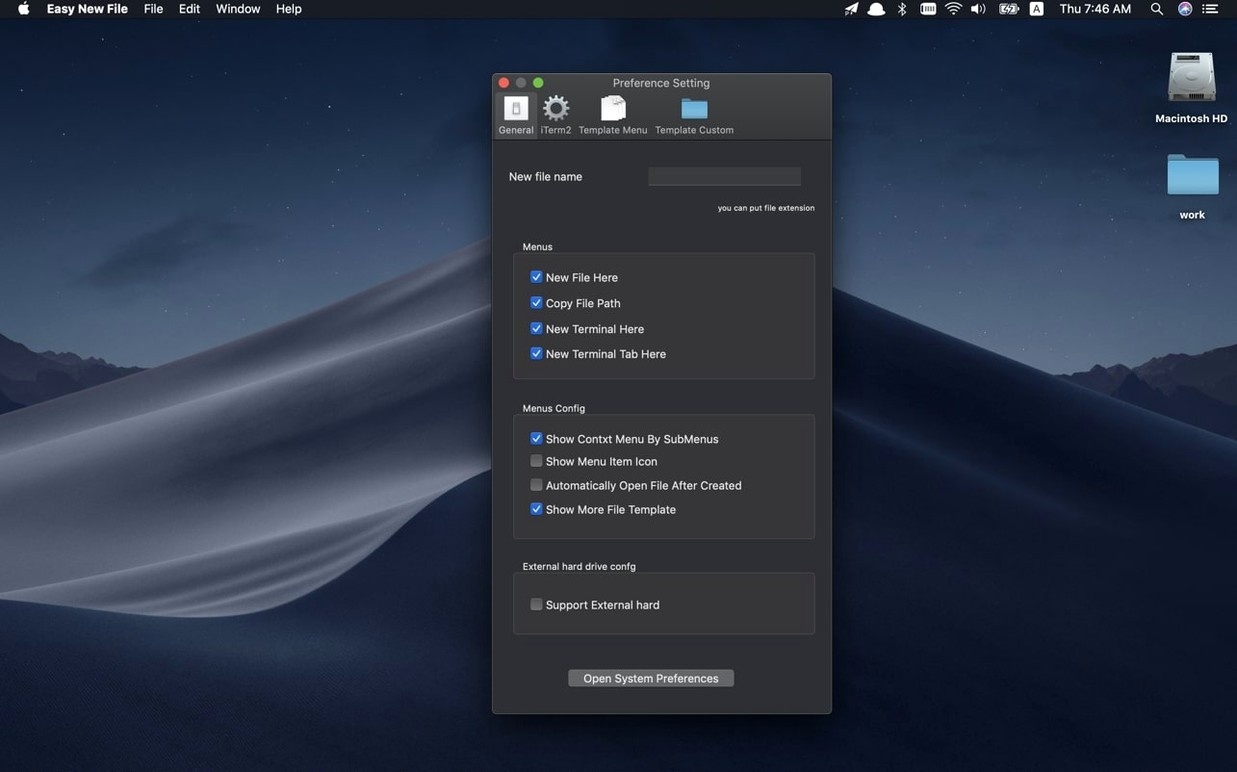
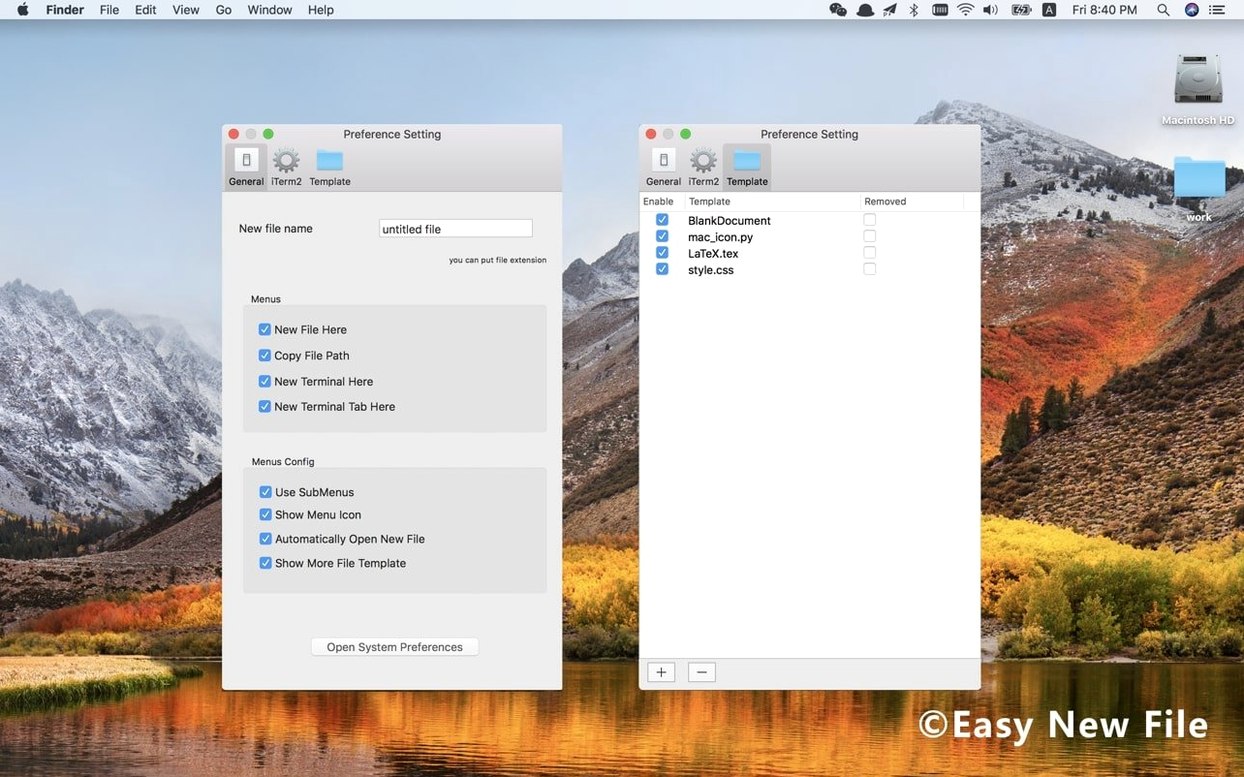
The extension works immediately after activation, but a few preferences reward early attention. Open the app from your Applications folder to reach its settings panel—a compact, single-window affair that reflects the tool's overall restraint.
First, check the file types that appear in the context menu. By default, Easy New File shows a generous list: plain text, rich text, Word, Excel, Keynote, and several developer-oriented formats including shell, Python, and Swift scripts. If your daily work revolves around only two or three of these, deselect the rest. A shorter menu reads faster and feels less cluttered under the right-click. The same panel is where you add custom templates, which brings us to the second point.
Custom templates deserve a moment of setup. The app can clone any existing file as a template—perhaps a blank InDesign document with your studio's colour swatches already in place, or a Markdown file with a standard frontmatter block. Drop the template file into the designated folder (the preferences window shows its path), give it a descriptive name, and it joins the menu. After that, every new file inherits the template's structure without additional effort. A small investment of time that repays itself daily.
Finally, consider the keyboard shortcut option if the app offers one in your version. Some users overlook this entirely, relying on the mouse alone. Assigning a shortcut turns file creation into a two-second act: select the destination folder, press the keys, name the file, done. It is a rhythm that quickly becomes muscle memory.
Extension won't appear: check System Settings approval
The most common early misstep is expecting the extension to appear without visiting System Settings. Like all Finder extensions on macOS, Easy New File needs explicit approval under System Settings > Privacy & Security > Extensions > Added Extensions, where you tick the checkbox next to its name. Skipping this step leaves the right-click menu unchanged, and the app seems not to work. Once enabled, the menu item appears immediately—no restart required.
Another frequent oversight involves file naming during creation. The save dialog that opens is a standard macOS sheet, and it highlights the filename field by default (especially after the 6.2 fix that restored proper focus). But users accustomed to renaming files after creation sometimes type nothing at all, hit Save, and end up with an untitled document that needs renaming later. The habit worth forming: type the name first, every time. The dialog waits for you.
A subtler mistake is assuming the app works on external drives without checking its behaviour on your specific setup. The developer notes support for creating files on external disks, but some formatted volumes or network shares can behave differently. If a right-click on a USB drive produces no menu entry, testing on the internal drive is a quick diagnostic. Usually the issue is not the app but a file-system permission that macOS applies to external media.
Create files inside deeply nested folders on day one
Spend the first morning using Easy New File to create files inside deeply nested project folders that you normally reach through several clicks. A designer's client folder—buried under Year > Month > Project > Deliverables—is a perfect test case. Right-click the final folder, create a blank Keynote or a text brief, and notice how much navigation simply disappears. The tool reveals its value most clearly in these deep hierarchies.
If you work with scripts, try the Terminal shortcut as a companion gesture. Right-click a project folder, open Terminal there, and then use the context menu again in a neighbouring Finder window to create the script file you need. The two features were designed to be independent, but they compose well. A Python developer might open a Terminal at the project root, create a new .py file two folders deeper via right-click, and begin editing immediately—all within ten seconds.
For those curious about the easy new file for mac free download search that leads some users here, the version described is the same full release, with no feature restrictions beyond what the extension itself offers. The installation routine is straightforward: mount the disk image, use the bundled Gatekeeper-friendly opener if your system requests it, drag the app to Applications, and enable the extension. After that, the tool stays out of the way—no menu bar icon, no background process you need to monitor—until you right-click in the Finder and remember it is there.
In the first week, try also the copy file path command, which sits alongside the creation menu. Selecting it places the full POSIX path of any file or folder onto the clipboard. When a colleague asks for the exact location of an asset on a shared drive, or when you are writing documentation that needs a precise path reference, it proves quietly indispensable. Like much of this app, it does one thing without drawing attention to itself.







Correspondence 0
Take a chair or join the table to send a letter.
No correspondence on this note yet. Letters are read before they appear.