 LeCoqRoti
When an application phones home without asking, Radio Silence gives you the switch to silence it. No complex rules, no packet-level noise — just a list of your apps and a simple choice.
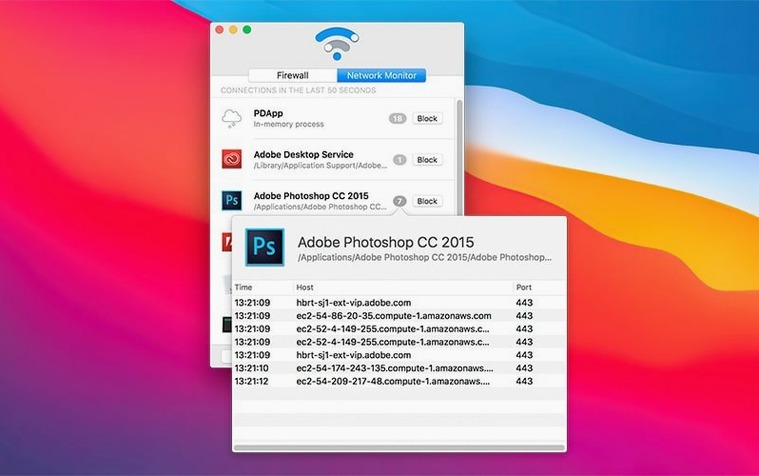
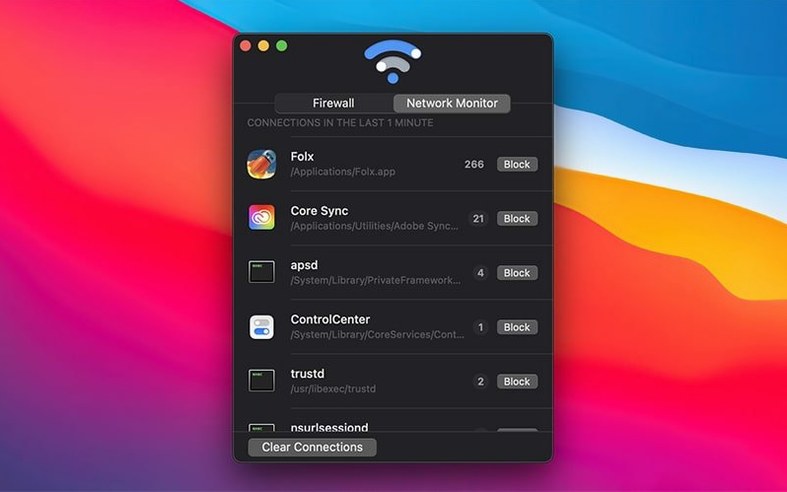
Network Monitor — a live view of every internet connection started by your applications. Each entry names the app responsible, so you see at a glance what is reaching out and where it thinks it is going.
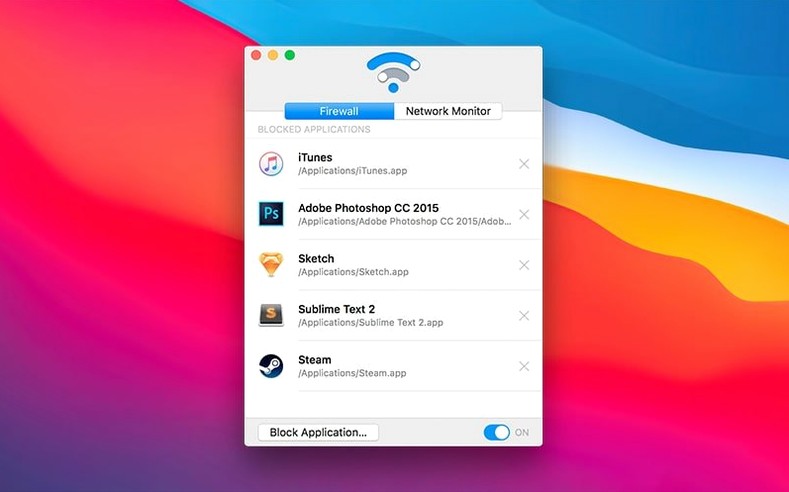
Firewall — the blocked list. Drag an app here and its network access ends. Incoming connections are monitored quietly in the background; the app does not need to sit in the menu bar to do its work.
Interface — a single window, English throughout, with a calm, utilitarian feel. Version 3.4 runs on Intel and Apple Silicon Macs from macOS 10.15 onward. There is no menu bar icon, which suits those who prefer their firewall invisible.
First firewall nudge: move sketchy apps from Allow to Block
Radio Silence asks very little of you at first launch, which is part of its charm. Still, a few early adjustments make the tool easier to live with. The first is simply to decide what belongs in the firewall list. Many people add only the obvious suspects — updaters, telemetry agents, apps that insist on checking a licence server. But the live monitor often reveals quieter offenders: a helper process that wakes every twenty minutes, a video editor pulling thumbnails from a stock library, a notes app syncing to a service you never agreed to use.
Second, become familiar with the pause firewall control. It is not a setting hidden behind a preference pane; it sits where you can reach it quickly. When a blocked app misbehaves because it cannot reach the network, pausing the firewall for a few minutes is faster than removing and re-adding it. Useful during software updates, too, when an installer needs to verify something online before it will continue.
Finally, resist the urge to block too much at once. A firewall that silently breaks half your workflow is not a good firewall. Add apps one at a time, leave a day between additions, and watch the monitor rather than guessing. The interface rewards this patient approach; it shows you exactly what each app attempts, which makes the next blocking decision easier.
Blocking apps won't scan for malware or replace Gatekeeper
The most common mistake is treating Radio Silence as a substitute for macOS security preferences. It blocks network access for chosen applications; it does not scan for malware, quarantine downloads, or inspect packet contents. A blocked app cannot send data, but an app that has already written something to disk before being blocked still has that file. The two layers work together, not interchangeably.
Another frequent error: blocking an app and then forgetting it. Weeks pass, something breaks — a media player stops fetching artwork, a writing tool no longer checks for updates — and the firewall seems like the villain. The blocked list is visible for a reason. If an app behaves oddly after an update, look there first. Removing an entry takes seconds and tells you immediately whether the firewall was responsible.
Some users also expect a dramatic interface: red warnings, traffic graphs, connection logs that scroll like a terminal. Radio Silence is quieter than that by design. The monitor shows what is happening right now, not a forensic archive. If you need deep historical logging, this is the wrong tool. For daily awareness and simple blocking, the restraint is an advantage.
Tahoe rerouted the installer—prompts now play nicer with SIP
Version 3.4 is a maintenance release, but its changes matter precisely because they address the moments when a firewall is most annoying: installation and first run. The new installation guidance for macOS Tahoe walks through the steps the system now requires, which for many users will be the difference between a working firewall and a silent failure. Permission prompts arrive in a particular order on recent macOS versions; missing one can leave the network extension half-installed and the app unable to monitor anything.
The improved handling of installation errors and missing permissions is similarly practical. Instead of a vague failure message, the app now recognises when a permission was skipped or revoked and points you at the relevant System Settings pane. This matters more than it sounds: macOS sometimes removes network permissions after a major system update, and a firewall that cannot tell you why it stopped working is a frustrating companion.
There is also a new help view with troubleshooting information if the app fails to launch. It is a small addition, but it shifts the experience from “something is wrong” to “here is what to check.” For a tool that runs quietly in the background, that kind of guidance is welcome when things go sideways. None of these changes alter the core function; they make the edge cases smoother, which is exactly what a point release should do.
No menu bar icon, no traffic inspection, no perceptible lag
Will it slow down my Mac? Not in any way you are likely to notice. The monitor observes connection attempts rather than inspecting traffic, so the overhead is small even on older hardware. The app runs without a menu bar icon, which also means no constant redrawing of interface elements.
Can I block system processes? You can block what the app lists, including many background helpers. Blocking Apple system services is possible but rarely wise; some are involved in certificate checks, time synchronisation, or iCloud. The monitor helps you identify what is safe to silence and what is better left alone.
Does it work on Apple Silicon? Yes. Version 3.4 supports both ARM and x86 64-bit Macs, so Intel and Apple Silicon machines from macOS 10.15 onward are covered. Installation is the same on both architectures.
Will I see a lot of pop-ups? No. Radio Silence does not nag you with connection alerts. It shows the live list and blocks what you tell it to block. If you want a firewall that questions every connection attempt, this is not it; if you want one that stays out of the way until you open it, you will feel at home.
In short: a straightforward tool for people who want to see what their apps are doing and block a few of them without fuss.







Correspondence 0
Take a chair or join the table to send a letter.
No correspondence on this note yet. Letters are read before they appear.