 LeCoqRoti
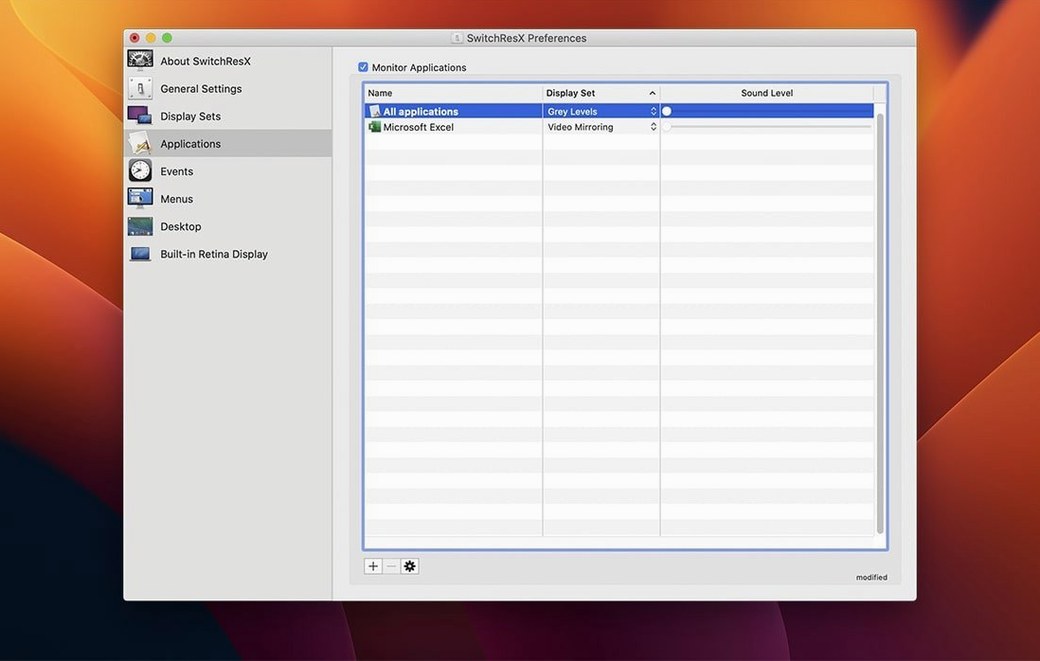
SwitchResX attracts a particular sort of user: the designer who runs a Wacom tablet alongside an ultrawide, the video editor calibrating a reference monitor, the developer plugging into a projector for a demo. These are people for whom the Displays pane in System Preferences stopped being enough years ago.
Scripting and automation: a deeper layer
One of the programme's less obvious strengths is its AppleScript support. A script can switch a monitor's resolution, colour profile, or rotation when a specific application launches, or trigger a full Display Set—a stored configuration of resolution, colour depth, and even which monitor is mirrored—at a set time of day. This turns what would be a manual five-click routine into a single action, integrated into a larger workflow.
Resolution design: building what the system hides
The custom resolution editor is the tool that draws the technically curious. It lets you define pixel clocks, scan rates, and porches manually, then test the result. The main precaution is that macOS will not show a resolution it cannot handle, but the editor still demands a calculator and a careful reading of your display's technical specification. When it works, you gain pixel dimensions the system would never suggest—useful for forcing a consistent workspace across mismatched monitors.
First-stop settings: tame the dense Monitor tab
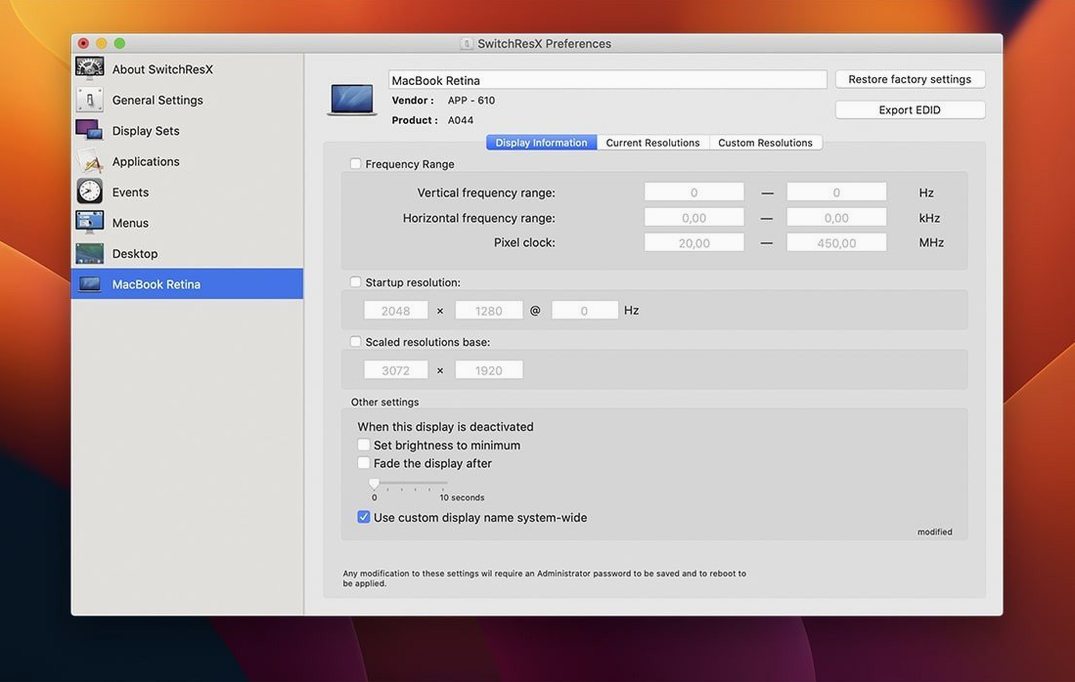
SwitchResX installs as a preference pane, and its first impression can feel dense. A few early changes turn it into something more approachable. Open the main window and select Monitor from the list on the left; then click the Display Information tab. Near the bottom, enable Show only resolutions that are valid for this display. This filters out resolutions your monitor cannot physically display, which saves time and reduces the chance of selecting something that results in a blank screen.
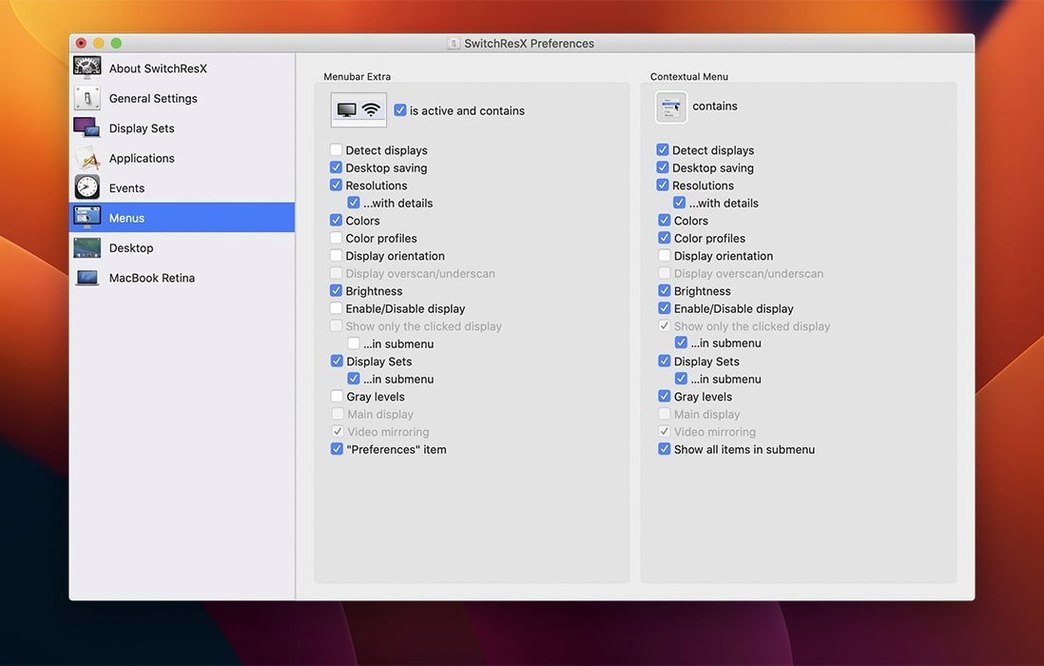
Next, move to the Menu Extra settings. Tick the box labelled Show resolutions in the menu bar. The menu bar icon becomes a fast switcher, and you can choose which resolutions appear there—drag the ones you actually use into the Favorites list, and the menu stays clean. While you are in that pane, activate Show current resolution in menu bar as well; the icon will display the active pixel dimensions, which is useful when you are testing custom definitions and want visual confirmation of what is currently applied.
A third setting that pays off quickly: under General, check Launch SwitchResX at login. The preference pane does not consume noticeable resources, and having it always running means Display Sets and application-linked resolutions work without you needing to remember to start anything.
Right-click menu bar: instant Display Sets and colour profiles
A few behaviours only become apparent after a week of use. Right-clicking the menu bar icon opens a contextual menu with direct access to Display Sets, colour profiles, and rotation options, without opening the preference pane. Holding the Option key while clicking a resolution in that menu applies it to all connected displays at once—a detail that is not labelled anywhere in the interface.
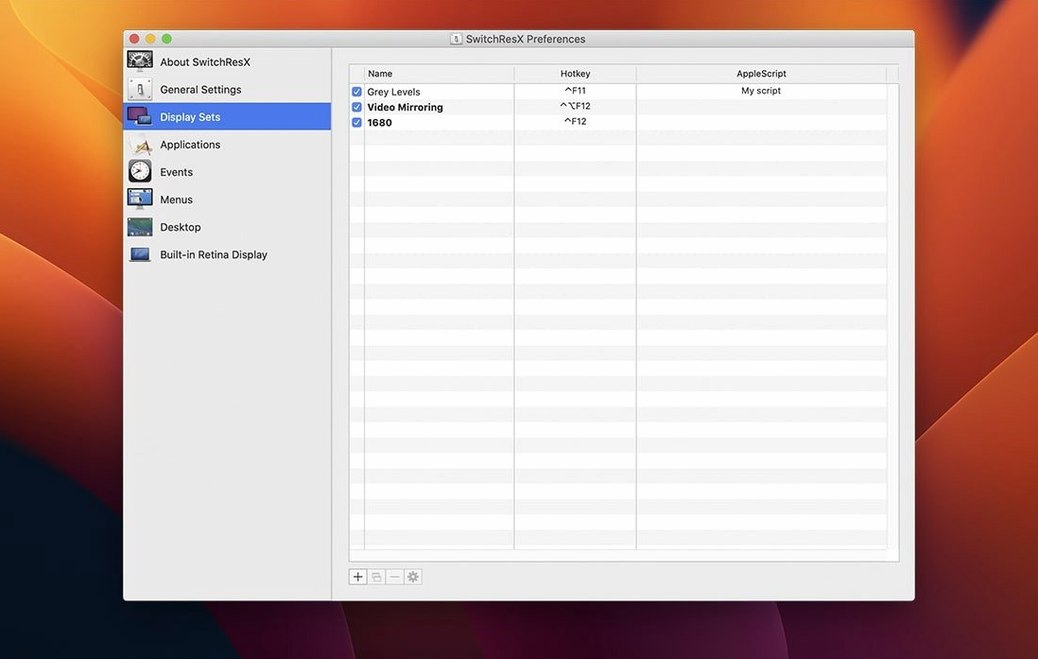
The Display Sets feature deserves more attention than it typically receives. A Display Set captures the complete state of every connected monitor: resolution, colour profile, rotation, mirroring arrangement, and which display is primary. Saving a few sets—one for desk work with two monitors, one for a single laptop screen in a café, one for the projector in the conference room—means you can switch between entire working environments with two clicks from the menu bar. This is faster than manually adjusting three or four settings each time you dock or undock a laptop.
Another overlooked detail: the resolution list in the main window shows scan rates in parentheses after each resolution. Many users scroll past without realising that selecting, say, 2560 × 1440 (60 Hz) versus 2560 × 1440 (50 Hz) can make a visible difference on external panels, especially when scrolling text or moving windows. The default macOS Displays pane often hides these variants entirely.
For those who prefer the keyboard, SwitchResX does not offer built-in shortcuts, but its AppleScript support means you can bind a Display Set to a key combination through a utility like Automator or a third-party launcher. A script as short as three lines can be saved as an application and triggered by a global shortcut.
Which Mac users gain the most
The programme is not for everyone, and that is by design. Users who run a single Apple display at its default resolution will find little need for it. The people who get the most out of SwitchResX tend to fall into a few distinct groups.
Visual professionals: photographers, video editors, and print designers who connect a Mac to a reference monitor gain precise control over resolution and colour profile pairing. The ability to lock a specific resolution and colour space to a display, and have that combination activate when opening a colour-critical application, removes a source of error from a production workflow.
Users with mixed monitor setups: a MacBook driving an external 4K display, or a Mac mini connected to both a monitor and an HDTV, often reveals limitations in macOS scaling. SwitchResX lets you define resolutions that match the physical pixel grid of each panel, bypassing the system's scaling presets. The result is sharper text and cleaner UI rendering on displays where the default options look soft.
Those who present frequently: anyone who connects to projectors and screens of unknown specification in different rooms benefits from saving Display Sets for each venue. A set that forces the correct resolution and disables mirroring on the laptop screen takes seconds to recall, compared with navigating the Displays preferences while an audience waits.
Tinkerers and the technically curious: a smaller group, but one the developer clearly had in mind. The custom resolution editor appeals to people who want to push an older display panel to an undocumented timing, or who run unusual hardware combinations that macOS does not recognise automatically. For them, SwitchResX is less a utility and more a laboratory.
macOS updates: no System Integrity Protection changes needed
Does it conflict with macOS updates? Apple's system updates occasionally reset display settings or tighten restrictions around kernel extensions, but SwitchResX has been maintained across many macOS versions and no longer requires disabling System Integrity Protection. Version 4.14.2 runs on both Intel and Apple Silicon Macs with the same installation procedure. If an update does clear a custom resolution, the definitions themselves remain stored in SwitchResX and can be reapplied in a few clicks.
Can it damage a display? This concern appears often, and the short answer is that modern flat-panel displays include protection circuits that reject signals outside their supported range. The custom resolution editor shows a validation warning if the parameters exceed what the display reports as safe. A temporary black screen is the worst outcome most users will encounter; force-quitting or restarting restores the default resolution. The sensible precaution is to note your display's maximum horizontal and vertical frequencies from its manual before experimenting.
Is the menu bar icon useful or just clutter? It depends on how often you switch configurations. Users who stay in one workspace all day may prefer to disable it. Those who move between desks, external monitors, and presentation setups tend to find it the quickest route to the function they need. The icon can be hidden from the menu bar entirely while keeping the preference pane accessible through System Preferences.
What happens when a display is disconnected? SwitchResX remembers per-display settings. When a monitor is unplugged, its custom definitions sit idle; when it is reconnected, they restore automatically if you have linked them to that display's serial number or model identifier. This avoids the common macOS annoyance of a returning external monitor defaulting to a lower resolution than it is capable of showing.







Correspondence 0
Take a chair or join the table to send a letter.
No correspondence on this note yet. Letters are read before they appear.