 LeCoqRoti
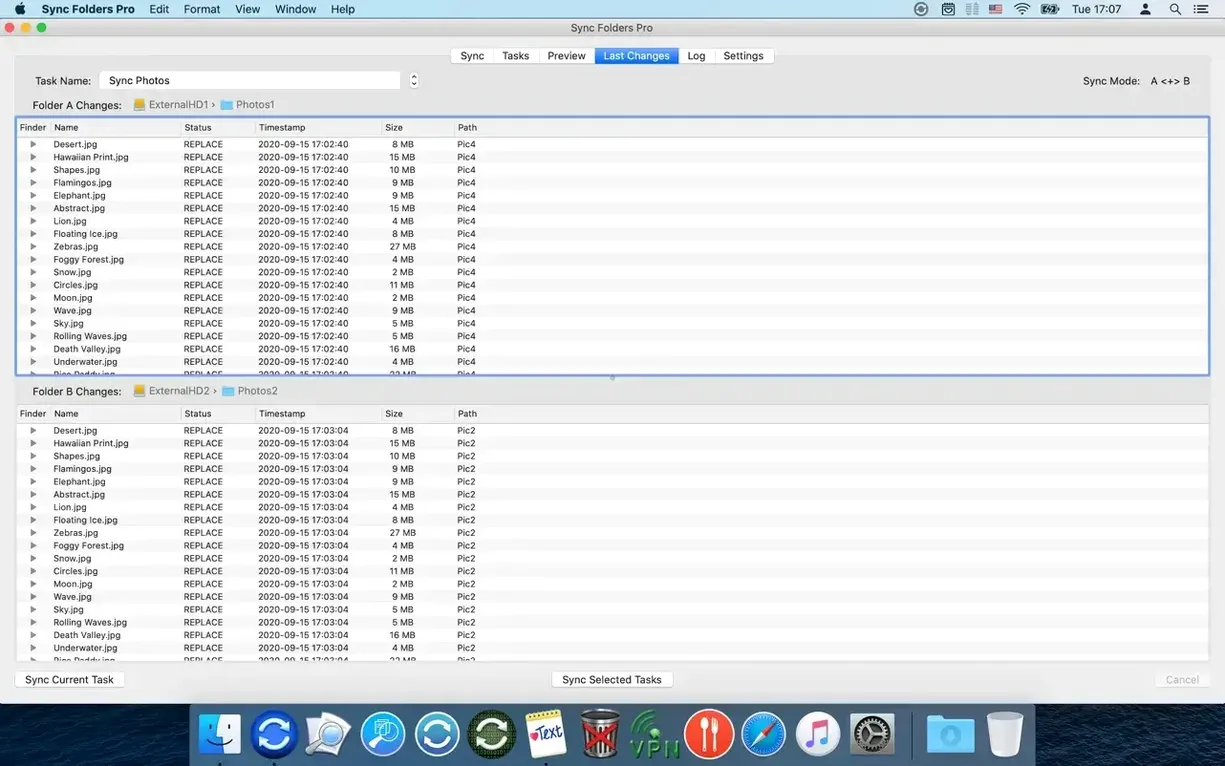
Real-time watch: let the sync happen quietly
Set one bidirectional pair and enable real-time mode. The app responds to changes on either side almost instantly, which makes it feel more like a mirror than a utility.
Versioned backup: keep the overwritten file
Turn on “keep last version” in the sync settings. Each overwritten file moves to a dated subfolder instead of vanishing — small insurance for someone still learning where everything should live.
Event log: read the room
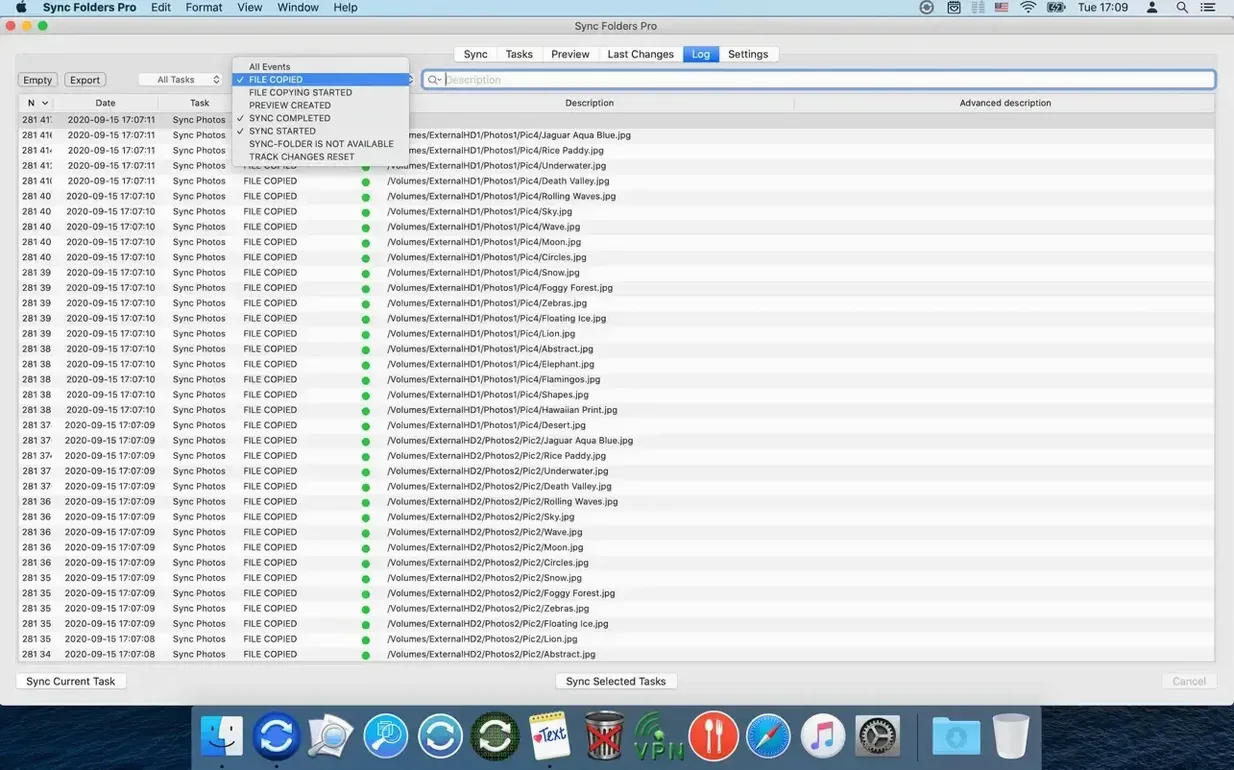
Open the log and filter by today’s task and status. It is a clean, fast way to confirm what moved and whether anything stalled, without scrolling through noise.
Comparisons: ChronoSync, GoodSync, and the quiet confidence of Sync Folders Pro
ChronoSync covers similar ground but wraps its power in a dense interface that rewards patience over speed. Where Sync Folders Pro keeps the main window close to a single pane of tasks, ChronoSync scatters options across tabs and inspectors — capable, yes, but less direct for the person who simply wants two folders to agree and then get on with something else.
GoodSync brings a web-account layer that some teams find useful, yet its Mac presence never felt quite native to me. The windows, the icon trays, the background processes: everything sits a little heavy. Sync Folders Pro stays light and strictly local unless you point it at a network volume. It does not ask for an account, and it does not push a service you never requested.
Where Sync Folders Pro earns its place is the combination of real-time watching and the versioned safety net. Neither ChronoSync nor GoodSync delivers both with the same economy of screen space. The ability to keep the last version — or all versions — of overwritten files lives inside the sync definition itself, not in a separate module. That matters when you are tired and prone to misclicks.
First days: small settings that prevent large regrets
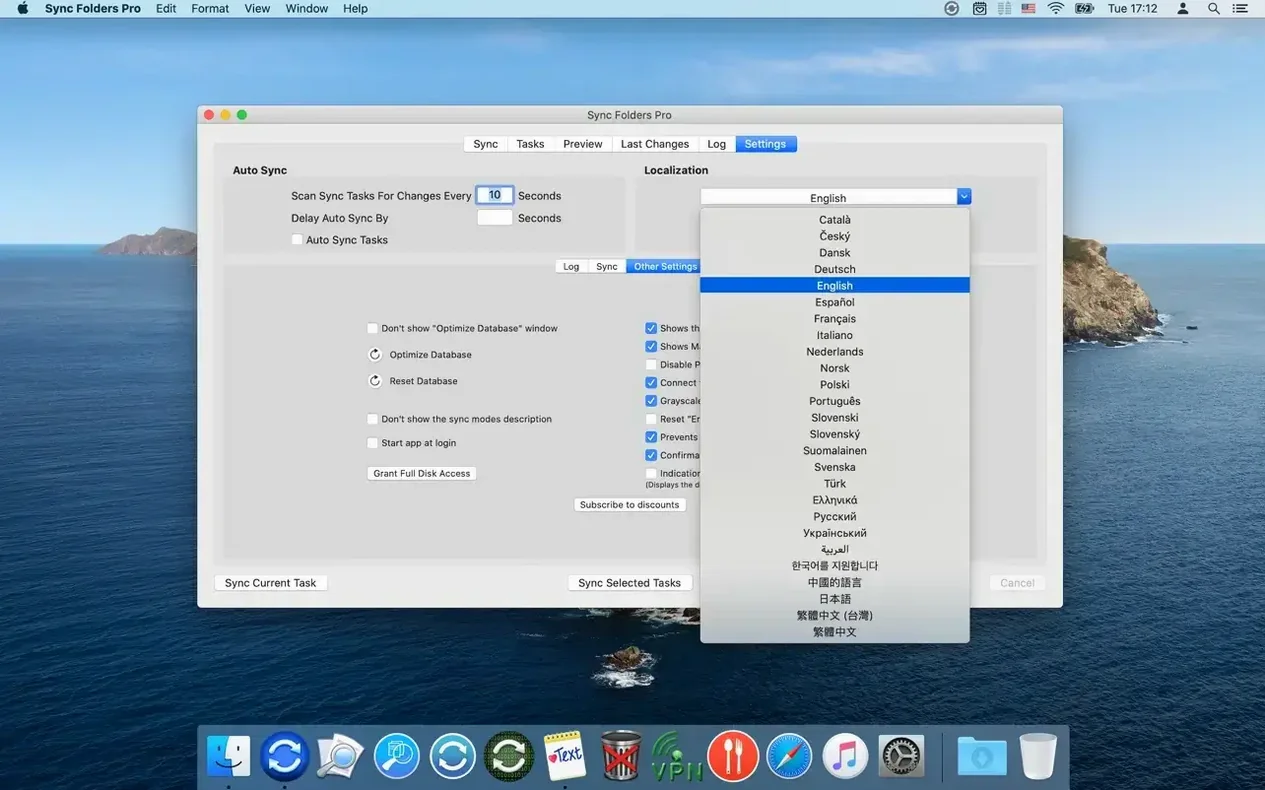
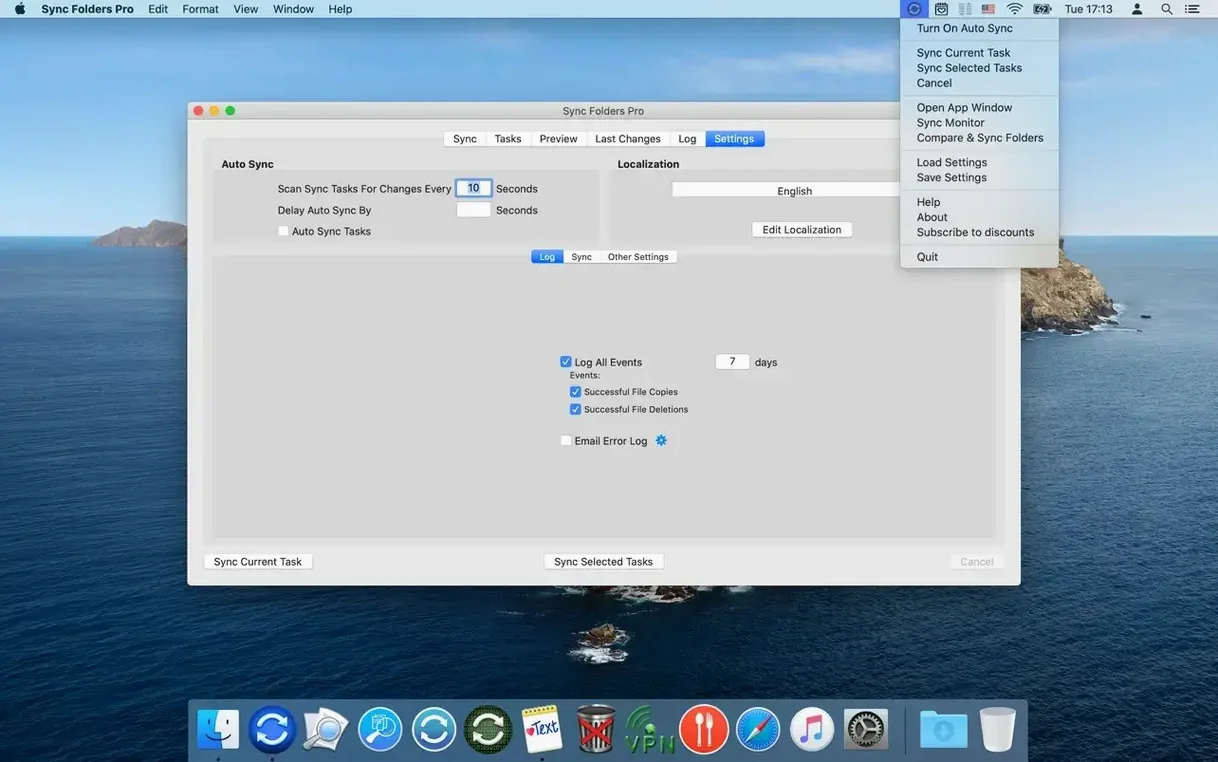
Before syncing anything important, open preferences and set the log to keep entries for at least 30 days. A generous log turns the event viewer into a diary, not a puddle. Next, enable the option to send the log by email on errors, even if you use a dummy address at first: the habit alone will save you on the one morning something goes wrong while you are away from the desk.
Create a test pair with two empty folders and experiment with the filter rules. Exclude invisible files, temporary editor cruft, and the .DS_Store ghosts that macOS scatters everywhere. Learn how the exclusion syntax works before you trust it with real work. The filter panel supports patterns you already know from the command line, so a rule like *.lproj or *.savedState will feel familiar.
If you plan to sync to a network share, build the connection once and tick the auto-connect and auto-disconnect boxes. The app can mount the volume before the task runs and unmount it afterwards — a small courtesy that keeps your Finder sidebar tidy.
A session: Wednesday morning, two projects, one cup of coffee
I open the app at 8:30. Two tasks are defined: a bidirectional sync between a working folder on the Mac and a USB-C drive, and a one-way copy from a network share to a local archive.
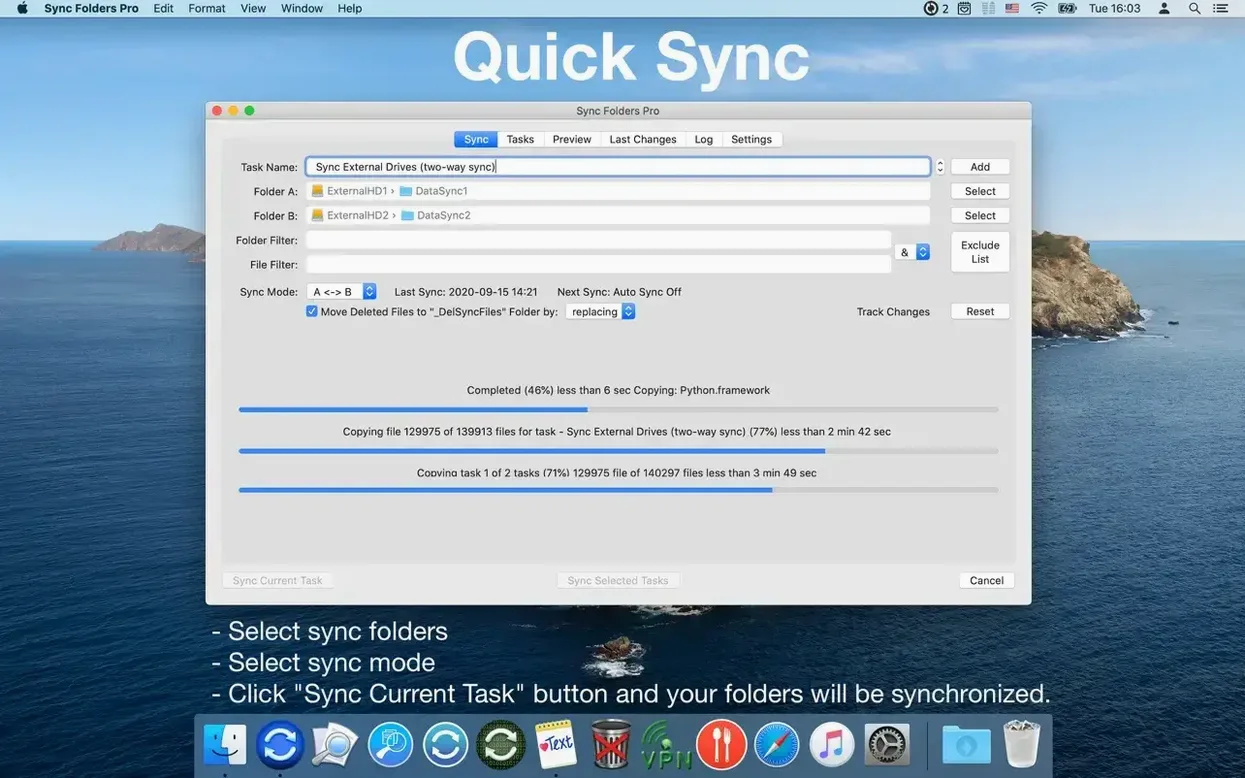
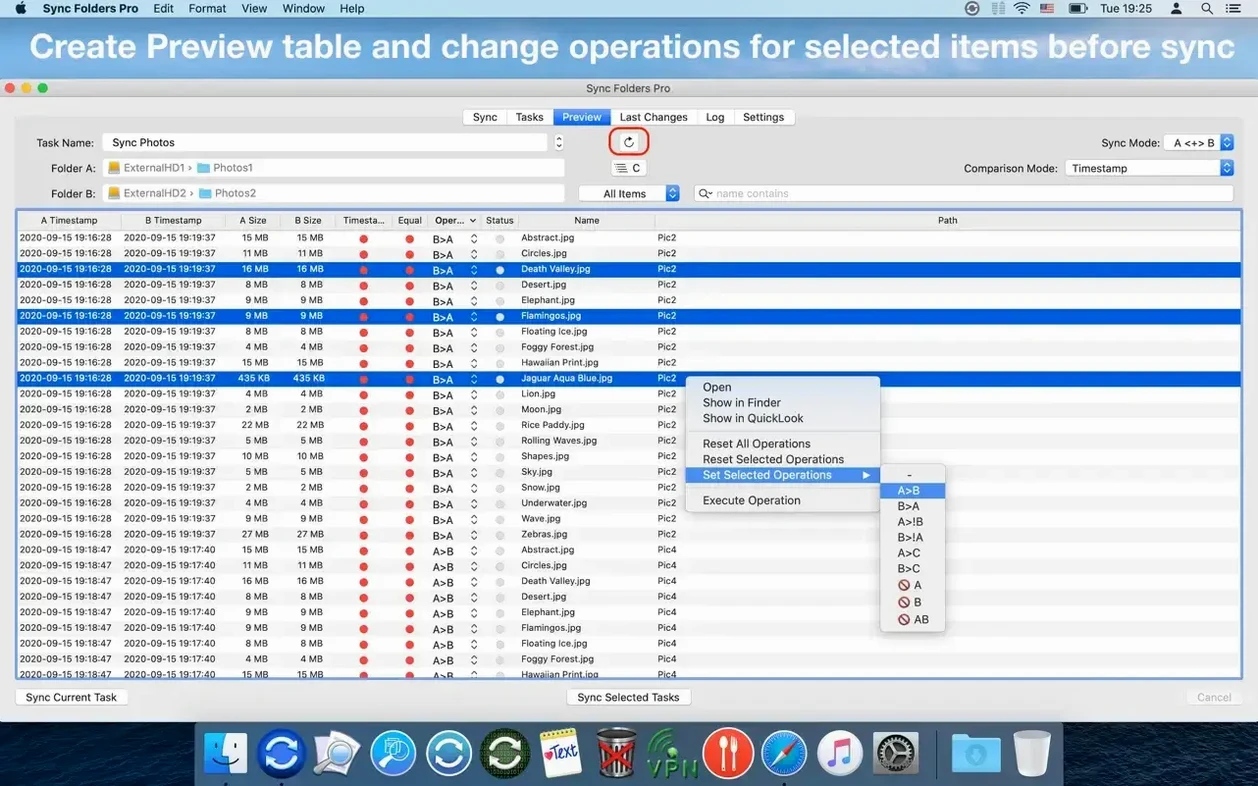
The USB drive is already plugged in from the night before. I select the first task, glance at the “recent changes” column to see what happened during yesterday’s late edits, and press Run. The progress bar moves quickly — the app has seen these files before and skips what has not changed. While it works, I switch to the event log and filter by that task to watch the file list stream past. No errors. The log confirms 14 files updated, 2 new, nothing deleted.
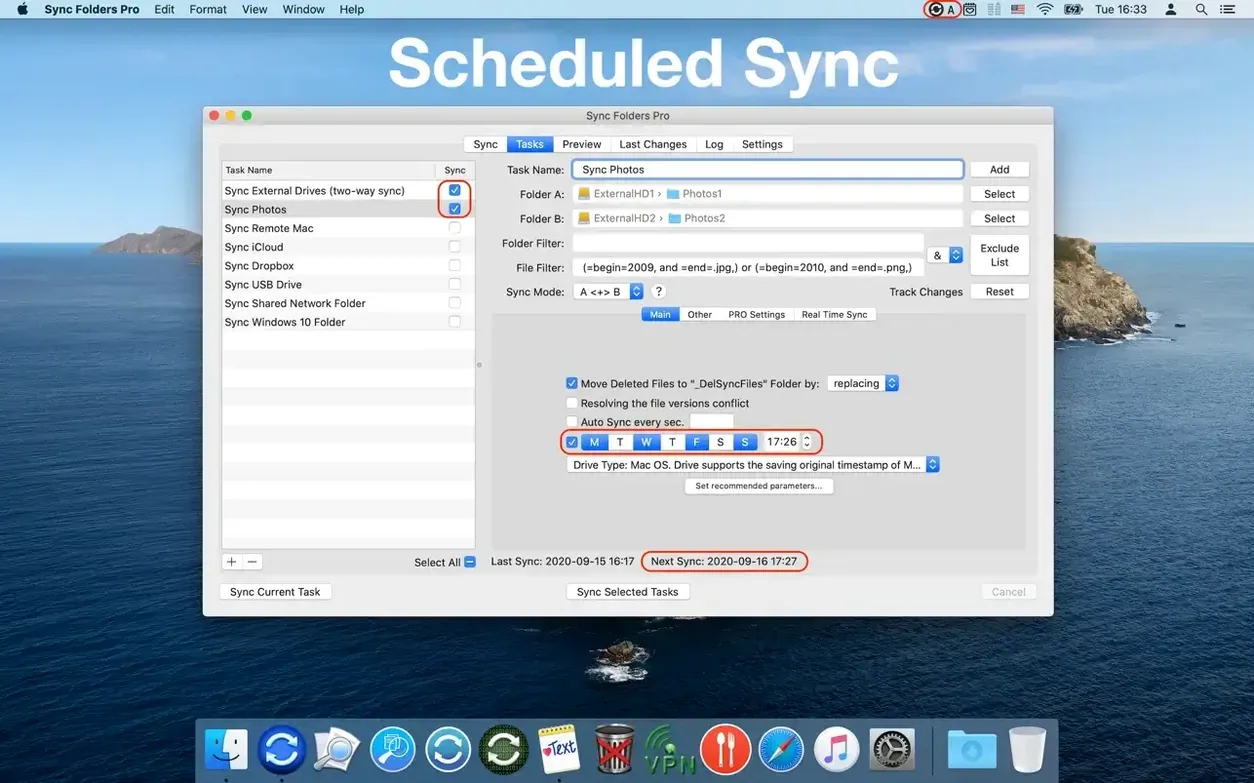
Next, the network task. I highlight it, and the app prompts briefly as it mounts the share. The copy is slower — Gigabit Ethernet, not local bus — but the status line estimates two minutes. I take the coffee. When I return, the share has disconnected itself and the log shows a clean transfer with one note: a file was skipped because it was locked on the remote side. I add an exclusion for temporary lock files in that folder’s filter, right there in the task settings, and schedule the task to repeat every three hours.
The whole session takes under five minutes. I close the window, not because the app demands attention, but because the work is done.




Correspondence 0
Take a chair or join the table to send a letter.
No correspondence on this note yet. Letters are read before they appear.