 LeCoqRoti
Compatibility: from High Sierra onwards
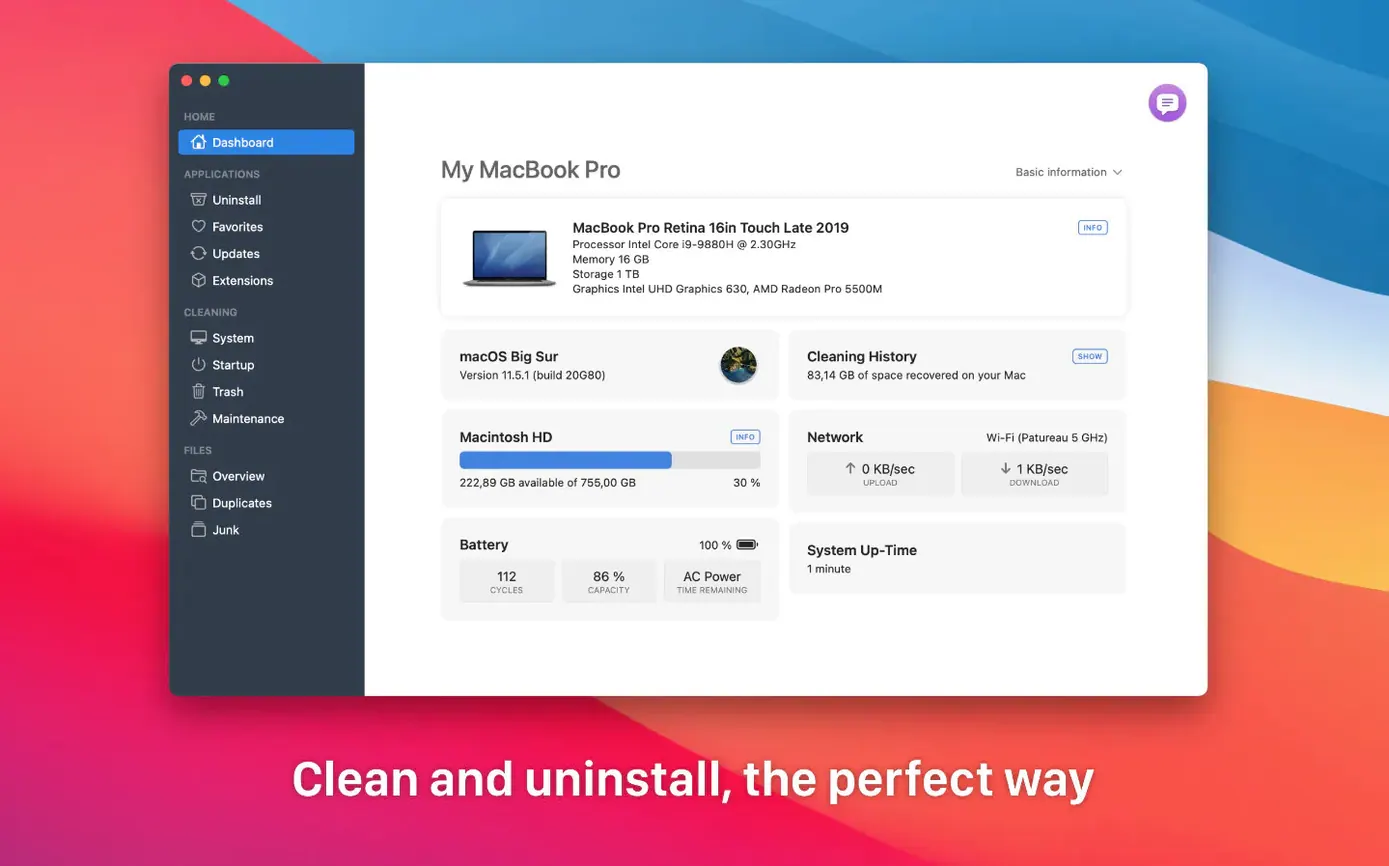
TrashMe works on any Mac running macOS 10.13 or later, with native support for both Intel and Apple Silicon machines. The interface stays in English and follows the system appearance, including a well-judged dark mode.
Good for: a first tour
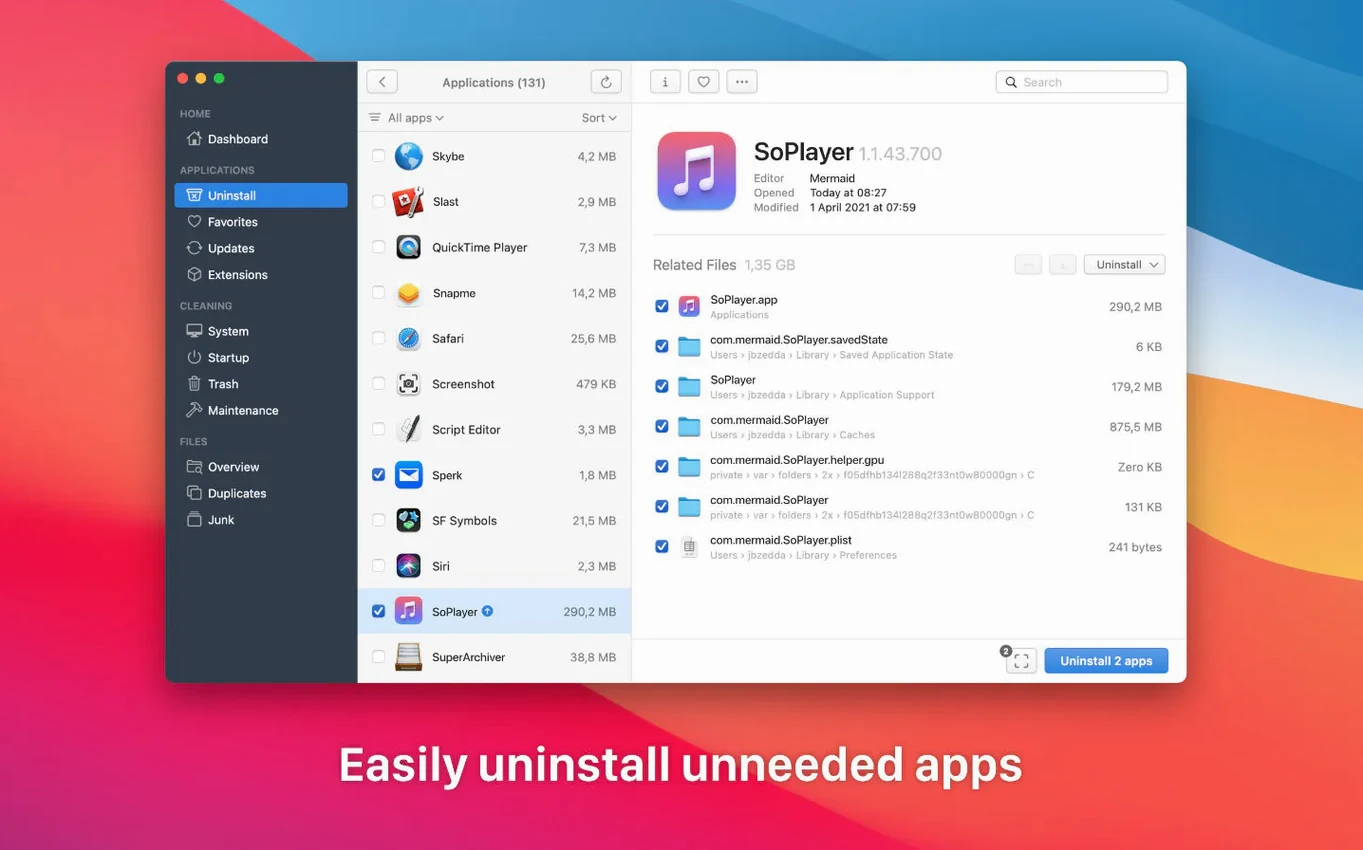
- Seeing what an app leaves behind. Select any application and TrashMe finds its associated files — preferences, caches, logs — before you decide to delete.
- Running maintenance scripts. A single button triggers the periodic scripts macOS normally runs in the small hours, useful if your Mac is often asleep at night.
- Inspecting disk use. The interactive map shows which folders and files take up space, making it easier to spot an old cache or a forgotten download.
- Pruning login items. The app lists everything set to launch at startup, and you can disable items directly from the list.
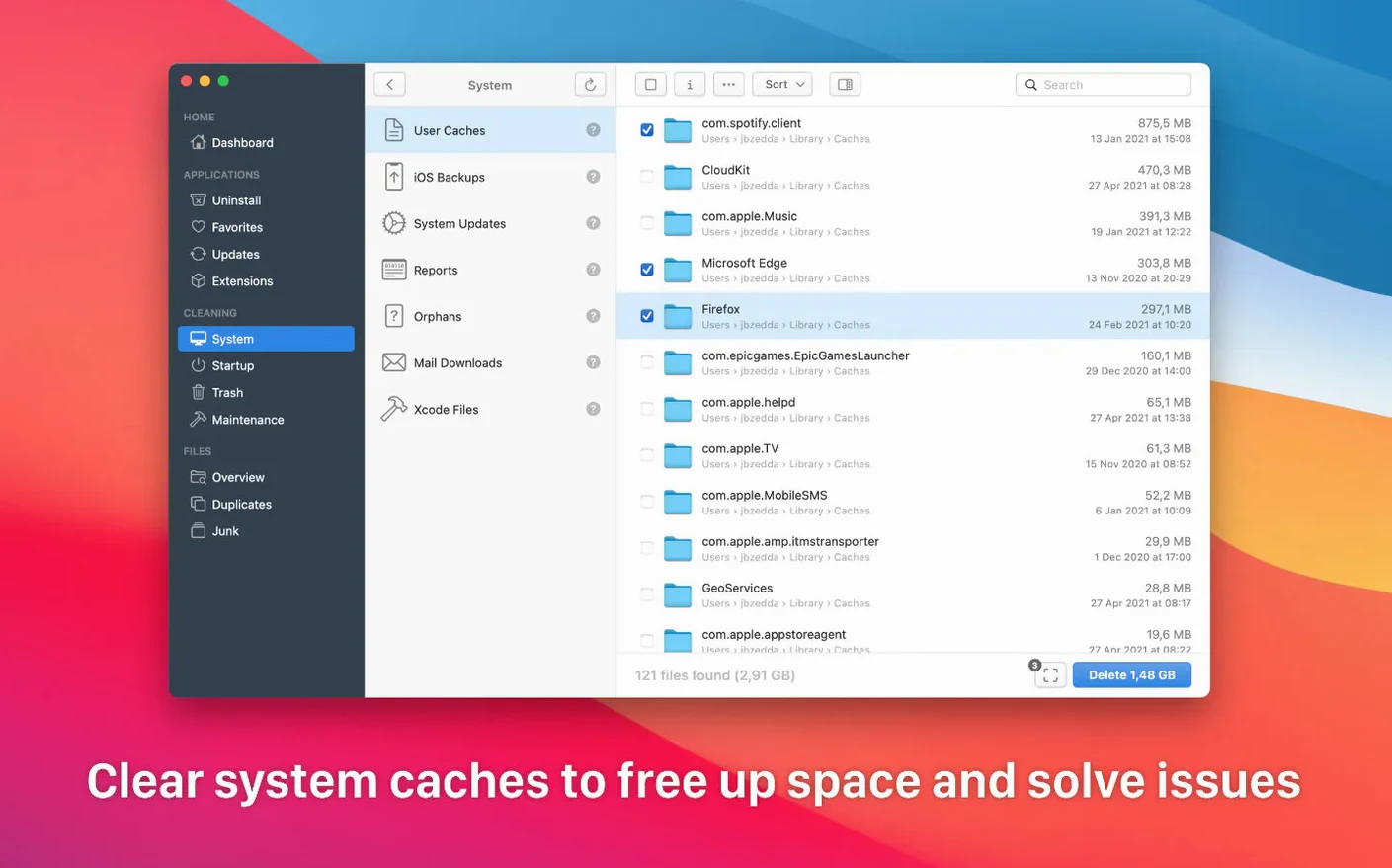
- Clearing system clutter. Temporary files and system caches can be removed in one pass, without hunting through Library folders.
File tracing: limited to metadata footprints
- The uninstaller relies on the app’s own metadata to locate related files; it cannot trace files an app has scattered outside the usual locations.
- Version comparison and duplicate removal work best on clearly named files, so results vary with loosely organised folders.
- The Trash panel lets you review and delete selected items, but it does not offer a secure-erase option.
Beta testers: Smart mode catches every trace
TrashMe suits anyone who prefers to hand applications their notice personally, rather than trusting an app’s own uninstaller to clear up after itself. Developers who install and discard beta builds every few days get particular value: the Smart mode, which opens the app automatically when something is moved to the Trash, turns a multi-step chore into a single gesture. Designers and photographers with sprawling media libraries benefit from the disk map, because it surfaces forgotten render caches and duplicate project files that Finder never flags. Users who keep a Mac for five or six years and feel it grow heavier without quite knowing why tend to find the maintenance scripts and system-cache cleaning the most immediate relief. In short, it rewards people who are curious about what is actually on their drive and willing to spend fifteen minutes acting on what they find.
System caches: deleting them invites a performance dip
A first session with TrashMe can be over-enthusiastic, and a few missteps are predictable. The most frequent is deleting system caches without understanding what they do: the Mac rebuilds them, but performance can dip for an hour or two afterwards. Another is disabling login items by guesswork — killing a helper daemon for a cloud-sync service, for example, then wondering why files stop updating. Some users treat the disk map as a to-do list and delete anything that looks large; a folder named .git or Library is rarely a candidate for the bin. The duplicate scanner, too, needs a moment’s pause: two files with the same name may be different revisions you want to keep. A little caution in the first few days goes a long way.
Uninstaller walkthrough: practise on dispensable apps first
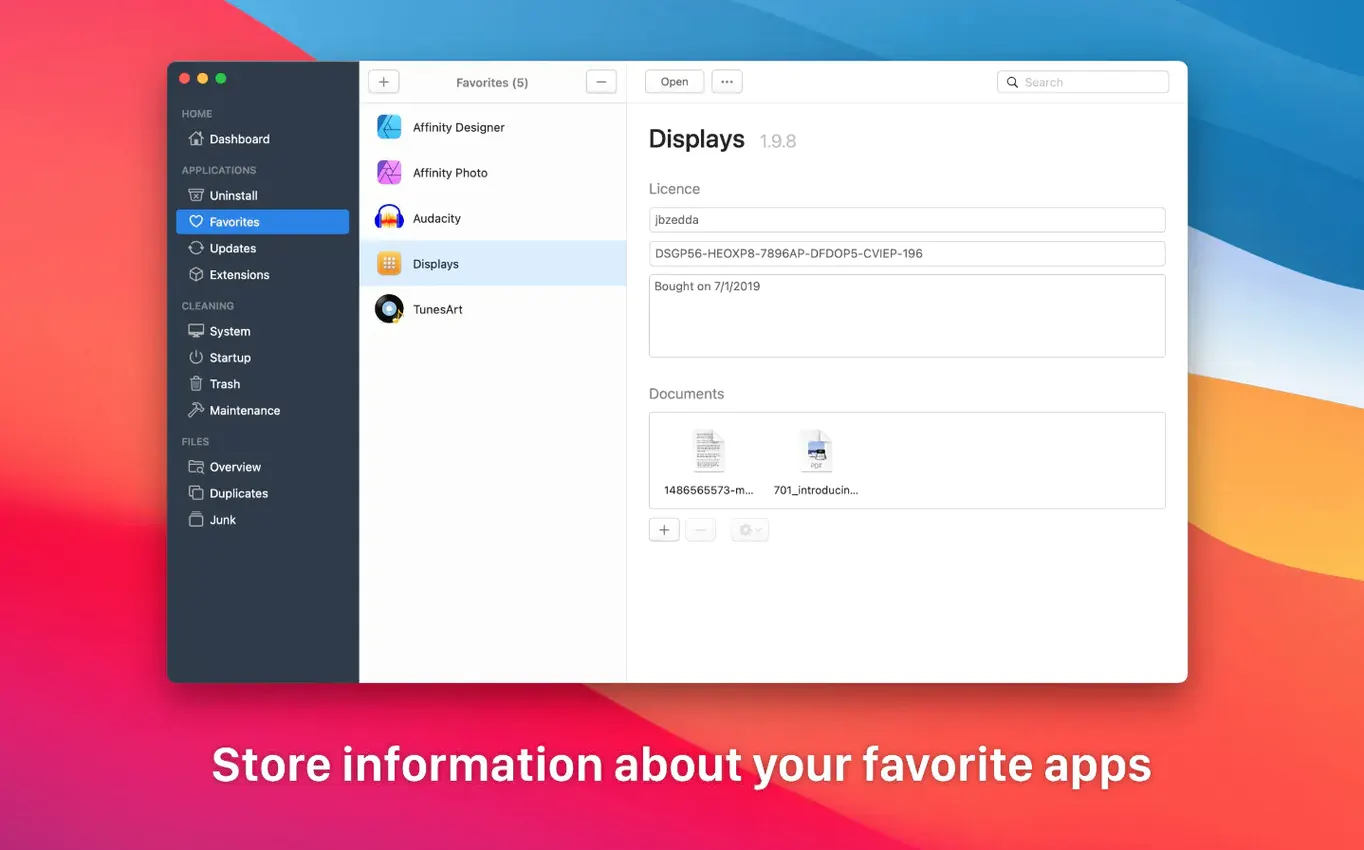
A handful of small routines make the early experience smoother. Start by running the uninstaller on one or two apps you no longer use, just to see how the file-listing works before you tackle anything important. Next, open the disk map and simply look — note the heavy directories without deleting anything, so you build a mental model of where your storage actually goes. If you download TrashMe for mac and install it on a machine that has been through several macOS upgrades, run the maintenance scripts once and wait a day before judging the effect. For login items, disable one item, restart, and observe for a few hours; if nothing breaks, move on to the next. The favourites list is worth populating early: drag in the apps you update manually, and the built-in update checker will save you a few browser trips each week. These habits take minutes to establish and keep the app helpful rather than overreaching.







Correspondence 0
Take a chair or join the table to send a letter.
No correspondence on this note yet. Letters are read before they appear.