 LeCoqRoti
Corrected a subtle timestamp error that could appear when copying files to NTFS volumes.
Tuxera NTFS — an NTFS driver for macOS, providing read and write access to Windows-formatted drives.
Windows drive — a portable USB disk or desktop hard drive originally set up on a PC with the NTFS file system.
Write access — the ability to save, edit, delete, and rename files on the drive, not just open them.
Volume repair — checking and fixing minor NTFS file system errors from within macOS.
Disk image — a new, empty NTFS-formatted container file, created on the Mac itself.
The driver suits anyone who regularly moves drives between a Windows PC and a Mac. It reads existing NTFS content and opens up full editing, so an external disk formatted on a PC behaves like a native Mac volume. Creating fresh NTFS volumes and disk images is also possible, which helps when preparing a drive for a Windows-only device or a colleague who works exclusively on that platform.
Dirty dismounts: the real culprit behind mounting errors
Most difficulties trace back to how the drive was last used, not to the driver itself. A disk that was yanked from a Windows machine without using the Safely Remove Hardware option often arrives on the Mac in a state flagged as dirty. The driver will mount it read-only as a precaution, even though write support is installed. A quick check in Windows — plugging it back in and ejecting properly — clears the flag. If that is not practical, macOS Disk Utility can sometimes nudge the volume into a clean state, but the Windows route is safer.
Another recurring issue involves disk naming. NTFS volumes with names containing characters macOS does not expect — trailing spaces, certain Unicode symbols — may fail to appear on the desktop. Renaming the drive on a Windows machine to something short and alphanumeric solves it immediately.
Sleep and hibernation on a Boot Camp partition create a related headache. If Windows hibernates rather than shutting down fully, the NTFS system partition remains locked. Booting back into macOS afterwards will show the Boot Camp volume as read-only. Disabling Fast Startup in Windows Power Options prevents the lock from being set in the first place.
One more subtle snag: a drive formatted with a very old NTFS version — from an XP-era machine, for instance — may trigger a repair prompt. Letting the built-in verification run once usually updates the on-disk structures enough that subsequent mounts are instant.
Comparisons: three routes to NTFS on a Mac
Three names tend to surface in any discussion of NTFS on macOS, and they approach the problem from different angles.
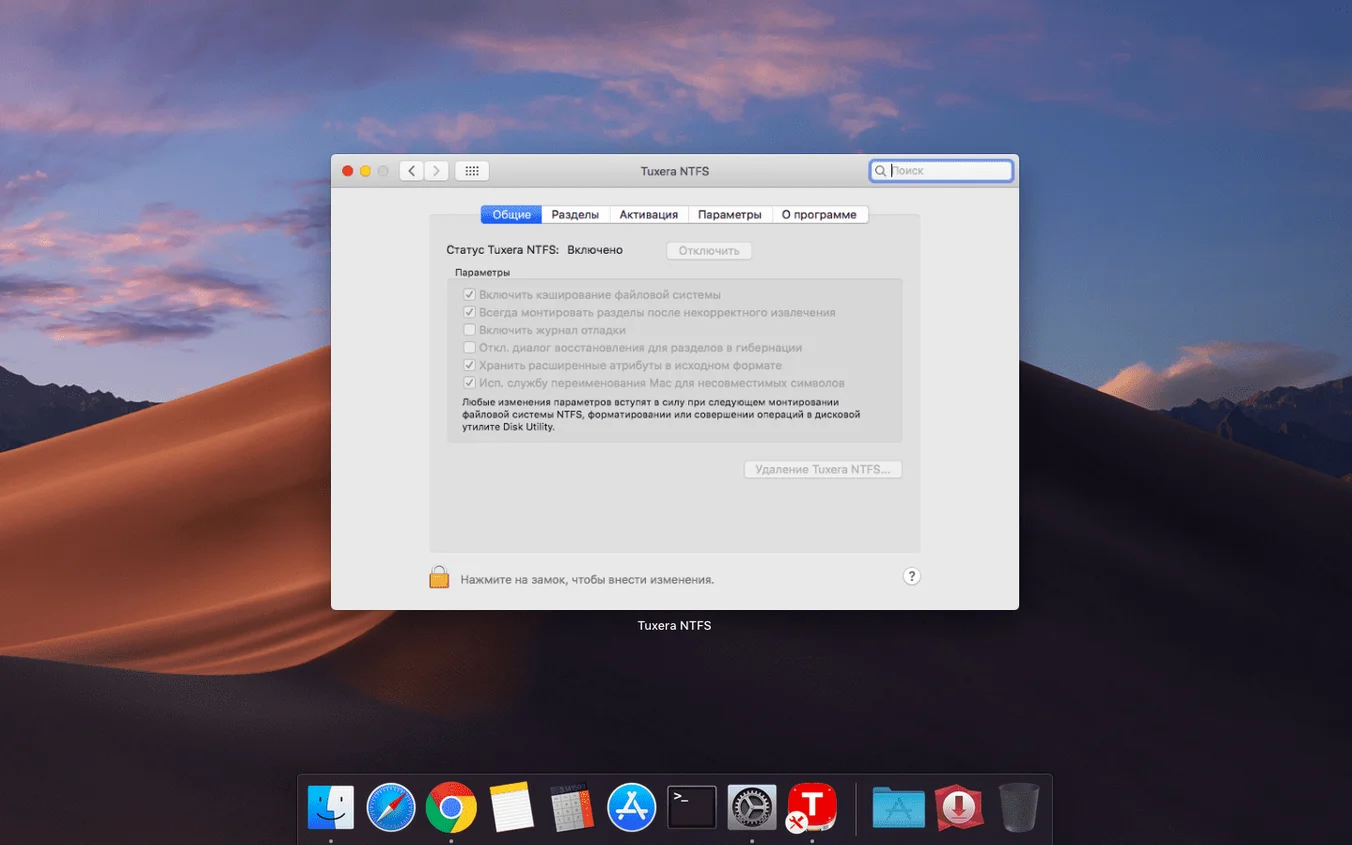
Microsoft NTFS for Mac by Tuxera 2023.1 is the commercial, polished member of the family. It shares a lineage with the open-source NTFS-3G project — Tuxera employs several of its original developers — but adds a proprietary caching layer that lifts write speeds well beyond what the free version achieves. The interface is deliberately minimal: a preference pane with a handful of toggles and a disk management section. For someone who wants the driver to disappear into the background, that restraint is a feature, not an absence.
Paragon NTFS for Mac takes a heavier approach. Its preference pane is busier, with per-disk options, a disk health indicator, and tighter integration with macOS Finder via a menu-bar helper. Paragon is often the first alternative people reach for when they find the Tuxera preference pane too quiet. The performance gap between the two is narrow in everyday use — copying a folder of RAW photos or a virtual machine image feels similar on both — though Paragon has historically been quicker to support the newest macOS beta.
NTFS-3G, the open-source foundation beneath both, is freely available via Homebrew. It works, and it is the obvious choice for a machine that only occasionally touches an NTFS drive. The caveat is speed: without the caching code that Tuxera and Paragon add, large sequential writes run noticeably slower, and metadata operations like deleting a folder with thousands of small files can feel sluggish. It also requires disabling System Integrity Protection in some macOS configurations, which is more friction than many users want.
Where Tuxera carves out its own space is in virtual machine workflows. Because it operates as a kernel extension — or, on Apple Silicon Macs, a system extension — that simply presents NTFS as a native file system, software like VMware Fusion or Parallels Desktop sees the mounted volume as a local disk. That makes sharing a drive between the macOS host and a Windows guest more straightforward than with some alternatives that route writes through a user-space daemon.
Settings worth visiting first
The preference pane opens from System Settings (or System Preferences on older macOS releases) and is sparse enough that everything fits on two tabs. Three controls deserve immediate attention.
Mount behaviour. Under the General tab, a checkbox determines whether NTFS volumes mount automatically when plugged in. If most of your drives are Mac-formatted and the NTFS one appears only once a week, unchecking this keeps the desktop cleaner. The drive still appears in Disk Utility and can be mounted manually.
Filename normalisation. Hidden in the Advanced section is an option for how the driver handles characters that Windows and macOS interpret differently — accented letters, certain punctuation. The default works for most European languages, but anyone working with files named in Korean, Japanese, or Arabic should test both settings with a small folder first. Switching the normalisation mode can prevent files that look identical on one OS from appearing as duplicates on the other.
Disk cache policy. Also under Advanced, the write caching toggle defaults to on. For drives that are regularly unplugged without ejecting — a habit worth breaking, but habits persist — switching to a more conservative write-through mode reduces the chance of an incomplete write corrupting a file. The trade-off is a small drop in sustained write speed, barely noticeable with a single large file but measurable when copying thousands of small ones.
Workflow: preparing a portable drive for a mixed environment
A concrete scenario: you have a 2 TB portable SSD that will shuttle video rushes between a Mac editing suite and a Windows rendering box. The drive arrived fresh from the shop, formatted as exFAT. The goal is a single NTFS volume that both machines treat as a first-class citizen, with a clean folder structure set up before any media lands on it.
The sequence, start to finish:
- Plug the drive into the Mac. If it mounts as exFAT, copy off any factory files — warranties, manuals — then unmount it.
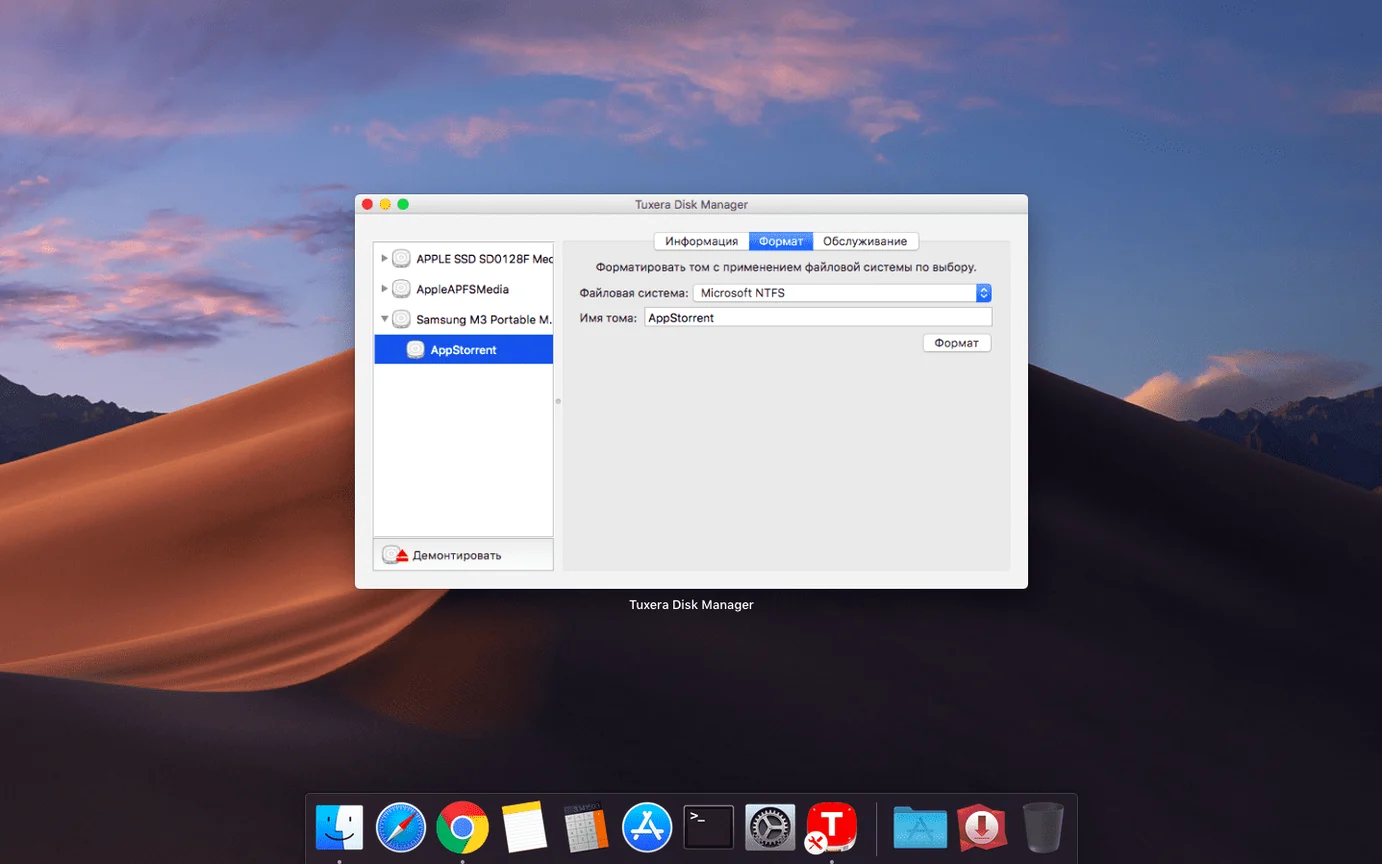
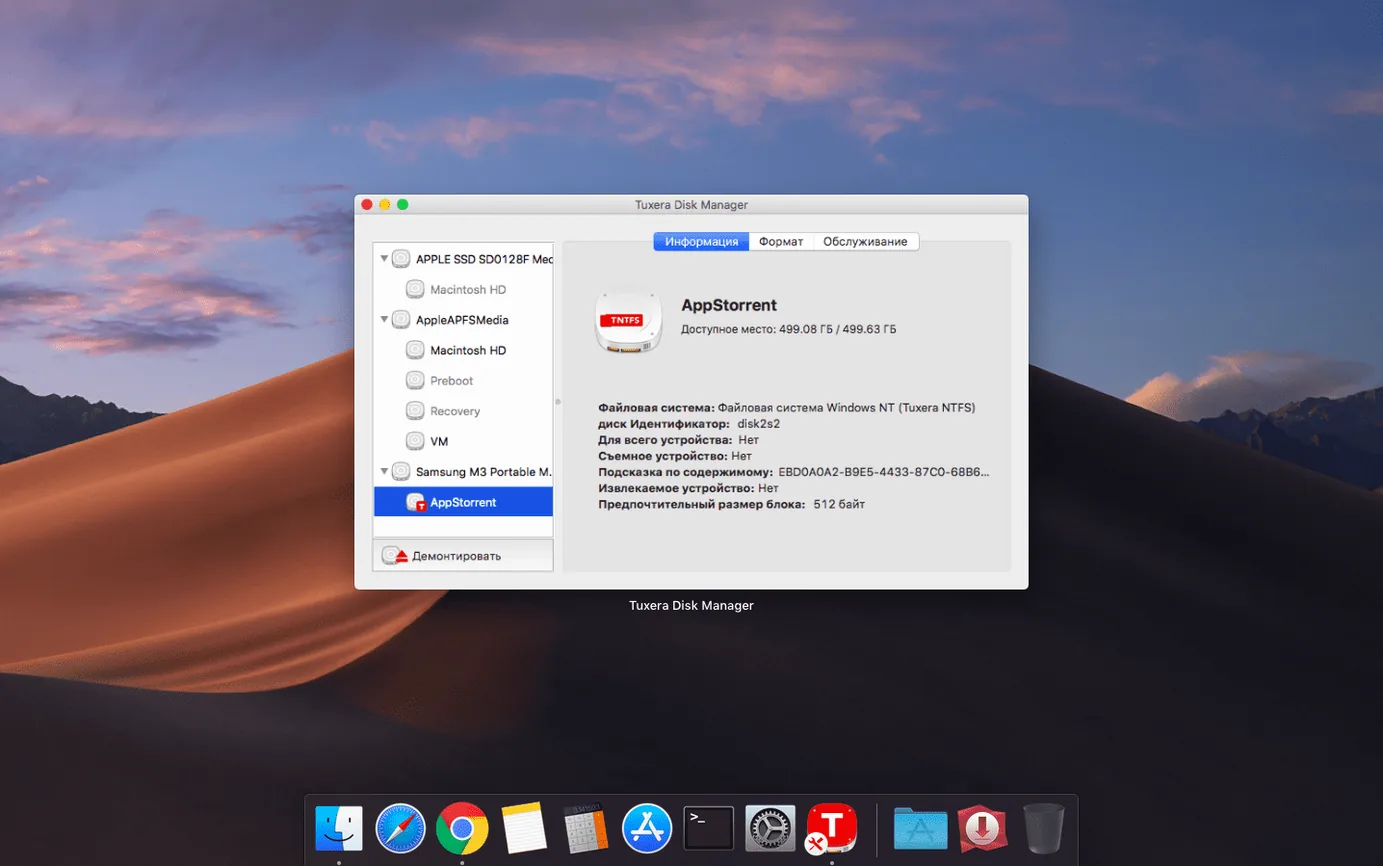
- Open the Tuxera NTFS preference pane. Switch to the Disks tab, which lists all connected drives with their file systems.
- Select the target disk. A row of actions appears. Choose Format, pick NTFS from the drop-down, and give the volume a simple name with no spaces or special characters. Confirm.
- Once formatting completes, the drive mounts on the desktop. Open it and create a folder hierarchy that makes sense for the project —
Rushes,Exports,Project_Files,Archive. - Right-click the drive icon on the desktop and choose Get Info. Under Sharing & Permissions, confirm that the Mac user account has both Read and Write privileges. If not, adjust them now while the drive is empty.
- Copy a small test file — a text document or a JPEG — from the Mac to each folder. Eject the drive properly (right-click, Eject, or drag to the Trash).
- Walk the drive to the Windows machine. Plug it in. Open each folder and confirm the test file is visible and can be opened, renamed, and deleted. Create a new file on the Windows side and save it into one of the folders.
- Eject from Windows using the system tray icon. Back on the Mac, plug in the drive and verify that the Windows-created file appears and is fully editable.
The entire process takes under ten minutes, most of which is walking between rooms. The result is a drive whose file system never gets in the way, regardless of which operating system it is attached to at any given moment.
Beginner mistakes and how to sidestep them
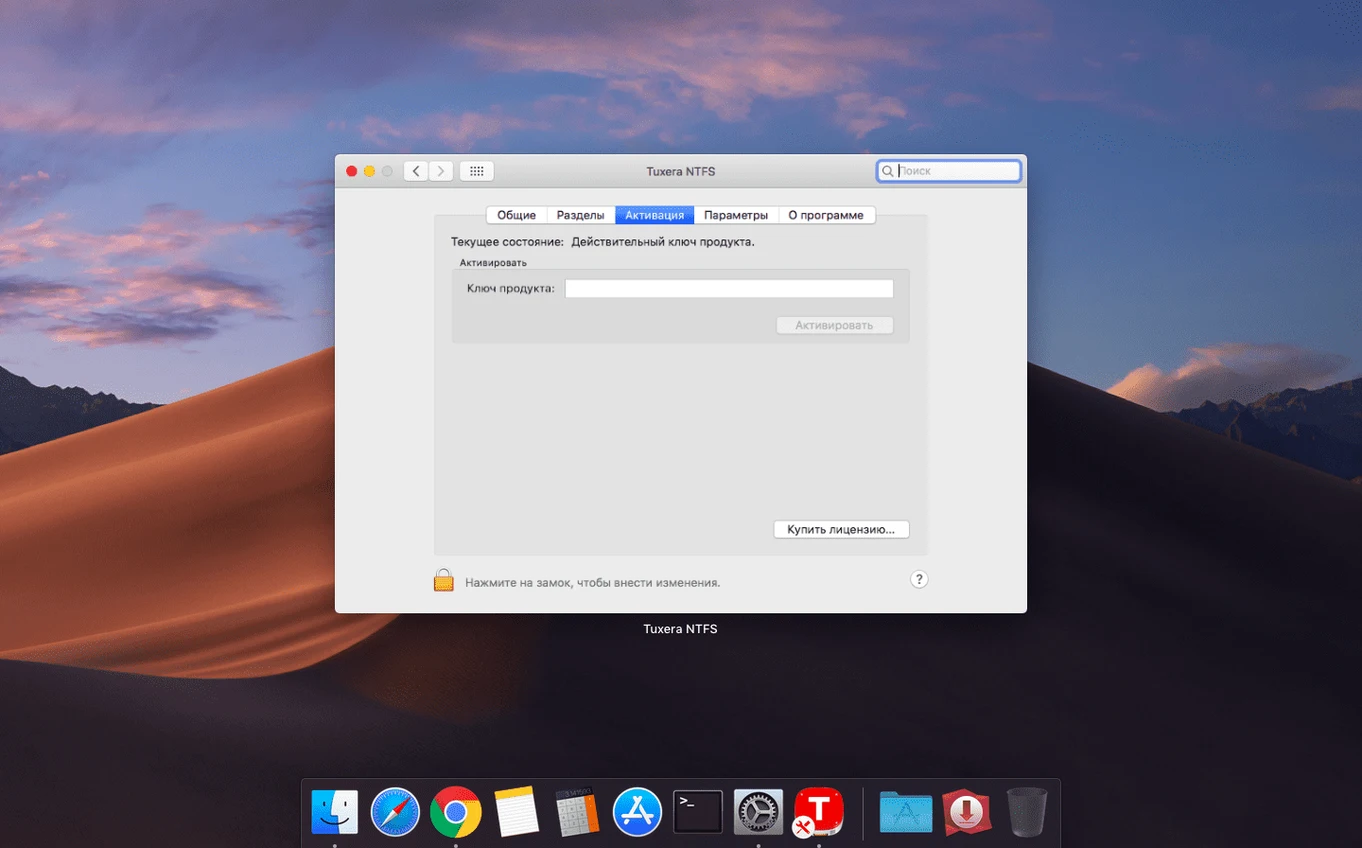
The most common misstep is assuming the driver is not working because nothing visibly changes. Unlike an application, Tuxera NTFS installs as a system-level component; there is no Dock icon to click. A freshly installed driver that sits quietly and lets you drag files onto an NTFS drive is working exactly as intended. Opening the preference pane to confirm the version number and licence status is the only visual confirmation needed.
Another mistake is formatting a brand-new drive as NTFS from the Mac before checking whether the intended recipient machine can read it. A drive destined for an older Windows Server installation or a media player that only understands exFAT will be invisible, and the blame tends to land on the formatting tool rather than the file system choice. A five-second check of the target device's specifications avoids an hour of reformatting later.
A subtler error involves disk images. The driver can create NTFS-formatted .dmg files, which is useful for testing or for packaging a folder structure to send to a Windows colleague. Beginners sometimes create these with a fixed size that is too small, then fill them up and wonder why the image refuses to expand. The sparse bundle image format grows as needed; the fixed-size format does not. The choice is presented in the creation dialogue, and selecting the wrong one is easy to do if you are clicking through quickly.
Finally, there is the temptation to run a third-party disk repair tool on an NTFS volume from the Mac side. The built-in verification in Tuxera's preference pane handles minor inconsistencies safely. External tools that are not NTFS-aware can introduce errors the driver then has to work around. If a volume needs serious repair, a brief visit to a Windows machine — or a Windows virtual machine with direct disk access — remains the most reliable path.







Correspondence 0
Take a chair or join the table to send a letter.
No correspondence on this note yet. Letters are read before they appear.