 LeCoqRoti
You have a film score playing on the Mac in the study, but you want it to fill the kitchen while dinner is being prepared. A few clicks in Airfoil send that audio — and audio from any other application — across the house.
Check compatibility: what your Mac needs
Airfoil 5.13 runs on any 64-bit Mac with macOS 14.4 or later, whether it uses an Apple silicon or Intel processor.
Choose a destination: supported speakers and devices
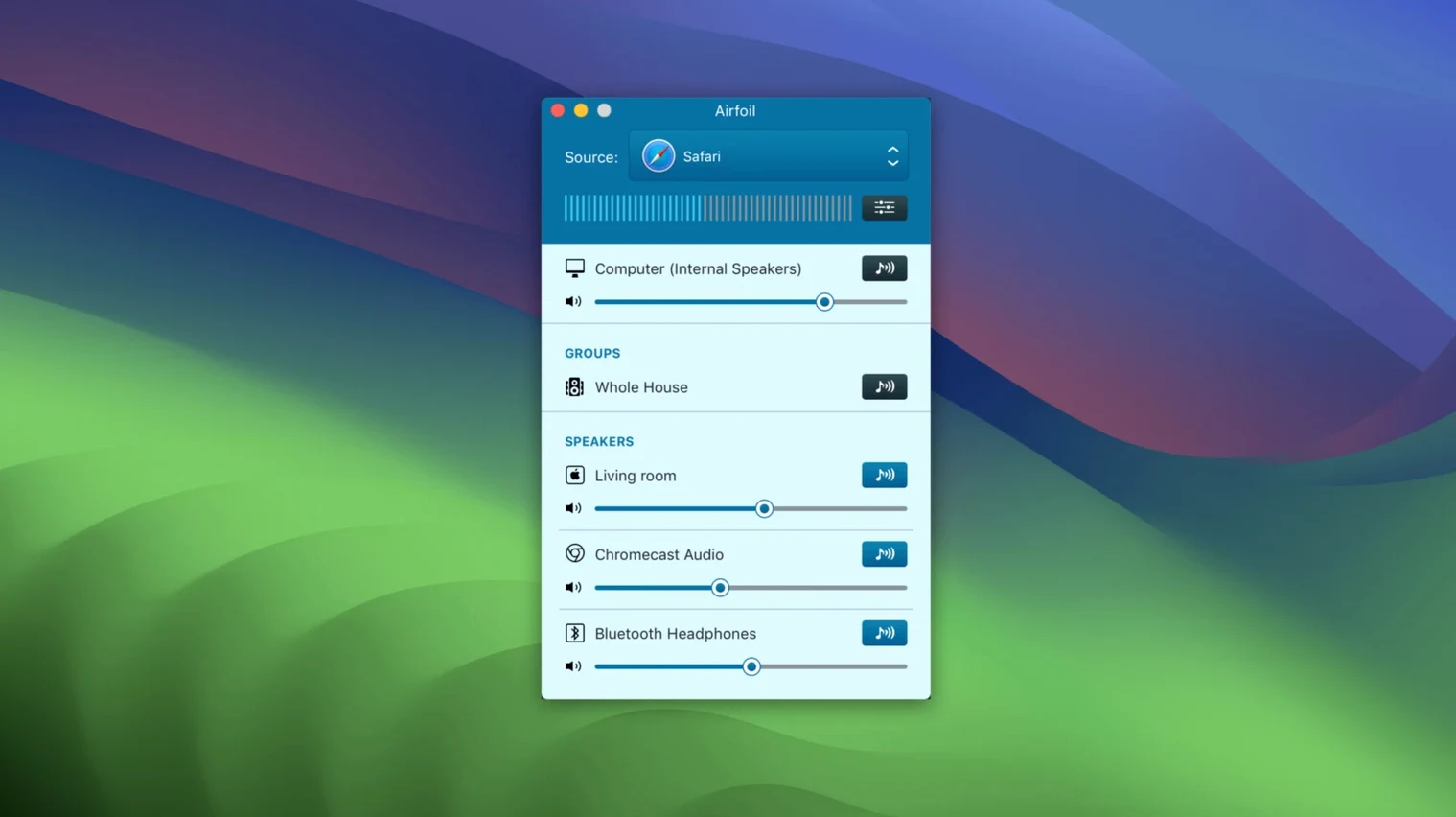
Stream to AirPlay hardware including Apple TV, HomePod and AirPort Express, as well as Google Cast devices, Bluetooth speakers, iOS devices, and other Macs or PCs. You can send the same audio to several of them simultaneously.
Pick a source: capturing app audio
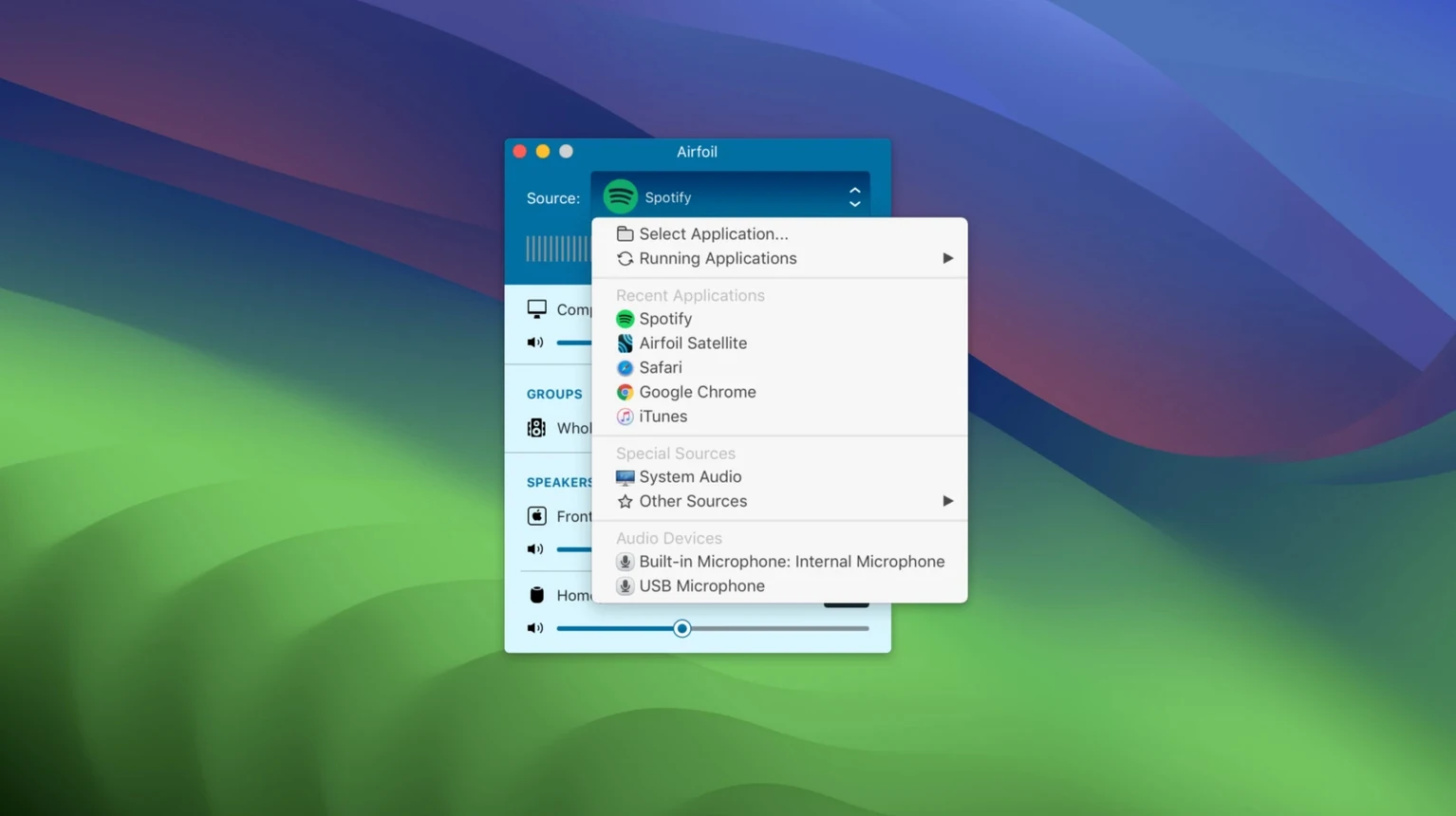
Airfoil grabs sound from a single application or the whole system. A preference lets you nominate a default speaker so streaming begins the moment the app opens.
Integration: how Airfoil sits alongside the rest of the system
Airfoil does not replace your Mac’s audio output — it duplicates and redirects it. The app appears as a selectable output in the menu bar’s Sound pane once it is running, though you will rarely need to touch that. More interesting is its relationship with Rogue Amoeba’s own ecosystem. If you use Audio Hijack for recording or SoundSource for per-app volume control, Airfoil sees their virtual devices as sources and can stream their processed audio straight to a remote speaker. That means a chain like Music app → SoundSource EQ → Airfoil → HomePod in the bedroom works without a second thought.
On the macOS side, Airfoil respects the system’s audio routing. When you plug in a USB interface or switch to an external DAC, the app notices and offers the new device as a capture source. It also coexists with AirPlay’s native multi-room feature in the Music app: you can use Airfoil to send a podcast from a browser to the living-room Apple TV while the Music app handles a separate stream to the kitchen HomePod, with no conflict.
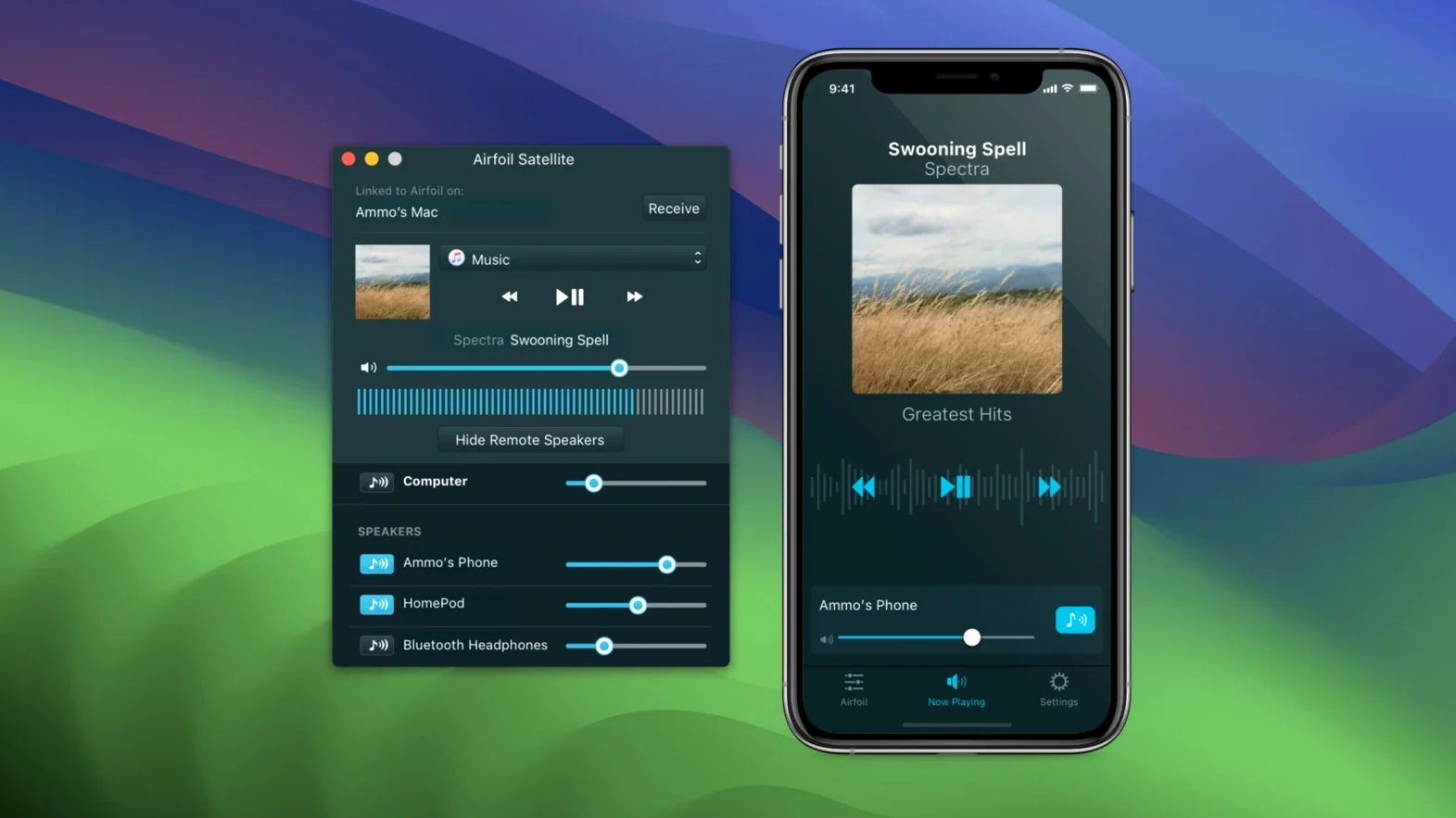
For remote control, Airfoil Satellite — a free companion app for iOS and other Macs — turns a phone or a secondary laptop into a volume mixer and source switcher. The Satellite app connects over the local network and displays every active speaker with its own slider. It is a small but thoughtful touch: you adjust the bathroom speaker volume from the bath itself, without walking back to the desk.
A user scenario: the apartment DJ with mismatched hardware
Consider someone who lives in a rented flat with a collection of audio gear that was never designed to work together: a Google Nest speaker in the kitchen, a HomePod mini on the bedroom shelf, an old AirPort Express plugged into powered speakers in the living room, and a MacBook Air that moves from room to room. Native AirPlay alone cannot reach the Nest. The Google Home app cannot see the HomePod. Airfoil sees all of them.
On a Friday evening, this user opens the MacBook in the living room, launches Airfoil, and selects a playlist from the Music app as the source. Three ticks in the speaker list — Nest, HomePod, AirPort Express — and the same track plays everywhere, in sync. The equalizer gets a slight low-end boost for the Nest, which tends to sound thin at lower volumes. When a friend arrives and asks to hear a track on SoundCloud, the user switches the source from Music to Safari with two clicks. No re-pairing, no Bluetooth menu, no frustration. The whole flat becomes one room, acoustically speaking.
A workflow: streaming a live radio broadcast to multiple rooms
Start with the goal: a Sunday-morning jazz programme from a web-based radio station, played in the kitchen and the study simultaneously. Here is how the task unfolds with Airfoil at the centre.
- Open the station in a browser. Safari or Firefox — Airfoil treats them identically. Let the stream start playing so the audio is active.
- Launch Airfoil and select the browser as the source. The source list shows running applications that are producing sound. Click the browser’s name; the waveform indicator confirms audio is being captured.
- Choose the destination devices. Tick the kitchen HomePod and the study Mac mini (which runs Airfoil Satellite and feeds desktop speakers). Both appear in the speaker list within seconds.
- Check sync and adjust the equalizer. If one room sounds slightly ahead, use the per-speaker delay slider — a hidden gem behind the gear icon — to nudge the study speakers into alignment. Apply a gentle high-pass filter to the HomePod to reduce boominess in the tiled kitchen.
- Save the setup as a preset. From the Presets menu, choose “Save Preset…” and name it “Sunday Jazz.” Next week, one menu selection restores the exact source, speakers, volume levels and EQ settings.
The whole sequence takes under a minute once the station is playing. After the broadcast ends, the preset remains ready for any recurring audio routine — a morning news podcast, a white-noise app at bedtime, or a film score that follows you from the desk to the dining table.
Default speaker pairing: start transmitting on launch
After the initial installation, a few small adjustments make Airfoil feel like a natural part of the system rather than an extra step. First, enable the “Start transmitting on launch” option and pair it with a default speaker. If you always stream to the same HomePod or Bluetooth speaker, this removes the need to configure anything each morning. The app sits in the menu bar, starts transmitting automatically, and stays out of the way.
Second, spend ten minutes labelling your speakers. Airfoil picks up device names from the network, which often means “Living Room” appears three times from different protocols. Rename them in the speaker list (right-click → Rename) so you see “Kitchen Nest,” “Bedroom HomePod” and “Study AirPort” — names that reflect actual locations, not generic descriptors.
Third, explore the equalizer presets before you need them. The “Voice Boost” preset is genuinely useful for spoken-word content streamed to a small Bluetooth speaker; the “Bass Reducer” preset helps when a thin-walled flat means low frequencies travel too well to the neighbours. Create your own preset for each speaker if the room acoustics demand it, then associate it with that device in the speaker settings so it applies automatically every time that speaker connects.
Fourth, if you use a VPN for work, note that Airfoil relies on local network discovery. Some VPN clients route all traffic through a tunnel that hides local devices. If speakers vanish from the list, disconnect the VPN momentarily, let Airfoil rediscover the devices, then reconnect — the app usually holds onto known devices once they have been found.






Correspondence 0
Take a chair or join the table to send a letter.
No correspondence on this note yet. Letters are read before they appear.