 LeCoqRoti
A screenshot lands on the desktop, unedited and unhelpful. A screen recording ends up too large to send. CleanShot X gathers the scattered tasks of capture, annotation and quick sharing into one quiet toolkit, and version 5.0.1 keeps the whole assembly running smoothly with minor bug fixes.
Capture and mark up: the essentials
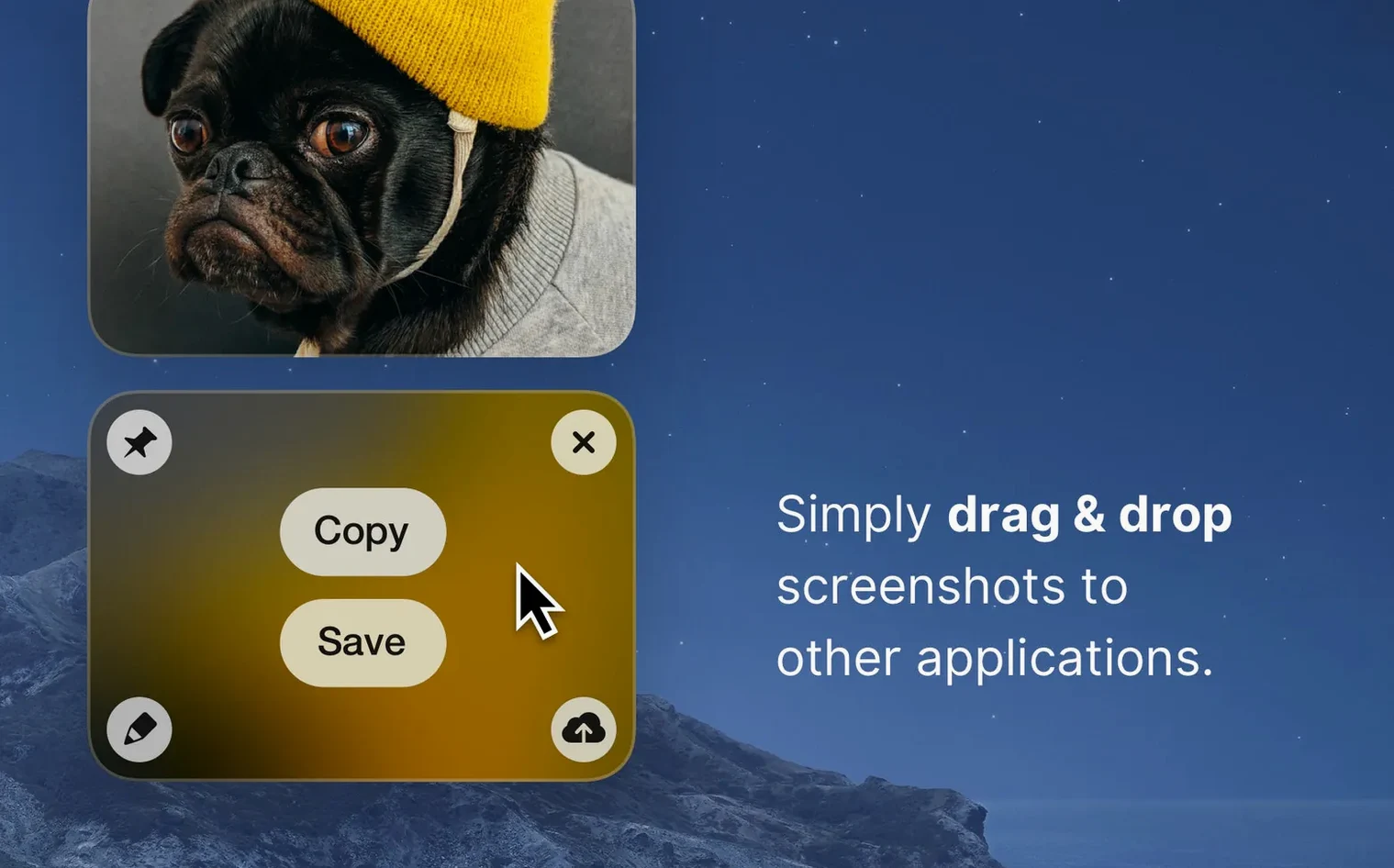
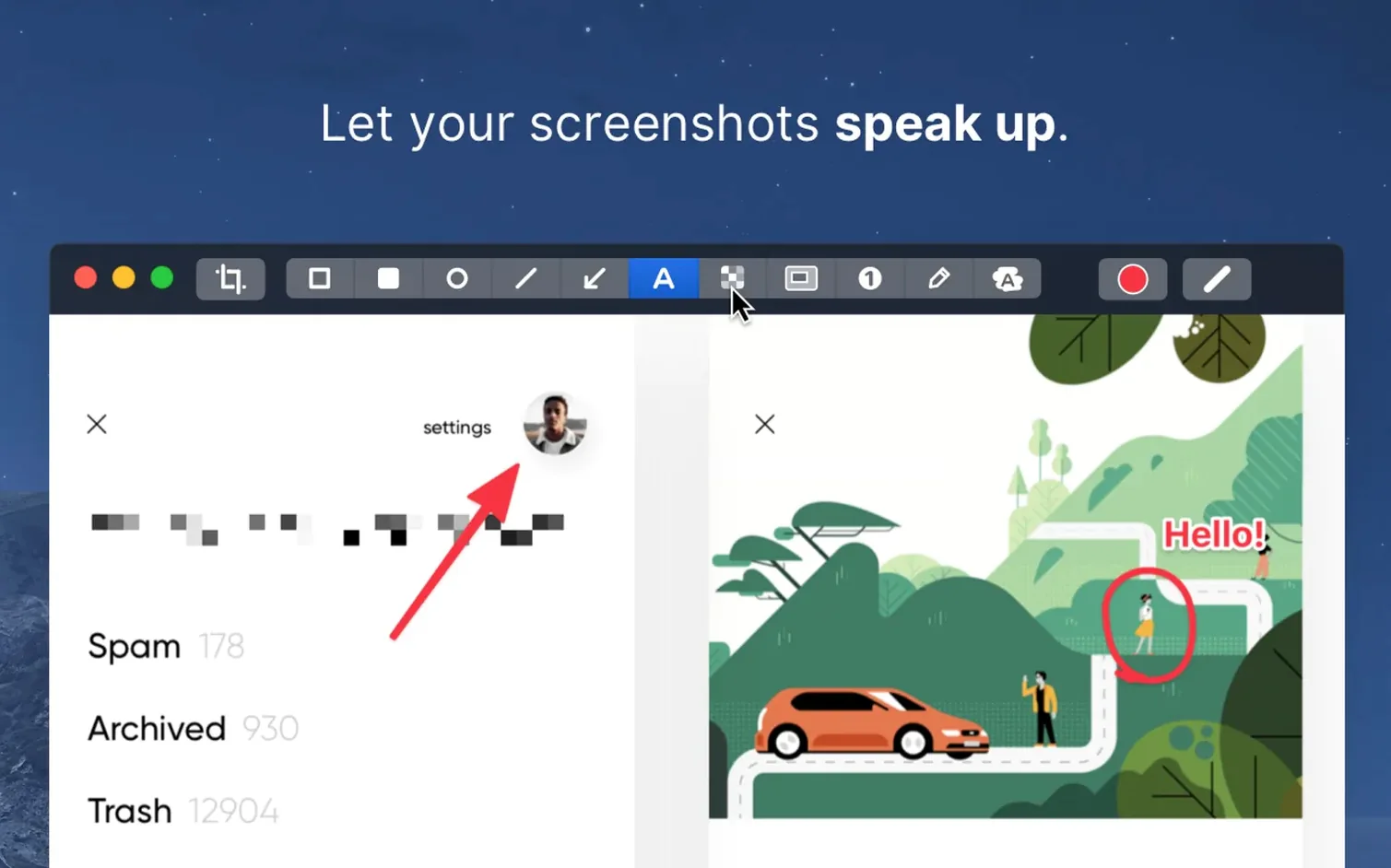
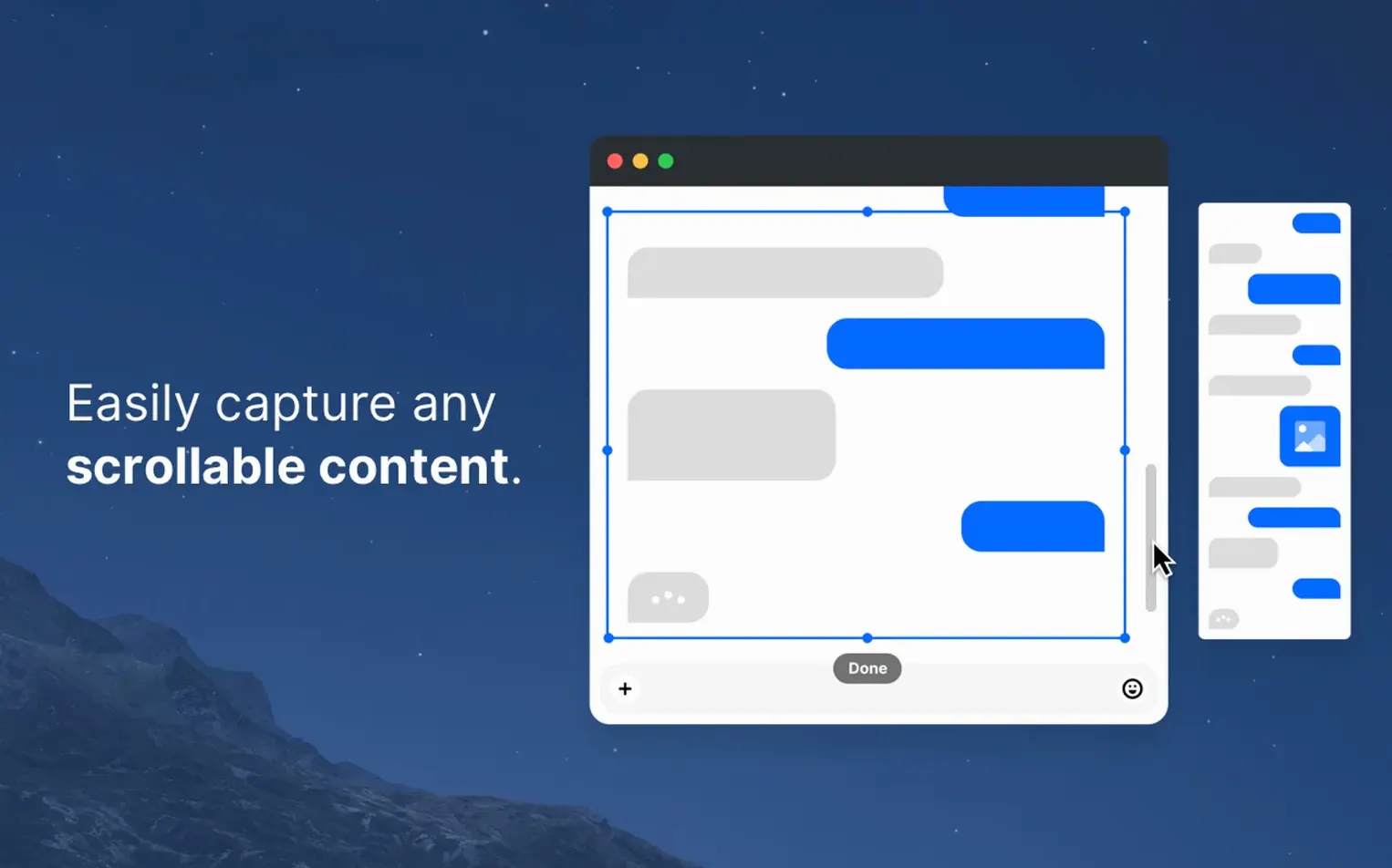
You can grab the full screen, a selected area, a single window or a scrolling view that extends beyond the visible frame. A timer lets you line up a menu or tooltip before the capture fires. Once you have the shot, the annotation tools appear on top without opening a separate editor: arrows, text, blur for sensitive details, and a highlight that dims the rest of the image. There is an option to pin a screenshot so it floats above other windows while you work, which turns a static capture into a persistent reference.
Record and switch resolutions
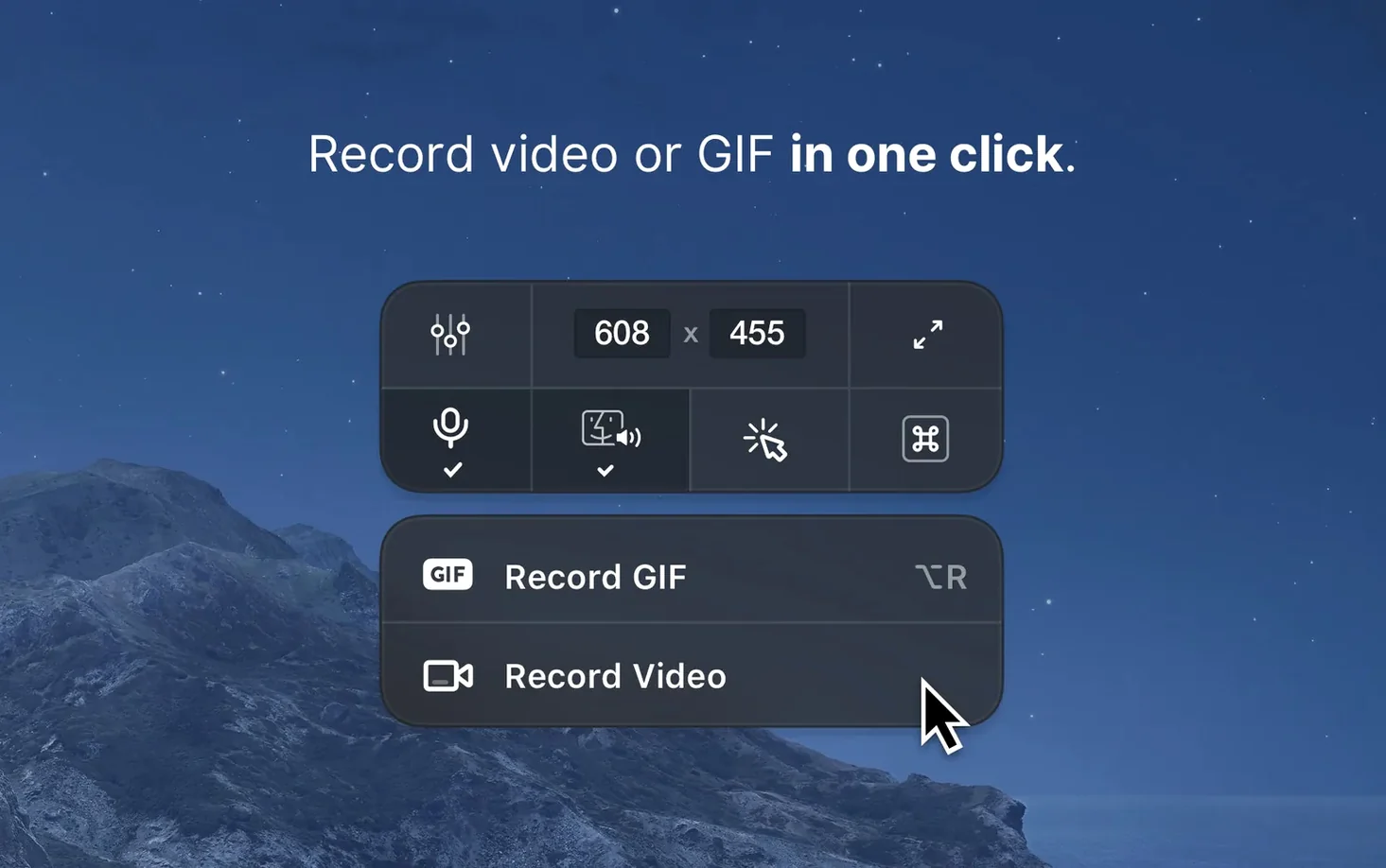
Recording works the same way. You set the area, optionally set a timer, and go. The output can be a video file or a GIF, which saves the step of converting later. For interface shots, the resolution toggle between Retina and standard display means a crisp image on high-density screens or a smaller file for documentation. The video editor built in handles simple trimming, so the whole sequence—capture, clip, export—stays inside one window.
Save location: a dedicated folder keeps the desktop calm
Out of the box, CleanShot X works sensibly, but a few preferences repay early attention. The save location is the obvious one: a dedicated folder keeps the desktop calm, and the option to name files by date and time makes searching less of a chore later.
Under general preferences, disabling the default upload service if you never use it removes a small friction during the share step. The hide-desktop-icons toggle, tucked in the capture overlay menu, is worth enabling permanently if you work with a cluttered desktop—the difference in a full-screen grab is immediate. For recording, the disable notifications switch sits in the recording preferences and should be on by default; it prevents a message banner from sailing into a video mid-take. The resolution toggle between Retina and standard is another candidate for a deliberate choice: Retina for client work, standard for internal notes and faster file transfers.
Timed capture: staging a browser glitch in five seconds
Suppose a developer needs to report a visual bug in a web application. The sequence begins with a timed full-window capture: set the timer to five seconds, arrange the browser window and the misbehaving element, then wait. The shot appears in the floating preview. A quick click on the blur tool masks a colleague’s email address in the sidebar; an arrow points to the broken button. The annotation sits on top without launching a separate editor, so the whole edit takes under a minute.
With the image pinned to the screen, the developer can open the bug tracker and refer to the floating screenshot while writing the description. When the report calls for a short recording, switching to video mode and selecting the same window takes two clicks. The recording runs for twelve seconds—just enough to show the hover state failing—and the built-in trim tool snips the beginning where the cursor was still moving into position. Export as a small GIF, drop it into the ticket, and the whole report is filed in under four minutes.
Menu bar hub: every capture mode in a single dropdown
Memorising the shortcuts takes time, so in the first week rely on the menu-bar icon as a central hub: every mode—area, window, fullscreen, scrolling, recording—lives in a single dropdown. The overlay that appears after a capture is the real workspace; click through every tool once, even if you do not need them immediately, so the layout feels familiar when a task calls for a quick blur or a numbered step.
Pin two or three reference screenshots early on: one from a design file, one from a competitor's page. The pinning feature reveals its value only after you have used it across a working day, switching between windows while the pinned image stays put. For video, test the GIF export on a five-second clip before you need it for real; the default quality settings are generous, and a short test tells you whether to adjust the frame rate down for email attachments or leave it high for documentation. The cleanShot mac download from the developer’s site gets you the current version, and the setup is a straightforward drag into Applications.
Annotation feel: arrows and highlights now snap with precision
The jump to version 5.0 arrived in early September 2026 as a major update, and the changes touched daily habits more than a casual changelog suggests. The annotation overlay gained a smoother drawing feel: arrows and highlights now snap with less lag on Apple Silicon, which matters when you are marking up five or six screenshots in a row. The scrolling capture became more reliable with long web pages and tall code editors, a quiet fix that eliminates the old frustration of a truncated output.
For anyone who records regularly, the trimming interface tightened up. The handles respond more predictably, and the preview scrubs without the slight stutter that crept into earlier builds on busy systems. Version 5.0.1 then added minor bug fixes and improvements—the kind of polish that shows up in edge cases, like a share-extension conflict or a keyboard shortcut that had stopped sticking after a system sleep cycle. The cleanShot x download for version 5.0.1 requires macOS 11 or later and runs natively on both Intel and Apple Silicon, so the performance gains are not tied to one chip generation. The installer is a standard disk image; drag the app into Applications, launch it from Launchpad, and the updated toolset settles into the menu bar without ceremony.






Correspondence 0
Take a chair or join the table to send a letter.
No correspondence on this note yet. Letters are read before they appear.