 LeCoqRoti
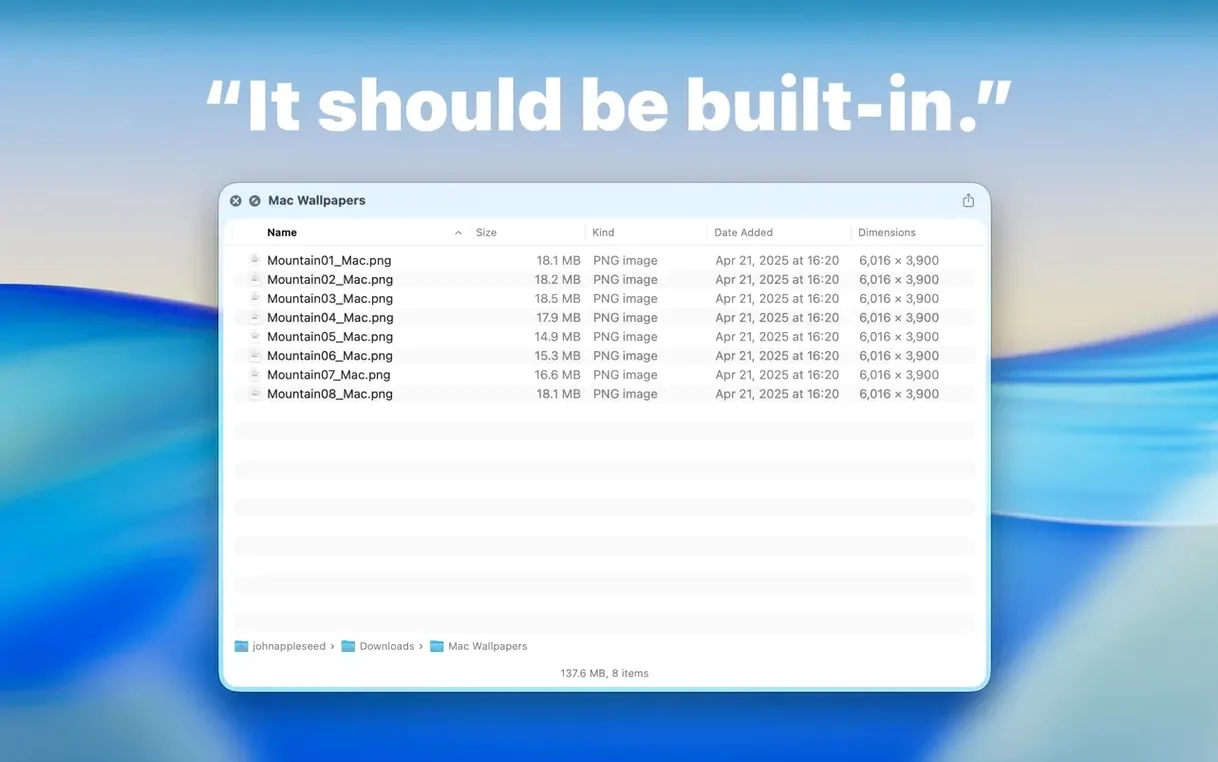
Finder lets you peek inside most files with a tap of the Space bar, yet folders remain stubbornly opaque. You see an icon and a name, but no hint of what is inside unless you open it. Folder Preview Pro closes that gap by teaching Quick Look to read folders as easily as it reads images or PDFs.
Design exports and ZIP browsing: instant previews without extraction
- Designers and photo editors sorting project directories full of loosely named exports
- Anyone who archives work in dated folders and needs to verify contents at a glance
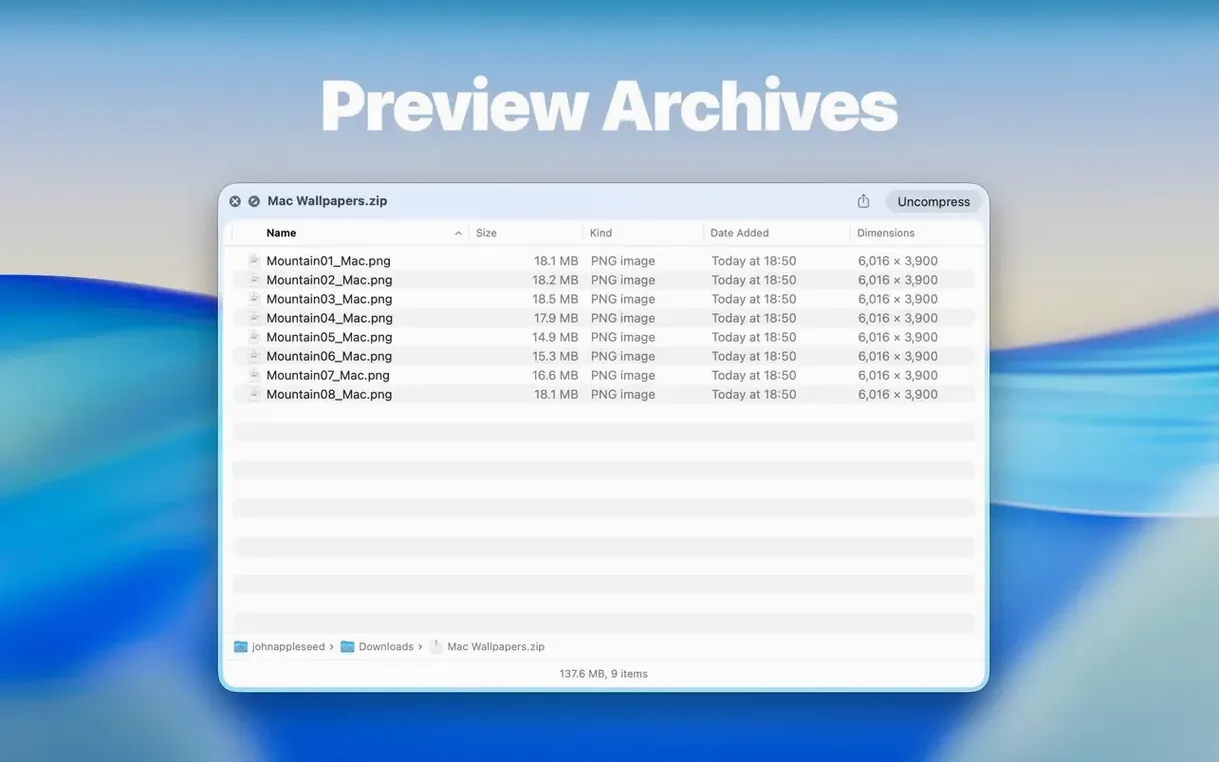
- Browsing compressed archives without expanding them first: ZIP, RAR, 7Z, TAR, and GZ are all understood
- Quick drag-and-drop extractions of files straight from the preview panel
Read‑only Quick Look extension: system requirements and limits
- Requires macOS 13 or later
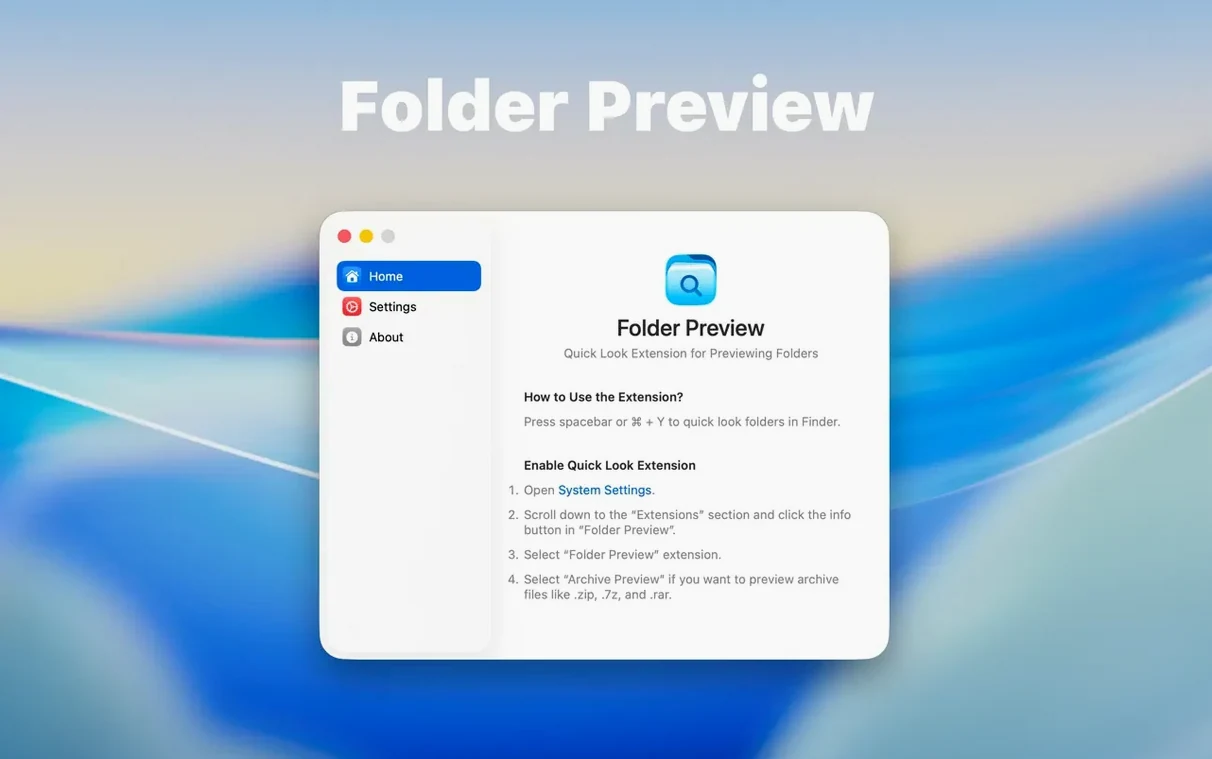
- You must enable the Quick Look extension in System Settings before it works
- The preview is read-only for folder contents; you can drag files out, but not rearrange them inside the preview
Where it fits: companion apps and macOS habits
Folder Preview Pro does not try to replace the Finder or any file manager. It extends a behaviour already built into macOS, so its natural partners are the tools you already use for browsing, cleaning, and archiving. Open a folder in Column view, press Space, and the preview appears right there without opening a separate window. That makes it a quiet companion to Path Finder or ForkLift for anyone who prefers a dual-pane file manager but still values Quick Look. Because both of those apps respect the system’s Quick Look extensions, the folder preview works inside them too.
It also plays well with Hazel and DevonThink workflows. With Hazel, you might set up a rule that moves downloaded archives into a sorting folder; a quick tap of Space lets you confirm the archive’s contents before Hazel acts on it. In DevonThink, where imported folders sometimes arrive as bare directory structures, the preview helps you decide whether to index or fully import a folder without leaving the DevonThink window.
On a system level, the extension hooks into the same Quick Look API that Spotlight uses for file thumbnails. When you search for a folder in Spotlight and highlight it in the results, pressing Space now shows its contents in the preview panel, an improvement over the empty icon the system used to show. The same applies to folders inside Dropbox, OneDrive, or any cloud-synced directory visible in the Finder: the preview works as long as the folder metadata has been downloaded. Large cloud folders that store files as placeholders will show only what is locally available, which is a sensible limitation imposed by macOS, not the extension itself.
Dual Columns in 3.1: splitting the preview into two panes
The jump to version 3.1 brought three changes that quietly alter daily habits. The most visible is the Dual Columns view. Previously, browsing a folder’s contents meant scrolling through a single list. Now you can split the preview into two panes, which makes comparing two folders or moving files between them feel closer to working in a proper file manager. One pane can show an archive, the other a destination folder, and you drag files across the divider.
That dragging behaviour is the second meaningful addition: files can now be pulled out of the preview directly from list and icon views. In earlier versions, drag-and-drop worked only in certain column arrangements. With 3.1, you highlight a file in the preview, drag it onto the Desktop or into an open Finder window, and the file extracts or copies itself there. For archives, this means grabbing a single document from a ZIP without unzipping the whole thing, a small efficiency that adds up if you work with client archives or downloaded asset packs.
The third change is less dramatic but just as practical. The Contents item in the context menu lets you drill into a folder level by level, right from the preview panel. Right-click any folder inside the preview, choose Contents, and the view shifts one level deeper. It is a natural way to browse nested project structures without losing your place, and it works inside archive previews as well. The folder size display has also moved: where it once sat in the status bar, it now lives in the toolbar under the folder name, making it easier to spot at a glance. Archive size limits have been extended to include 5 GB and 10 GB thresholds, which is welcome for anyone who routinely downloads large compressed media folders and worried that the previous limits would skip the preview entirely.
A morning in an archivist’s workflow
Consider someone maintaining a local archive of design assets collected over a decade. The directory is called Projects Archive, and it holds roughly four hundred folders named by client, year, and project code: NOMAD_2022_Q3, BLUME_2021_Q1, and so on. Inside each are subfolders for exports, source files, fonts, and correspondence. Many of the older project folders were compressed into RAR and 7Z archives years ago to save space.
On a typical morning, a request arrives: “Can you find the original Illustrator file from the Blume winter campaign?” The archivist does not remember the exact folder name, only that it was from late 2021. They open Finder, navigate to the archive, and begin typing BLUME in the search field. The results show seven matching folders and archives. One by one, they press Space on each result. The first is a ZIP containing only PDF exports—visible in the preview without expanding anything. The second is a RAR archive; the preview shows subfolders for source, fonts, and exports. A right-click on source, a tap on Contents, and there is the Illustrator file: blume_winter_campaign_v3.ai. They drag it from the preview pane straight onto the Desktop, attach it to a reply, and the morning’s task is done in under a minute. No mounting, no extracting, no cleaning up temp folders afterwards. Folder Preview Pro for Mac turns what used to be a five-minute archaeological dig into a few keystrokes and a drag.
Enable the extension first: System Settings after launch
After dragging the app into Applications and launching it once, the first stop should be System Settings. Open System Settings > General > Login Items & Extensions, scroll to Quick Look, and confirm that Folder Preview Pro is switched on. Without this toggle, the extension sits dormant and folders will behave exactly as they did before installation.
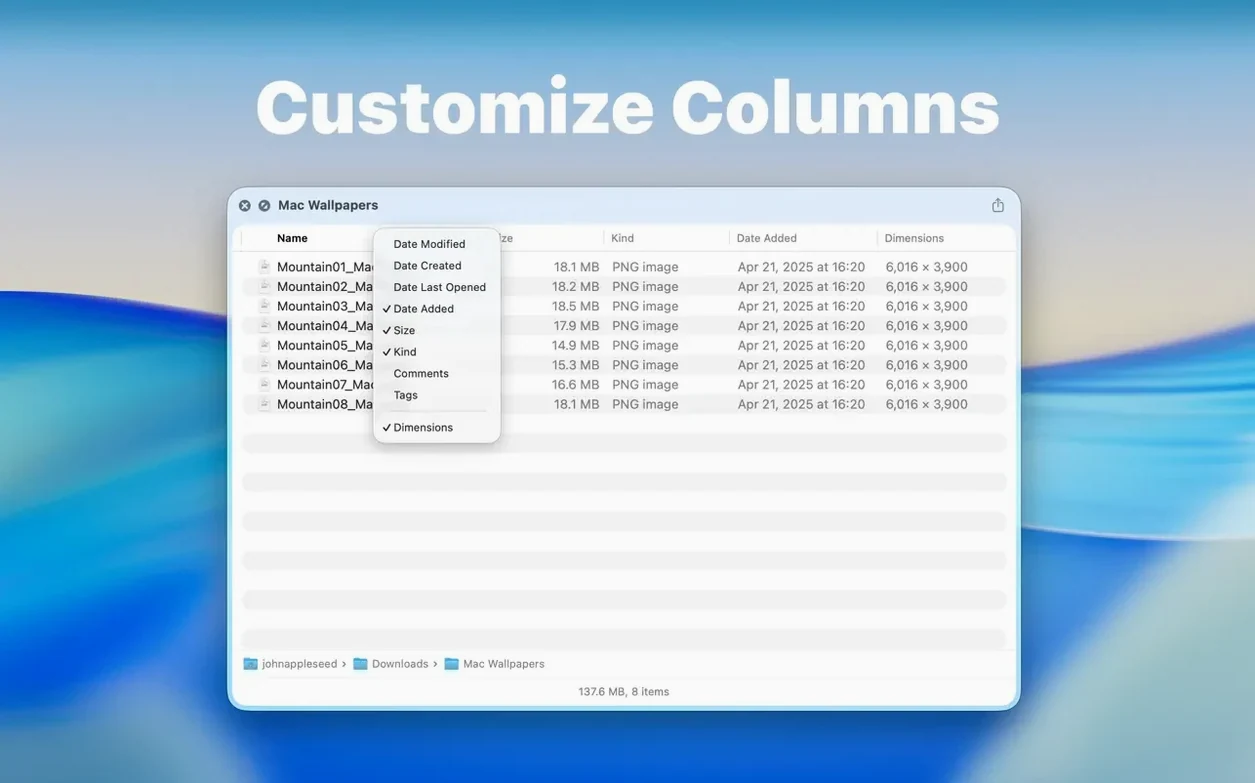
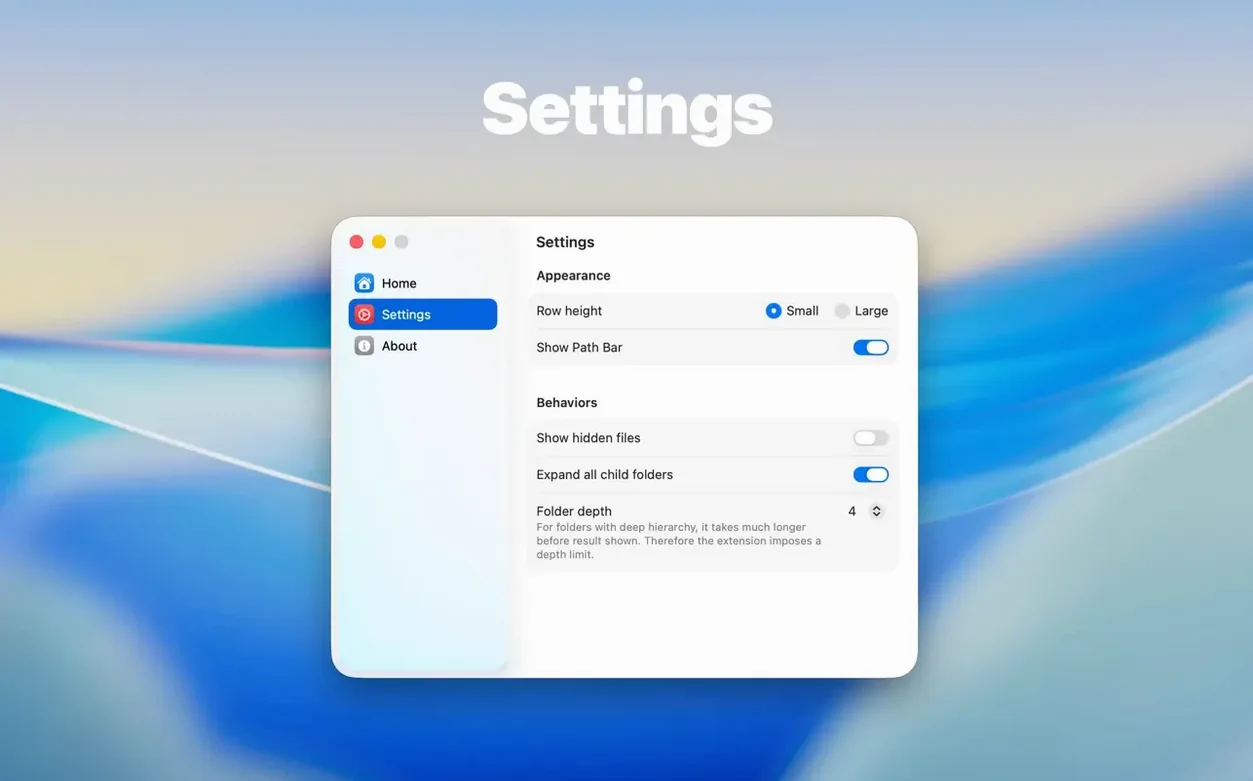
Inside the app’s own preferences, three settings are worth changing immediately. Set the default view to Dual Columns if you often compare folders or extract files to a specific location; it saves the extra click of switching the layout for every preview. Adjust the archive size limit to match your typical downloads—the new 5 GB and 10 GB options prevent the preview from skipping large archives you genuinely need to inspect. If your work rarely touches archives above a few hundred megabytes, leaving the limit lower keeps previews snappy. Enable the folder size display in the toolbar if it is not already visible; the move from the status bar to the toolbar in 3.1 makes the size easier to notice, but only if the toolbar configuration shows it. A right-click on the column headers inside any preview lets you trim the displayed columns to just Name, Date Modified, and Size, which keeps the preview panel clean and fast for quick scanning.
In short: Folder Preview Pro does not ask you to change how you work. It removes the small, repetitive friction of opening folders just to see what is inside them, and the latest version makes that removal feel more polished. For anyone who lives in the Finder, the extension earns its place in the background, ready for the next tap of the Space bar.








Correspondence 0
Take a chair or join the table to send a letter.
No correspondence on this note yet. Letters are read before they appear.