 LeCoqRoti
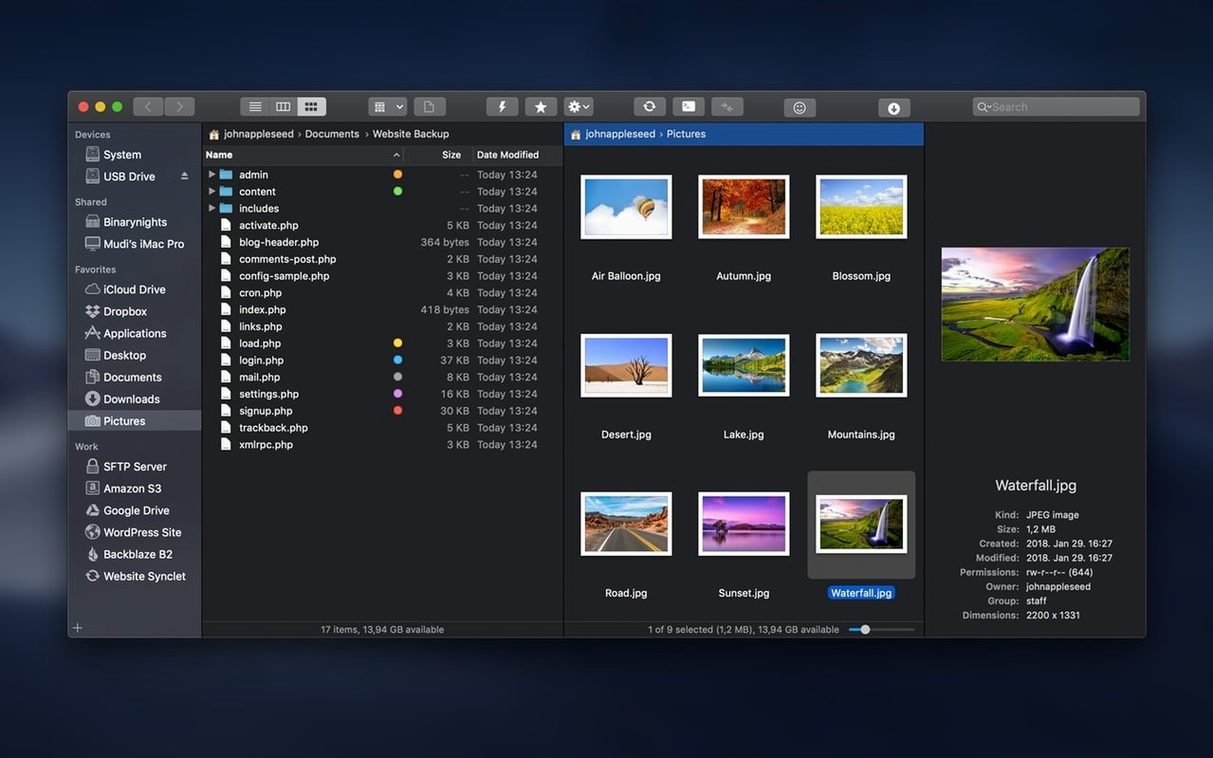
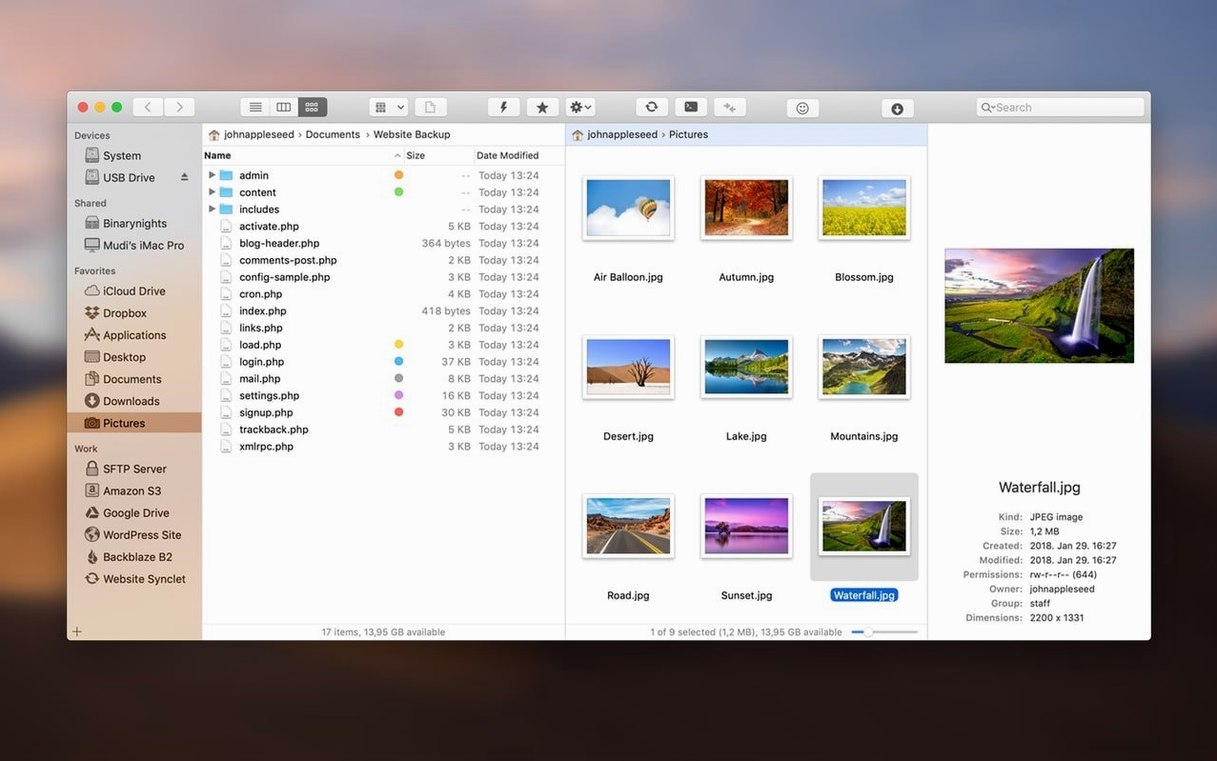
Where the Finder leaves a single window, ForkLift places two side by side: a familiar shape for anyone who has ever dragged files between columns in list view, now extended across local folders and remote servers.
Dual-pane manager — two independent file browsers, arranged vertically or horizontally, each remembering its own path.
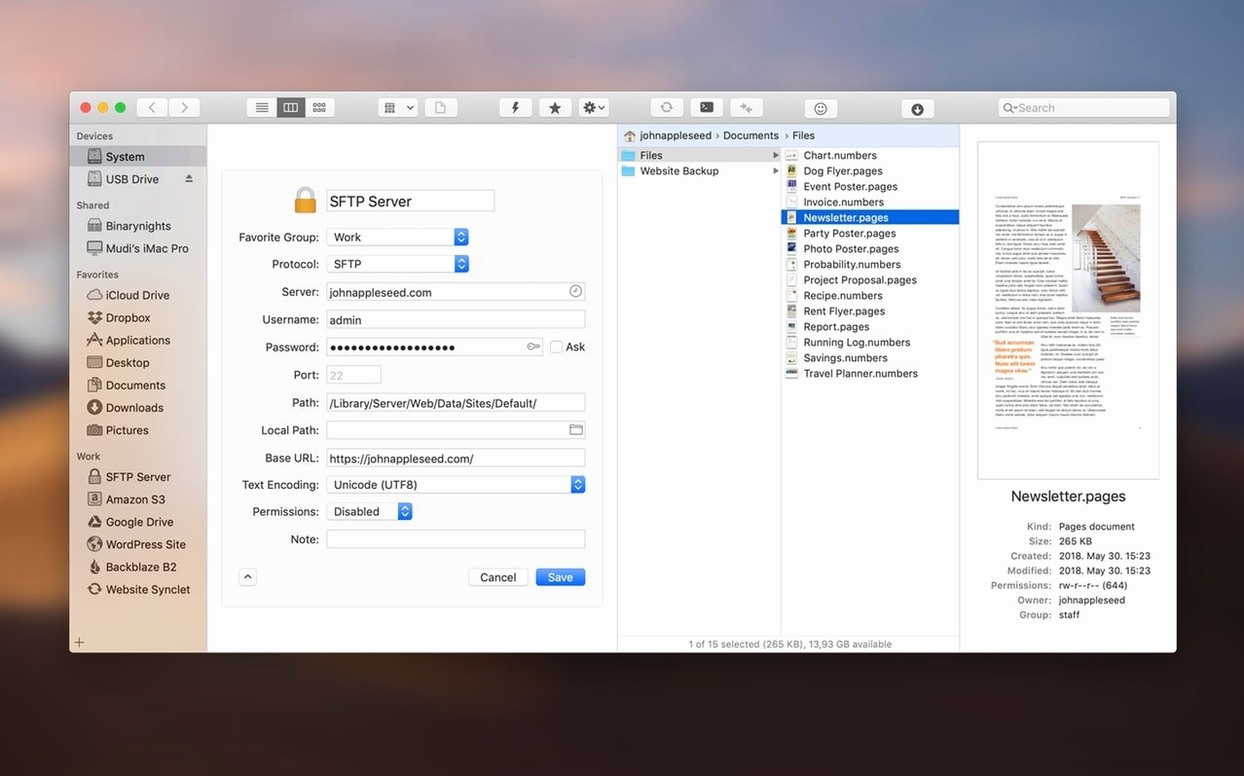
Connection profile — a saved server address with protocol, port and credentials, reached with a keystroke.
Archive browsing — a .zip or .rar opened in-place like an ordinary folder, without expanding it first.
Preview pane — a side panel showing the selected file’s content, from images to plist data, without launching another app.
Sync engine — one-way mirroring or two-way comparison between local disks and remote volumes, with a dry-run pass to review changes.
Remote editing — a text file opened from an FTP or SFTP server in your chosen editor, then saved directly back to the host.
Terminal dispatch — the current directory handed off to Terminal, iTerm or Hyper from within the app.
It does not replace the Finder, nor does it try to. It simply covers the ground the Finder leaves open: transfers, synchronisation, direct server work and the small efficiencies that come from seeing two places at once.
A calmer workspace: strip the toolbar to essentials
Out of the box, ForkLift leans towards a busy interface. A few preferences dial it back into something calmer and more personal.
Toolbar: control-click anywhere on it, choose Customize Toolbar, then strip it down to the actions you actually reach for. For most people that means Connect, New Folder, Delete, Preview and Sync. Removing the rest recovers a surprising amount of headroom.
Dual-pane layout: the default horizontal split works best on wide displays; on a laptop, switching to vertical stacking (View → Dual Pane → Vertical) gives each pane enough width to read long filenames without constant column resizing.
Font size: under Preferences → General, drop the file list font to 11 or 12 pt. The default feels large on a 13-inch screen, and smaller text lets you see more items before scrolling.
Favourites bar: populate it immediately. Drag in your most-used local folders, then open the Connect window (⌘K), create a connection profile for each server you visit regularly, and tick Add to Favourites. After a week of use, that bar becomes the fastest route into the app.
A real-world workflow: preparing a website update for upload
Imagine a small static site stored locally in ~/Sites/myproject and mirrored on a remote SFTP host. The task is to add three new blog posts, resize their images, and push only the changed files to the server. Here is how the whole thing moves through ForkLift.
Open the local folder in the left pane. Press ⌘K, select the saved SFTP profile for the server, and open the matching /public_html directory in the right pane. The two panes now show the same tree from different sides of the network.
Write your posts and drop the new images into the local pane. Select the images, tap the spacebar to preview them, and note which ones need resizing. Still inside ForkLift, right-click an image and choose Open With → Preview; adjust the dimensions, save, and return to the dual-pane view. The resized file sits alongside the originals, ready to go.
Now select Commands → Synchronize Directory from the menu. Set the left pane as the source and the right as the target. Choose One-way (mirror) — local overwrites remote — and tick Show files that will be copied/deleted before synchronisation. Run the dry pass. ForkLift presents a list of every new, changed and orphaned file. Deselect anything you do not want to touch, then confirm. The upload runs, and the server matches the local folder exactly.
Afterwards, leave ForkLift minimised. Next time you edit a post, open the text file directly from the local pane, save, and repeat the sync. The process shrinks to three steps: edit, preview the diff, push.
Silent dropouts: stop idle connections from timing out
Three problems surface often enough to deserve a quick fix in the notes.
Connection drops on idle: an SFTP session left untouched for ten minutes may time out. ForkLift does not always warn you before you try to transfer. The remedy is under Preferences → Advanced: set Keep connections alive to every 60 seconds, then tick Reconnect automatically. For servers with strict idle limits, this keeps the session warm without manual prodding.
Archive browsing fails silently: double-clicking a .rar and seeing nothing usually means the RAR plugin is absent. ForkLift relies on an external command-line tool for RAR support. Install rar or unrar via Homebrew, restart the app, and the archive opens like any other folder. ZIP and TAR work without extra dependencies.
Syncing skips files with identical timestamps: if you have copied files between volumes and the modification dates drifted by seconds, ForkLift may judge them identical when they are not. Switch the comparison method: in the Sync dialog, change Compare by from Modification date to Size and modification date or, for absolute certainty, Checksum. The checksum pass is slower but catches every byte-level difference.
Copy not move: unlearning the Finder drag habit
The most frequent early misstep is treating ForkLift like a Finder clone. It is not. Dragging a file between panes performs a copy by default, not a move — the same behaviour as dragging between volumes in the Finder. Holding ⌘ while dragging turns it into a move; holding ⌥ creates a duplicate. Learn the modifier keys early, or you will scatter copies across your drives.
Another common slip: editing a remote file, saving it locally, and assuming the server copy changed. Remote editing only works when you open the file via ForkLift's built-in editor or its Open With command. Dragging a remote file to a local text editor severs the connection; the saved version stays on your Mac. The remote file sits untouched until you upload over it.
Beginners also tend to ignore the preview pane entirely, reaching for Quick Look or launching full applications instead. The built-in preview handles images, PDFs, text files and plists without spawning a new window. Press ⌘⇧P to toggle it. Keeping it open on the right turns every single click into an instant inspection — faster than Quick Look for browsing large sets of mixed files.
Finally, many new users sync entire directory trees without running a dry pass first. The dry-run checkbox exists for a reason: it lets you see deletions before they happen. A mirror sync that removes files from the destination can be destructive. Always preview, then commit. The extra click costs three seconds and saves hours of reconstruction.








Correspondence 0
Take a chair or join the table to send a letter.
No correspondence on this note yet. Letters are read before they appear.