 LeCoqRoti
A developer needs to show a colleague exactly where a setting is buried. Rather than write six paragraphs, she opens Gifox, selects a single application window and records a quick sequence.
Capture: where does the recording begin
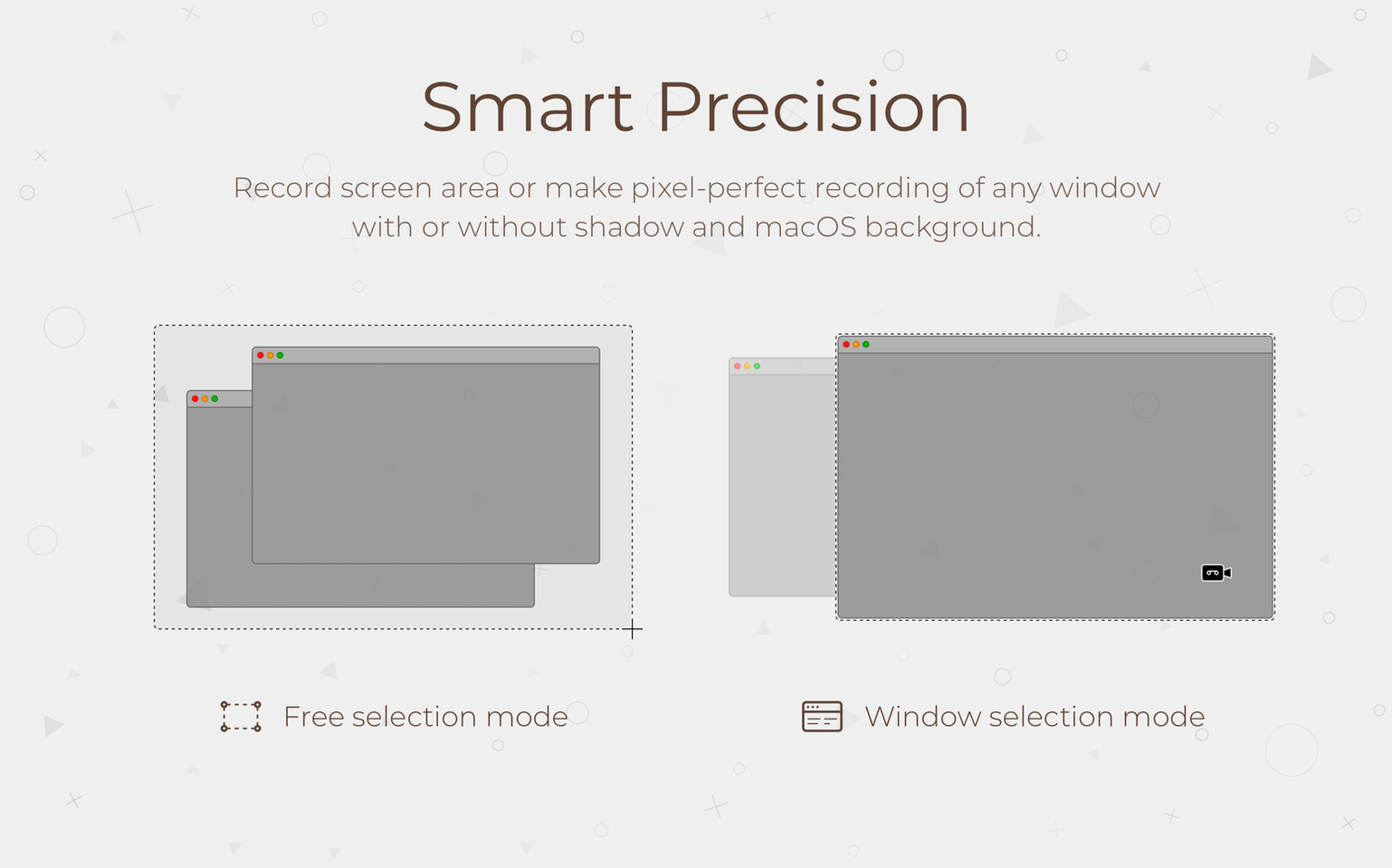
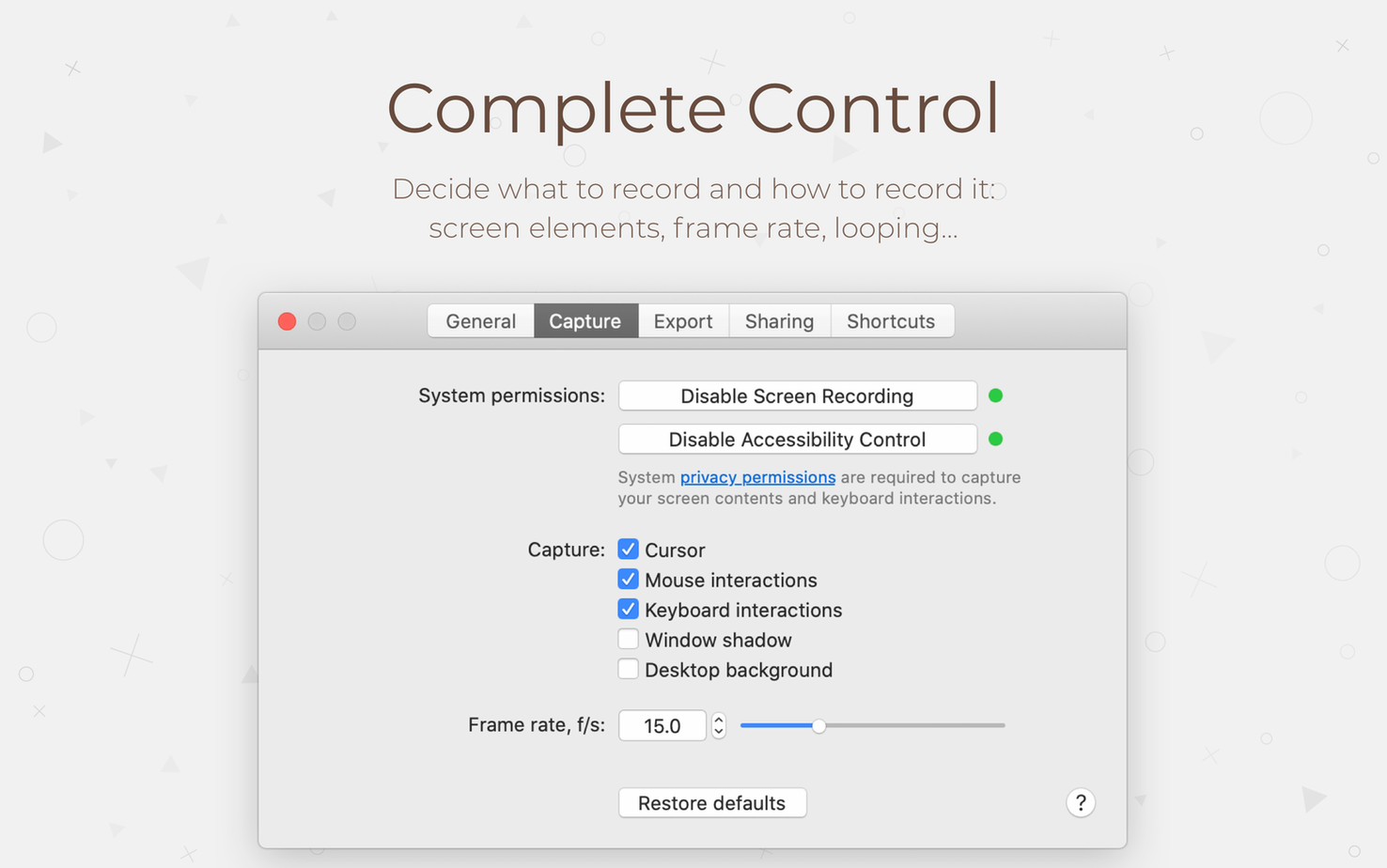
You can record a chosen window, a selected area or the full screen. Picking a window keeps the result tidy and avoids cropping later; the frame rate is also adjustable, which matters when you need a smooth cursor path or want to keep the file small.
Edit: what can you adjust after recording
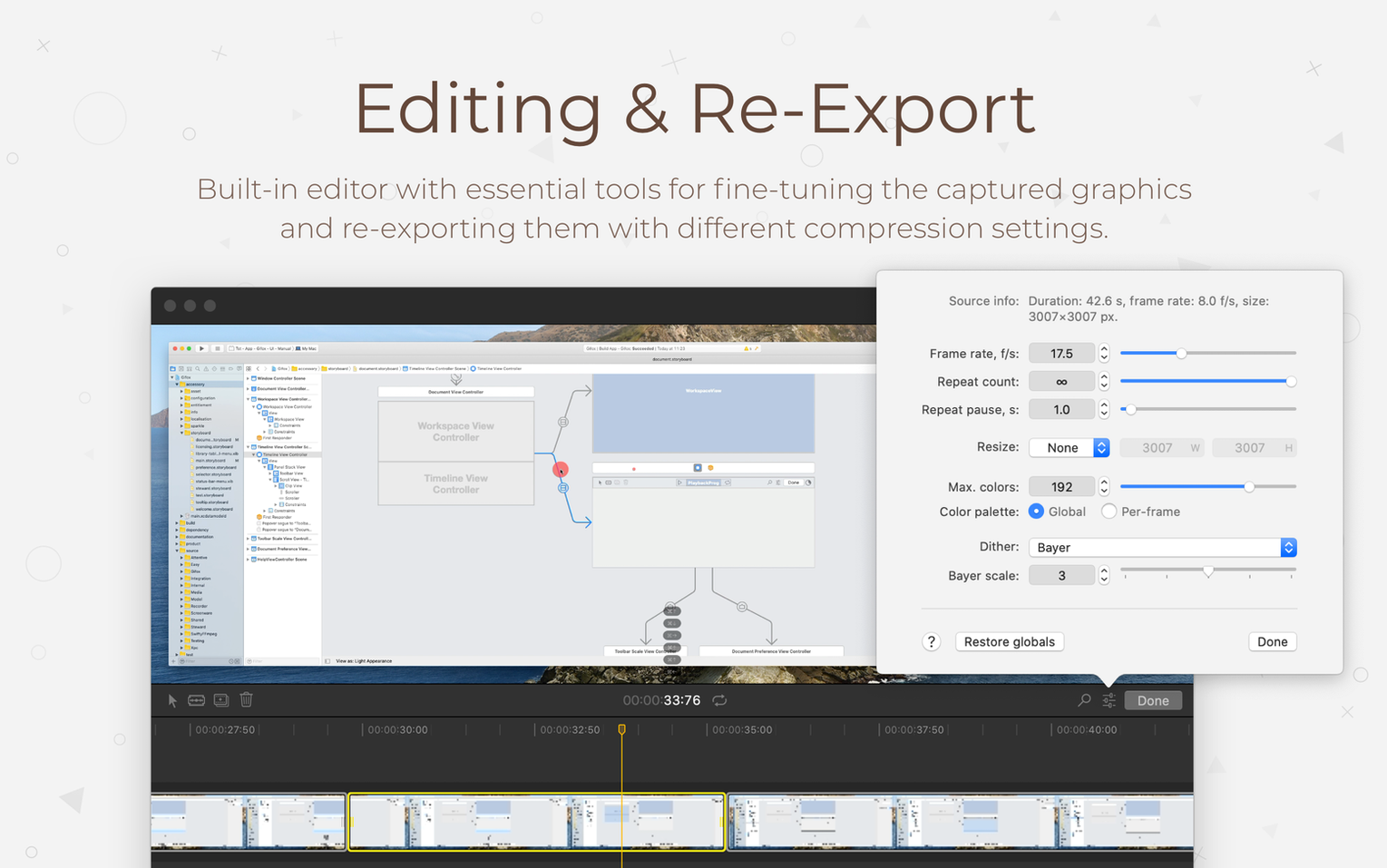
Once captured, the clip opens inside the app for trimming and conversion. You can cut away a false start, fine-tune the loop and export a compact GIF ready for a chat message or a bug report.
Return: how do you get back to an earlier clip
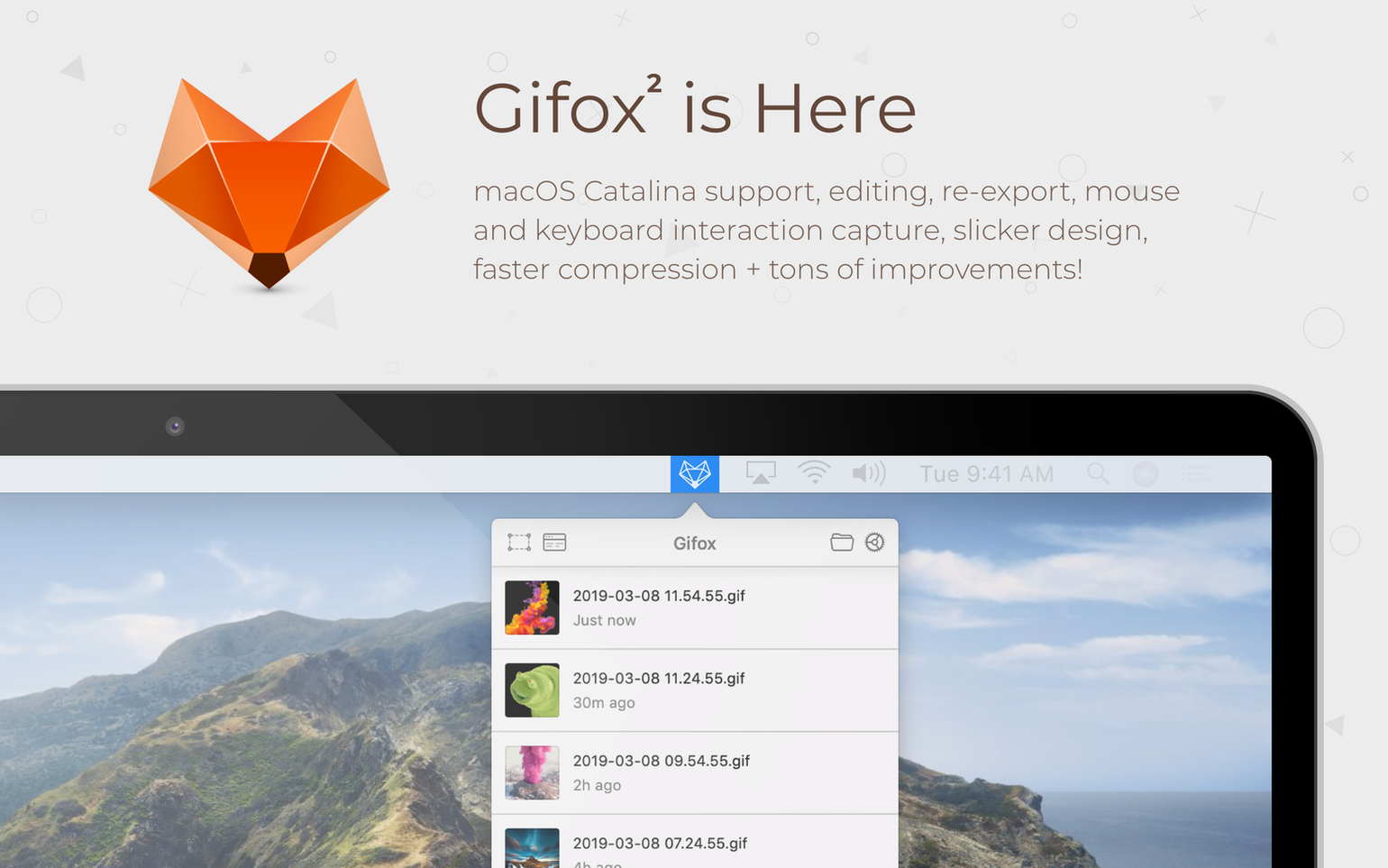
Recent recordings are available directly inside the app, so retrieving a demo you made yesterday takes a single click. The media library has been optimized in version 2.10.0 to help keep storage size under control, which matters when you record regularly.
Common missteps: what trips up new users
Recording a GIF seems simple until you open the result and notice the cursor is missing — or worse, it flashes where you did not mean to click. A frequent mistake is leaving the interaction highlights on for a product demo where the mouse pointer only distracts. Version 2.10.0 places quick controls for cursor, interaction and window capture directly in the screen selection menu, so you can toggle them before recording instead of redoing the clip.
Another habit worth breaking: accepting the default frame rate for every recording. A terminal session can look crisp at 8 fps; a polished UI animation needs 20 fps or more. Choosing the right value at the start saves you from a jumpy result that cannot be fixed later. Compression settings also deserve a moment of attention — the highest quality preset produces a beautiful loop but a large file, and not every Slack channel or Notion page appreciates that.
Beginners sometimes record a full screen when they meant to capture a single panel. Selecting a specific window keeps the edges clean and avoids that unnecessary crop step, yet the tool is easily overlooked in the heat of the moment.
From login to export: capturing three GIFs at 12 fps
A technical writer is updating an internal knowledge base. She needs three GIFs: one for the login flow, one for a dropdown filter, and one for the export button sequence. She sets the frame rate to 12 fps for the first two — enough to show the mouse movement without inflating the file — and switches to 20 fps for the export button because the motion has to feel natural. Each recording targets a single application window, so the frames are tight and the file names stay meaningful: login-flow.gif, filter-date.gif, export-csv.gif.
Once recorded, she trims the start of the export clip where she hesitated, then shares all three via a Dropbox link generated inside the app. The whole sequence, from first recording to pasting the links into Confluence, takes under four minutes. For a writer who builds documentation every week, the menu bar quick-access list means she rarely has to hunt for yesterday’s recordings.
Default window mode: training your fingers early
- Set your default window mode. If nine out of ten recordings are application windows, make that your habit. The quick controls introduced in version 2.10.0 make switching fast, but training your fingers to pick the right mode saves the most time.
- Bookmark a compression preset per use case. You will eventually settle on one setting for quick chat messages and another for polished documentation. Apply them consciously in the first week and the muscle memory sticks.
- Name your clips as you go. Gifox stores recent recordings, but a list of
Recording 4andRecording 5is no help on a Thursday afternoon. Rename the ones worth keeping before they pile up.
Gifox for mac free download pages often skip the small things — like force-quitting the app after the first launch — that make the initial setup smoother. Do that once, and the media library optimisation in version 2.10.0 quietly handles the rest.








Correspondence 0
Take a chair or join the table to send a letter.
No correspondence on this note yet. Letters are read before they appear.