 LeCoqRoti
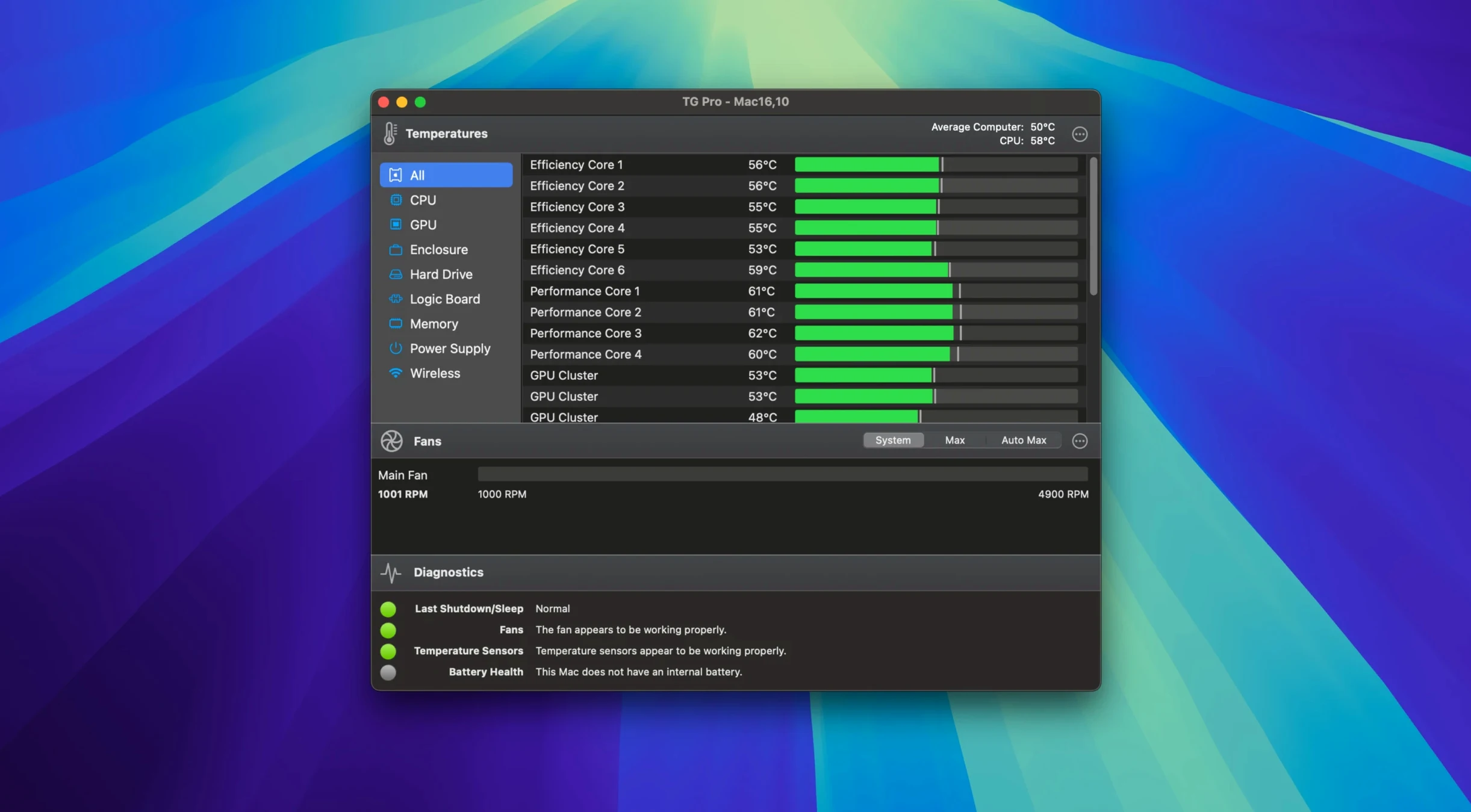
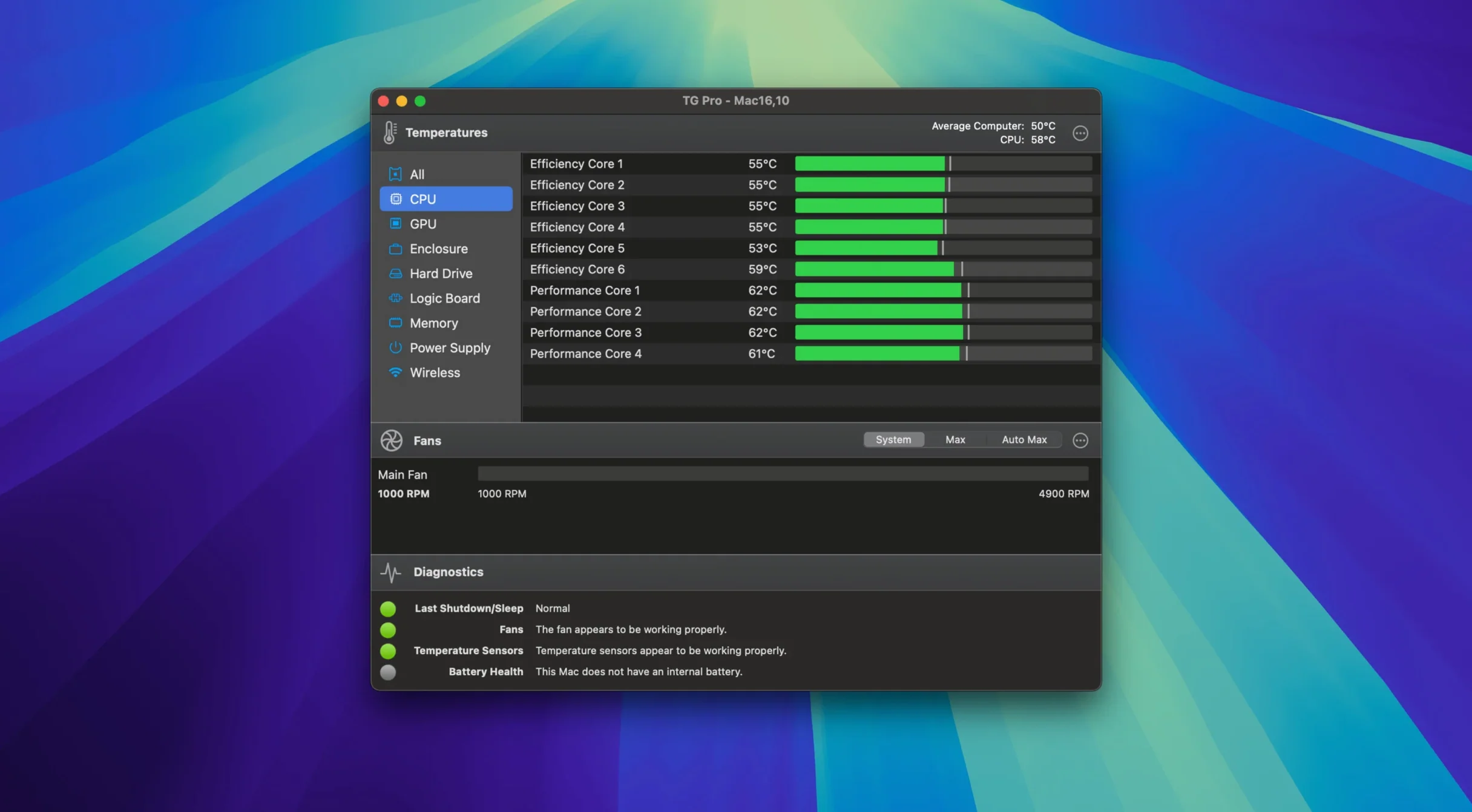
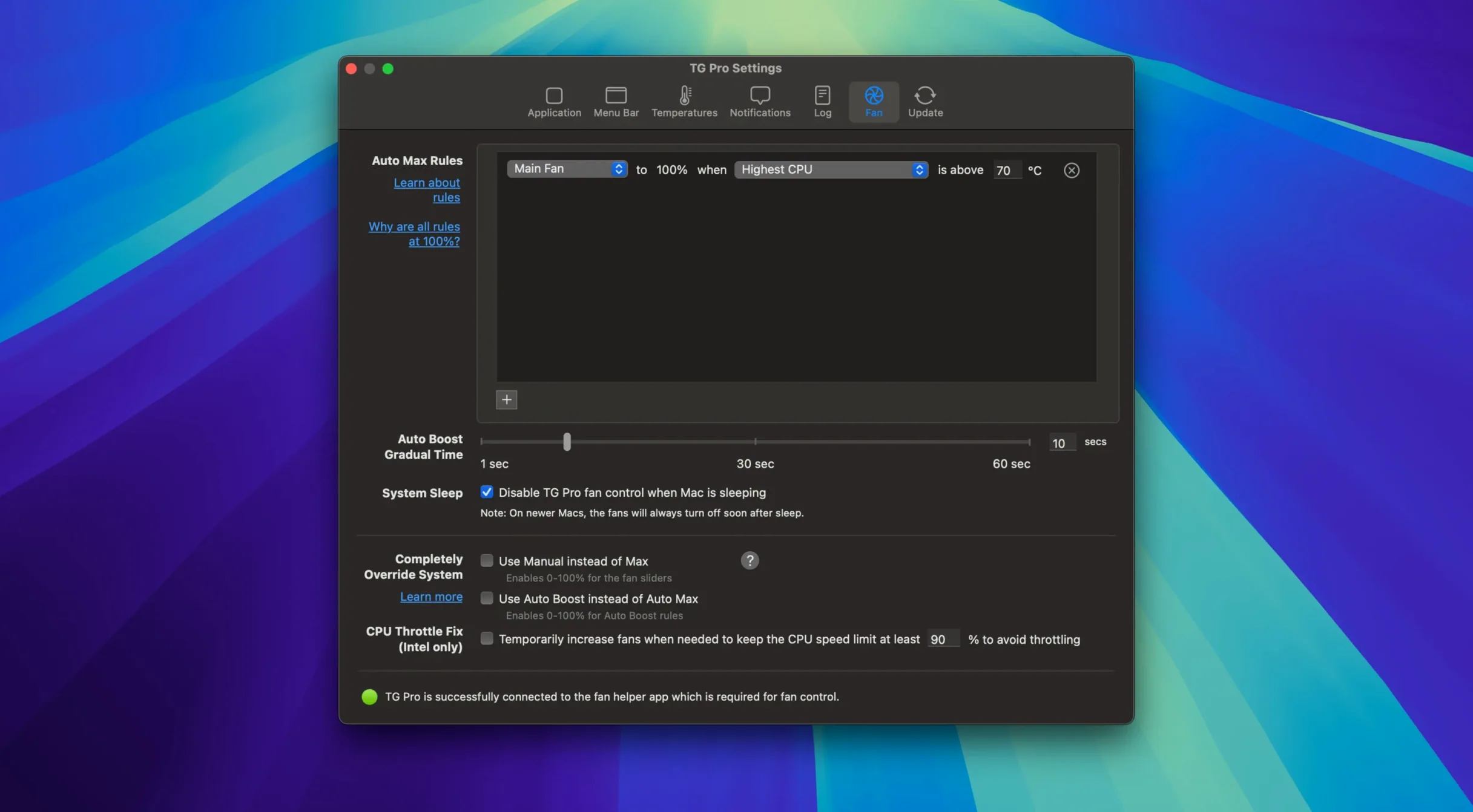
TG Pro is a Mac utility that puts every internal temperature sensor and cooling fan at your fingertips. Here is one scenario it handles well: diagnosing a MacBook that spins its fans too eagerly during video calls. Open the main window to see a live readout for the CPU, GPU, battery and Wi‑Fi module. A glance tells you which component is hottest. Switch to the fan tab and override the system curve with a gentler ramp, or set an Auto Boost rule that only increases speed when the CPU diode crosses a chosen threshold. The menu bar icon keeps a compact reading visible while you return to the call.
- Monitor temperatures across the CPU, GPU, logic board, memory, disks and battery
- Control every fan manually or with custom Auto Boost rules tied to any sensor
- Log temperature events over time to spot patterns before they become problems
- Receive on‑screen alerts when a component exceeds a safe limit
- Check fan speed and a chosen temperature directly from the menu bar
The application runs in the background with low CPU draw, so it stays out of the way during real work. Alerts and logging turn it from a simple monitor into a quiet diagnostic companion.
Small conveniences: quick actions you might overlook
A right‑click on the menu bar icon reveals a compact fan‑speed list for every fan in the machine. From there you can switch any fan to a fixed speed without opening the main window—useful after you finish a render and want a burst of cooling while you step away. On MacBook Pro models with asymmetric fan pairs, the mini‑list shows left and right fans separately, so you can spot a bearing that lags behind its twin.
The temperature reading in the menu bar is customisable: click the gear icon inside the preferences and pick any sensor the app sees. Many users keep the CPU proximity sensor there, but on an Intel iMac the GPU diode often tells a more honest story about real thermal load. A second hidden nicety is the copy sensor data command in the Edit menu. It places a full snapshot of every temperature, fan speed and power draw onto the clipboard—tidy for pasting into a support ticket or a shared note.
Keyboard navigation inside the main window is surprisingly complete. Press Tab to move through fan sliders, type a percentage and hit Return to set it. The F5 key refreshes the sensor list, handy after connecting an external GPU or a Thunderbolt dock that adds thermal zones. And if you prefer the menu bar to show only an icon without text, you can set the icon to change colour when a sensor crosses a threshold—orange at 80 °C, red at 90 °C, for instance—so the alert is visual but silent.
Speed and stability: what daily use feels like
After the initial sensor discovery at launch, TG Pro settles into a background rhythm that is hard to notice. On an Apple Silicon Mac the process stays under 0.3 percent CPU during normal monitoring, and memory use rarely climbs past 90 MB. The app achieves this by waking in short polling intervals rather than running a tight loop; the default two‑second refresh is enough for real‑time fan reaction without pointless processor wake‑ups. Switching between tabs feels immediate, and the graph view will redraw a multi‑hour temperature log without beach‑balling.
There is a historical reason to trust its stability: Tunabelly has maintained the app through every major macOS architecture shift from High Sierra to the current release, including the Intel‑to‑Apple‑Silicon transition. The same code base handles the SMC quirks of a 2017 MacBook Air and the Apple‑silicon‑specific fan controller in an M4 Max MacBook Pro. In practice, that means fan rules created on an old Intel machine transfer without adjustment when you migrate to a new Mac—a rare continuity in system utilities. The background daemon restarts cleanly after sleep and after fast user switching, two moments where lesser fan‑control tools can lose their grip and leave fans stuck at a fixed RPM.
Beginner missteps: three habits to avoid
The most common mistake is setting a manual fan speed and forgetting it. A user opens the app, slides the exhaust fan to maximum for a quick cool‑down after exporting video, then closes the window. Days later the Mac is still running at 6000 RPM. TG Pro will obey that manual instruction until you explicitly return control to the System setting. The fix is simple: before closing the window, glance at the fan mode column and make sure every fan reads “System” unless you genuinely want a permanent override.
Another trap is creating an Auto Boost rule tied to a sensor that runs cool even when the machine is stressed. A novice might pick the memory proximity sensor on an iMac, see it hover at 45 °C and wonder why the fans never spin up, while the GPU diode silently sits at 95 °C. The CPU or GPU diode is almost always a better trigger. If you are unsure, run a demanding task for ten minutes with the log open, note which sensor climbs fastest and tie your rule to that one.
A third misjudgement is treating the diagnostic test as a benchmark. The built‑in diagnostics spin fans through their full range and check sensor response, but they do not measure performance or compare your machine against others. The test exists to spot a dead fan or a stuck sensor, not to tell you whether your Mac is “healthy” in a comparative sense. Beginners sometimes run the test, see a fan hit maximum RPM and assume the app is faulty—when in fact it is simply proving the fan works.
Troubleshooting: common snags and their remedies
Fan control greyed out or unavailable. This often means TG Pro has not received the necessary system permissions. Open System Settings, go to Privacy & Security, and check that the app appears under Accessibility. If it does not, click the plus button and add it manually. On Apple Silicon Macs, you may also need to allow a system extension on first launch; a prompt appears during installation, but it is easy to dismiss by accident. Reinstalling over the existing copy re‑triggers that prompt without losing your rules.
Menu bar reading shows “--” instead of a temperature. The sensor you selected may have been renamed after a macOS update, or it belongs to a component that is currently powered down—external GPU sensors vanish when the enclosure is unplugged. Open the preferences, pick a different sensor from the drop‑down, then switch back. If the original sensor still fails to report, it is worth running the built‑in diagnostic to confirm the sensor itself is alive.
Fans behave erratically after waking from sleep. On some Intel Macs, the SMC can send a burst of stale data on wake. TG Pro processes that burst and may briefly ramp fans before settling. The 2.103 update reduced this on M4 machines, but Intel users who see it should try setting a short Auto Boost rule with a one‑minute hold time; that acts as a damper, smoothing out transient spikes. If the issue persists, toggling the “Hackintosh support” preference off and on forces a fresh SMC handshake without a reboot.
Log files grow too large. The default log writes every temperature sample to disk and, over a month of continuous running, the file can reach several hundred megabytes. In the Logging preferences you can set a size cap or switch to writing only alert‑triggered events. The log viewer inside the app will still display recent history from memory even when disk logging is trimmed—a detail the interface does not advertise but that works reliably.







Correspondence 0
Take a chair or join the table to send a letter.
No correspondence on this note yet. Letters are read before they appear.