 LeCoqRoti
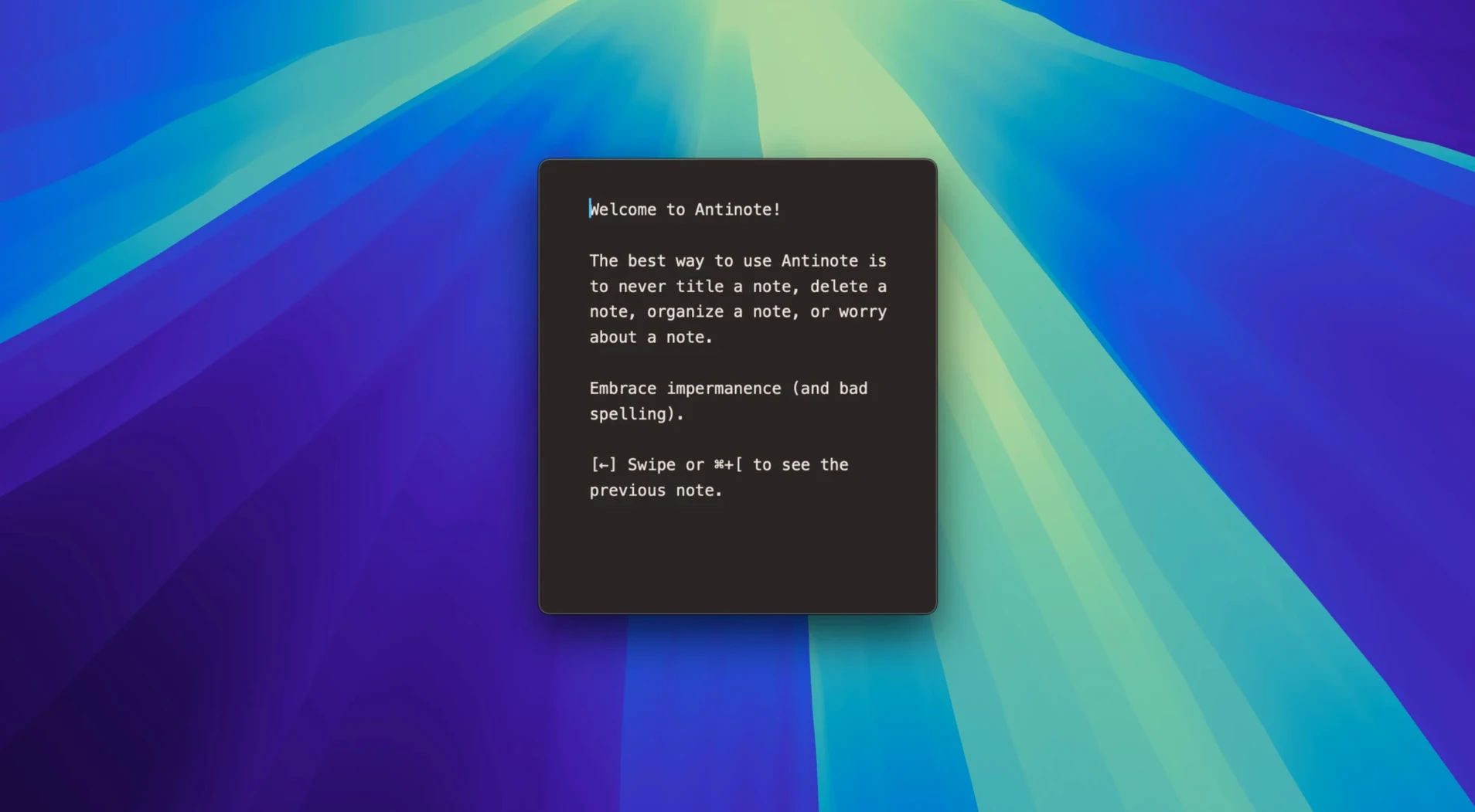
It appeals most to those who already keep a plain-text scratch file open all day: designers, developers, anyone who reaches for a temporary thinking space between proper documents. Antinote strips away chrome and leaves a single, fast surface for the text you do not intend to keep.
Calculate: maths and conversions as you type
Type an expression and the answer appears inline, as if the scratchpad itself knows arithmetic. It handles currency and unit conversions the same way: write 45 USD to EUR or 12 km to miles and the result materialises without leaving the keyboard.
Extract: OCR on still images
Paste or drop a screenshot and Antinote pulls out the text. The formatting is discarded, which turns a cluttered image into clean, editable lines faster than retyping.
Shape: three ways to stay at hand
The app runs as a standard dock window, a menu bar companion, or a drop-down panel summoned with a shortcut. Links shorten automatically with smart domain endings, and export covers plain .txt or .md whenever a note deserves a longer life.
A working session: ten minutes with Antinote
Three things land at once. A client email asks for a rough word count on some copy. A Slack message quotes a price in yen. And a passing thought about tomorrow’s schedule needs a home before it evaporates. I press ⌃⌥Space and Antinote slides down from the menu bar.
I paste the client’s text. No formatting follows it in — just clean, left-aligned lines stripped of the email’s purple branding and odd indentation. I highlight the block and type wc. Antinote shows 247 words, right there, no menu diving. I type the figure into my reply and delete the text without a second thought.
Next line: 48000 JPY to GBP. The conversion appears before I finish typing “GBP”. I copy the number, close the panel with a second tap of the hotkey, and answer Slack. The whole detour took under thirty seconds.
I reopen Antinote. The yen line is still there — the app remembers the session until I clear it. I swipe left to a fresh note and type three tasks for tomorrow, each prefixed with - [ ]. Tapping ⌘↩ on the first one marks it done. The checklist stays visible in the drop-down all morning, a quiet reminder that lives outside my to-do app and will vanish once it has served its purpose.
Later, a screenshot arrives: a table of figures trapped in a presentation slide. I drop the image onto Antinote, watch the OCR pull out the numbers, and run avg on the column. The calculation appears inline. I copy the result, swipe to discard the note, and the scratchpad is blank again, ready for the next interruption.
Comparison: scratchpads with different temperaments
Antinote sits in a narrow category — not a notes app, not a calculator, not a text editor, but a fast hybrid of all three. Three other Mac apps orbit the same space, each with a different centre of gravity.
Tot by The Iconfactory takes the opposite approach to impermanence. Its seven colour-coded dots hold onto everything until you deliberately clear them. Tot is for the text you might need again tomorrow; Antinote is for the text you need for the next ninety seconds. Tot keeps your scratch; Antinote assumes you want to throw it away.
Soulver shares Antinote’s knack for inline calculations and currency conversion, and goes deeper: line references, live variables across a whole document, percentage change with natural language. But Soulver is a calculation tool first. It expects you to build a sheet, name values, and possibly save your work. Antinote treats maths as one more fleeting operation alongside pasting, counting words, or jotting a phone number.
NValt (or its modern counterpart nvUltra) offers instant plain-text capture with powerful search, and many people keep it open as a quick-dump notepad. Its strength is retrieval — every note is indexed and findable. Antinote does not index, does not search across notes, and deliberately avoids building a library. It is closer to a stack of loose paper than a filing cabinet.
Fitting in: Antinote and the wider Mac environment
Antinote does not try to replace a notes system. It works best as a front porch to the apps where text eventually settles. A paragraph drafted in Antinote might end its life in Apple Notes via the export command; a quick calculation often lands in a Numbers cell or a reply in Mail. The export options to Obsidian and Bear recognise that many people keep a second, more permanent home for their thinking, and Antinote hands off cleanly with .md or .txt.
The clipboard-watching feature ties into macOS in a subtle way. With it enabled, anything copied elsewhere appears in Antinote automatically. This turns the app into a kind of passive inbox for text — a stream of fragments you can act on or ignore, without ever switching windows. Combined with the global hotkey, it creates a rhythm: copy in one app, process in Antinote, dismiss with a swipe.
Antinote also respects the Mac’s privacy architecture in a quiet way. It stores nothing you do not explicitly export, and the “Recover Notes from The Void” command is the only safety net — a single menu item that retrieves what was accidentally discarded, rather than a permanent archive. For anyone who already uses a system-wide clipboard manager, Antinote complements it by adding a layer of lightweight editing and calculation on top of the raw copied text, before it reaches a longer-term home.








Correspondence 0
Take a chair or join the table to send a letter.
No correspondence on this note yet. Letters are read before they appear.