 LeCoqRoti
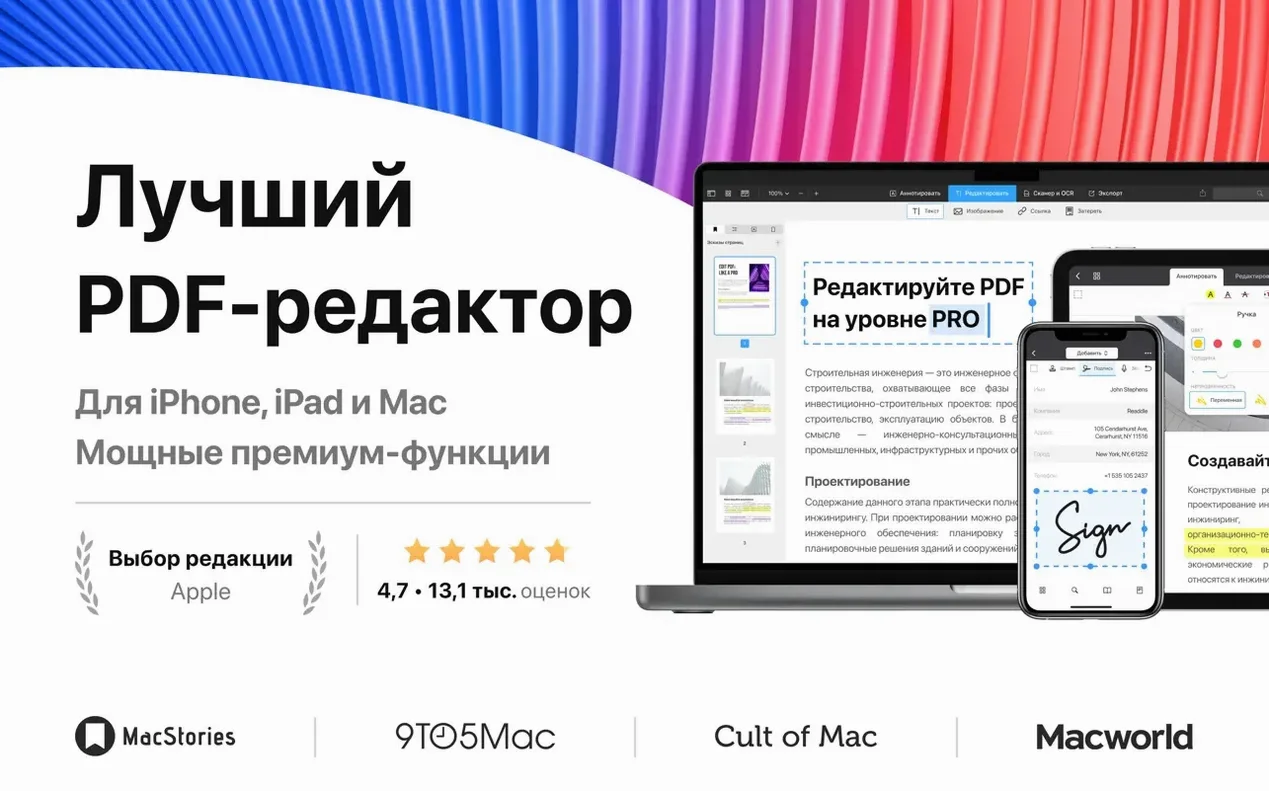
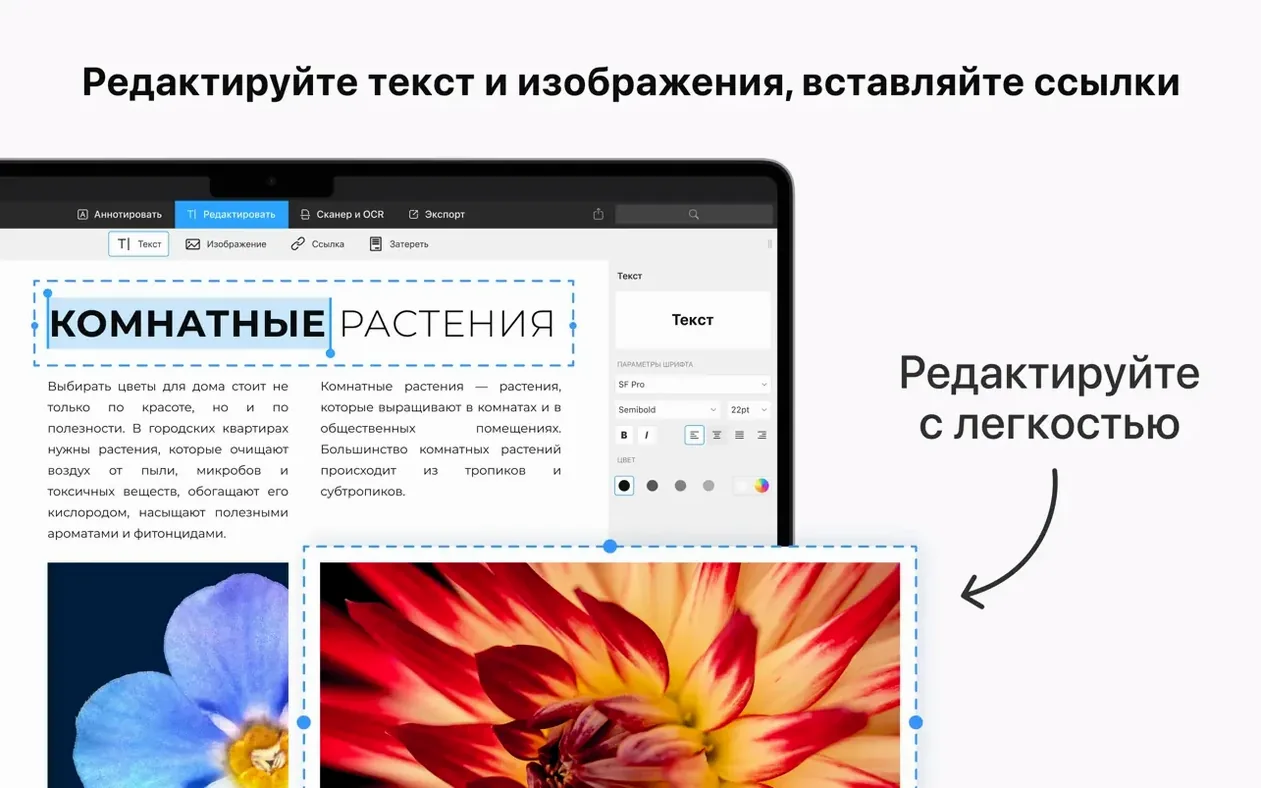
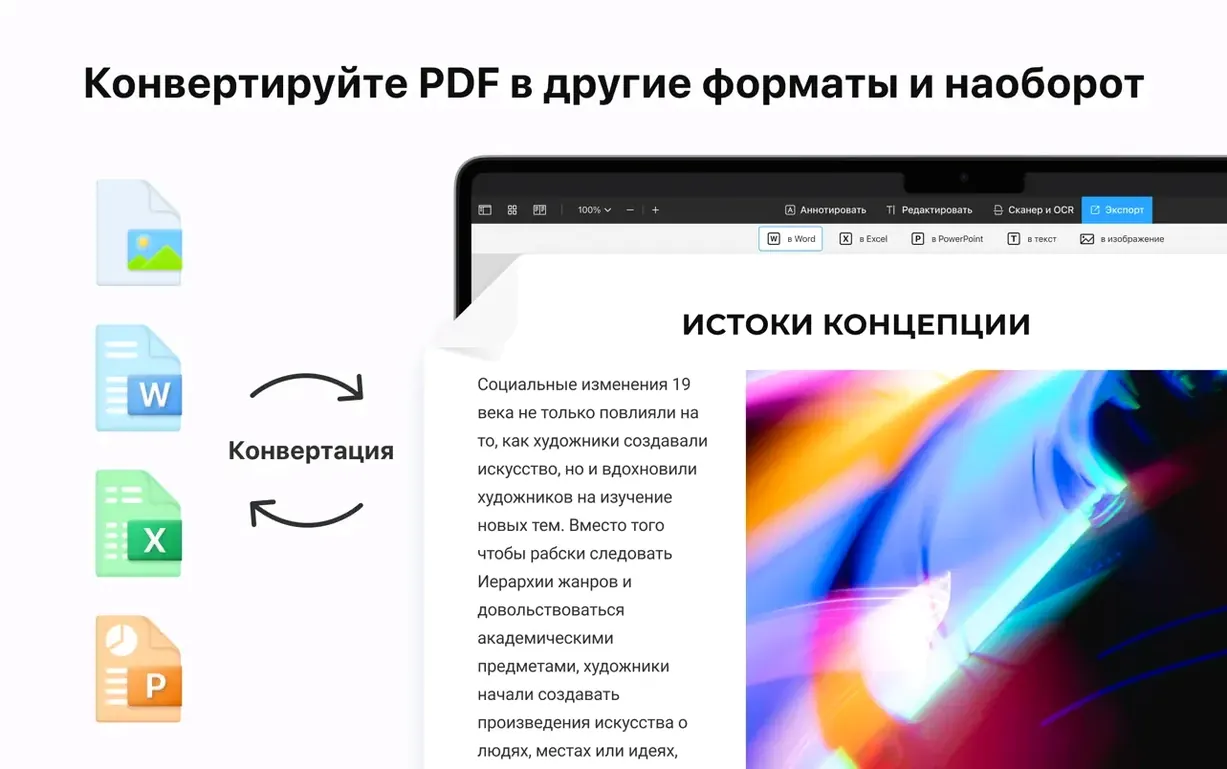
PDF Expert 3.11.1 opens a document the moment you double-click it — no splash screen, no project library. That immediacy is rare in an editor that also lets you alter text, swap images and insert links directly on the page.
Where it sits: between Preview and a full suite
macOS Preview reads and annotates; a full Acrobat install brings preflight and complex scripting. PDF Expert occupies the middle ground. It edits text and images inside the file, yet stays fast enough to feel like a native Mac app. I keep it in the Dock next to Pages: when a Word or Pages draft is finished, the app converts it to PDF in one step.
Forms: filling without friction
Interactive form fields respond to a tap or a keystroke, and the app highlights unfilled fields so nothing gets missed. You can save a partially completed form and return to it later — useful for long applications that demand gathering documents over several days.
Structure: a table of contents you build yourself
For a long report or a scanned book, adding a custom table of contents turns a flat stack of pages into something you can navigate with a click. It is a small feature that changes how you move through a document.
A working session: redlining a contract across three devices
I arrive at the studio with a contract PDF a client sent late last night. The file sits in iCloud, so I open it on the Mac before the kettle boils. The document loads in under a second — eleven pages of dense legal text with signature blocks at the end. I need to mark up clauses, insert a missing page, sign it, and return it before lunch.
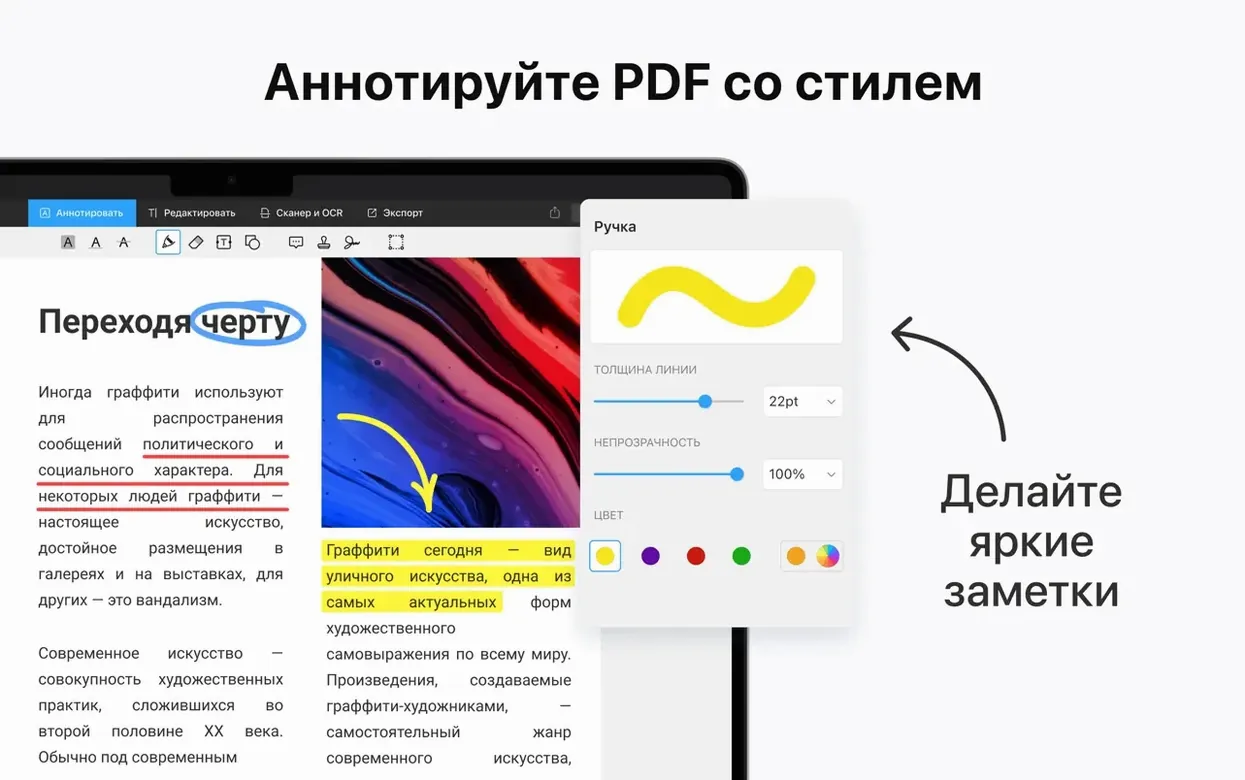
First pass: I highlight three clauses in yellow and attach a sticky note to each. Tapping the note icon in the toolbar opens a small yellow rectangle on the margin; I type my concerns directly. The note collapses into a tiny icon — unobtrusive but visible. For a particularly woolly paragraph about intellectual property, I use the underline tool in red and set the opacity to 60% so the text underneath remains legible. The colour picker remembers my last five choices, a small touch that saves me reopening the palette.
Now the missing page. I open a second PDF — a scanned addendum the client sent separately — and drag its single page thumbnail from the sidebar into the contract, dropping it between pages six and seven. The page numbering shifts automatically. I spot a typo in the original page five: the company name is misspelled. I switch to the Edit tab, click the text block, and correct it directly. The surrounding text reflows; the paragraph shape holds. This still surprises me every time it works.
Signature time. I tap the signature button, draw on the trackpad with my finger, and save the result. The app stores it for future use — a scan-like scribble that looks more human than a typed name. I place it on the last page, resize it to fit the field, and lock it in place.
Before sending, I password-protect the file. The password dialog offers to save the key in Keychain, which I decline for a document that leaves my machine. I mail the PDF. Later, on the train, I open it on my iPhone via Handoff: the same annotations, the same signed block, ready to discuss over a call. The session took twenty-two minutes. No scanner, no printer, no frustration.
Scratching Apple Preview: editing, page moves or tricky forms
Does it replace Apple Preview? For reading and quick highlights, Preview remains lighter and faster to launch. PDF Expert replaces Preview the moment you need to edit text, manipulate pages, or fill a form that Preview renders incorrectly. Many people keep both: Preview for glancing, PDF Expert for working.
Will it alter the original file permanently? Edits to text, images and page order are saved directly into the PDF — there is no proprietary project format. Annotations sit as standard PDF comments that other readers see. If you want a safety copy, duplicate the file in Finder first; the app itself does not auto-backup.
Does it handle large scanned documents? Yes, though speed depends on the scan resolution. A three-hundred-page architectural plan set at 600 dpi will scroll with a slight lag on an M1 MacBook Air; on an M2 or M3 machine it stays smooth. The app does not OCR text from scans — that requires a separate tool — but you can annotate scanned pages freely.
What about fonts when editing text? If the original font is installed on your Mac, editing uses it directly. If the font is embedded in the PDF but missing from your system, the app attempts to match it using the embedded metrics. Results vary: standard fonts like Helvetica or Times New Roman work flawlessly; rare display fonts may substitute with something close but not identical.
Tabbed PDFs: cross‑reference like a browser
- Tabbed documents. Like a browser, you can open several PDFs in tabs within one window. Right-click a file in the sidebar and choose Open in New Tab, or press
⌘Tafter the first document is open. Handy for cross-referencing two versions of a contract. - Measuring distances. Hidden in the Annotate tools under Shapes, the ruler tool lets you draw a line and see its length in points, millimetres or inches. Architects and designers use it to check dimensions on CAD exports without opening the original drawing file.
- Quick resizing of images. After pasting a photo into a PDF, drag any corner handle while holding
⇧to maintain the aspect ratio. Double-click the image to crop it right inside the document — no external editor required. - Reading mode. Press
⌥⌘0to hide the toolbar and sidebar instantly. The page centres on screen with a dark grey background. Press it again to return to editing layout. I use this when presenting a draft to a client; it removes visual noise. - Export selection as a new PDF. Select a few pages in the thumbnail sidebar, right-click, and choose Export Selected Pages. The app creates a new file with only those pages — useful for extracting a single chapter from a long manual.
- Custom stamp library. You can save any image as a stamp: a company seal, a "reviewed" badge, an approval mark. Drag the image onto the Stamps palette once, and it stays there for every document you open thereafter.
Alongside other Mac PDF tools
Three other apps come up in conversation when someone mentions PDF Expert on a Mac.
Apple Preview. It ships with macOS, handles basic annotation and form-filling, and launches instantly. It cannot edit existing text, swap images, or build a table of contents. People who only highlight and sign documents find Preview sufficient. People who correct typos in a PDF or rearrange pages move to PDF Expert almost immediately.
PDFelement. A Windows-first app with a competent Mac version. It includes OCR, batch processing and form creation — features PDF Expert does not offer. The trade-off is interface design: PDFelement feels ported, with denser toolbars and more modal dialogs. Users who need built-in OCR often choose it; users who prioritise speed and fit within macOS choose PDF Expert.
Adobe Acrobat Pro. The industry standard for preflight, accessibility checking, and complex form scripting. It does everything, slowly. Launching Acrobat Pro on a Mac feels like waking a large animal. PDF Expert cannot touch its print-production tools, but for editing text, annotating and signing, the smaller app opens in a fraction of the time and uses less battery.
A specific user: the freelance translator
Consider a translator working with a thirty-page PDF of a product manual, source language German, target language English. The client wants the translation delivered as a PDF that visually matches the original layout. The translator opens the document, switches to the Edit tab, and works paragraph by paragraph: click a text block, delete the German, type the English. The font stays consistent because the manual uses DIN Pro, which the translator has installed. Where the English runs longer than the German, she reduces the font size by half a point to keep the text within its bounding box. An image on page twelve has German labels embedded in the graphic; she cannot edit those directly, so she covers each label with a white rectangle and types the English text on top. The whole job takes a morning. She saves the result, emails it to the client, and archives the original. No desktop publishing software, no layout rebuild, no mark-up export to a CAT tool — just one app, one file format, and the quiet satisfaction of text sliding into place where the old text used to be.
In short: PDF Expert fits next to Finder, Preview and Quick Look, adding editing depth without breaking the Mac's quiet file-handling rhythm.



Correspondence 0
Take a chair or join the table to send a letter.
No correspondence on this note yet. Letters are read before they appear.