 LeCoqRoti


Anyone who watches a lot of video on their Mac—whether it’s a film collector, a language learner working with subtitles, or someone who streams from a home media server—will find Bunny True HD Video Player a capable companion. Before you get into the features, it’s worth checking compatibility: the player requires macOS 12 or later and runs natively on both Intel and Apple Silicon Macs, so most modern machines are covered.
Once installed, the player handles local folders, cloud storage, and connections to Emby, Jellyfin, or DLNA servers. The media library lets you group, sort, and build playlists, and for precise viewing there is frame-by-frame navigation plus playback speed from 0.0× to 8.0×. Subtitles in formats such as SRT, ASS, and VTT can be styled with your choice of font, size, background, and border.
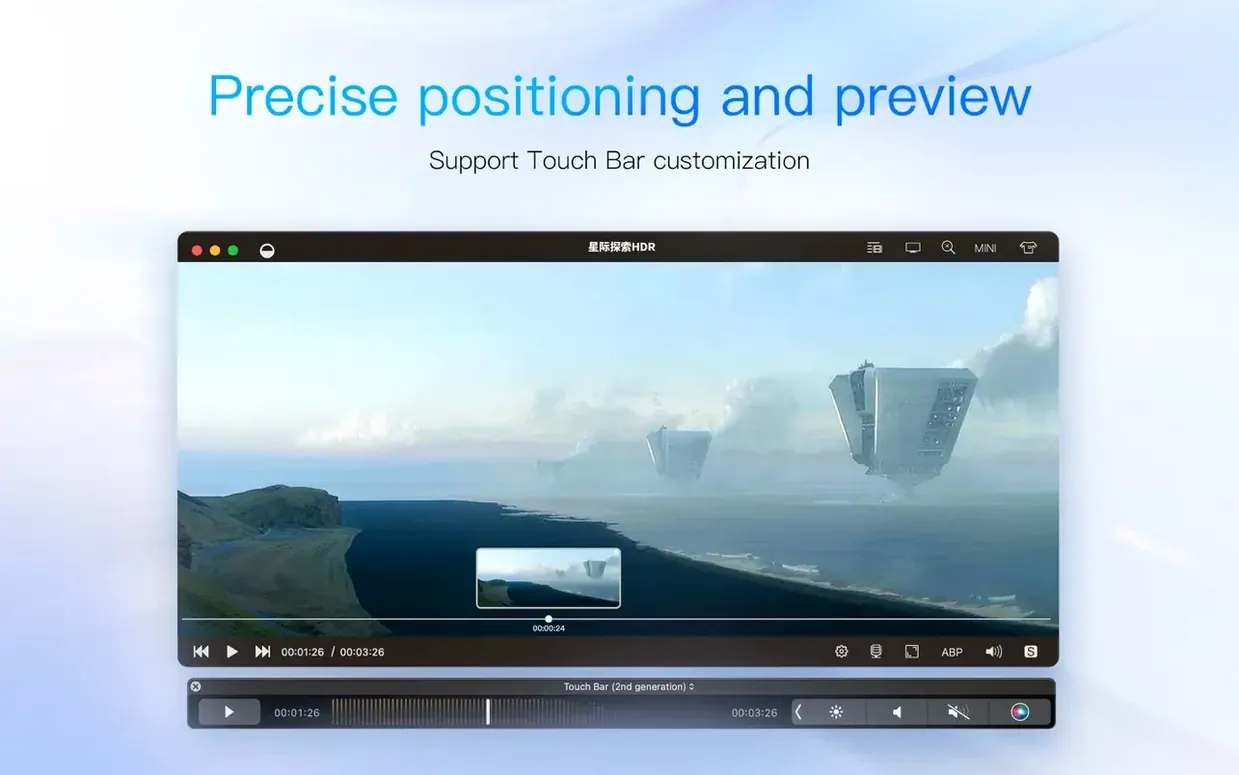
Three rendering modes and colour filters give you control over the image, while Spatial Audio support adds depth when your setup allows it. Touch Bar owners can customise the controls, making the player feel tailored to how you work. In short: a solid choice if your Mac meets the base requirement and you need flexible, high-definition playback.
Workflow: watching a remux from a nas from start to finish
I keep a small library of Blu-ray rips on a Synology across the room, and Bunny makes the connection straightforward. Open the player, navigate to the network tab, and point it at the SMB share where your media lives. The first scan takes a moment—Bunny scrapes posters and metadata for each film, so the library view ends up looking more like a streaming service than a folder of MKV files.
Once your content is indexed, select a film. Bunny loads an ISO or a folder structure directly, which is useful if you prefer full disc menus. For a standard MKV, playback begins within a second or two. I set subtitles to ASS with a slightly transparent background so the text sits over the image without obscuring it; the styling panel lets you adjust border width and shadow colour, which helps when the film’s palette changes every scene. When a scene is too quiet, the equalizer and sound boost bring dialogue forward without distorting the rest of the mix.
For a frame-accurate check—perhaps to catch a subtitle timing error—the frame-by-frame navigation is mapped to the arrow keys, and you can step forward or backward without losing your place in the timeline. The whole thing feels like a dedicated media centre app, not a general-purpose video player that happens to read network shares.
Adaptive layout responds faster when docked half-screen
Version 3.8 refined the interface more than it added headline features. The adaptive layout now responds faster when you resize the window, which matters if you keep the player docked to half the screen while working in another application. The dark mode got a slight contrast adjustment—black bars in letterboxed content stay truly black, and captions remain legible against bright backgrounds.
Accessibility improvements in this release include better keyboard navigation for the media library and more consistent screen reader labels on the playback controls. The Touch Bar customisation also gained a few new layout presets, so you can place seek and volume controls where your thumb naturally rests.
- Subtitle rendering speed improved for ASS-heavy files with complex animations.
- Cloud storage connections now refresh credentials automatically when they expire.
- Playback speed increments are smoother between 1.0× and 2.0×.
Menu bar preview shows current frame behind other windows
Bunny respects the system’s window management and virtual desktops. Drag it to a dedicated workspace, and it stays there; the menu bar preview shows the current frame even when the player is behind other windows. That preview is handy when you are transcribing dialogue or checking a shot without switching focus entirely.
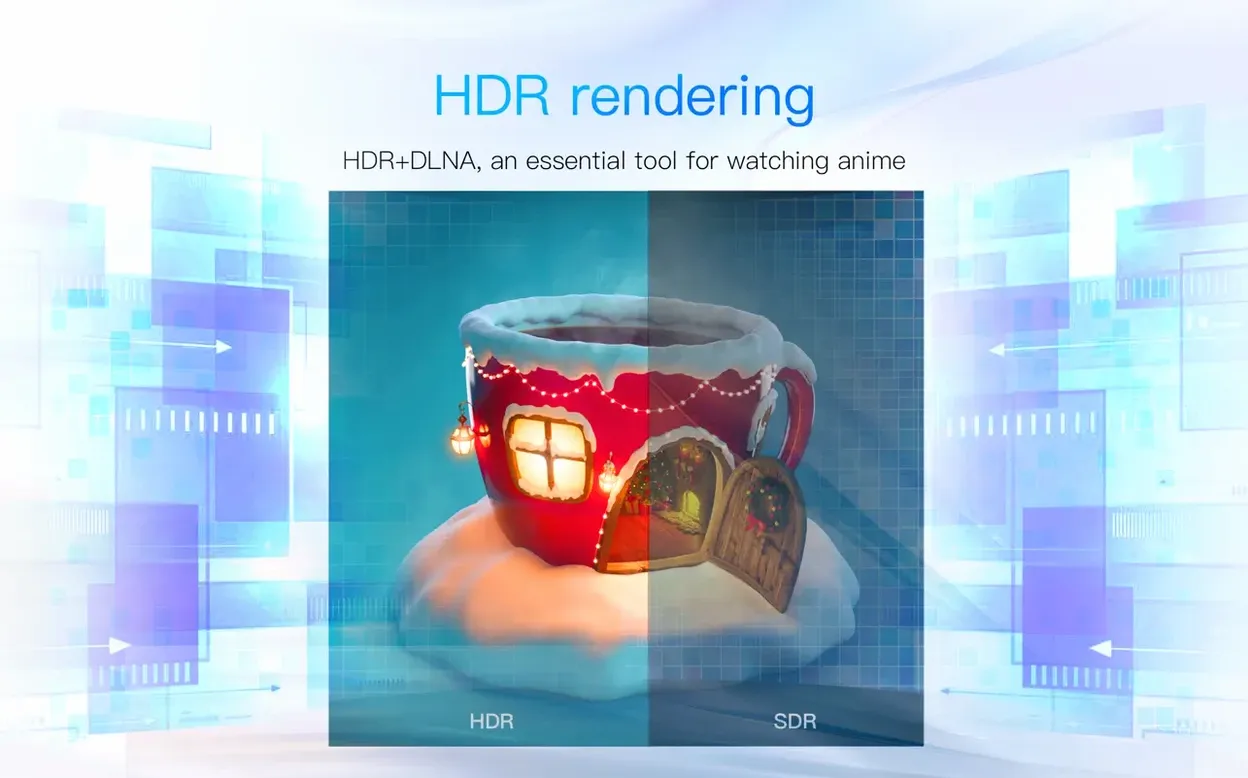
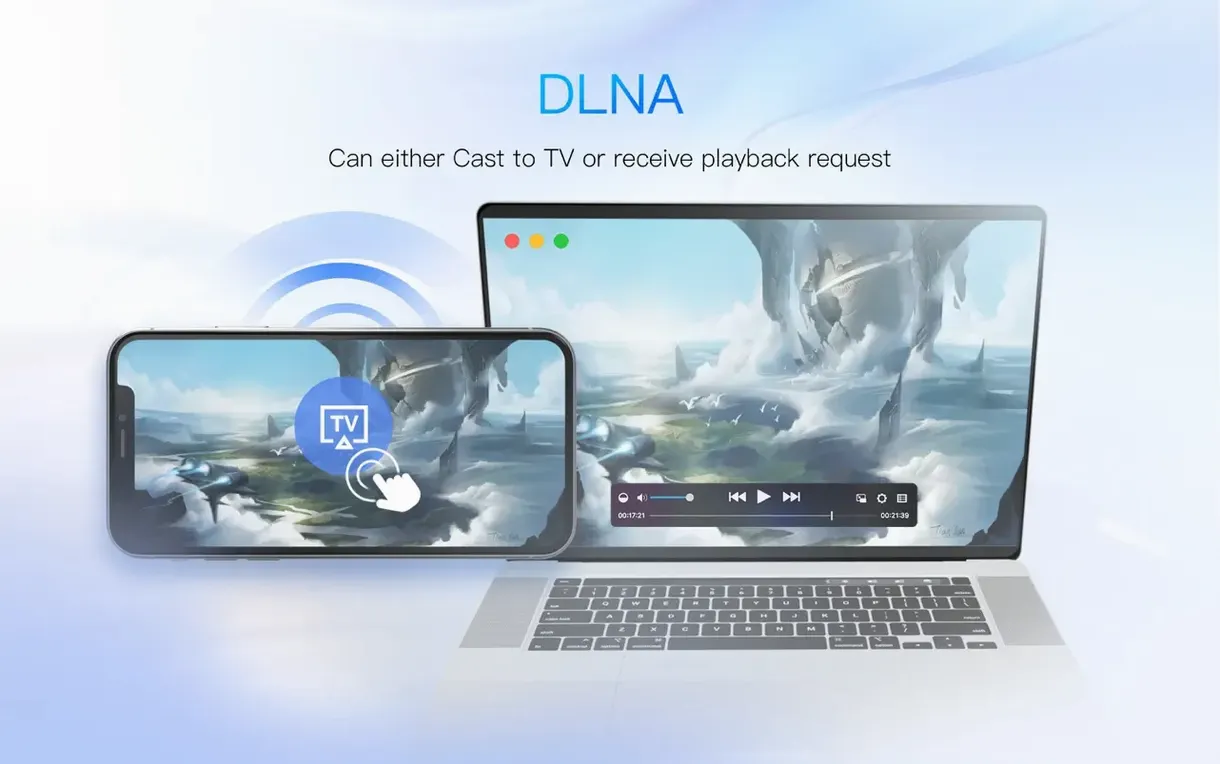
If you use a media manager like Plex or Jellyfin on the same network, Bunny’s DLNA support means you can point it at the server’s UPnP endpoint and browse the same library you see in a browser. The player also integrates well with macOS’s colour management—HDR10+ and Dolby Vision content maps correctly to an external display without fiddling with system profiles.
For anyone who needs to grab a still frame for reference or editing, Command-Shift-S saves a PNG to a chosen folder, no transcoding step required. The file name includes the timestamp, which makes it easy to cross-reference with a video editing timeline later.








Correspondence 0
Take a chair or join the table to send a letter.
No correspondence on this note yet. Letters are read before they appear.