 LeCoqRoti
A storyboard artist roughs out a walk cycle in the morning, adds a touch of wind to the background trees by noon, and hands a glTF export to a game developer before evening. That is the working rhythm Moho Pro is built around.
Standout tools: the jobs they do
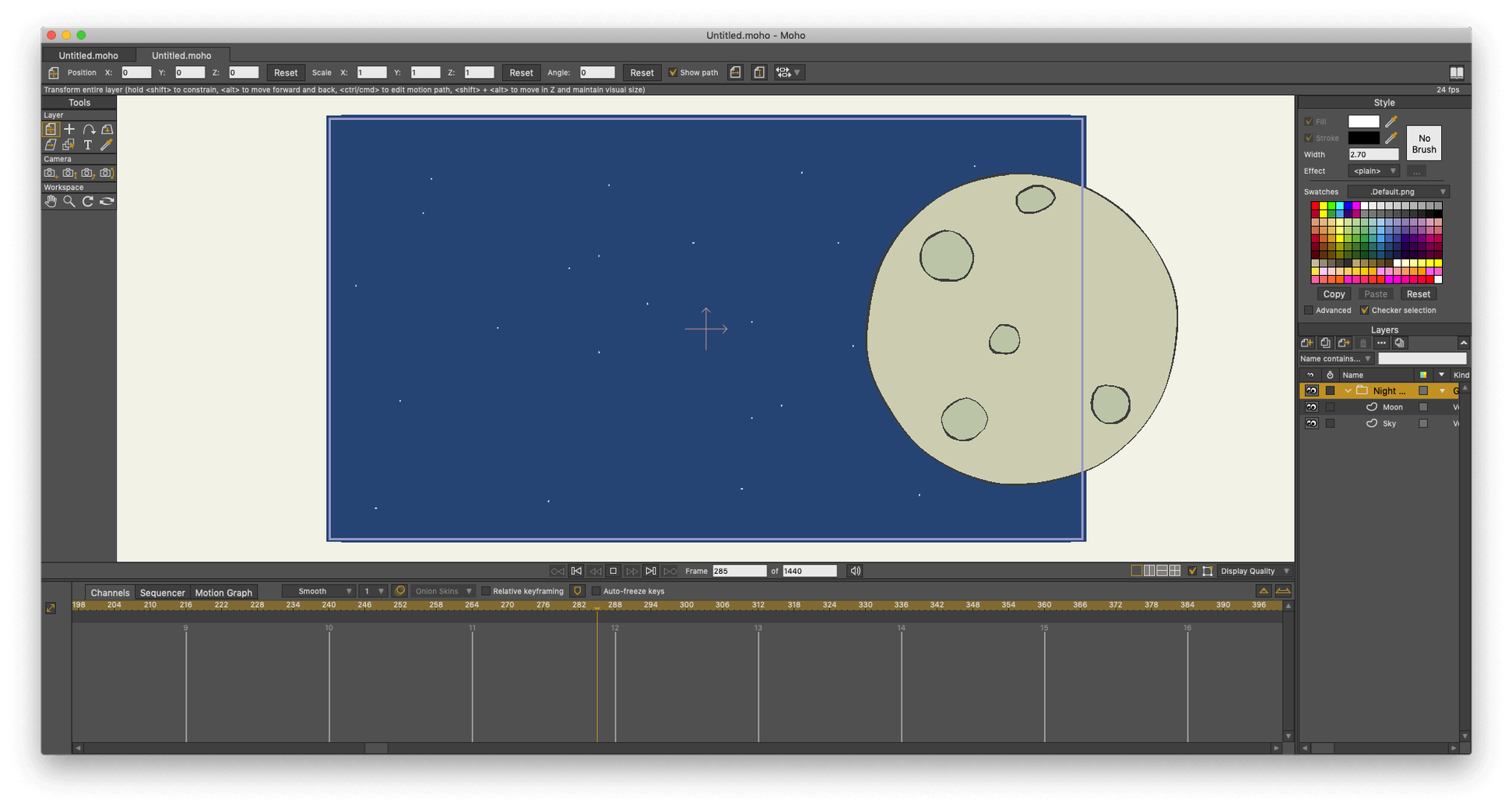
- Physics simulation — density, gravity, friction and elasticity controls let secondary motion, such as hair or a swinging sign, settle naturally without keyframing every frame.
- Curve animation — paths can be drawn, reshaped and animated directly, which suits flowing line work and gradual reveals.
- Poser scene import — 3D figures from Poser arrive ready to combine with 2D layers, useful for mixed-media sequences and reference poses.
- Layer tools — a deep layer system keeps rigs, backgrounds and effects separate while remaining quick to reorder during a scene revision.
- Built-in object library — a starting collection of visual objects reduces setup time for common props and scene elements.
Scripting: a quieter strength
The scripting interface has moved to Lua 5.4.4, which brings the automation layer closer to current Lua practice. Custom tools and batch tasks feel more like modern development work, less like a legacy afterthought.
Photoshop to Moho: layered PSD files keep their structure intact
Animation rarely happens in isolation. Moho Pro sits comfortably inside a broader pipeline, and the connections are practical rather than ornamental.
The Photoshop bridge deserves first mention. Layered PSD files arrive with their structure intact — groups, blending modes, layer names — so a background painted in Photoshop can be dropped into a Moho scene and tweaked later without rebuilding anything. Artists who sketch characters in Photoshop and rig them in Moho tend to keep both files alive throughout a project, round-tripping as the design evolves.
For game teams, the new glTF/GLB export changes the rhythm. A character animated in Moho can be exported directly to Unity, Unreal or Godot, bones and all. The format preserves skeletal animation data, which means the rigging work done in Moho carries forward into the engine. The practical upshot: animators stay in their tool, and developers receive a file ready for the import dialogue, not a flat image sequence they must rebuild.
Then there is QuickTime integration — less fashionable than glTF, but deeply useful. Moho reads and writes HD video files via the macOS media frameworks, so reference footage, animatics and final renders flow between Moho and any NLE that speaks ProRes or H.264. A common pattern: rough cut in DaVinci Resolve, export a short clip as reference, animate over it in Moho, render the clean pass and drop it back onto the timeline. No transcoding step, no format guesswork.
Canvas and grid: a mid-grey background prevents eye strain
Installing Moho Pro is straightforward, but the first launch rewards a few quiet minutes of configuration. The defaults are sensible, yet a handful of adjustments make the following weeks smoother.
- Set your canvas colour and grid early. A mid-grey background (around 60% brightness) reduces eye fatigue when drawing white characters, and a 12-field grid helps keep proportions consistent across scenes. Both live under the View menu and take seconds to define.
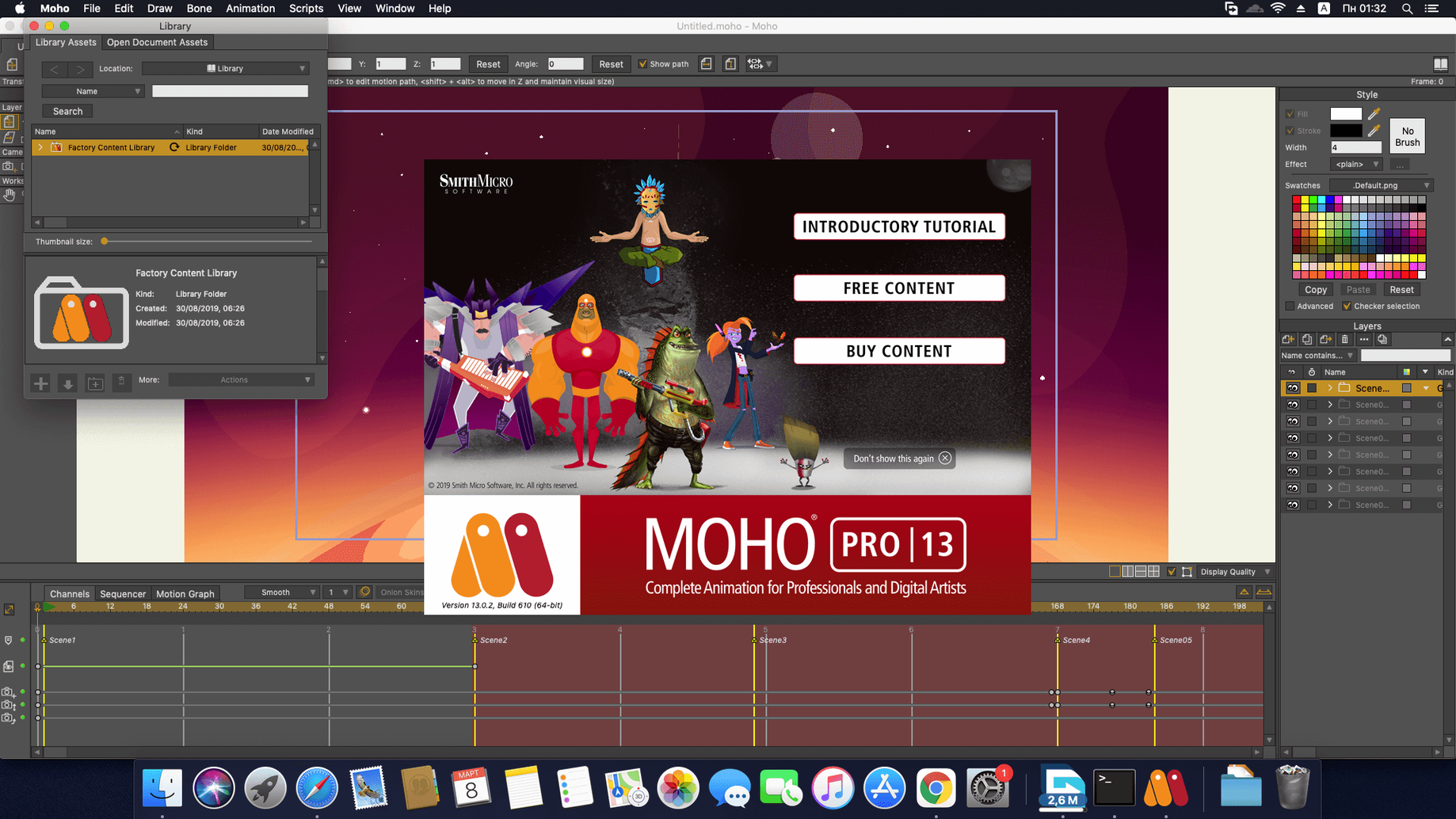
- Point the library to your own folders. The built-in object library is a useful starting point, but adding your team's prop collection — or a folder of reusable mouth shapes and hand poses — saves hunting through the Finder later. The library panel accepts dragged folders without fuss.
- Calibrate the drawing tools to your tablet. Moho's vector brushes respond to pressure, tilt and speed, but the default curves can feel stiff on some Wacom or XP-Pen models. Spend ten minutes drawing simple strokes, adjusting the taper and smoothing sliders until the line feels like your own hand. Save the result as a custom brush preset.
- Learn one keyboard shortcut on day one:
Cmd-Shift-V. It pastes a layer's animation data onto another layer — bones, points, or both. A small thing that prevents a great deal of repetitive keyframing once character rigs start multiplying.
Troubleshooting: snags that appear and how to clear them
Even well-built software has its friction points. Moho Pro's are few, but they tend to cluster around three areas.
The canvas goes black or flickers. This is almost always an OpenGL handshake problem. Moho relies on OpenGL 4.1 for viewport rendering, and some Macs — particularly those with older Intel integrated graphics or external displays connected via certain docks — lose the context after sleep or resolution changes. The fix: open Preferences, switch the Display Mode from "OpenGL" to "Software" temporarily, restart Moho, then switch back. If the problem persists, disabling "Automatic graphics switching" in macOS Battery or Energy settings often resolves it at the system level.
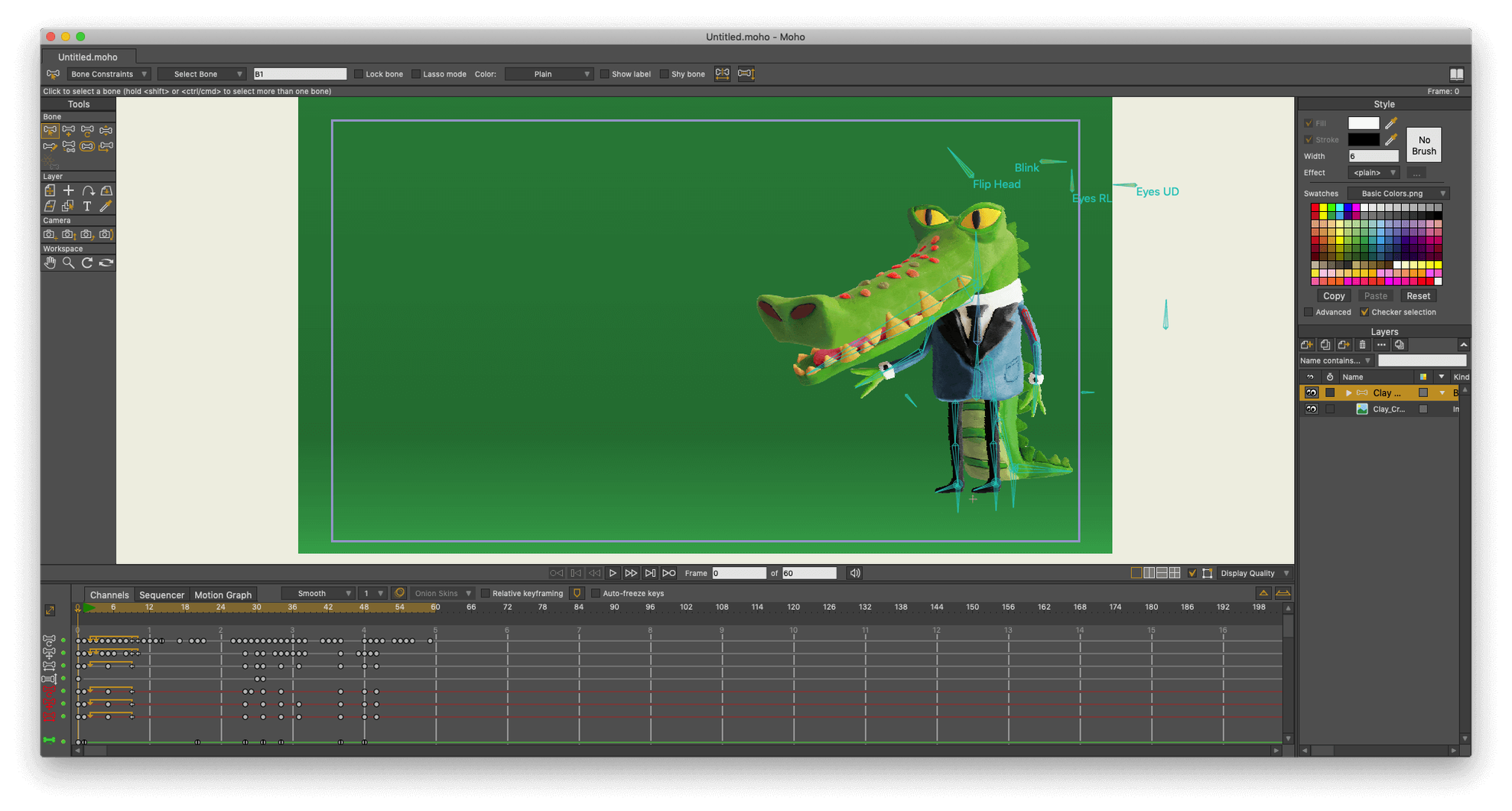
Bones seem unresponsive after rigging. A freshly rigged character that refuses to bend usually has one of two issues: either the bone strength regions are too small (check the Bone Strength tool and widen the coloured zones around each bone), or the vector layers are not bound to the bone layer at all. The second case is common after duplicating a rig — the new bone layer sometimes loses its child bindings. Select the vector layer, open Layer Settings, and confirm it is set to "Flexi-Bind" or "Layer Bind", not "Off".
Audio drifts out of sync on long scenes. Moho's sequencer handles audio well, but compressed MP3 files with variable bitrate can confuse the playback engine. Converting the audio track to WAV or AIFF (16-bit, 48 kHz) before import eliminates the drift. The file is larger, but the timing stays frame-accurate.
Beginners' missteps: four habits worth avoiding
Certain mistakes surface so regularly that they deserve a quiet flag. None of them are fatal; all of them cost time.
- Animating on one layer. A single vector layer carrying an entire character — body, face, limbs, clothing — becomes a nightmare to revise. The moment you need to change an arm without disturbing the torso, you will wish you had split the artwork across multiple layers inside a bone group. Moho rewards separation: one layer per moving part, bound to its own bone.
- Ignoring the sequencer for timing. New animators often keyframe everything on frame 1 and tweak from there. The built-in sequencer, by contrast, lets you slide entire sequences along the timeline, duplicate them across multiple characters, and adjust the tempo without touching individual keys. For walk cycles and repeated actions, this is the difference between a five-minute edit and an afternoon of re-keying.
- Over-relying on physics for primary motion. The physics engine handles secondary motion elegantly — hair, tails, loose fabric — but letting it drive a character's main limbs produces floaty, unconvincing results. Physics work best as a supplement to manual keyframes, not a replacement for them. A good rule of thumb: if the motion requires intention (a punch, a point, a step), keyframe it. If it is a consequence (a scarf trailing behind), let physics take over.
- Skipping the graph editor. Moho's curve editor sits quietly in a tab and is easy to overlook. But tweaking the interpolation curves there — easing into a pose, snapping out of a reaction — lifts animation from "correct" to "convincing" faster than adding more keyframes. Even a minute spent smoothing the default linear tangents changes the feel of a scene.
In short: Moho Pro works best when it is treated as a hub, not an island. Feed it layered artwork, let it talk to your game engine or video editor, and spend the first days building a small custom library. The rest follows.








Correspondence 0
Take a chair or join the table to send a letter.
No correspondence on this note yet. Letters are read before they appear.