 LeCoqRoti
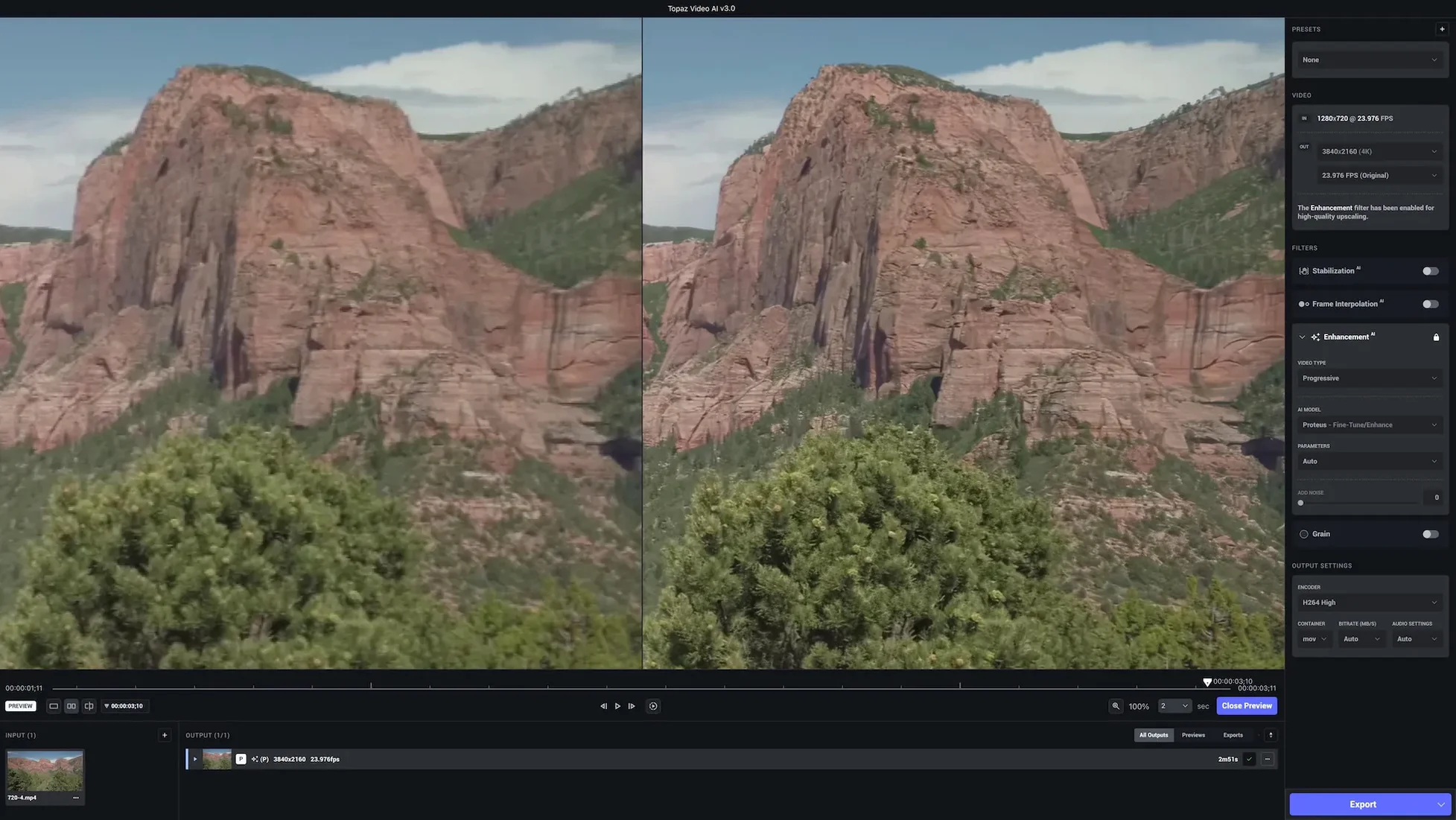
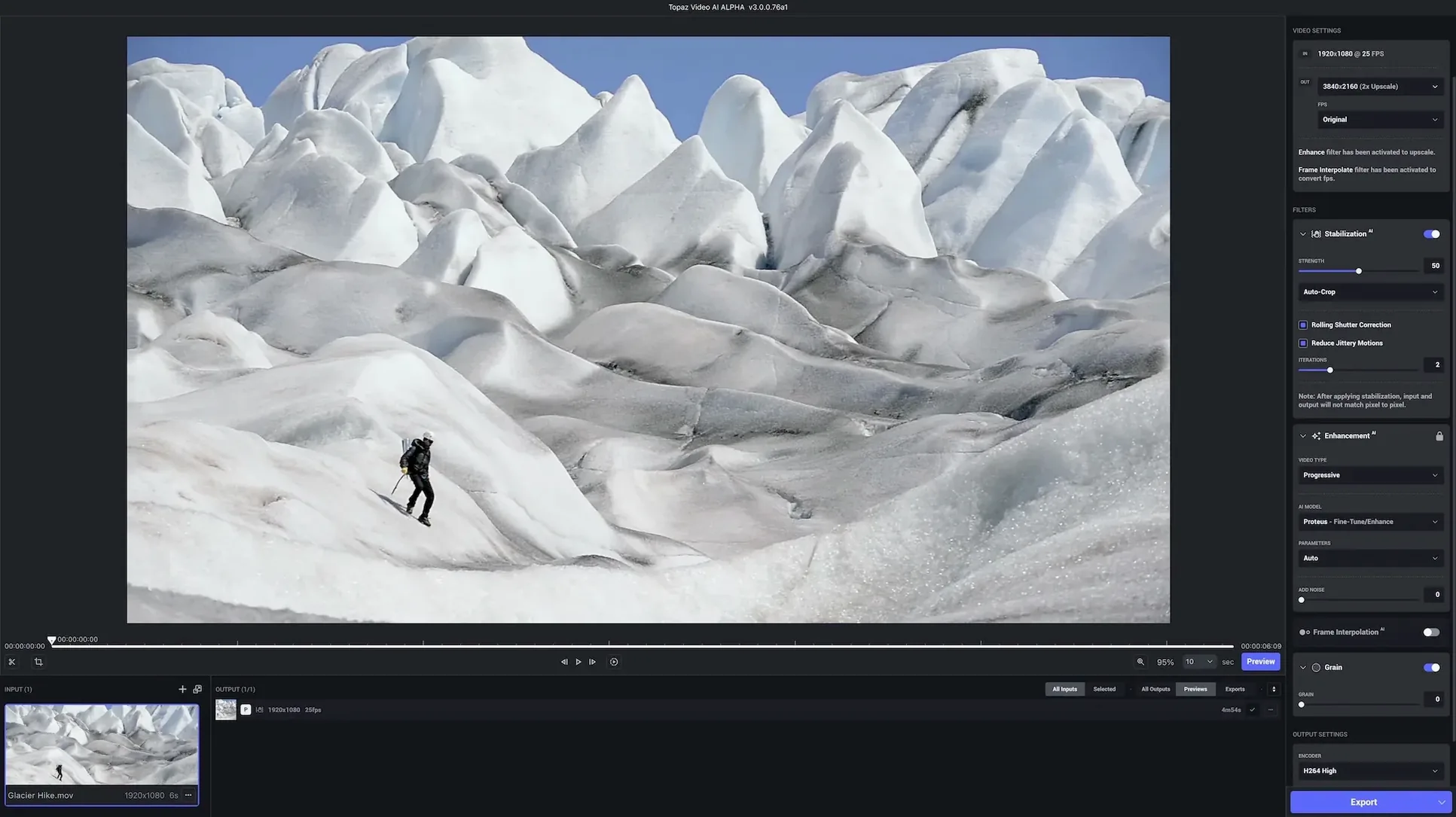
The app can process files well beyond HD, taking source material up to 8K with a focus on motion consistency. It is not a player or an editor in the conventional sense: it sits next to a colour corrector or a cutting tool, handling the pixel-level reconstruction those apps leave alone. Noise, soft focus, and the flicker of old tape can be addressed in one pass, and the same interface also converts SD footage to HD for projects where re-shooting is not an option.
Position in a Mac workflow: before the timeline
Most people open Topaz Video AI after pulling selects into a bin and before assembling a sequence. The application stabilises shaky handheld shots and recovers detail lost to compression artefacts, outputting a cleaner file for Final Cut or Resolve. It does not replace a dedicated tracking stabiliser for complex camera moves, but for general handheld correction it removes the chatter that undermines a grade. Because the processing models run locally, the machine’s GPU matters more than bandwidth, which suits a Mac Studio or a well-cooled MacBook Pro left to work overnight on a batch.
Archival work: old footage, new resolution
Where the tool earns its keep is in recovering and upscaling old archival videos to 4K. Grain, gate weave, and the softness of early digital formats all respond to the same AI-driven restoration logic. The interface stays out of the way: a preview pane, a model selector, and a render queue. It is a single-purpose tool, and that is its strength in a folder already crowded with generalists.
Model defaults: why a quick pre-render check saves hours
After installation, the default model choices tend toward the conservative. The application picks a safe combination of upscale and enhancement models based on the input file's resolution, but three settings repay a moment of attention before committing to a long render queue.
First, the preview duration. By default the preview renders a short clip of a few seconds from the centre of the timeline. Dragging that selection to a section with fast motion, fine texture, or a face in profile gives a truer read on what the model will do to the whole file. A static landscape tells you little about how the Nyx or Rhea models handle a walking figure, so placing the preview over the trickiest stretch of footage saves re-rendering later.
Second, the output codec and compression level. The application defaults to ProRes on the Mac, which is sensible for a finishing workflow but produces large files. If the export is destined for YouTube or Vimeo, switching to H.265 with a quality setting around 18 keeps the render crisp without ballooning the file size. The encoder choice sits in the output panel, and it persists across sessions once changed.
Third, the grain model. In versions that include grain synthesis, the setting can be dialled from subtle to pronounced. For archival film scans, a small amount of synthetic grain—around two to four on the slider—knits the upscaled detail into the original texture so the result does not look painted. For clean digital footage, zero grain is usually correct.
Preview fixes: clearing the cache after a macOS update
A few friction points surface often enough to mention, and most have straightforward remedies.
The first is the preview refusing to render on an Apple Silicon Mac after a macOS update. The fix is usually to quit the application, remove the model cache files from ~/Library/Application Support/Topaz Labs/Video AI/, and relaunch. The application re-downloads what it needs on the next render. This is worth doing after any point update to macOS, since the system occasionally invalidates the cached model signatures.
Another recurring issue: interlaced source footage fed straight into a progressive upscale model. The result shows combing artefacts baked into the enhanced output. The application does not deinterlace automatically, so running the file through a deinterlacing pass first—either in the source settings or in a separate tool—makes a visible difference. The Proteus and Iris models handle progressive material cleanly, but they cannot guess what the missing fields should contain.
On Intel Macs with limited VRAM, the preview can stall or produce a black frame. Reducing the preview resolution in the preferences (a toggle labelled "low-resolution preview") lowers the memory footprint without affecting the final export quality. The final render always runs at full resolution; only the interactive preview is scaled down.
Finally, the Patch.command step mentioned in the installation notes may trigger a security prompt on newer macOS builds. If the script fails to open, right-clicking it in Finder and choosing Open from the context menu usually bypasses the gatekeeper block. Once run, the application behaves as expected.
Render times: 20 minutes on M2 Ultra versus 90 on M1 Air
On a Mac Studio with an M2 Ultra, a six-minute 1080p clip upscaled to 4K with the Proteus model completes in roughly twenty minutes. The same file on an M1 MacBook Air takes closer to an hour and a half, with the fans audible throughout. These are not benchmarks, just the kind of practical durations that shape a working day. Batch processing a dozen clips of similar length is an overnight task on most machines, and the queue manager is reliable enough to trust with it: it picks up after a system sleep, does not stall on a malformed file, and writes a clean log.
Memory pressure is the main constraint. The application loads entire models into GPU memory, and with the larger enhancement models active it is not unusual to see 12 GB or more of unified memory in use on an Apple Silicon Mac. Closing other GPU-hungry applications—particularly browsers with many tabs open, or a running instance of DaVinci Resolve—frees enough headroom to keep the render pipeline smooth. The application does not swap aggressively, but it does pause renders when memory runs short rather than risk a corrupted frame.
Stability has improved noticeably from the earlier Video Enhance AI days. Crashes are rare on version 1.7.1, and the few that do occur tend to involve specific model combinations on source files with non-standard frame sizes. The application autosaves the queue state, so a crash on the third clip of twelve means only that one file needs re-queuing. The log viewer, tucked behind a button in the preferences pane, is plain text but detailed enough to spot whether a failure came from a model incompatibility or a corrupted source frame.
Editor workflow: round-tripping clean clips instead of plug-ins
Topaz Video AI does not function as a plug-in inside Final Cut Pro or Premiere. The workflow is round-tripping: export a clean clip from the application, import the result into the editor. This suits projects where enhancement happens at a defined stage, typically after picture lock on the selects and before the final grade. The rendered files carry timecode and can replace the originals in a timeline by relinking, provided the frame rate and pixel dimensions match.
On macOS, the application speaks the expected system languages: it writes to the Photos library if you grant access, accepts drag-and-drop from the Finder, and respects the system colour profile on its preview pane. It does not write to iCloud Drive by default, but you can point the output folder to a synced directory if cloud backup is part of the post-production routine.
With audio, the application copies the source track unchanged. It does not enhance, denoise, or resample audio, so any sound work remains in the editor. This is a deliberate omission and keeps the render times focused on the video stream. For projects that need audio cleanup, pairing it with a tool like iZotope RX in the timeline after the video pass works cleanly.
The application also integrates with the macOS share sheet, though the use case is narrow. You can right-click a video in the Finder, choose Share, and send it to Topaz Video AI as a new queue entry. It is not a feature most people use daily, but it removes a few clicks when processing a single file from a client drive.
Offline processing: models run locally on the GPU
A few things people want to know before committing the disk space and the download time.
Does it need an internet connection to work? The models run locally on the GPU, so processing does not require a connection. The initial download of model files happens on first use of each model, and the application checks for updates on launch, but you can render entirely offline once the models are cached.
Will it handle footage shot on a phone? Yes, and often well. Phone video with good lighting upscales cleanly because the source compression is relatively mild and the sensor noise is low. Footage shot in dim conditions benefits from the denoising models, though the result depends more on the source than on the tool. Stabilisation on phone footage is effective for hand tremors but does not correct the rolling shutter wobble that some sensors produce.
How much disk space should I keep free? A four-minute 4K ProRes 422 HQ export runs around 25 GB. Working with H.265 halves that. The application does not cache intermediate frames to disk as aggressively as some compositing tools, but you want at least double the expected output size free on the destination volume to avoid a stalled render.
Does it handle variable frame rate video? It does, but with a caveat. Variable frame rate footage from screen recordings or phones is converted to a constant frame rate on import, and the application's frame interpolation models then work predictably. If the source frame rate fluctuates wildly, the conversion can introduce slight timing drift on clips longer than ten minutes. Transcoding to a constant frame rate in a tool like HandBrake before bringing it into Topaz avoids the issue entirely.








Correspondence 0
Take a chair or join the table to send a letter.
No correspondence on this note yet. Letters are read before they appear.