 LeCoqRoti
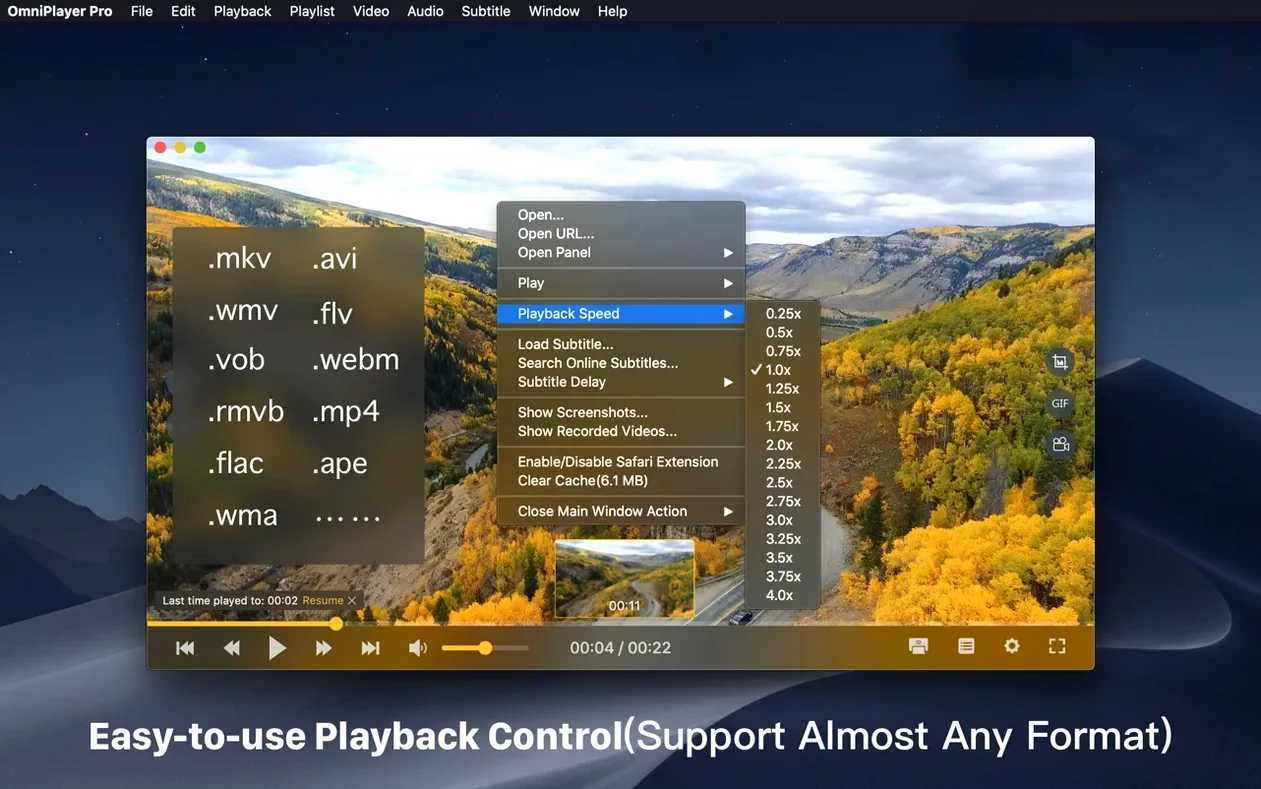
OmniPlayer runs on any Mac with macOS 11 (Big Sur) or later and an Intel processor. The architecture remains x86 64-bit, so Apple Silicon machines rely on Rosetta 2. The current release, version 2.1.22, concentrates on stability rather than new features — a maintenance pass that addresses playback of very large video files.
What the update addresses: two bug fixes
- General stability improvements from squashed bugs.
- A specific fix for loading a 30 GB MKV file, where the player previously faltered. For anyone working with high-bitrate 3D MKV or lengthy remuxes, this single change restores reliable playback.
What remains unchanged: the full feature set
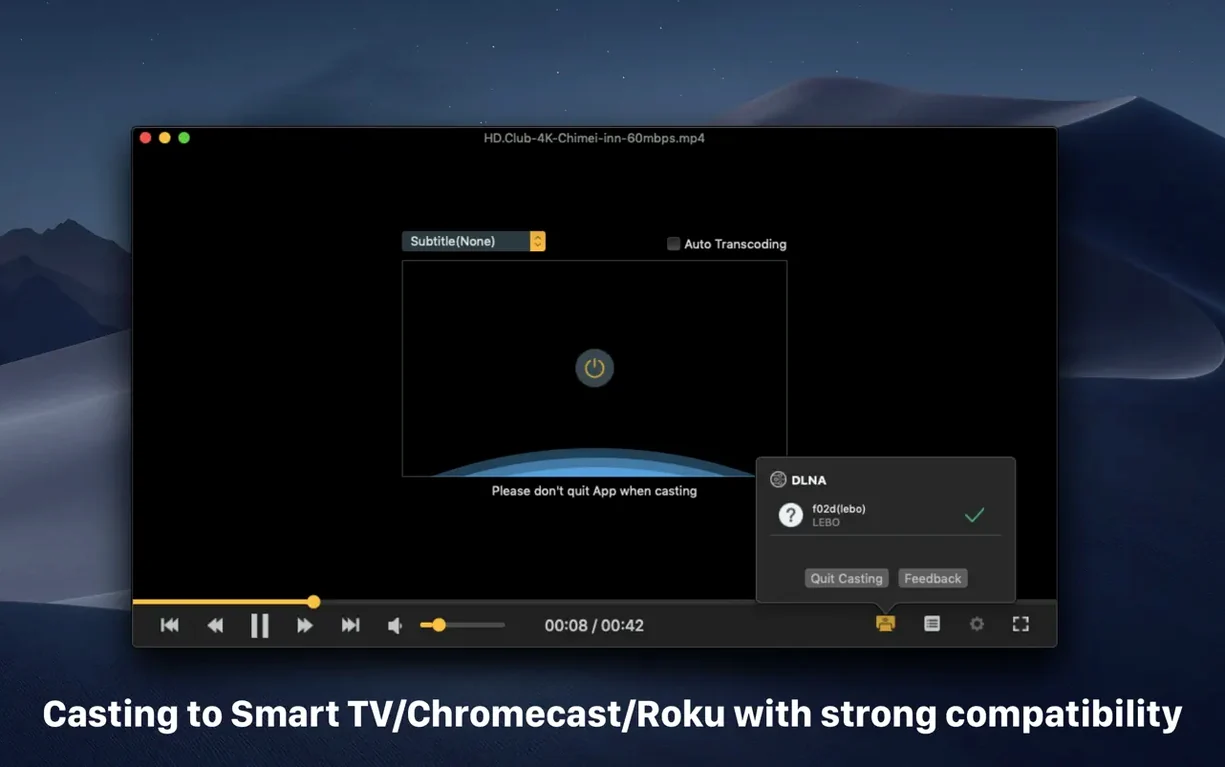
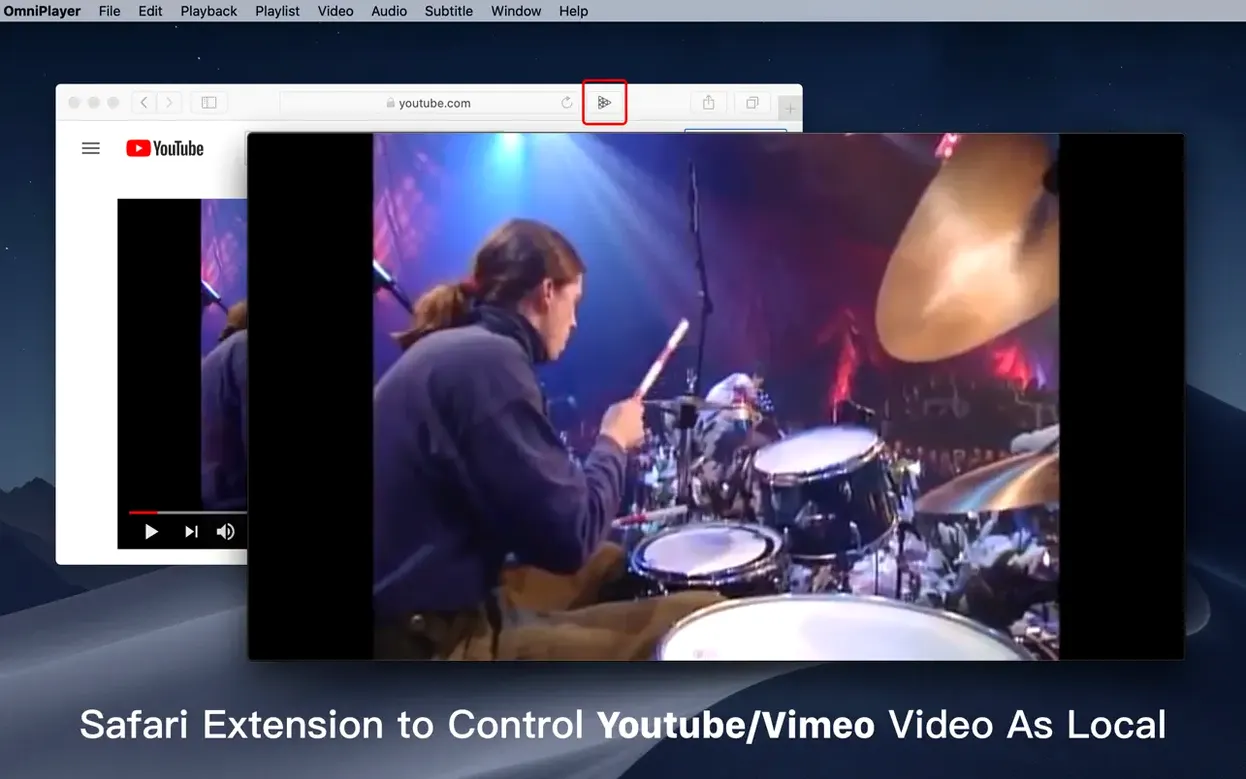
The broader toolset is untouched. OmniPlayer still handles local video and audio, online streams from YouTube or Vimeo via URL, and wireless casting to DLNA, Chromecast, and Roku devices. You can correct sync with an audio delay slider, adjust brightness, contrast, and saturation during playback, and switch between audio tracks inside a container. Subtitle support covers online search by title or hash, manual encoding changes for different languages, and downloaded track management. Playlists auto-populate with media files and clear on exit, with controls for search, deletion, and repeat-mode changes within the queue.
A working session: playing a local MKV with online subtitles
Double-click a media file — or drop a folder onto the dock icon — and OmniPlayer opens with the video window and a playlist panel to its right. The controls appear on hover: a clean, transparent overlay that retracts after a few seconds of inactivity. Drag the progress thumb for a visual scrub; local files show miniature preview frames along the bar, which helps when you are looking for a specific scene without memorising timecodes.
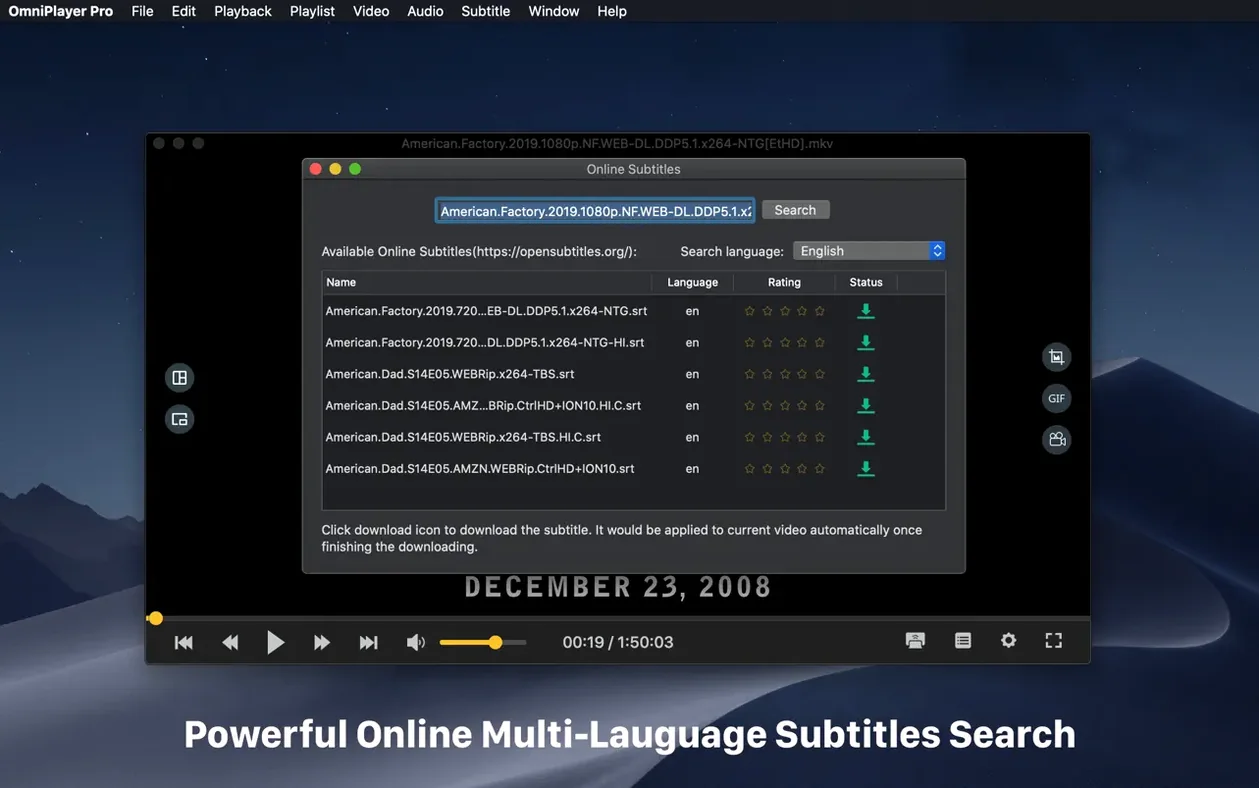
If the video lacks embedded subtitles, right-click the playback area and choose Search Subtitles. A small dialogue offers two search modes: by file name or by computed hash. The hash method tends to be more accurate for well-indexed releases. Results appear in a list, and selecting one loads it immediately. You can then adjust the font size and colour from the subtitle menu — the changes apply in real time, so you see the effect frame by frame while the video keeps playing. For a file with mismatched encoding (say, Cyrillic text rendered as gibberish), the Subtitle Encoding submenu lets you cycle through charsets until the glyphs resolve.
A start-to-finish workflow: screening a rough cut with remote collaborators
Imagine a video editor receiving a 12 GB export from a colleague via FTP. The file sits on a remote server, not the local drive. OmniPlayer can open it directly over the network — use Open URL and enter the full FTP address with credentials. The player buffers progressively; on a decent connection, playback begins within seconds and you can jump to any point without downloading the entire file first.
Once the video is running, set the speed to 1.5x for a quick review pass. The pitch remains intelligible, which matters when you are listening for dialogue issues. Pause at a frame that needs a note: press Command-Shift-S to capture a screenshot. The format can be set to PNG or JPEG in preferences. For a more expressive annotation, record a short GIF — hold the screenshot button or use the menu to trigger a capture of up to 60 seconds. The resulting file loops automatically, useful for dropping into a chat window to illustrate a timing problem or a visual glitch.
When the video contains multiple audio tracks (say, a stereo mix and a 5.1 surround track), switch between them from the Audio Track submenu to check how dialogue sits in each mix. If you notice a slight desynchronisation — common with remote recordings — open the Audio Delay control and nudge the track forward or backward in small increments until lip movement and speech align.
Finally, cast the approved cut to a television for a full-size viewing. Click the cast icon, and OmniPlayer discovers Chromecast and DLNA devices on the local network. Select the target, and the video appears on the larger screen while playback controls stay on the Mac. The wireless display path introduces negligible latency for non-interactive viewing.
Controls vanish for a clean frame: auto-hide overlay
- Auto-hide controls: enabled by default. The entire overlay vanishes during playback, leaving only the picture. Move the cursor to reveal it again. This keeps the frame clean when you are watching rather than tweaking.
- Playlist auto-clear on exit: by design, the playlist empties when you quit the application. If you want to preserve a list for later, drag its items to a folder or make a note — the behaviour is intentional and not configurable, but it prevents stale queues from accumulating across sessions.
- Rotation shortcuts: rotation in all four directions is available from the menu, but the quickest route is the keyboard: Command-R cycles clockwise. Handy for phone-shot footage that arrives with incorrect orientation metadata.
- Speed presets: the slider spans 0.25x to 4x, but tapping the [ and ] keys steps by 0.1x increments. For finer control, hold Shift while pressing to jump by 0.5x. These shortcuts are not labelled in the interface, but they quickly become muscle memory for anyone who reviews lectures or long interviews.
30 GB MKV stutter: check drive speed first
A 30 GB MKV stutters or refuses to load. Version 2.1.22 specifically addressed this, but the fix assumes a reasonably fast drive. If the file resides on an external USB 2.0 disk, the read speed may bottleneck before the player can buffer. Move the file to an internal SSD or a USB 3.0 enclosure. For network locations, SAMBA tends to be more stable than FTP for sustained reads; if an FTP stream hesitates, try mounting the share via SAMBA and opening it as a local path.
Online subtitle search returns nothing. The hash-based search depends on a match in the subtitle database. If the file is an obscure or freshly released title, fall back to title-based search with a shortened, clean version of the file name — strip release-group tags and resolution strings. If both methods fail, download a subtitle file manually and load it through Load Subtitle File. The player reads SRT, ASS, and several other formats without conversion.
Casting to Chromecast fails to connect. Ensure the Mac and the Chromecast are on the same subnet; some mesh Wi-Fi systems isolate bands unless configured otherwise. If the device appears but the video does not start, the codec may be unsupported by the Chromecast hardware. In that case, OmniPlayer transcodes on the fly, which can take a moment — wait ten seconds before assuming a failure. For DLNA targets, check that the router does not block UPnP discovery; some ISP-supplied routers disable it by default.
GIF capture stops after a few seconds. The 60-second limit is generous, but the file size grows quickly. If you need a longer clip, lower the output resolution in preferences first. For very long captures, consider recording a screen video instead — OmniPlayer is not designed as a dedicated GIF studio, and the feature works best for short annotation loops. Also note that GIF capture pauses if the playback is paused; keep the video running during the capture window.








Correspondence 0
Take a chair or join the table to send a letter.
No correspondence on this note yet. Letters are read before they appear.