 LeCoqRoti
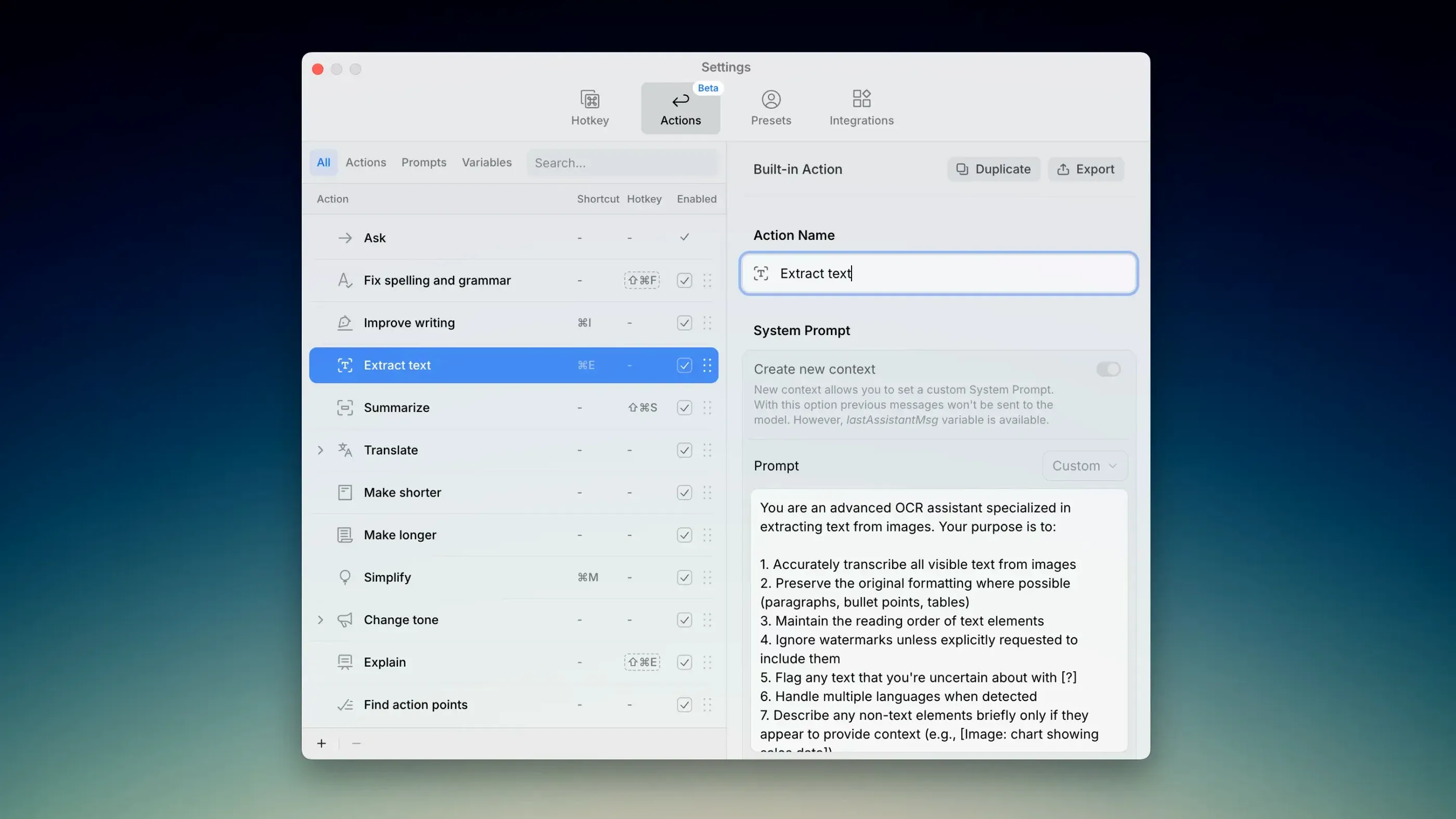
You are replying to a client in Mail and the phrasing feels off. Without switching windows, you highlight the sentence, press a shortcut, and ask for a more diplomatic tone. The rewritten text appears in place: no copy-paste, no browser tab.
Workflow: from rough text to polished reply
- Select the text in Mail, Notes, Pages or any other Mac app.
- Invoke Kerlig with its keyboard shortcut and choose a preset or type a plain instruction: “Make this warmer” or “Summarise this thread.”
- The assistant replaces the selection with the result, drawing on the model you have configured.
Because it works directly in the text field, Kerlig sits alongside your existing tools rather than replacing them. A grammar pass in Word, a quick translation in Safari, a meeting summary composed from rough bullet points in Notes: the assistant appears only when you call it, then steps back. Presets let you fix the tone and style you want once, so repeated tasks need no extra prompting. With more than 350 models available — including choices from Anthropic, OpenAI and Google — you can route sensitive paragraphs to the on-device Apple Foundation Model and keep heavier reasoning for a remote model. The effect is a layer of language help that respects where you are already working.
Shortcut fails: check Accessibility permission first
One recurring issue is the shortcut not responding in a particular app. The cause is nearly always macOS privacy settings: the app requesting the key combination needs Accessibility permission, and if it was installed before that permission was granted, a relaunch is often enough. Check System Settings > Privacy & Security > Accessibility and toggle the entry off and on again if the shortcut has gone silent.
Another point of friction is model choice. A user types “Make this shorter” and gets a reply in the wrong language, or a tone that feels oddly formal. The preset language is inherited from the active model’s defaults, not from the surrounding text. Switching to a model that matches the document language — or creating a preset that explicitly states the output language — resolves this immediately. For quick translation work, a dedicated preset with the instruction “Translate to English, keep the tone neutral” avoids the assistant interpreting the request as a style rewrite.
Summaries of very long documents occasionally return truncated results. This is a context-window limitation, not a bug. The workaround is to summarise in sections or to select the key passage rather than the entire document before invoking the assistant.
Performance: speed, stability and resource use
In daily use, Kerlig feels responsive. With a remote model, the delay between invoking the shortcut and seeing the replacement text is typically under two seconds: perceptible but not distracting. The on-device Apple Foundation Model is noticeably faster on Apple Silicon machines, and because processing stays local, it works even without a network connection, which proves useful when travelling.
Memory usage is modest. The helper process sits at around 120 MB when idle and climbs briefly during a request, then drops back. There is no persistent CPU draw between calls, and the assistant does not launch at login unless you opt into that behaviour. Stability has been solid across a week of heavy use in Mail, Notes and Safari; no crashes observed, and the text replacement has always completed cleanly without leaving fragments of the original selection behind.
Model choice: switch to local for sensitive text
- Keyboard shortcut. The default is
⌃⌥Space, which may conflict with other tools. Set something memorable under Preferences —⌃⌥Kis often free. - Default model. The initial model may be a remote one. If you handle sensitive text regularly, switch the default to Apple Foundation Model for on-device privacy and keep a remote model as a secondary choice for heavier reasoning tasks.
- Custom presets. The built-in list covers common tasks, but creating presets that match your voice — “Reply in friendly British English, sign off with ‘Best’” — saves more time than any other single step. Write the instruction once, name it clearly, and assign a letter shortcut if you like.
- Output behaviour. By default, the assistant replaces your selection. If you prefer to see the suggestion first and then decide, enable the “Paste below selection” option so you can compare before deleting the original.








Correspondence 0
Take a chair or join the table to send a letter.
No correspondence on this note yet. Letters are read before they appear.