 LeCoqRoti
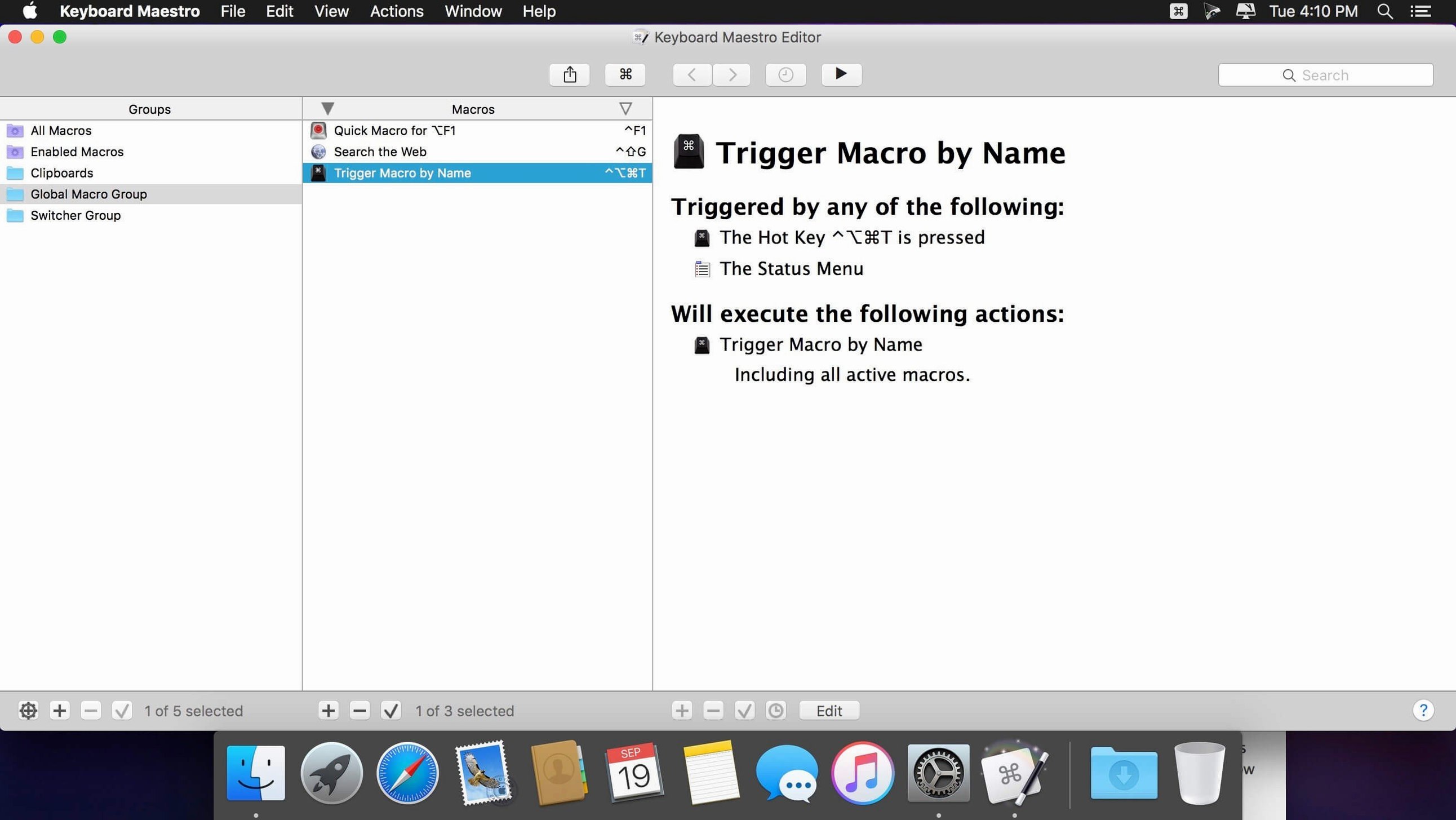
Switch/Case actions now indicate which branch is true. Keyboard Maestro — a macro utility that watches for triggers you define, then runs sequences of built-in actions across macOS. It sits quietly alongside Ableton Live, your browser and the Finder, stepping in for the repetitive.
Trigger — a keyboard shortcut, a typed string, a time of day or a change in a window title that starts a macro.
Action — one of hundreds of steps: launch an application, rearrange windows, visit a web page, filter the clipboard or perform OCR on an image.
Clipboard history — multiple entries the app remembers, letting you paste something you copied earlier without switching context.
Window management — moving and resizing windows across displays, triggered by a hotkey or when a specific app comes to the front.
Report — a generated document the app can build from system data, file lists or text transformations.
When a musician sets up Ableton keyboard shortcuts for clip launching and transport, Keyboard Maestro handles everything outside the DAW: starting a metronome app, opening a lyrics sheet, muting notifications. The two tools do not compete; one runs inside the session, the other keeps the desktop in order.
Integration: where it fits in the Mac ecosystem
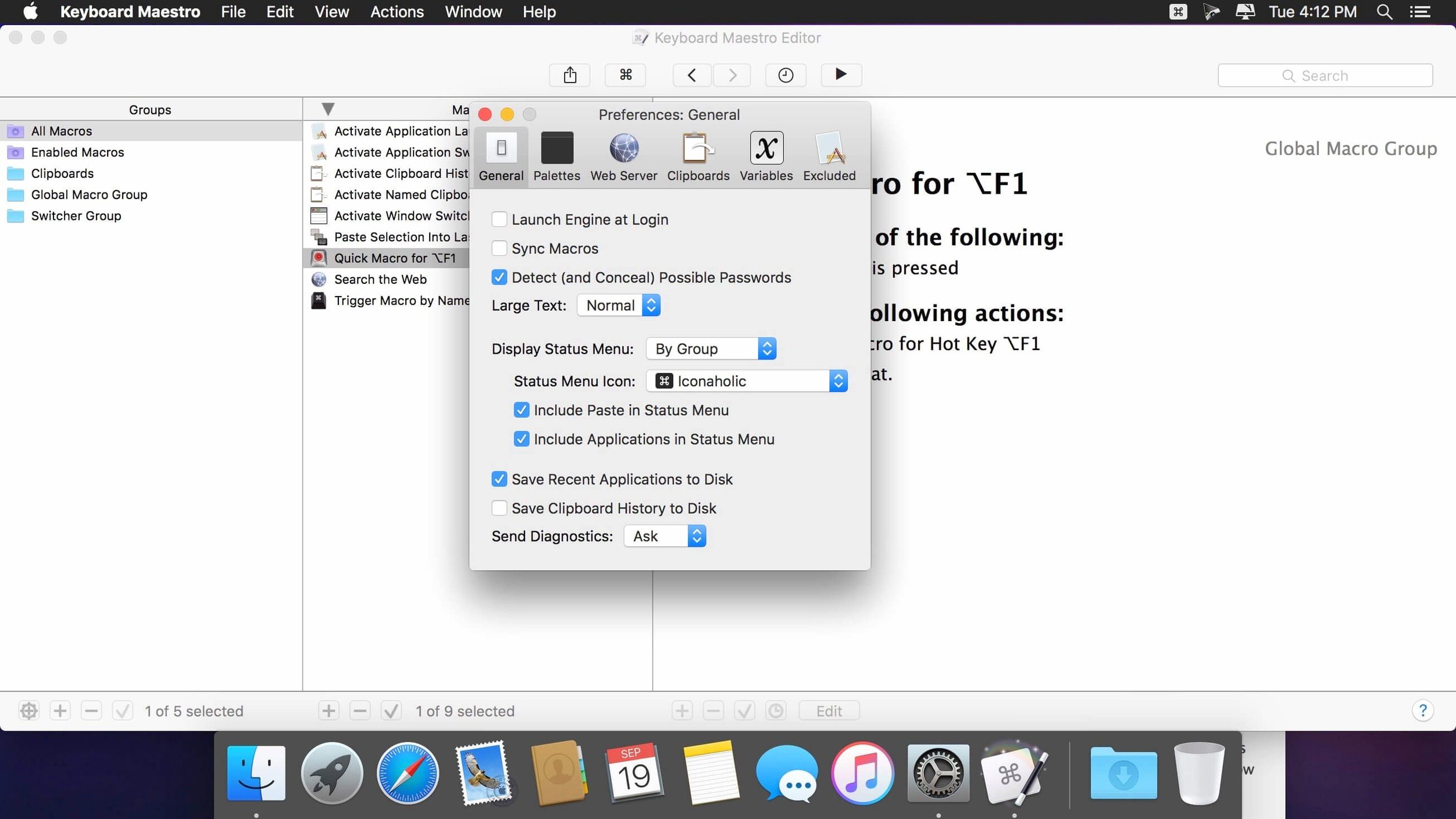
Keyboard Maestro does not replace macOS features — it extends them. The clipboard history sits alongside Universal Clipboard without conflict: the system handles handoff between devices, while Keyboard Maestro holds a local stack of recent copies, filters out formatting, and lets you paste the third item back with two keystrokes. Text replacement works in parallel with the system-wide replacements in System Settings — Keyboard Maestro takes over for multi-line expansions, date arithmetic, and snippets that need to pause for manual input.
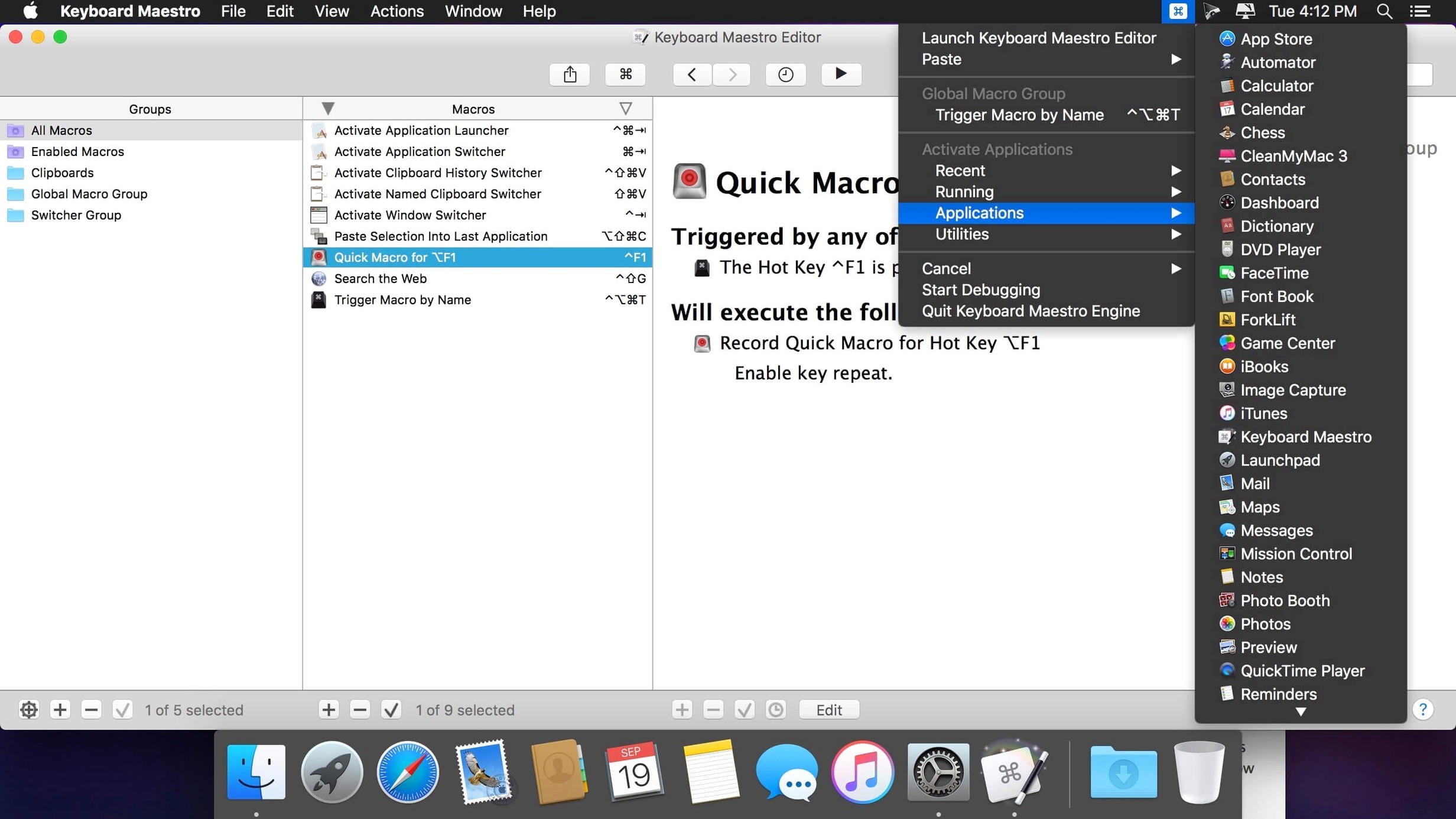
Its window actions talk to Mission Control and Spaces. A macro can move a window to a specific display and snap it to the left half, then switch to another Space — all in one trigger. The app reads window titles, which means it can react when a particular document opens or when a dialogue appears with a known name. For Spotlight users, a macro can invoke a saved search or run an mdfind query and process the results. And because Keyboard Maestro exposes a URL scheme and an AppleScript dictionary, other automation tools can call its macros — LaunchBar, Alfred, Shortcuts, even a shell script in Terminal.
On the security side, the app requests Accessibility and Automation permissions through the standard macOS prompt. Once granted, it simulates keystrokes and clicks at the system level. This is the same permission model used by VoiceOver and third-party window managers. For Macs with Apple silicon, version 11.0.4 runs natively and respects the signed-system-volume layout of recent macOS releases.
Comparisons: three automation neighbours
Alfred's Powerpack offers workflows with a visual editor, but the scope stays closer to launching and file operations. Keyboard Maestro steps further into UI scripting, image OCR and conditional branching. Alfred excels at quick search and single-step actions; Keyboard Maestro handles sequences that span five applications and pause for a network condition to resolve. Many users run both: Alfred for the launcher and clipboard, Keyboard Maestro for the heavy lifting.
BetterTouchTool overlaps on window snapping and keyboard triggers, and its trackpad gesture engine is unmatched. Where Keyboard Maestro pulls ahead is in structured logic — loops, variables, if/else chains — and in triggers like time-of-day, idle, and USB device arrival. The two can complement each other neatly: BetterTouchTool for gestures that fire named Keyboard Maestro macros via URL, combining precision input with deep automation.
Shortcuts, built into macOS since Monterey, handles cross-device automation and shares well with iPhone. But it lacks the breadth of triggers — no window-focus detection, no typed-string triggers — and its action library remains narrower, especially for manipulating files, windows and clipboards. Keyboard Maestro still feels like the native Mac power tool, the one that speaks AppleScript and shell as first-class citizens.
Small conveniences: bits you might overlook
The Macro Debugger window now carries tool tips, a quiet addition in 11.0.4 that helps when stepping through a complex sequence. Hover over an action in the debugger and the tip reveals what the action expects — useful when a variable name has drifted or a coordinate looks off.
Elsewhere, a few shortcuts reward curiosity. Pressing the gear icon in the editor while holding Option reveals a «Show Plist» item for directly inspecting a macro's underlying dictionary. The clipboard history window accepts a typed prefix to filter entries — start typing «url» and only URLs remain. In a browser form, a text-expansion token like %CurrentClipboard% lets you paste from the history stack without ever opening the palette. And the «Execute Shell Script» action returns results to a variable, which then feeds into a notification, a file write or a web service call — a pipeline that needs no intermediate script file on disk.
The OCR Condition, now backed by Apple Text Recognition, can watch a region of the screen for a specific word and fire a macro when it appears. This means a macro can wait for a «Ready» label in a render queue, or a «Confirmed» badge in a booking system, then act. It is one of those features that sits in the background for weeks until a workflow suddenly demands it, and then it becomes indispensable.
Drive detection: launching yesterday’s workspace in one plug-in
A sound designer arrives at a shared studio in the morning. She plugs in an external drive. Keyboard Maestro detects the USB device by name and launches three applications: Reaper, Soundly and Finder opened to the project folder from yesterday. It also runs a shell script that timestamps a new session log in Notes.
During the day, she uses a typed-string trigger — «;sfx» — that expands to a formatted file path with the current date, saving her from typing the project's deep folder structure each time she exports a sound. When a client sends an email with «approved» in the subject line, a macro watches Mail in the background, extracts the attachment, renames it with the project code and drops it into the deliverables folder. No drag-and-drop, no mis-clicks.
At lunch, a timed macro pauses Soundly's database sync, locks the screen and sets Slack status to away. She returns, taps a hotkey, and everything resumes. Late in the afternoon, a render finishes in Reaper and leaves a window titled «Render Complete». Keyboard Maestro catches the window title change, copies the finished file to two backup locations and posts a notification with the file size. She checks the notification, nods, and moves on. The macro took under a second; manually, the same steps would have broken her concentration at the worst possible moment.







Correspondence 0
Take a chair or join the table to send a letter.
No correspondence on this note yet. Letters are read before they appear.