 LeCoqRoti
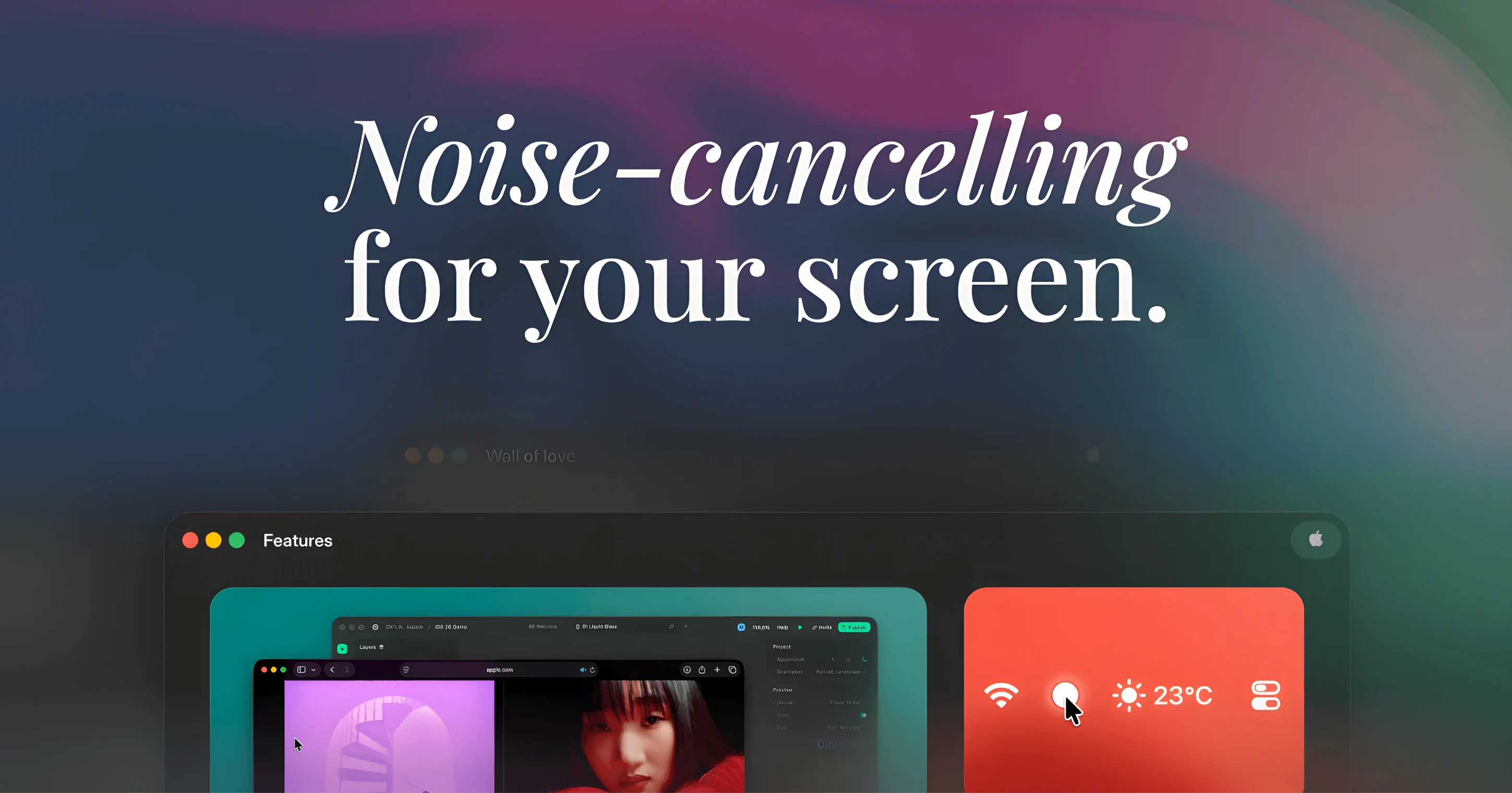
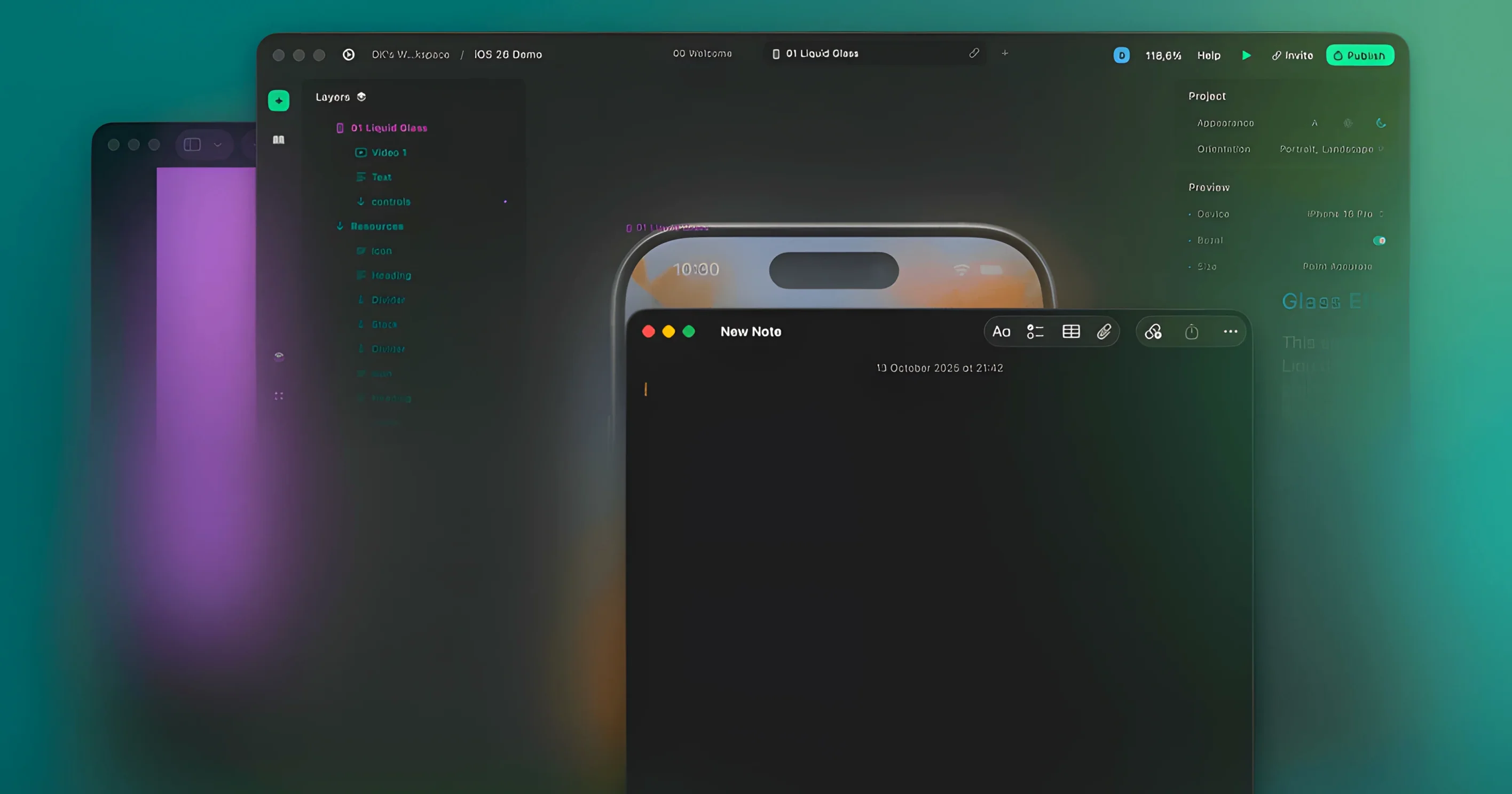
Writers, coders and anyone whose attention scatters across a multi-window desktop will find a kindred spirit in Monocle. The 3.5.1 update is a quiet refinement, not a reinvention.
Dimming — lowers the brightness of every window except the one you are working in
Blur — replaces the dim with a soft Gaussian blur across inactive windows
Multi-display support — the effect follows your focus across as many screens as you connect
The core behaviour remains unchanged: click on a window and everything else recedes visually. The difference between dim and blur is a matter of taste, though blur tends to feel more decisive when you need to shut out a busy desktop entirely. Either way, the menu bar icon gives you a single-click toggle, so the effect never overstays its welcome.
Common snags: what to check first
A handful of quirks surface often enough to warrant a mention. If Monocle seems to ignore a window, visit the app exclusions panel — it is easy to forget you once added something to the list. Apps excluded from blur will still dim if you switch to dimming mode, but the reverse is not true: an app excluded from all effects stays fully visible regardless of the mode you select.
On multi-display setups, the effect can appear to lag behind the cursor for a split second after switching screens. This is normal; Monocle waits for the system to confirm the new active window before applying the treatment. If the delay grows noticeable, toggling the menu bar switch off and on again resets the internal state without restarting the app.
A less obvious point: fullscreen apps and spaces behave differently from windowed ones. When you slide between fullscreen desktops, Monocle treats the entire space as a single active context. Background spaces receive the dim or blur treatment as a whole, which can look odd if you expected window-level granularity. The workaround is straightforward — keep the app in windowed mode when fine-grained focus is what you need.
A focused writing setup: step by step
Picture a typical morning: a text editor, a research browser, Slack, and Finder all open across two displays. The goal is to write without background chatter pulling at the eye. Here is one reliable sequence.
- Launch Monocle; it settles into the menu bar with no splash screen or setup wizard.
- Click the menu bar icon and select Blur mode — the stronger option for a text-heavy session.
- Open System Settings and assign Monocle a keyboard shortcut under Keyboard Shortcuts > Services, if you want hands-off toggling.
- Position your writing app on the primary display. Click into it. Every other window blurs softly, including the browser on the secondary screen.
- When you need to cross-reference a web page, click the browser. The text editor recedes; the browser sharpens. Click back to the editor and the focus shifts again.
- If a notification-heavy app such as Slack demands temporary clarity, open Monocle’s exclusion list and add it — its windows remain crisp while everything else blurs.
The whole setup takes under a minute. After that, Monocle fades into the background of your workflow, exactly as intended.
In practice: a developer with three displays
A mobile developer working on an iOS project runs Xcode on the centre display, simulator on the left, and a browser with documentation on the right. Before using Monocle, the peripheral screens competed for attention every time a build log scrolled or a page auto-refreshed. After installing the monocle mac app, the developer sets dimming mode at 60% opacity and excludes the simulator — it needs to stay visible while interacting with Xcode. Now, when coding, the documentation screen dims to near-silence. A click into the browser brings it forward at full brightness while Xcode and the simulator pull back. The result is not just less visual noise; it is fewer context switches triggered by motion in the corner of the eye. The menu bar icon stays out of the way, and the whole arrangement feels native to macOS, as though the system itself had learned to be quieter.








Correspondence 0
Take a chair or join the table to send a letter.
No correspondence on this note yet. Letters are read before they appear.