 LeCoqRoti
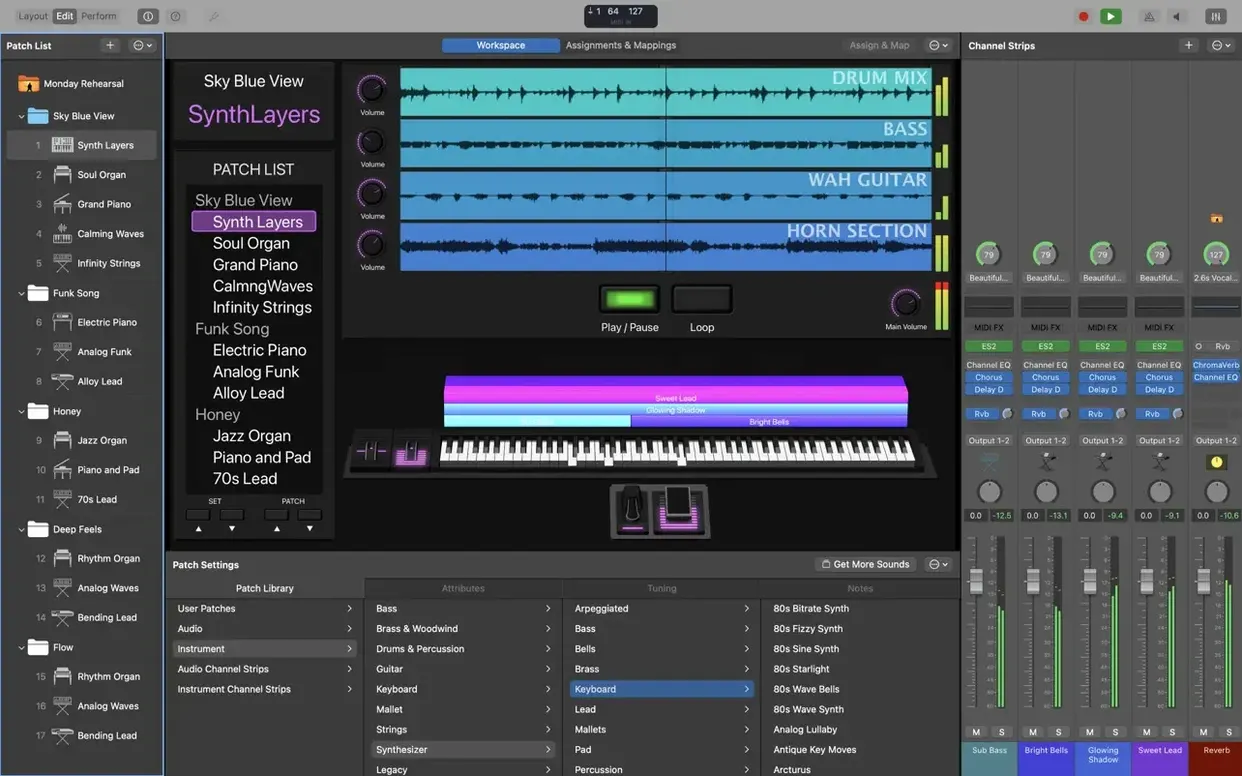
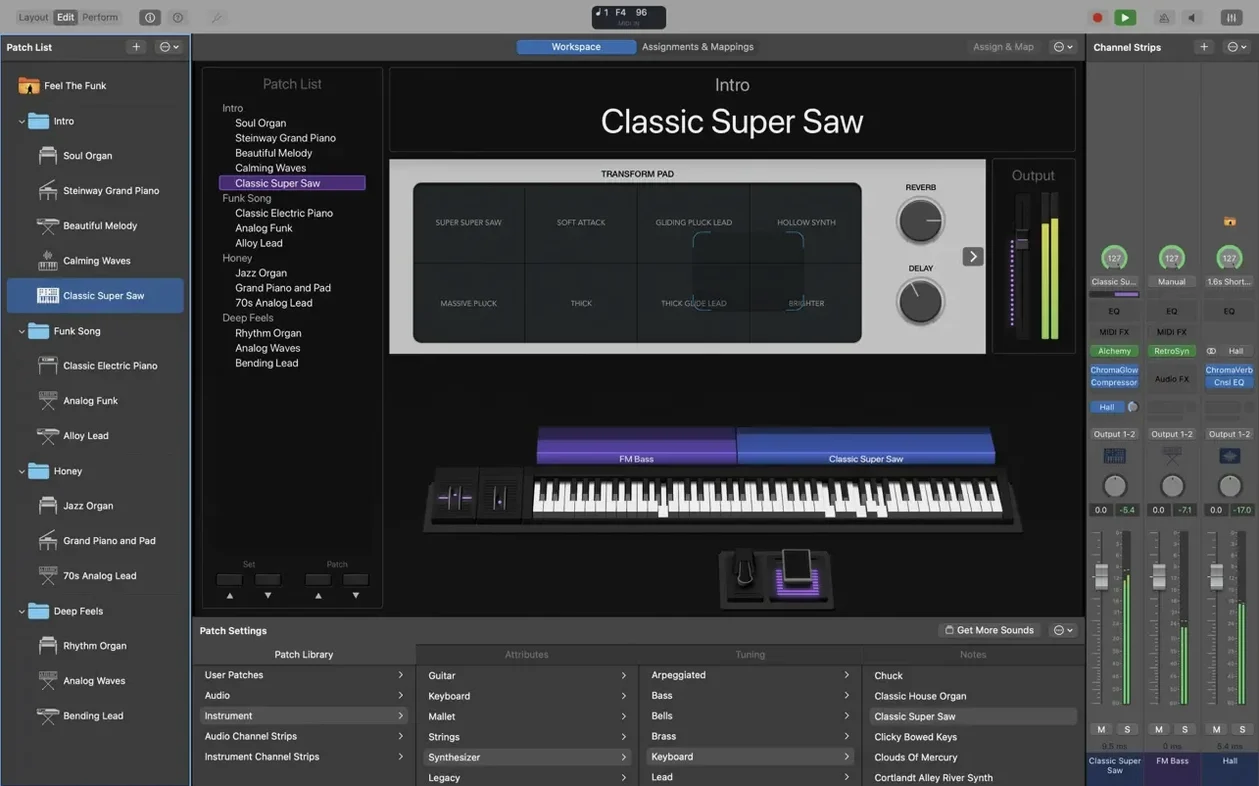
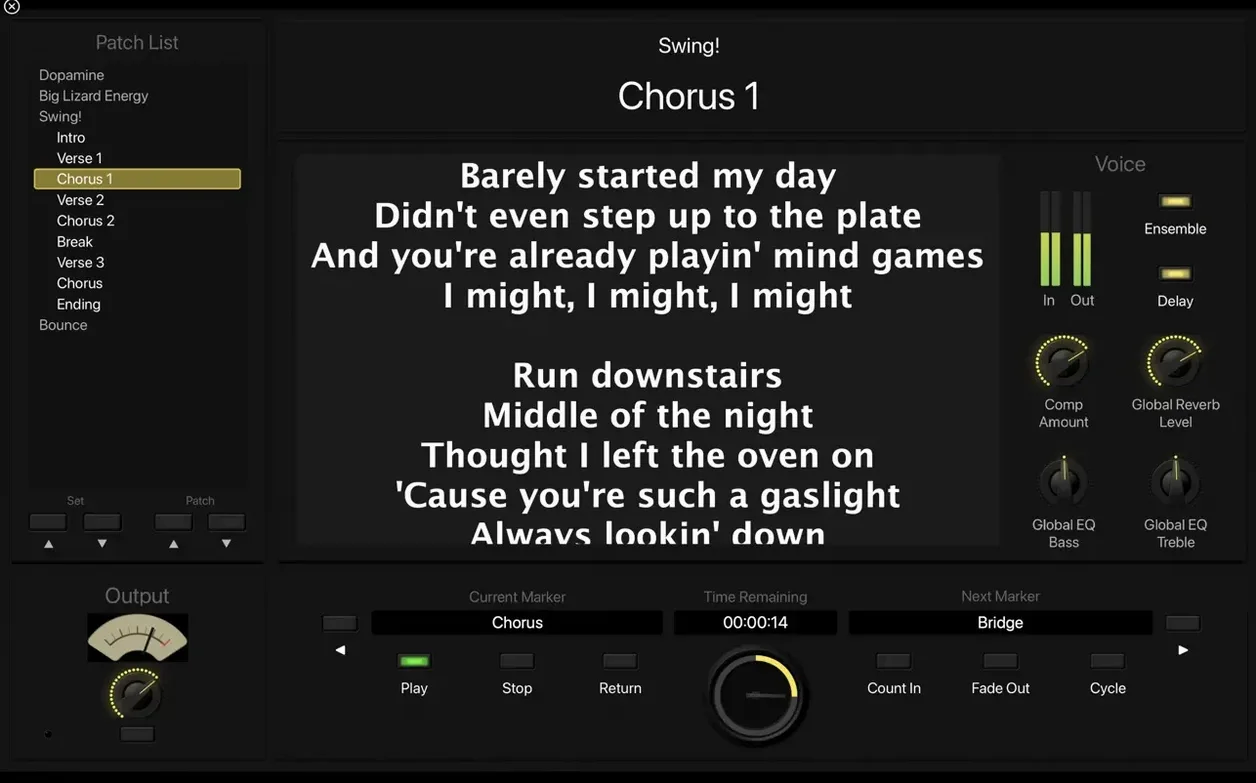
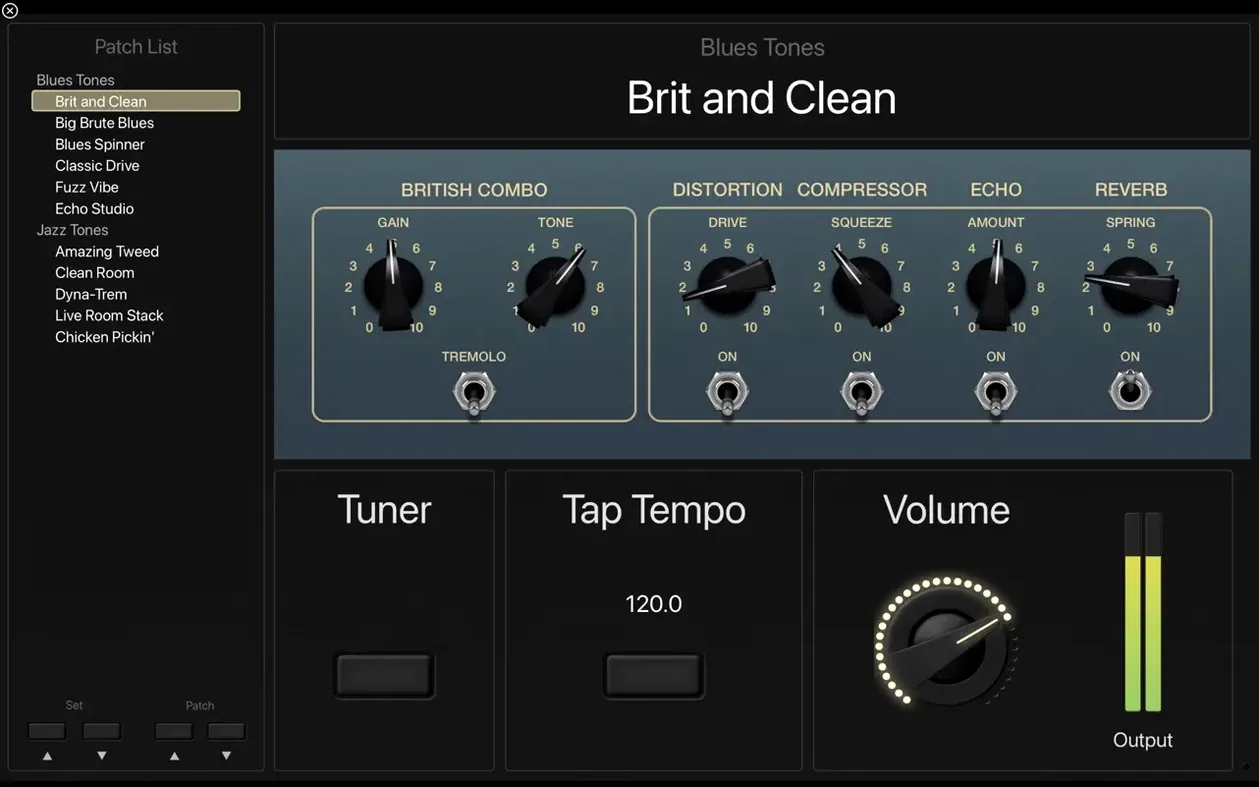
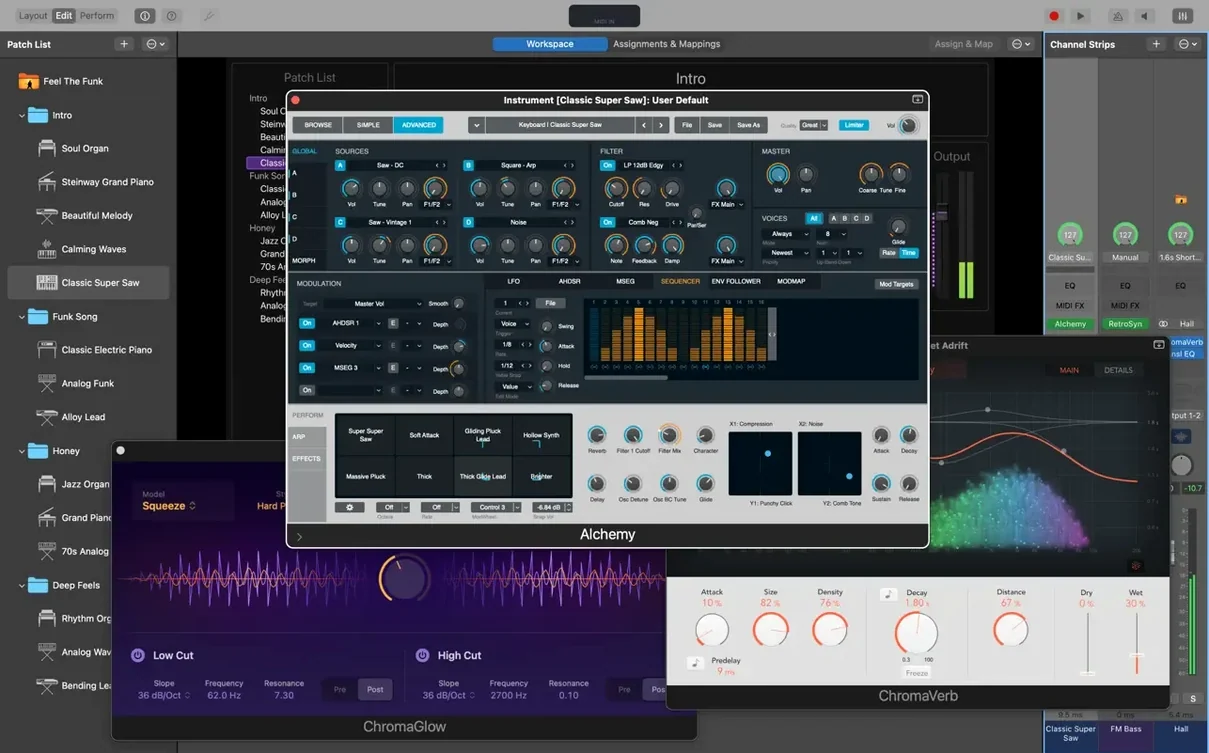
MainStage is a live performance host that turns your Mac into a dedicated stage rig, complete with a full-screen interface designed for quick, distraction-free control.
Designing a patch from the ground up
- Build the channel strip core. Start at the mixer. Drop a Vintage B3 or Retro Synth into the instrument slot, then layer effects beneath it: a tape delay into a small Space Designer room, perhaps. The order matters here — treat it like a pedalboard.
- Map the physical controls. Assign any knob or fader on your hardware controller to on-screen parameters. The Layout mode lets you arrange knobs, meters and buttons freely, so the screen mirrors what your hands reach for.
- Add the Playback plug-in. For stereo or multichannel backing tracks, this plug-in sits on its own strip, syncs to tempo and stays completely independent of your instrument patches.
- Shape the transitions. Switching between patches is seamless — held notes and delay tails ring out naturally. No audio gap, no abrupt cutoff.
- Lock the interface. Once everything is mapped and the display is clean, switch to Perform mode. The toolbar vanishes, the screen becomes a dedicated instrument panel and nothing competes for your attention.
A quiet but significant fix in recent updates deserves mention: incoming MIDI SysEx messages are no longer blocked. For players using older hardware controllers that rely on SysEx for parameter feedback, this restores a critical communication path. The same update also returned the ability to type values directly into the Add Channel Strip window — a small thing, but one that saves time when building complex sets.
Common mistakes: what trips people up in the first week
Most early frustration with MainStage comes not from missing features, but from assumptions carried over from DAW habits. The app behaves like a live console, not a recording timeline, and a few mental adjustments make the first shows considerably calmer.
- Expecting patches to behave like Logic projects. A patch is a snapshot, not a sequence. Everything you want to hear must exist inside that single patch — instruments, routing, effects, Smart Controls. People build a beautiful sound in Logic, then wonder why it does not transfer. It will not, unless you rebuild it here or save the channel strips and reinsert them.
- Ignoring the concert level. Beginners often tweak a patch endlessly while leaving the concert settings untouched. Master tuning, audio output routing, sample rate, MIDI port assignment — all of that lives at the concert level, above the patch. A patch sounding wrong is frequently a concert-level routing mistake.
- Assigning too many controls at once. Hardware mapping is powerful, but a crowded Layout screen becomes its own distraction. Start with four or five essential controls per patch. You can always add more after a rehearsal reveals what you actually reach for.
- Skipping the Perform mode test. Editing in Edit mode feels safe, but the moment you switch to Perform, the toolbar disappears and the screen changes scale. If a knob is positioned awkwardly or a label is too small, you will only notice it in Perform mode. Rehearse there, not in Edit.
- Forgetting to save the concert after patching. MainStage does not prompt the way a word processor might. A crash or accidental quit loses unsaved changes quietly. Save after every meaningful adjustment; it becomes reflex within a week.
A keyboard player's Saturday night
Consider a working keyboard player with a two-hour covers set in a medium-sized venue. She arrives with a MacBook running MainStage, a 61-key controller, one expression pedal and a small audio interface. Her concert file contains thirty-two patches, arranged in set order, each named after a song.
During soundcheck, the first patch — a Rhodes sound with a hint of compression and a short stereo delay — needs less brightness for the room. She opens Smart Controls, turns a single mapped knob labelled Cutoff, and the sound settles. No menu diving, no opening a plug-in window. The house engineer nods; she saves the concert.
The set begins. Between songs, she taps a footswitch assigned to Next Patch. The held chord from the previous tune decays naturally while the next patch loads its own instrument stack. For a synth-heavy number she calls up a Retro Synth patch where two on-screen faders control filter cutoff and resonance; her left hand stays on the controller, her right hand tweaks the screen once, and the chorus opens up.
Mid-set, the band drops a song. She taps Previous Patch twice, glances at the large patch name on the full-screen display, and lands exactly where she needs to be. The whole night, she never sees a menu bar, never opens a file dialog, never touches the mouse except to adjust one on-screen control. That is the point of the design: the computer steps back, the performance steps forward.
Existing plug-ins: your 64-bit Audio Units just work
Will my existing Audio Unit plug-ins work? Yes, as long as they are 64-bit. Every Audio Unit you already rely on in another host — reverbs, compressors, instrument libraries — loads inside MainStage patches the same way. The caveat is stability: some third-party plug-ins are less predictable under live pressure than Apple's own collection, so audition everything before it reaches a stage.
How different is this from Logic Pro for live use? Substantially. Logic arranges music along a timeline; MainStage arranges sounds around a performance. You get patch switching, full-screen Perform mode, Smart Controls and the Playback plug-in — all of which exist precisely for stage work. The sound engines are shared, which means patches and channel strips travel between the two apps with some manual effort.
What does the disk space really mean? A minimal install takes about 6 GB and includes the core instruments and effects. The full Sound Library — more than 1,800 patches, 750 sampled instruments, thousands of Apple Loops — wants 57 GB. If you only play electric piano and organ patches, the smaller footprint is fine. If you want cinematic strings or deep sampled libraries, leave room for the full install.
Can I use GarageBand sounds inside MainStage? Yes. Sounds and patches from GarageBand, along with Logic Pro content, can be opened and used here. This is particularly useful for players who started in GarageBand and accumulated a personal patch collection over the years.
Will it run on my Mac? The current version requires macOS 15.6 or later and Apple Silicon. Older Intel machines are not supported. If your hardware meets those requirements, the app runs comfortably on a MacBook Air as well as a desktop Mac — the processor demands are modest for most patches.
Audio output: pick it explicitly instead of trusting the default
A handful of adjustments, made once, improve the day-to-day feel more than any single patch tweak.
- Set the audio output explicitly. MainStage will pick a default, but explicit is better. Choose your interface, confirm the sample rate and make sure the buffer size suits your playing: lower for responsive keys, higher if complex patches start clicking.
- Enable patch persistence for held notes. In concert settings, the option to let notes and effect tails continue across patch changes is on by default in most cases. Verify it. Turning it off, or not knowing it exists, leads to sudden silence mid-transition.
- Assign a hardware control to patch advance. A footswitch or a spare button on your controller mapped to Next Patch and Previous Patch changes how you move through a set. Hands stay on the instrument; the set flows without reaching for the computer.
- Trim the Layout screen. Remove anything you do not touch during a show. A clean Layout — four knobs, one meter, a patch name — reads instantly under stage lighting. The more visual noise, the slower your decisions.
- Turn off notifications. MainStage offers no focus mode of its own, but macOS system notifications can interrupt Perform mode at the worst possible moment. Enable a Focus mode or Do Not Disturb for shows, and the screen stays yours.
- Lock tempo when needed. If a patch uses tempo-synced delays or the Playback plug-in, decide whether tempo follows your tap tempo or stays fixed per patch. Wrong settings here cause a backing track to drift or a delay to sound seasick.
Where MainStage sits among the rest
MainStage does not replace a DAW, a notation app or a hardware synth; it sits at the centre of a live setup and lets the other pieces feed into it. A typical stage rig might include the Mac running MainStage, a MIDI controller for notes, a USB audio interface for output, and an iPad for lyric charts. The Mac handles all sound; the iPad never touches audio.
With Logic Pro, the relationship is close. Because both share the same instrument and effect engines, a guitarist can build an Amp Designer and Pedalboard chain in Logic at home, save the channel strip, then load the same strip inside a MainStage patch for the show. The sound travels with you, and the transition between rehearsal room and stage loses none of the tone-shaping.
With GarageBand, the connection is more modest: sounds and patches come across, but the workflow is one-directional. You bring GarageBand material into MainStage, not the other way around. Still, for a vocalist who built a reverb-heavy patch in GarageBand for practice, that patch can become the stage sound without rebuilding it from scratch.
macOS itself contributes a few quiet conveniences. Touch Bar on older MacBook Pro models offers editing and workspace control when you are not in Perform mode — useful during setup, invisible during the show. The full-screen mode behaves like any other macOS full-screen app, but with the added weight of a tool designed to stay there for hours. And because MainStage loads Audio Units natively, it respects the same plug-in ecosystem your other Mac audio software already uses.
One more integration deserves a note: MIDI SysEx messages now flow into Scripter on patch change, which means scripts can respond to program changes and hardware handshakes in real time. For anyone running a custom Scripter setup, that single fix reconnects an entire category of hardware that previously sat silent.
In short: think of MainStage as the hub, not the whole wheel. It takes instruments, effects, backing tracks, MIDI hardware and even live vocal input, and folds them into a single, stage-ready surface. The other apps keep doing their jobs; MainStage keeps the show moving.








Correspondence 0
Take a chair or join the table to send a letter.
No correspondence on this note yet. Letters are read before they appear.