 LeCoqRoti
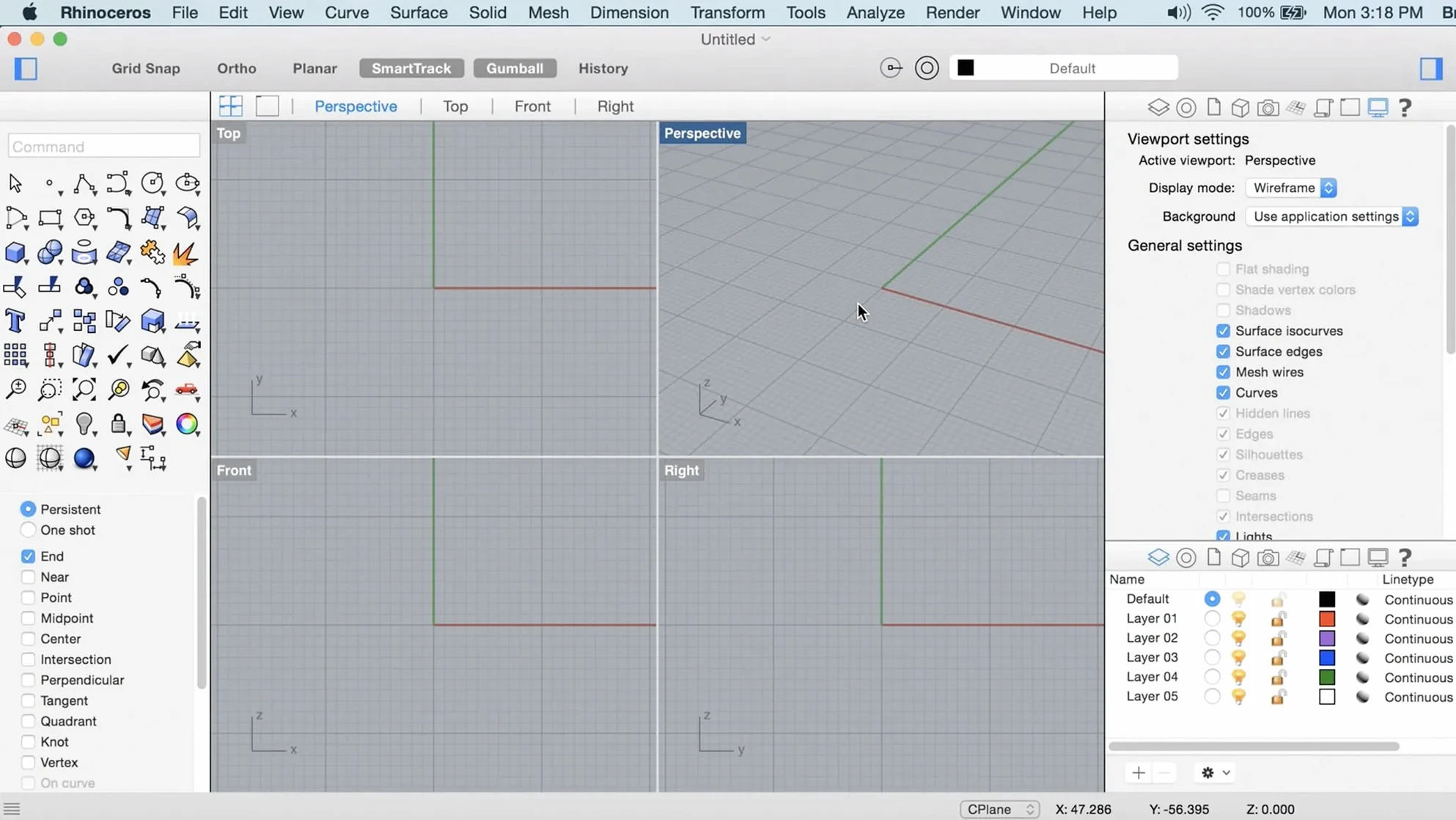
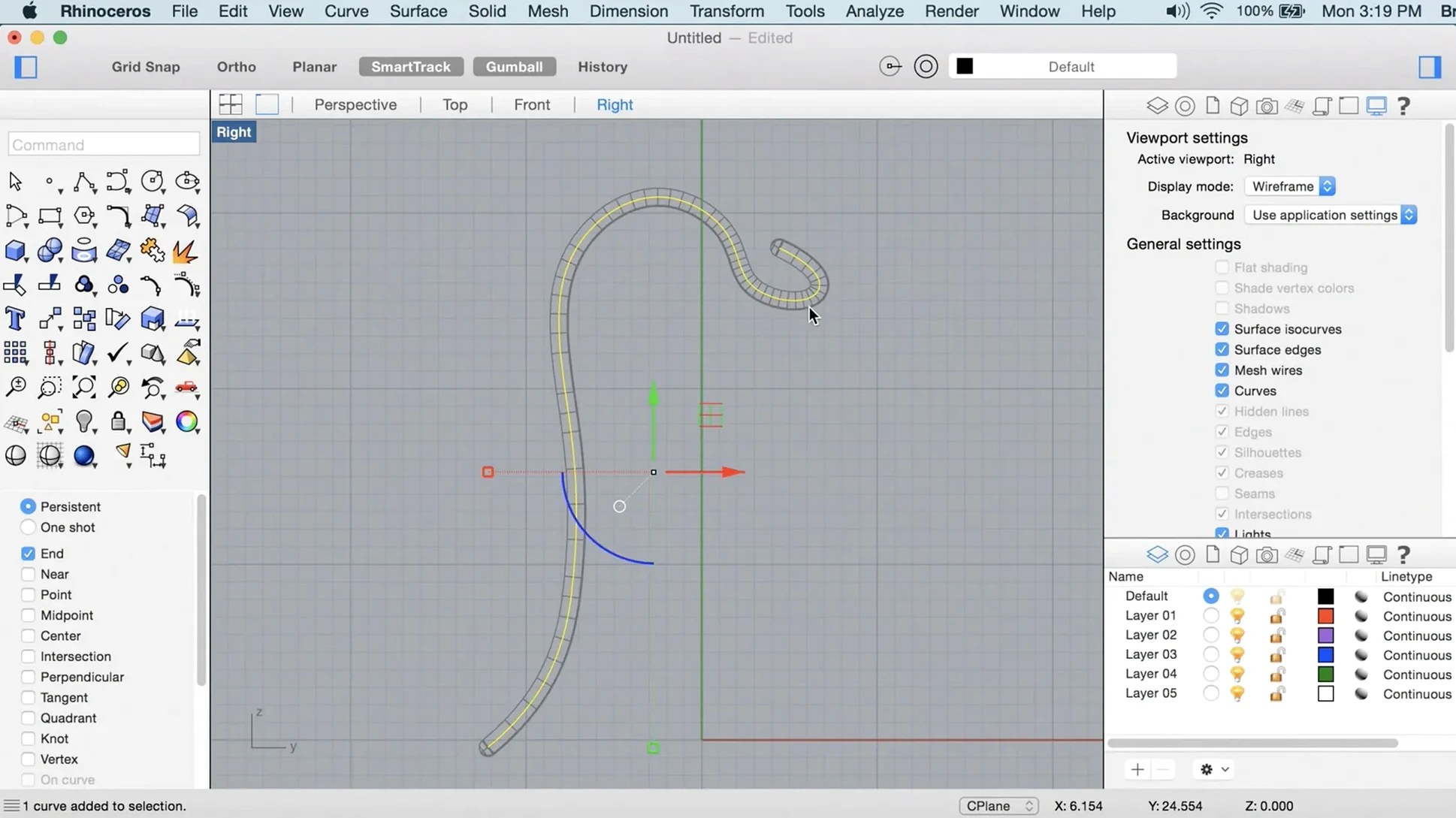
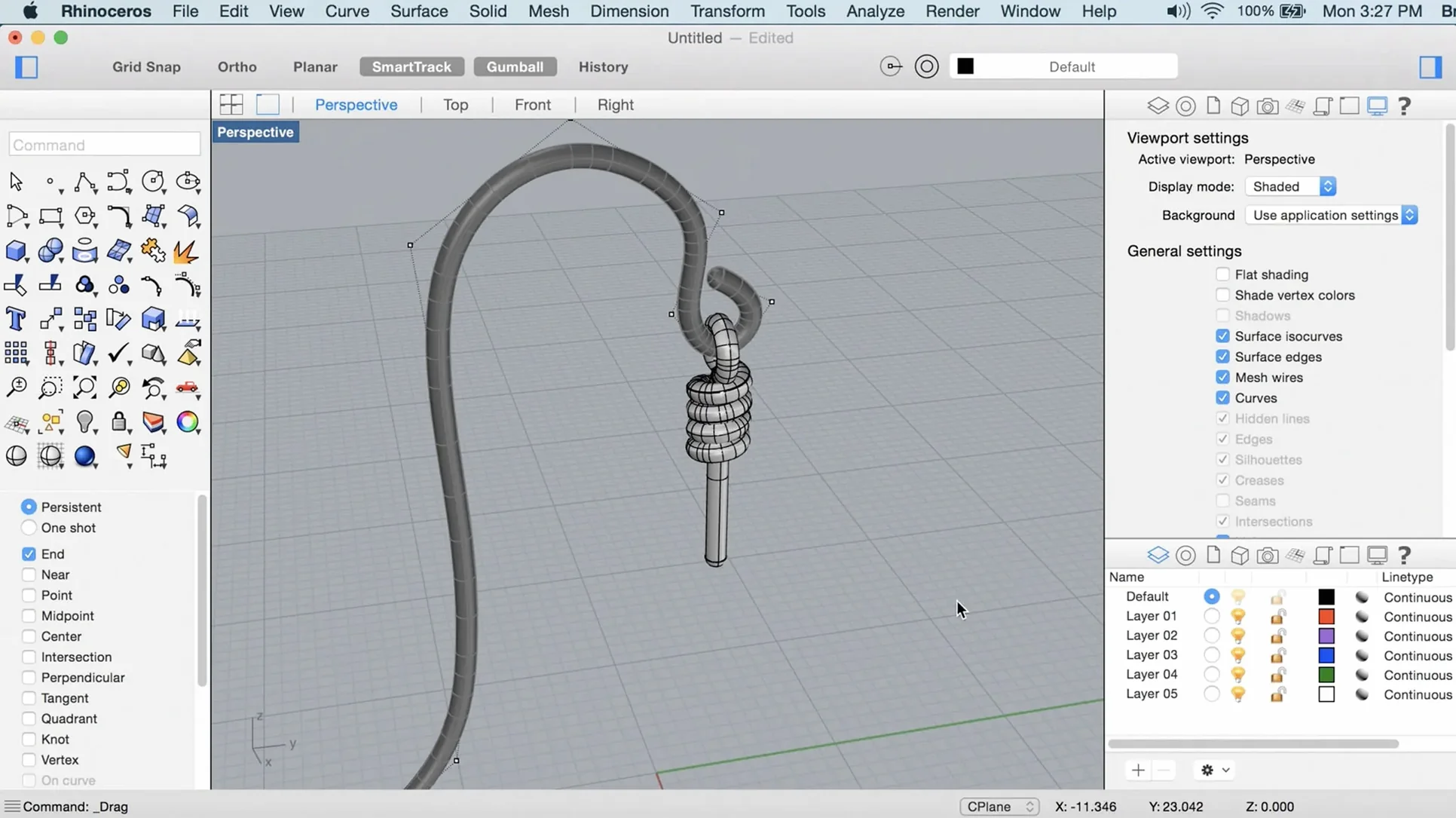
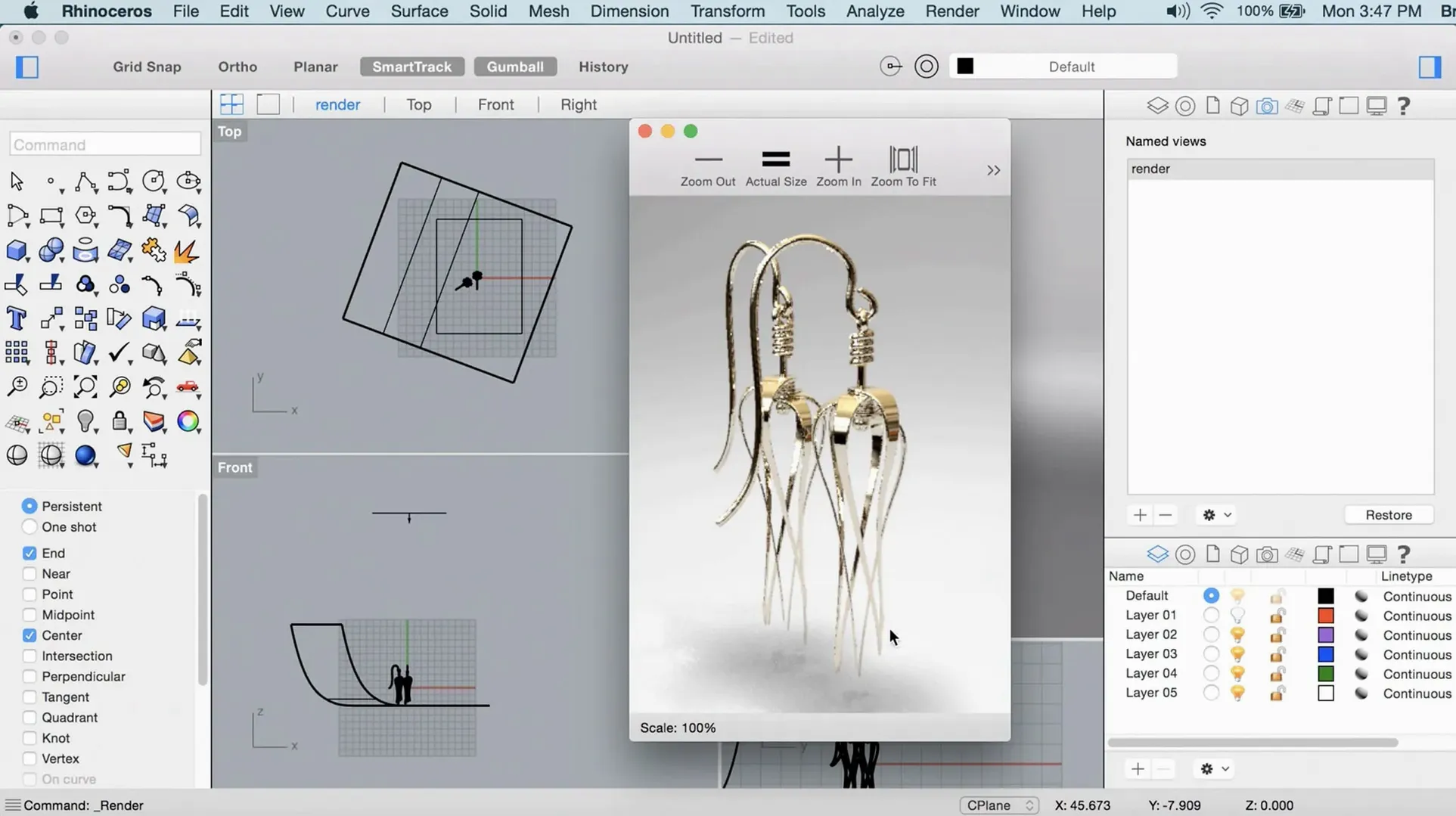
You have just opened a scan of a hand-carved wooden moulding, and the point cloud sits heavy in the viewport. Rhino’s interface, light grey and deliberately sparse, waits for a first move. Learning a modeller of this depth can feel like stepping into a quiet workshop where every tool is sharp and unlabelled. The best approach is to ignore the full toolbox and begin with a handful of actions that show how the software thinks.
- Draw a curve, then extrude it. Place a few control points with
Curve, open the points for editing, and push or pull the resulting surface with PushPull — new in Rhino 8 and immediate in its feedback. - Run ShrinkWrap on a messy mesh. Import anything rough — a scan, a downloaded STL full of holes — and let ShrinkWrap create a watertight envelope around it. The result is often usable within seconds.
- Switch viewport modes. Cycle through wireframe, shaded, and the new Metal-accelerated rendered mode. The difference in responsiveness on Apple Silicon is tangible; the display stays fluid even while orbiting a dense model.
- Type a command you do not know. Rhino’s command line is its spine. Try
Gumball,ArrayPolar, orBlendSrfjust to see the prompts appear. Each one teaches a piece of the logic.
A first session built around these four moves reveals the core rhythm: draw, transform, wrap, and inspect. The heavier concerns — large-model workflows, team referencing, the faster render engine — can wait until the basic gestures feel natural.
Industrial designers drift toward SubD: a quiet division of labour
Rhino does not nudge you toward a single discipline. Its toolset is deliberately broad, and different corners of the software light up depending on what you make. Three groups tend to settle into it with particular ease.
Industrial designers working through form studies. The combination of SubD push-pull editing and classic NURBS surfacing means you can start loose and tighten geometry as the design firms up. SubD Creases, added in Rhino 8, let you hold sharp edges inside an otherwise smooth subdivision shape without adding control loops by hand — a small change that removes a persistent friction point during iterative sketching of products, furniture, or handheld objects.
Architects and façade specialists handling complex panelling. Grasshopper’s new data types in Rhino 8 make it easier to pass structured information — say, a list of panel areas with associated material tags — between script components without flattening everything into generic numbers. This matters when a parametric definition grows beyond a single screen of components and you need to trace what each branch of the tree carries. The Mac version handles these graphs with the same fluency as the Windows build, something earlier releases could not claim.
Digital fabricators and anyone cleaning up scan data. ShrinkWrap changes the prep workflow. Rather than spending an afternoon patching holes in a point-cloud mesh, you wrap it, check the deviation, and move on to toolpathing or 3D printing. Users who locate a Rhino 8 crack for Mac that handles this task on Apple Silicon will find the native Metal viewport keeps the wrapped mesh responsive even at high polygon counts — a practical gain when you are rotating a 2-million-face shell to inspect undercuts.
The outlier is the occasional modeller who simply prefers typed commands to ribbon interfaces. Rhino’s command line rewards that preference with a consistency of behaviour that has survived several major versions. A command learned in Rhino 4 still works in Rhino 8, which lowers the carrying cost of revisiting the software after time away.
Mac parity fears meet the daily reality: questions before installing
Beyond system requirements, a handful of concerns recur among Mac users weighing up a rhino download mac. The answers are less about marketing claims and more about what the day-to-day experience actually looks like.
Does the Mac version still lag behind Windows? The gap narrowed considerably with Rhino 8. The Mac build now shares the same core as its Windows counterpart rather than running a separate codebase, and Metal support removes the OpenGL bottlenecks that made earlier Mac releases feel sluggish with large assemblies. Some plug-ins — particularly those relying on Windows-specific UI frameworks — remain unavailable, but the majority of Grasshopper add-ons and rendering connectors work without issue. If your workflow depends on a specific Windows-only plug-in, check its status first; for most general modelling, the difference is no longer disqualifying.
Will it run well on a base-model Mac? Rhino 8 asks for 8 GB of RAM as a recommendation, not a hard floor. On an M1 MacBook Air with 8 GB, medium-sized architectural models — a few hundred megabytes of geometry — orbit smoothly in shaded mode. The Metal viewport does the heavy lifting. Large point clouds or dense SubD meshes will push memory limits, and you will feel it when switching between open files. A multi-button mouse with a scroll wheel is recommended for good reason: trackpad orbit and pan work, but the middle-mouse button for view rotation becomes second nature within a week, and losing it slows everything down.
Is Grasshopper included, and does it work? Yes, and yes. Grasshopper ships with the Mac version and launches as a separate window, the same as on Windows. The new data types in Rhino 8 — structured records that carry multiple fields through a single wire — tidy up definitions that previously required several parallel streams of data. For anyone who has wrestled with mismatched list lengths across a sprawling canvas, this alone justifies the update.
What about files from other CAD packages? Rhino opens STEP, IGES, DWG, DXF, OBJ, STL, and a dozen other formats directly. It also writes them. The translator is the same across platforms, so a file exported from a Windows seat of SolidWorks opens cleanly on the Mac. Round-tripping between Rhino and a parametric solid modeller sometimes loses feature history — that is inherent to the exchange format, not the Mac build — but the geometry itself arrives intact.
Recent changes that alter the daily rhythm
Version 8.30.26103.11002 is a point release, not a feature drop, but the Rhino 8 generation as a whole introduced several workflow shifts that change how the software feels in sustained use. Three are worth noting because they affect ordinary sessions, not just demo reels.
ShrinkWrap as a default reflex. Before Rhino 8, creating a closed mesh from messy input — a scan, a fractured STL from a client, a boolean result that refused to close — meant manual retopology or a trip to a separate tool. ShrinkWrap collapses that into a single command. The result is not always production-ready without tweaking the offset distance and smoothing, but it is almost always good enough to continue working. The mental shift is subtle: you stop treating bad mesh data as a blocker and start treating it as raw material for a quick wrap.
Metal viewport everywhere. Earlier Mac versions used OpenGL, which meant viewport performance trailed Windows on identical hardware. With Metal, the Mac viewport is no longer the bottleneck. Orbit, pan, and zoom stay smooth on models that previously stuttered, and the rendered preview mode — while not a substitute for the full Cycles renderer — gives a fast, reasonably accurate lighting preview without leaving the modelling workspace. For anyone evaluating a rhino mac free route to test performance, the viewport difference between Rhino 7 and Rhino 8 on Apple Silicon is immediately visible.
Interface customisation that sticks. Rhino 8 lets you save and recall workspace layouts — tool palette positions, toolbar visibility, and command aliases — as named configurations. This matters if you switch between tasks: a layout optimised for SubD sculpting looks different from one built for 2D drafting. Previously, recreating a preferred arrangement after a reset or across machines was manual. Now it is a single menu selection.
Enable versioned auto-saves before you lose work: settings for the first project
The defaults in Rhino are reasonable but generic. A few changes made early prevent small frictions from accumulating.
- Turn on Auto-save with versioning. Under Rhino > Settings > Files, set auto-save to every 15 minutes and enable Save backup copies. Rhino is stable, but complex boolean operations occasionally produce a crash, and the backup system makes recovery a matter of reopening a file rather than rebuilding an hour of work.
- Set middle-mouse to orbit. In Rhino > Settings > Mouse, confirm that the middle button is assigned to Rotate view. The default is usually correct, but verifying it before muscle memory forms saves the jarring moment of a middle-click producing a different action mid-session.
- Pick a modelling unit and tolerance early. Rhino works in absolute units, and changing from millimetres to metres after importing geometry creates scaling headaches. Under File > Settings > Units, choose your unit and set the absolute tolerance to something appropriate — 0.01 mm for small product work, 1 mm for architecture. The tolerance governs when Rhino considers two points coincident, so a value too loose produces edges that will not join.
- Increase undo memory. The default number of undo steps is modest. Under Rhino > Settings > General, push it higher if you habitually explore design variations without saving interim versions. Memory is cheap; lost modelling steps are not.
- Bind a shortcut for
SelDup. Duplicate geometry accumulates silently, especially when importing from other software. Assigning a keyboard shortcut toSelDup(select duplicates) makes it easy to spot and delete overlapping objects before they cause problems downstream.
Errors that beginners repeat, and how to sidestep them
Watching a new Rhino user struggle almost always reveals one of a few patterns. The software is forgiving, but it does not protect you from these particular missteps.
Working without Osnaps, or with too many active at once. Object snaps anchor geometry to existing points — endpoints, midpoints, intersections. A common beginner mistake is to leave every Osnap enabled, which causes the cursor to jump unpredictably between nearby snap candidates. The fix is to keep only End, Near, and Point active by default, and toggle others — Quadrant, Tangent — on and off with the Osnap panel as the task demands. The opposite error, disabling all Osnaps and trying to align geometry by eye, produces curves that look connected but refuse to join later.
Modelling far from the origin. Rhino’s viewport camera and some calculations degrade when geometry sits tens of thousands of units from the world origin. Importing a site plan from a GIS source often places everything at real-world coordinates far from zero. Moving the entire scene so that the active area centres near the origin — and using a named CPlane for the real-world coordinate reference — avoids clipping, snapping errors, and sluggish navigation.
Neglecting to check for open edges. A 3D print service will reject a file with non-manifold edges, and a rendering with a gap in a surface reads as a mistake. The ShowEdges command highlights naked edges in bright colours; running it before exporting an STL or STEP file catches problems while they are still easy to fix. Beginners often skip this step and discover the issue only after a failed print or a returned file from an engineer.
Treating the command line as decoration. Rhino’s interface presents toolbars and icons, but the command line is the faster route for most repetitive actions. Typing Distance to measure, DupBorder to extract a surface edge, or Cap to close an open planar hole is quicker than hunting through menus. Users who








Correspondence 0
Take a chair or join the table to send a letter.
No correspondence on this note yet. Letters are read before they appear.