 LeCoqRoti
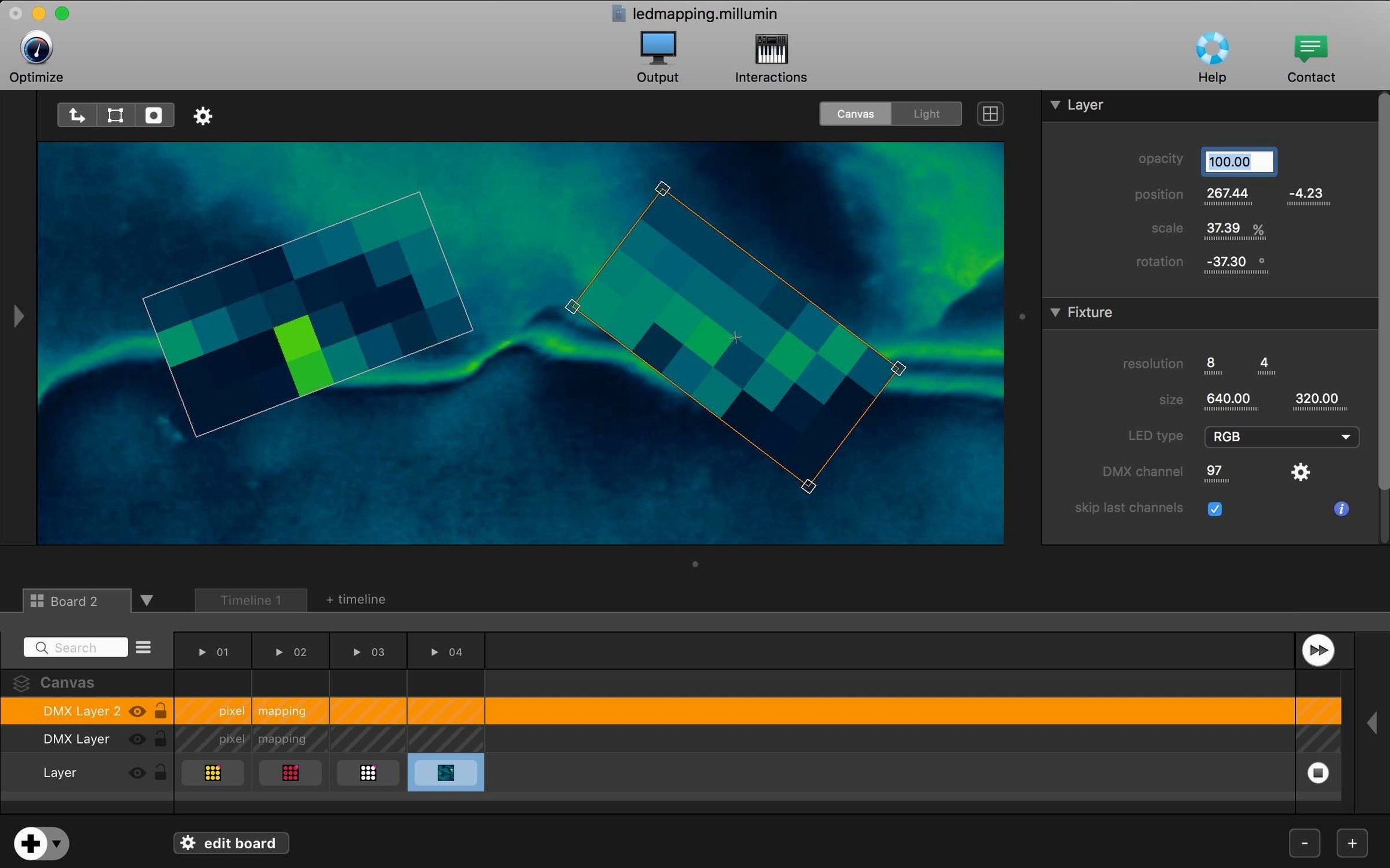
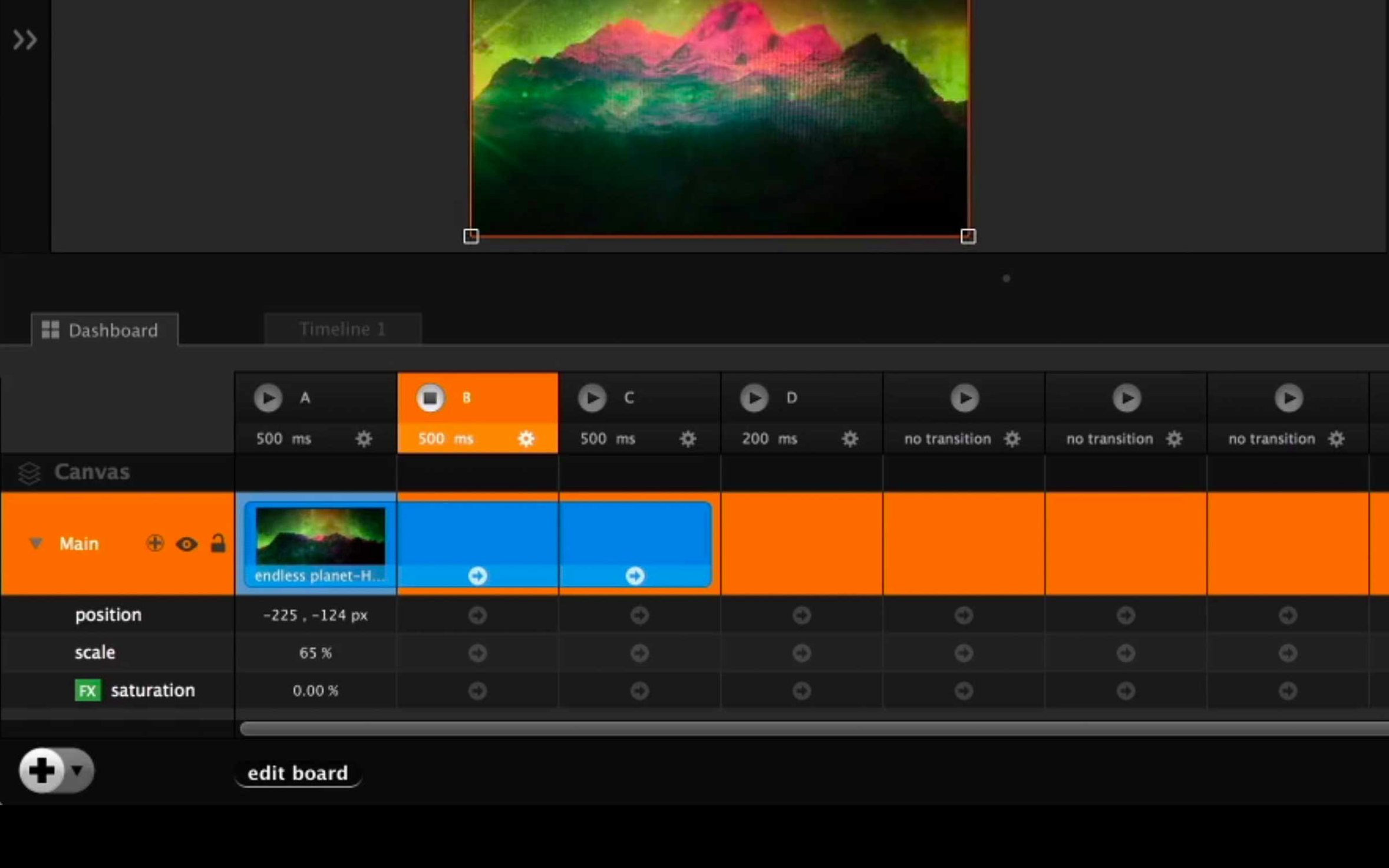
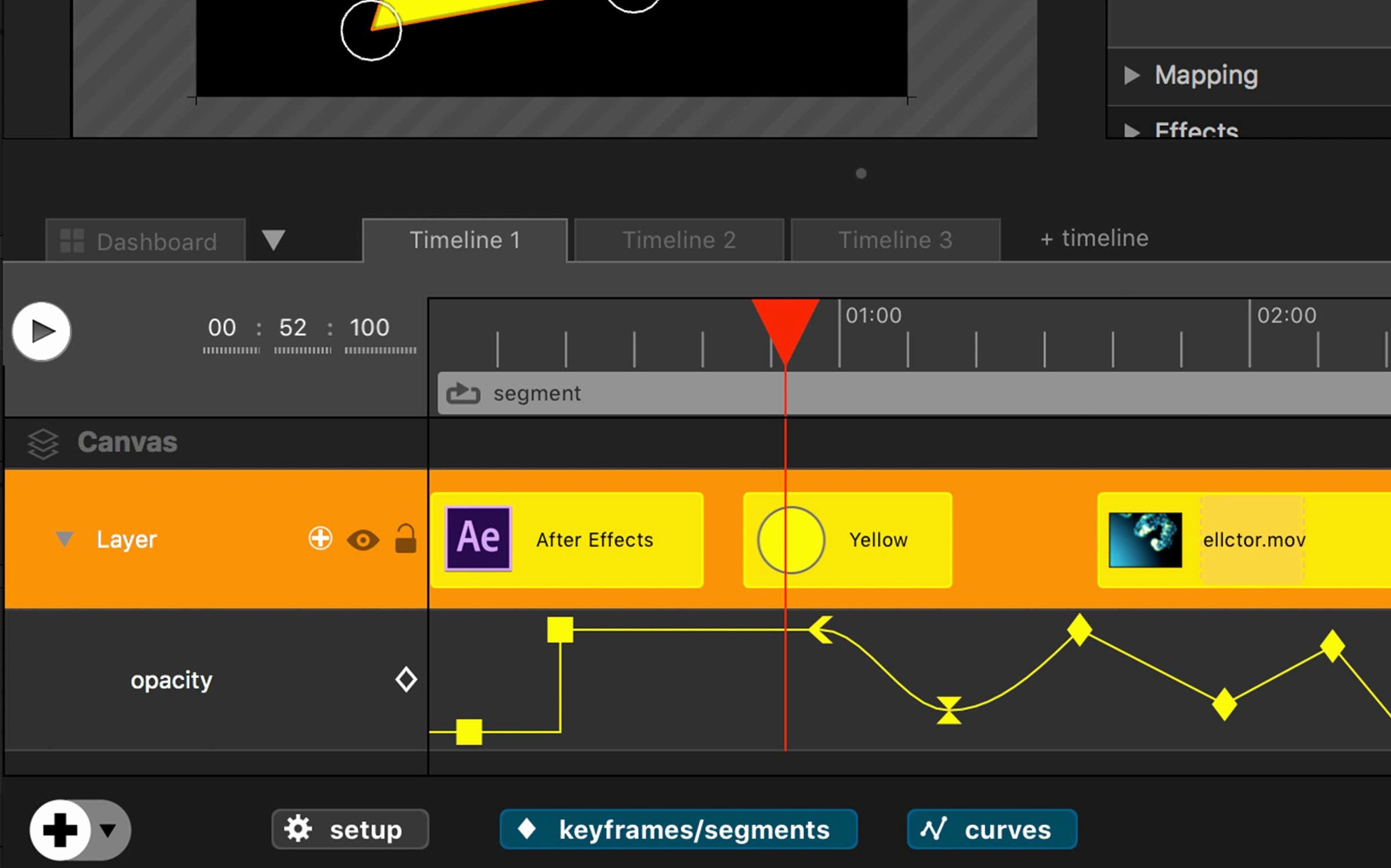
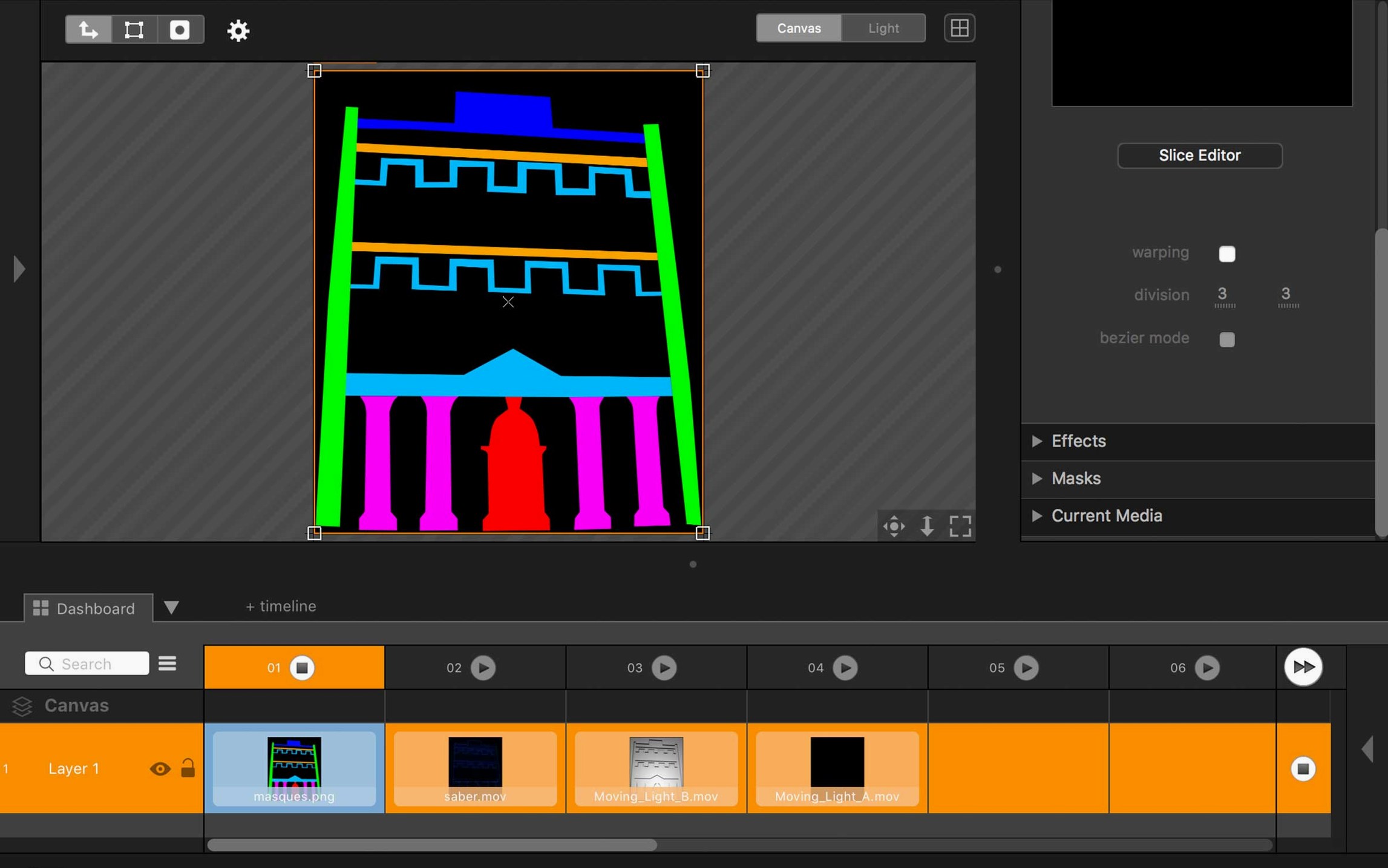
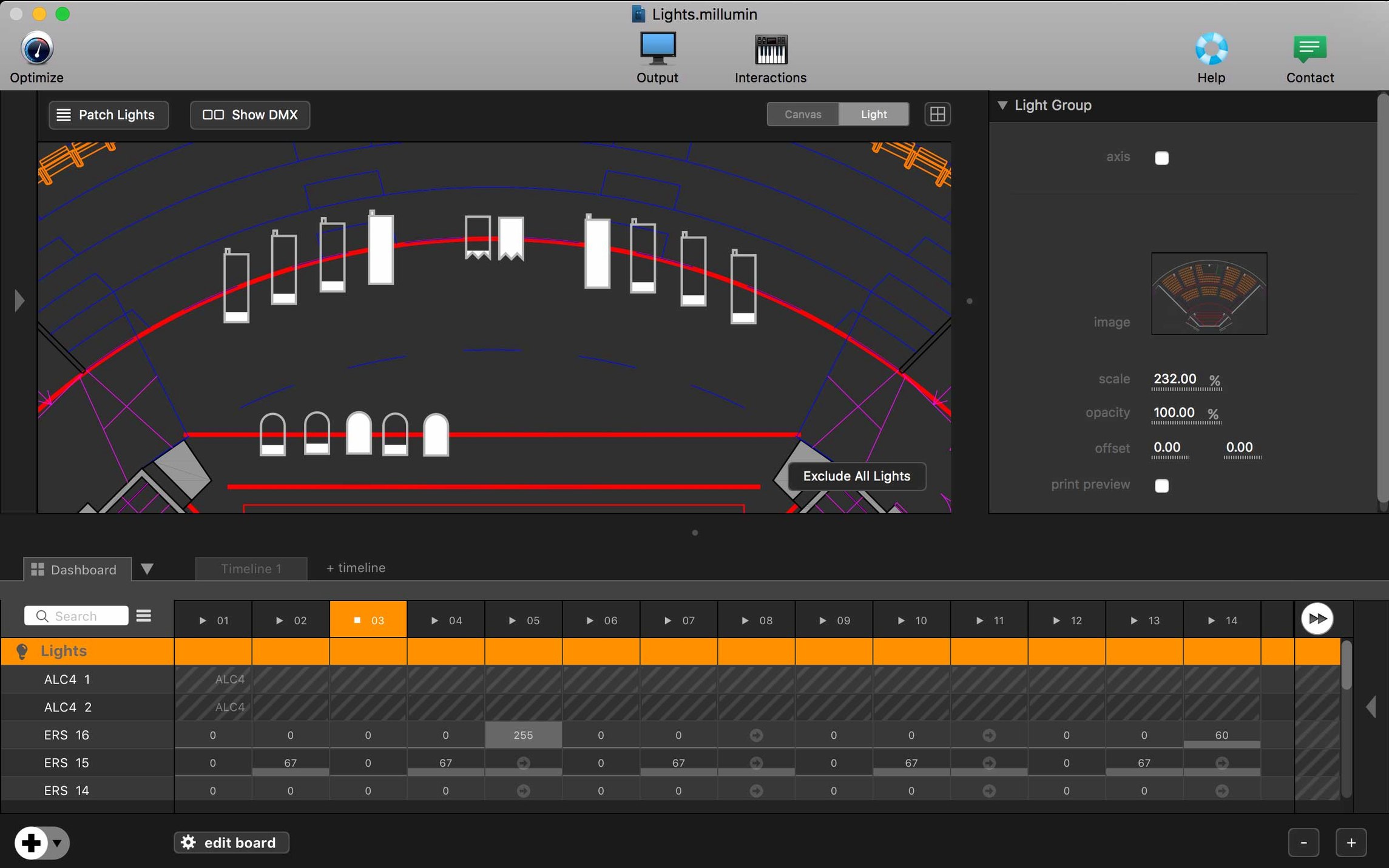
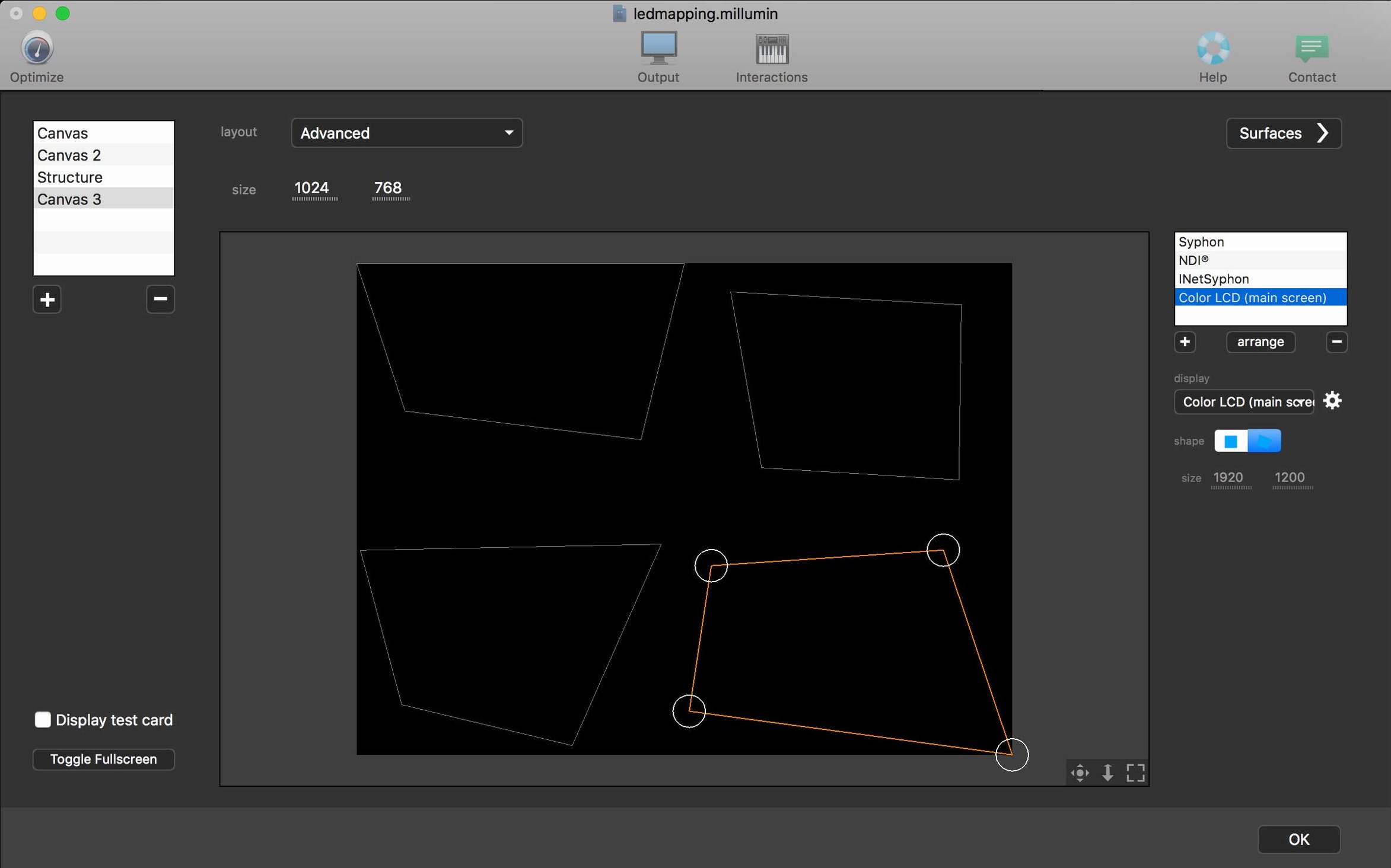
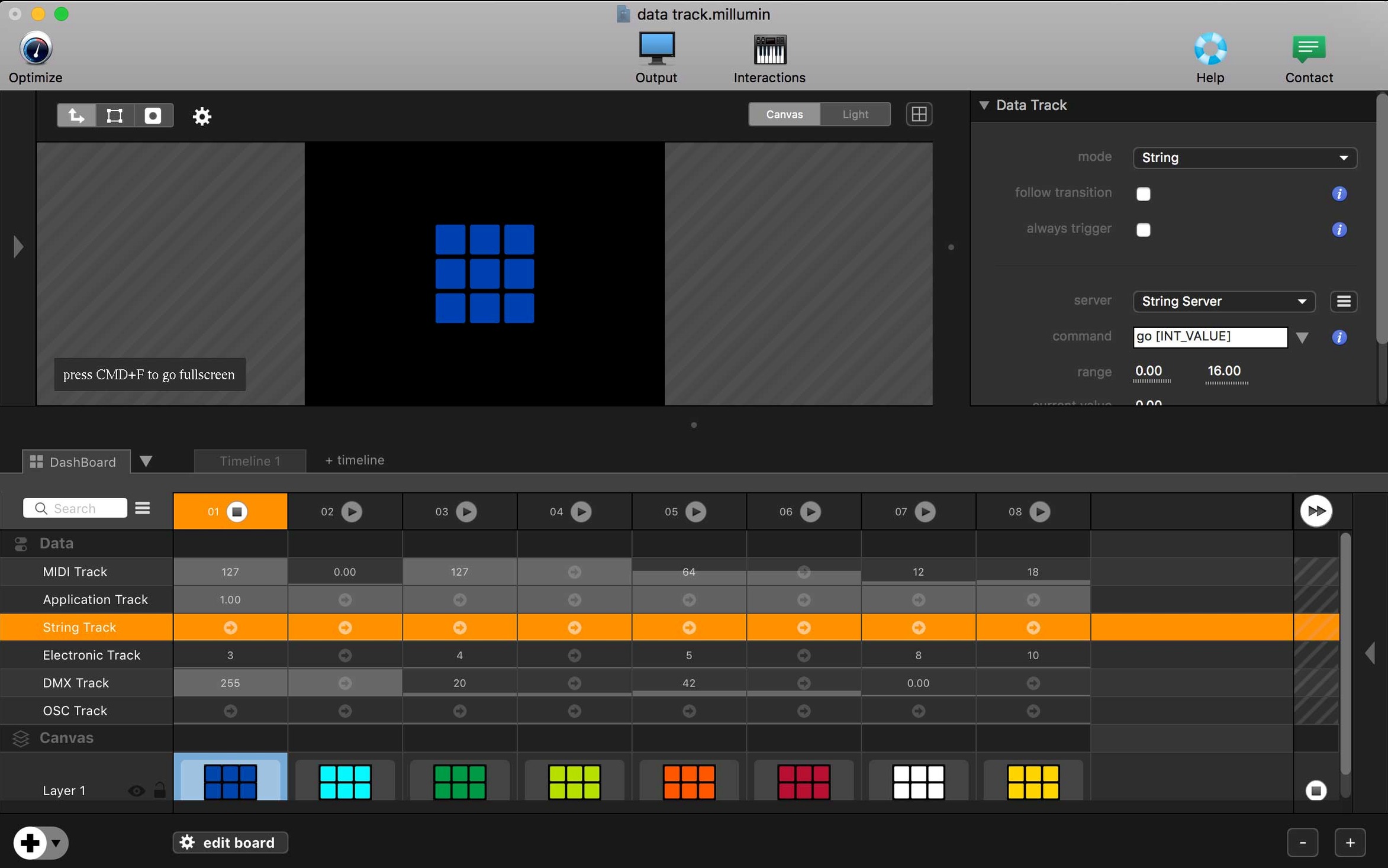
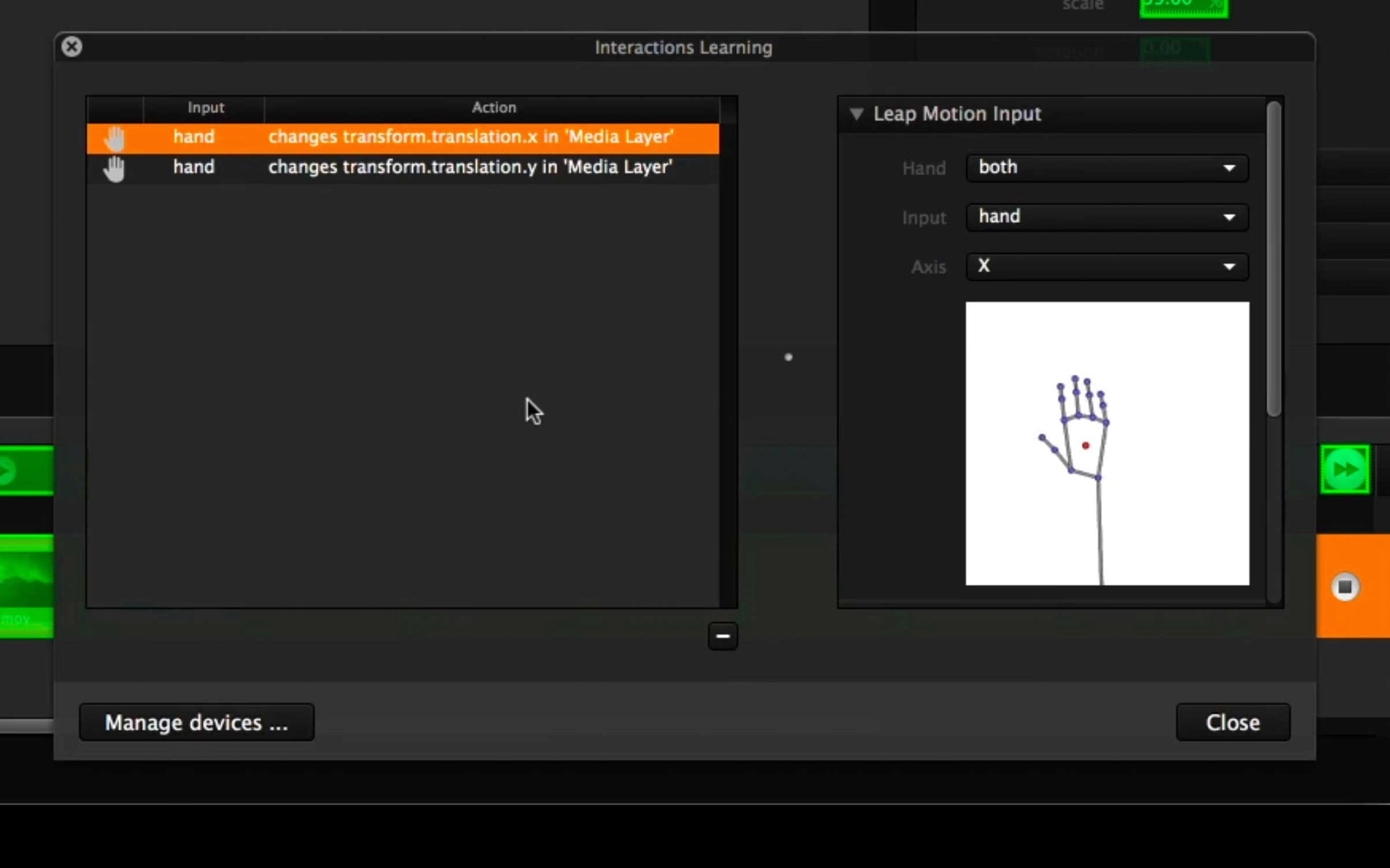
The latest update to Millumin V5 brings quiet refinements rather than headline features — stability improvements that matter when a show is underway. For anyone stepping into the software for the first time, the sensible approach is to explore its three core canvases.
Canvas: the stage for your media
Everything radiates from the Canvas. Drag in a video file and Millumin immediately treats it as a layer you can transform, mask, or map onto a physical surface. The real discovery is the column on the left: each media element carries its own opacity, colour adjustment and blending mode, behaving more like a lighting desk than a conventional timeline. Spend ten minutes here with a single clip and a few geometric masks. You will start to think about projection in a new way.
Interaction: binding keys and MIDI
Once a composition is playing, open the Interaction panel. Millumin listens for keyboard strokes, MIDI notes and OSC messages without additional configuration. Point it at a cue — a column change, a layer toggle, a colour effect — and the binding is made. The immediate pleasure comes from mapping a simple MIDI fader to a video effect parameter and watching the image respond. That directness is what makes the software suited to theatre, dance and live storytelling.
Stop playback disruption: turn off column‑change halt
A few defaults are conservative. Open Preferences and look first at the Playback tab. The option labelled Stop playback when changing column is active by default; turn it off if your show moves between cues without pause. Without this change, media cuts abruptly when you switch columns, which can catch performers off guard.
Next, under the Interface tab, increase the Undo count from its default of 10 to at least 50. Millumin records each layer parameter adjustment, mask edit and keyframe movement as a separate undo step. Ten steps vanish quickly during a mapping session. The extra memory cost is negligible on any Mac capable of running the software.
One more: in the Output panel, confirm that Vertical sync is enabled for every display you intend to use. Without it, fast horizontal pans reveal tearing, especially on LED walls fed by an external processor. This setting is per-screen, so check each one individually after connecting projectors or monitors.
Questions asked before the download finishes
The most frequent question is whether Millumin can run alongside other media servers on the same machine. The answer is yes, with a caveat: two applications cannot share the same GPU output surface without fighting for frame delivery. Assign each piece of software to a distinct physical display output and they coexist without issue. A common stage setup pairs Millumin for projection mapping on one output while a separate audio or lighting tool handles the rest.
Another recurring concern is about media formats. Millumin reads H.264 and ProRes natively. H.265 files require a recent macOS build and even then, performance varies with the encoder profile. For live work, ProRes LT remains the practical choice: file sizes are moderate, decoding is light on the CPU, and frame access is fast when jumping between columns. Avoid variable bitrate exports from editing software — they introduce small seek delays that accumulate during a performance.
People also ask about backup machines. Millumin supports OSC-based synchronisation between two Macs, but the simpler approach for most small productions is to duplicate the project folder to a second laptop. The project file and all media live in one portable directory. If the main machine fails, open the same project on the backup, reconnect the video outputs from the Preferences panel, and continue the show. No licence transfer dramas, no cloud activation hurdles.
Launch and load times: under four seconds on baseline hardware
On an Intel Mac meeting the macOS 11 minimum, Millumin launches in under four seconds with a modest project. Load times scale with media count, not with canvas resolution. A project containing forty 1080p ProRes clips opens in roughly the same time as one with ten — the app reads headers first and only touches pixel data when a clip is cued.
Memory use stays flat during playback. A two-hour theatre project with eight layers of full-HD media sits around 1.8 GB of RAM, because Millumin streams from disk rather than preloading everything into memory. Disk speed matters more than RAM capacity. An external SSD over USB 3.0 handles simultaneous playback of six 4K layers without dropping frames, provided the drive is formatted as APFS.
Stability in version 5.14.j reflects a mature codebase. Crashes that did occur in earlier V5 builds — usually triggered by hot-plugging a display during playback — are now handled gracefully. The app detects the display change, pauses the output thread, and prompts for a manual refresh rather than exiting silently. For long installations spanning several days, the software holds up. A gallery piece left looping for seventy-two hours showed no memory creep and no frame timing drift when checked against an external sync pulse.
CPU load is the practical ceiling for complex projects. A single layer of 4K ProRes 422 uses approximately 12% of a 2.6 GHz Intel Core i7 core during playback. Layering, blending and applying colour effects each add their own cost. For a typical dance production with six layers, mild colour correction and one live camera input, total CPU usage hovers around 55%. That leaves headroom for the operating system and any companion audio software running alongside.
Canvas chaos: always build a column before placing a clip
The most common error is placing media directly on the Canvas without first setting up columns. Millumin organises cues vertically: each column represents a scene or a lighting state. Dragging a clip onto an empty canvas creates an ad-hoc arrangement that becomes difficult to recall later. The better habit is to create columns first, name them after cues or scenes, then populate each column with its media. The structure pays off during technical rehearsals when the director asks to jump from scene four to scene twelve without running the intervening cues.
Another early misstep is ignoring the layer stack order. New users often place a mask on the same layer as the content it should reveal, then wonder why both move together when the mask is animated. Masks belong on a separate layer above the content. Think of the layer list as sheets of glass in a multiplane camera: each sheet can hold an image, a mask, or a colour adjustment, and they composite from bottom to top.
Beginners also tend to set output resolution in the project settings to match their MacBook screen rather than the projector or LED processor they will use on stage. A 1920×1080 project sent to a 3840×2160 display scales poorly. Set the canvas size to the native resolution of the output device before placing any media. Millumin will rescale existing layers automatically, but positioning and mask coordinates may shift, so it is best to decide early.
Finally, the temptation to add effects to every layer during the first exploration leads to a project that stutters under its own weight. Millumin applies effects in real time on the GPU; a blur or a colour curve is cheap, but stacking five effects per layer across ten layers pushes even a capable machine toward dropped frames. Start with clean layers, add effects only where they serve the storytelling, and test the full composition with all cues triggered in sequence before adding more processing.








Correspondence 0
Take a chair or join the table to send a letter.
No correspondence on this note yet. Letters are read before they appear.