 LeCoqRoti
Compatibility: where it runs
Infuse Pro requires a Mac with Apple Silicon or a 64‑bit Intel processor, running macOS 12 or later. It shares its library with iPhone, iPad, Apple TV and Vision via optional iCloud syncing.
Open a media folder: quick access
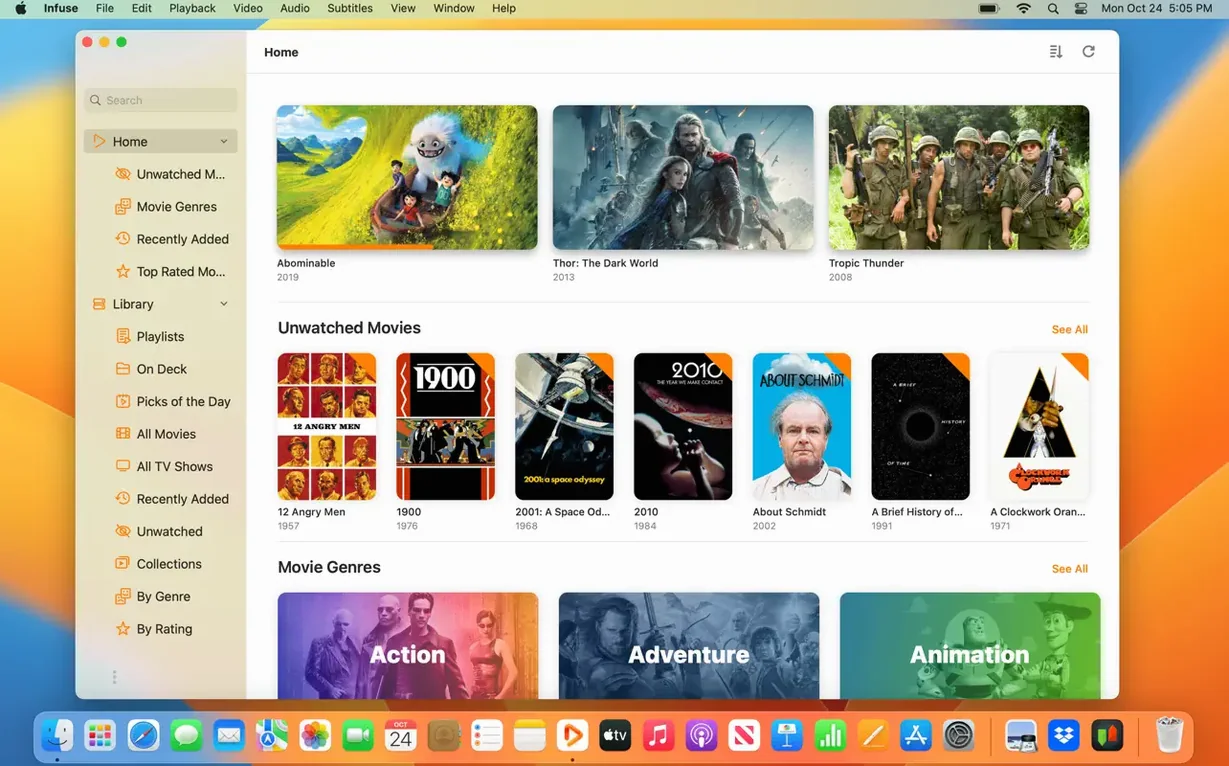
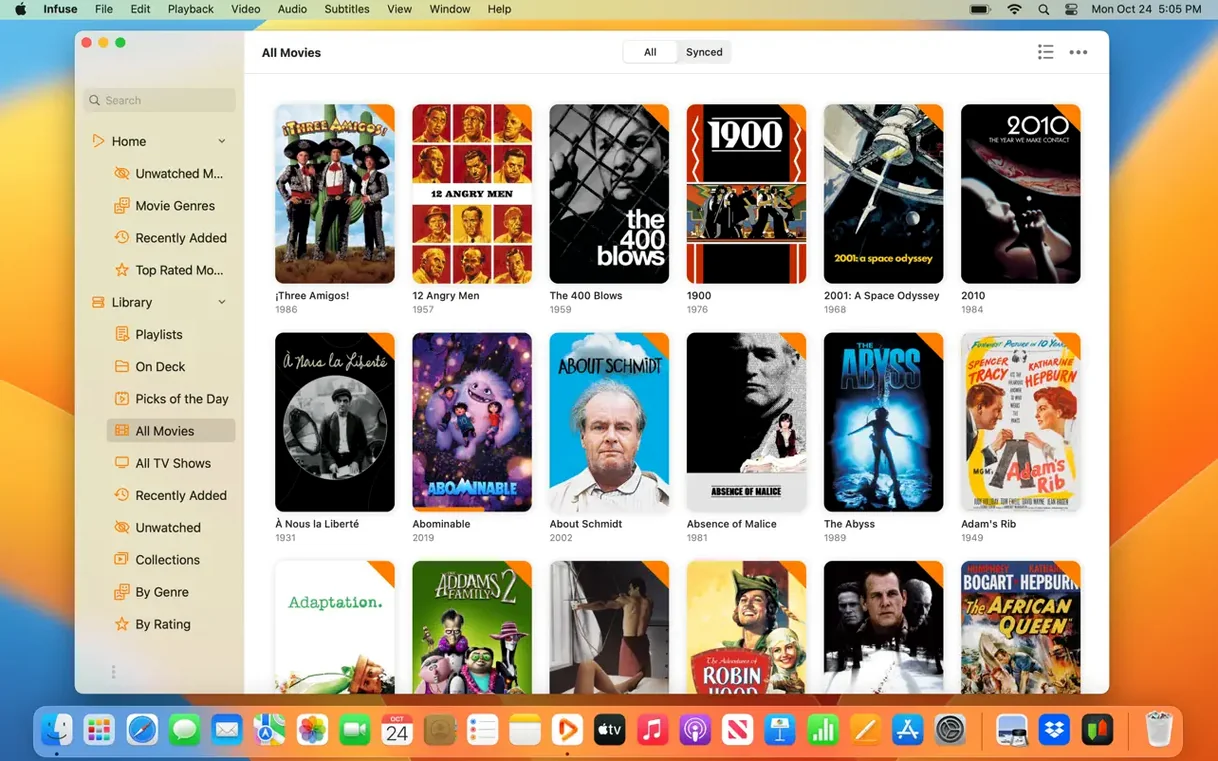
Point Infuse to a folder of video files — a mix of MKV, AVI and M4V, perhaps — and it scans the contents without importing anything. The files stay where they are; the app simply builds a browsable shelf of artwork and metadata.
Play an MKV with subtitles: no conversion
Select an MKV with embedded or external subtitles. Infuse decodes the video on the GPU, respects the track’s chapter markers and lets you adjust subtitle timing and font size during playback. A single tap on the timeline thumbnail previews the scene before you jump to it.
A task walkthrough: watching a multi-file series from a NAS, with subtitles
Start with a folder on a Synology NAS, shared over SMB. The folder holds a season of a show — ten MKV files, a mix of DTS and AC3 audio, some with embedded subtitles, others without. On the Mac, open Infuse and choose Add Files. In the connection sheet, pick SMB and enter the NAS address; the app discovers the share on the local network without manual IP entry most of the time. Browse to the season folder and add it.
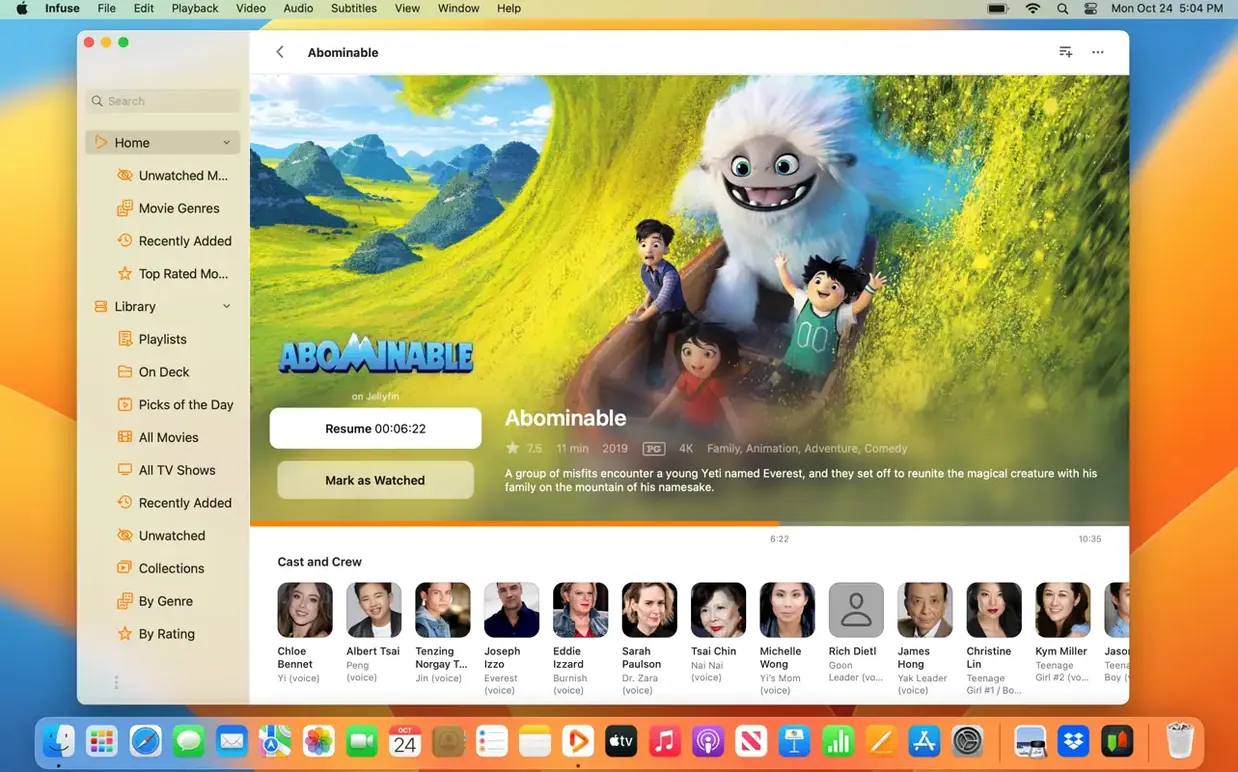
Infuse scans the file names, pulls artwork and metadata, and groups the episodes under a single cover. Metadata retrieval is not instant: give it a minute to finish fetching from the internet. Once the library settles, tap into the season. The first episode opens with DTS audio passing through to the receiver; no transcoding, no delay. The subtitle button in the playback overlay shows one embedded English track. For episode three, which has no embedded English, use the Get Subtitles command. Infuse queries OpenSubtitles and returns a short list ranked by match score. Select one, and it syncs to the dialogue within a second or two — if the timing drifts, the offset slider in the playback menu fixes it mid-scene. Watch progress syncs across iCloud to the Apple TV, so the next episode picks up exactly where you left off on the Mac. In short: a messy folder of files becomes a neat, playable library with a few intentional steps.
Daily use: where IINA, VLC, and Infuse actually diverge
Three players come to mind for local and network video on macOS: IINA, VLC, and Infuse. Their differences emerge in daily use more than in feature lists.
IINA is a native macOS front-end for mpv. It feels light and Mac-like, with a minimal chrome and a modern preferences window. It plays almost anything, and its picture-in-picture support is tidy. Where it falls behind: library features are nonexistent. IINA opens files, not collections — no metadata, no watched-state tracking across devices, no cloud-storage browsing. It is a player, not a catalogue.
VLC is a workhorse with decades of codec support behind it. It handles incomplete files, unusual streams and obscure formats that trip up other players. The interface, however, carries its cross-platform heritage; it works, but it never feels at home on a Mac. VLC can stream from network shares, but the experience is more technical — you browse a directory tree rather than a media shelf. No Trakt integration, no iCloud sync, no automatic artwork.
Infuse Pro sits at the other end: it treats a video collection as something to browse, not just open. The design emphasis is on presentation — cover art, synopses, progress indicators. Audio passthrough for DTS-HD and Dolby Digital Plus is built in, where IINA and VLC sometimes require manual output configuration. The trade-off is that Infuse expects well-formed files; a corrupted MKV that VLC plays with a glitch may stop Infuse entirely. For a curated library accessed from multiple Apple devices, Infuse Pro makes the daily routine smoother. For one-off, messy files, VLC remains the safer fallback.
Quiet dialogue: volume boost beyond the system limit
- Volume boost beyond system maximum. During playback, swipe up with two fingers on the trackpad, or use the on-screen gesture, to push gain past 100%. Useful for quiet dialogue in a noisy room.
- Timeline thumbnail scrubbing. Hover over the playback bar, and a small preview frame appears. On a large library, this saves skipping blindly between scenes.
- Direct subtitle search from the overlay. The subtitle menu is not buried in Settings; it lives on the playback overlay, with a shortcut to OpenSubtitles that remembers the last language you picked.
- Double-tap to fill screen. A quick double-tap on the video toggles between fit-to-screen and actual-size zoom. No menu diving.
- Trakt scrobbling without setup. Sign into Trakt once in preferences, and every play, pause and rating syncs quietly — no plugin to install, no script to maintain.
Metadata mistake: adding single files instead of a parent folder
Adding files one by one instead of a parent folder. New users often add individual video files. Adding the folder above them — the series folder, or the entire Movies directory — lets Infuse group and fetch metadata correctly. Single-file imports leave artwork blank and break season grouping.
Ignoring the file-naming conventions. Infuse depends on sensible file names for metadata matching. A file called ep1-final-export.mkv will not match a TV show entry; renaming it to S01E01.mkv before scanning solves most identification failures. This is the single most common cause of missing artwork and wrong titles.
Expecting cloud sources to behave like local storage. Streaming from Google Drive or Dropbox works, but initial buffering can be slow on large files. Beginners sometimes assume a stuttering 4K stream from a cloud source means Infuse is broken, when the bottleneck is the internet connection or the cloud provider’s transfer rate. Downloading the file locally, or using a NAS on the same network, changes the experience noticeably.
Forgetting to configure audio passthrough. By default, Infuse may decode audio to PCM. For a home theatre setup that expects a raw DTS or Dolby Digital bitstream, the passthrough toggle in audio settings needs to be on. Without it, the receiver shows “Multi‑CH PCM” and the user wonders why the surround mix sounds flat.
Finding a working build of the Pro feature set sometimes leads people to search for terms like infuse cracked or infuse pro crack; those who go that route occasionally encounter a disk image labelled infuse dmg that behaves inconsistently. A separate curiosity is the infuse torrent route, where file integrity varies and checking metadata sources in settings often restores smooth fetching. None of that changes the app itself — its strengths and quirks remain the same in daily use.








Correspondence 0
Take a chair or join the table to send a letter.
No correspondence on this note yet. Letters are read before they appear.