 LeCoqRoti
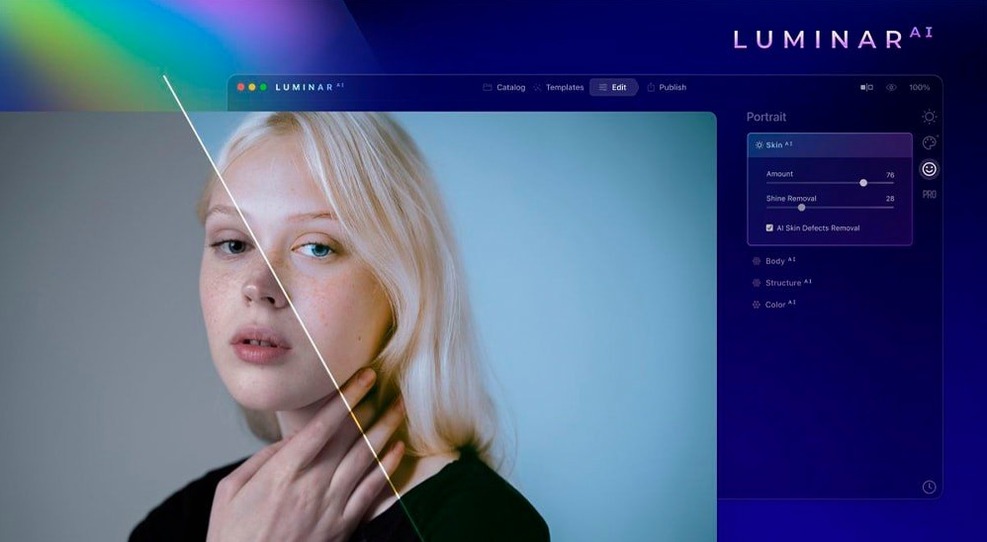
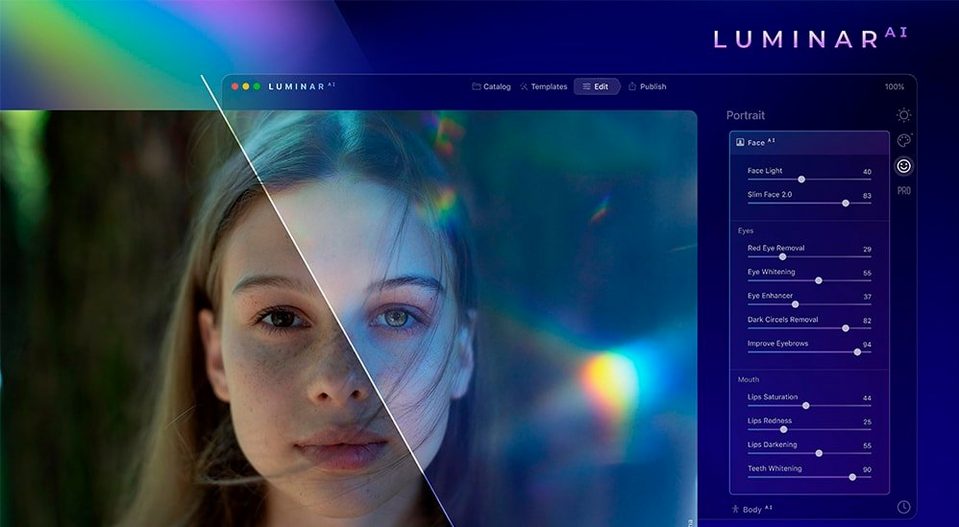


Editing a photograph used to mean confronting a grid of sliders before a single adjustment felt right. Luminar AI changes that arithmetic. It reads the image and proposes edits that match the content — a portrait, a landscape, a street scene — reducing the path from raw file to finished picture.
Alongside Lightroom: plugin or standalone, not a replacement
- Does it replace Lightroom or work alongside it? Luminar AI runs as a standalone application and also loads as a plugin inside Lightroom Classic and Photoshop, so it can sit inside an existing workflow rather than uprooting it.
- Which Macs are supported? It runs natively on both Apple Silicon and Intel 64‑bit machines, requiring macOS 10.13.6 or later.
- What does the AI actually control? A set of named tools targets specific tasks: Accent AI balances light and colour with one slider, while Face AI and Iris AI refine facial features and eyes, and Body AI adjusts silhouette. Scene‑level tools include Atmosphere AI for adding haze or fog, Bokeh AI for depth‑of‑field falloff, and Composition AI for content‑aware cropping.
The plugin advantage
When used as a plugin, Luminar AI hands back a pixel layer or a new file, depending on the host. This makes it practical for a single retouching pass — brightening an eye, deepening a background blur — without leaving the catalogue you already keep in another application.
Backslash toggle: instant before-and-after without leaving the edit
A few gestures in Luminar AI are easy to overlook during the first week. One is the quick-preview toggle: holding the backslash key (\) shows the original image, and releasing it returns to the edited state. It is faster than clicking a before/after button and keeps the rhythm of adjustment uninterrupted.
Another is the masking refinement buried inside the local adjustments. After painting a mask, clicking the three-dot menu beside the brush reveals Mask AI, which automatically refines the edge based on the subject. For hairlines against foliage or a shoulder against a busy background, it saves several minutes of manual brushing.
The Templates tab also has a subtle memory: it filters suggestions based on the scene type it detects in the current photo, but you can pin a small set of favourites to the top by hovering over a template and clicking the star. After a few sessions, this pinned row becomes a personal starting palette that skips the browsing step entirely.
Scene AI first: a start-to-finish sequence that avoids rework
It helps to approach the first session with a plan rather than exploring the toolset at random. The following order tends to produce a clean result without backtracking:
- Open a raw file and let the Scene AI analysis run — it finishes in a few seconds and sets the initial tone mapping.
- Move to the Essentials panel and check the Accent AI slider. Slide it to about 60 % as a starting point, then pull it back if the contrast feels artificial.
- Next, open Composition AI and cycle through its two or three crop suggestions. Accepting one early prevents re‑editing a crop later when colours and skin work are already done.
- Address skin and faces before touching atmosphere or colour grading. The reason is practical: Skin AI and Face AI read the natural luminance of the face; adding fog or a colour cast beforehand can confuse the detection.
- Save the result as a luminar ai project file alongside the exported JPEG or TIFF. The project retains all slider positions and masking, so returning a month later to tweak one setting does not mean starting from scratch.
One habit worth forming early: after installing from a luminar ai mac download, spend ten minutes creating two or three custom templates from edits you actually like. They do not need to be elaborate — a simple combination of Accent AI, a slight warm split tone, and a mild vignette becomes a one‑click starting point for entire batches shot in similar light.
Face and Iris AI: batch portrait polish without the uncanny valley
Portrait retouchers who routinely handle dozens of headshots appreciate the speed of Face AI and Iris AI. The eye‑whitening and iris‑detail controls work in tandem: brightening the sclera by a small amount while adding a subtle catchlight, without making the result look glassy. The difference between a five‑second pass and a manual dodge‑and‑burn sequence in a pixel editor is significant when there are twenty frames to finish.
Landscape photographers who resist sky replacements on principle often still keep Luminar AI installed for Atmosphere AI alone. Adding a thin layer of haze over distant hills, or a whisper of ground fog across a field, reads as atmospheric rather than composite — provided the slider stays below 40 %. The tool maps the effect to the depth cues already present in the scene, so the falloff behaves plausibly.
Mac users who edit on a laptop without an external monitor benefit from the single‑slider tools more than they might expect. On a 13‑inch screen, fine‑tuning half a dozen tone curves is imprecise; Accent AI and Structure AI condense that work into two deliberate movements. The interface also scales cleanly on Retina displays, with large previews that make the pixel‑level adjustments in Skin AI easier to judge.
Users looking at a Luminar AI torrent or Luminar torrent as a way to test the software often fall into two camps: those who already know their way around a raw developer and want to see where AI‑based masking outperforms manual selection, and those who find traditional editors intimidating and need a gentler entry point. Both groups tend to stick with it for different reasons — the first for the speed of the local‑adjustment workflow, the second for the fact that Templates provide a finished look without fifty sliders.
Common sticking points and their remedies
Slow launch after installation. On first launch, Luminar AI builds a preview database and analyses any sample images in its catalogue. The process can take two or three minutes. Closing the app during this stage corrupts the database. The fix is straightforward: let it finish once, and subsequent launches are much faster.
Sky AI selects trees incorrectly. When the horizon is cluttered with fine branches, the automatic mask sometimes bleeds sky colour into the leaves. Painting a quick subtract brushstroke across the affected area usually resolves it, but a more reliable approach is to lower the Close Gaps slider to zero before touching the brush. That parameter controls how aggressively the mask fills small openings, and branches often register as openings.
Body AI distorts the background. The tool warps the entire image, not just the person, so pushing the sliders past 30 % visibly bends lines that should remain straight — doorframes, horizons, patterned walls. Keeping changes subtle avoids the problem; if a stronger adjustment is needed, running Body AI on a duplicated layer and masking the subject manually in a host application like Photoshop yields a cleaner edge.
Templates appear greyed out. This happens when no image is open in the single‑image view. Templates are unavailable in the catalogue grid; double‑clicking any photo switches to edit mode and restores full access.
The plugin does not appear in Lightroom. On macOS, the plugin installer places the file in the expected directory, but Lightroom sometimes needs a manual refresh under File > Plugin Manager > Add. Browsing to /Applications/Luminar AI.app/Contents/Resources/ and selecting the plugin file there usually completes the connection.
A luminar ai mac setup occasionally triggers a Gatekeeper warning on the first launch. Right‑clicking the app icon and selecting Open bypasses the block without disabling Gatekeeper globally. The preference is remembered, so the dialog does not reappear on subsequent launches.








Correspondence 0
Take a chair or join the table to send a letter.
No correspondence on this note yet. Letters are read before they appear.