 LeCoqRoti
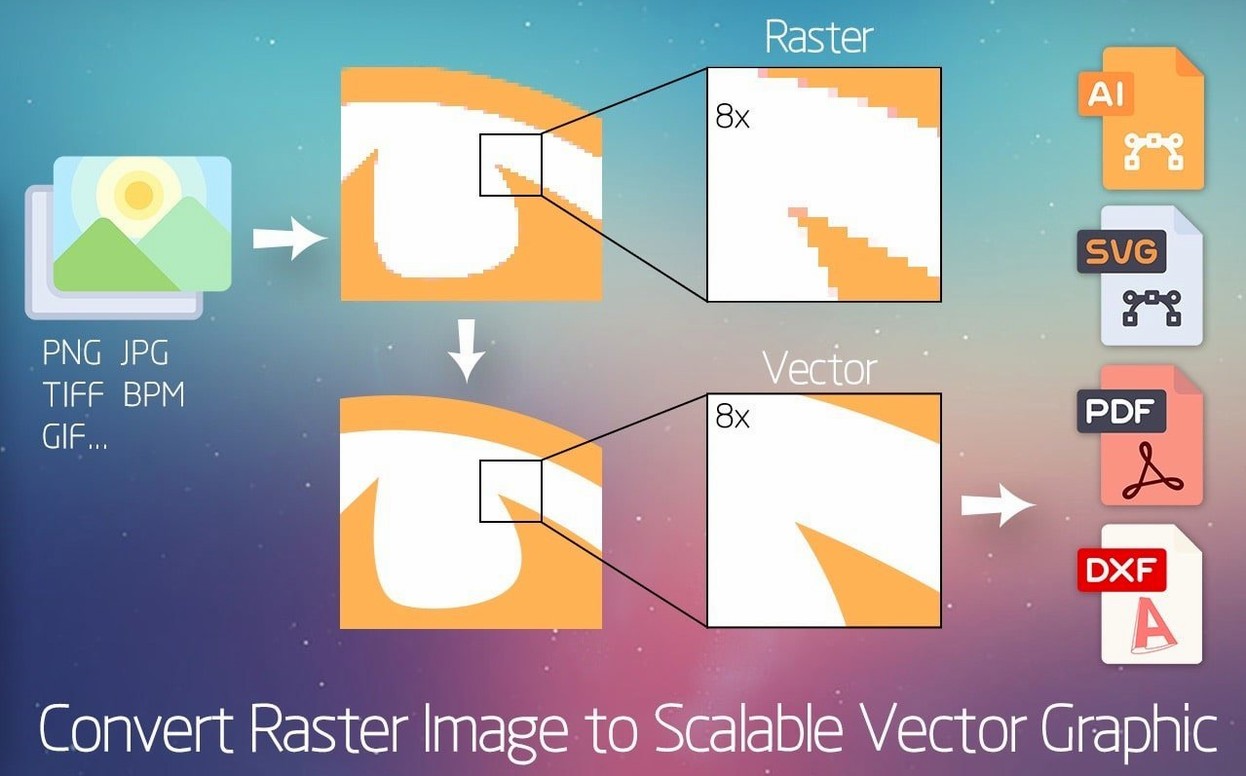
Thirty-two thousand colours in a single photograph, reduced to a few dozen clean shapes. That is the quiet satisfaction of a well-judged vector trace, and the place to begin with Super Vectorizer Pro.
Trace a logo: instant precision
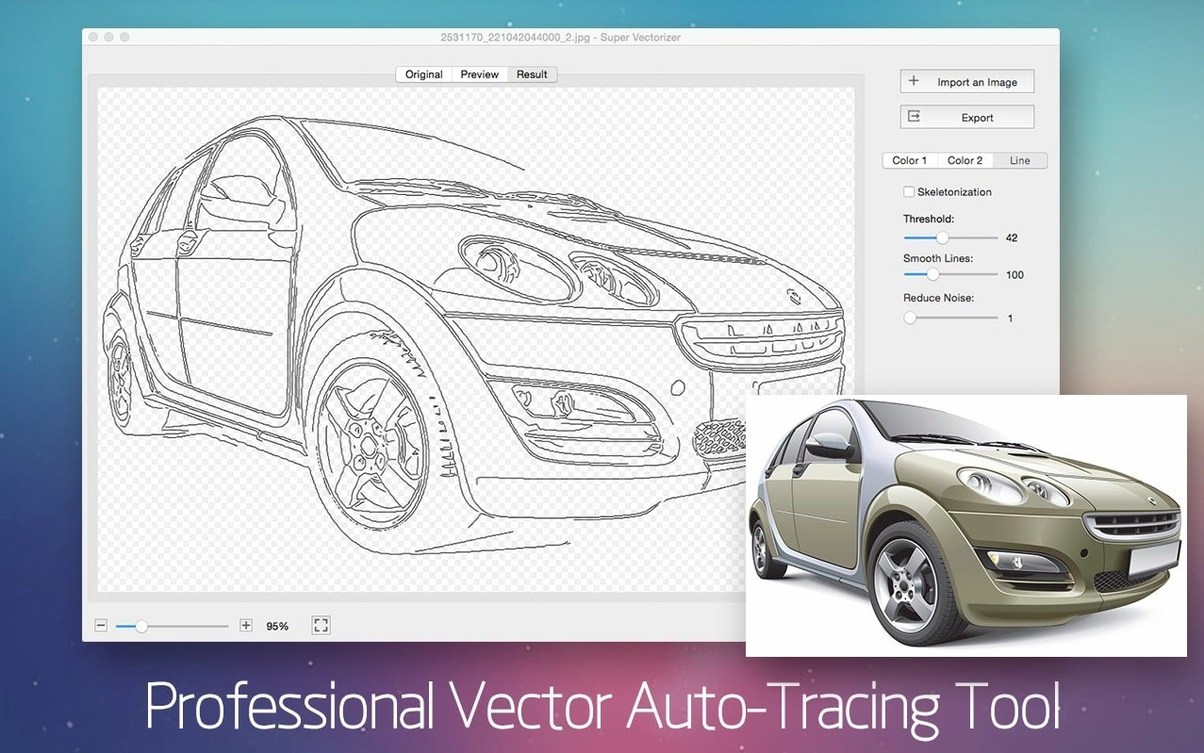
Open a company mark or a simple icon and watch the skeletonization function resolve thick strokes into a single medial axis. The result is a crisp, infinitely scalable graphic with a transparent background if you choose.
Convert a pencil drawing: from sketch to shape
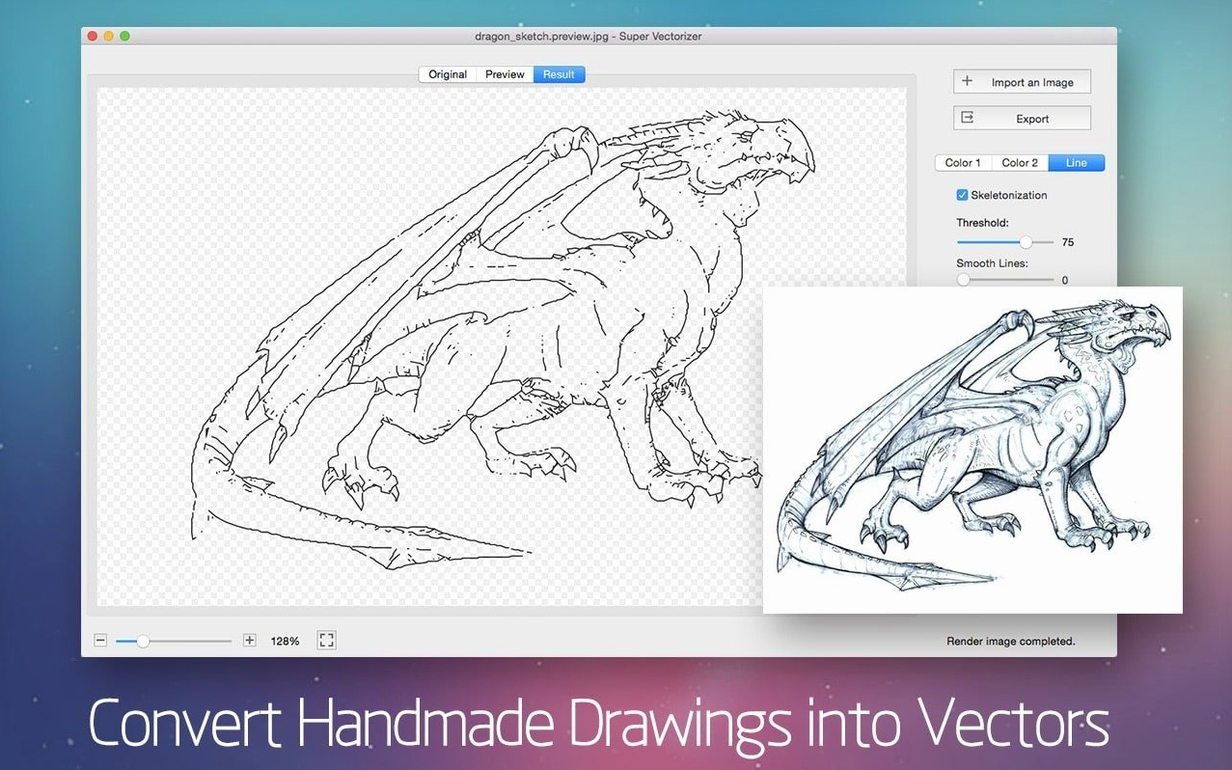
Scan a line drawing or snap it with your phone, then let the app interpret the graphite grain as editable Bézier curves. It handles the organic irregularity of a human hand with surprising restraint.
Watch the preview: decide before you commit
Adjust the tracing parameters and see the vectorisation effect update in real time — a calm, immediate way to learn which settings suit your material before you export.
Colour banding on gradients: why skies turn into stripes
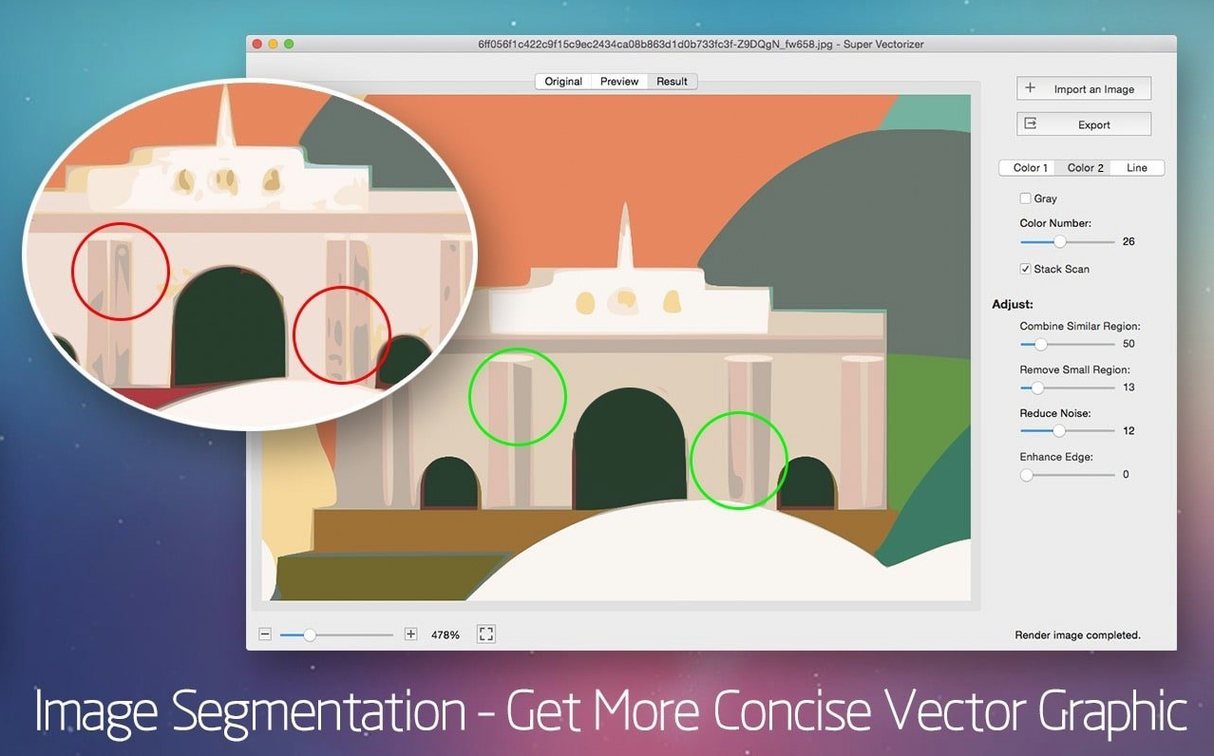
One recurring hiccup involves photographs with large, soft gradients — a sky at dusk, a cheek in shadow. The vectoriser tries to honour every subtle shift by creating hundreds of tiny colour bands. Reducing the colour count to 8 or 12 before tracing usually tames this, and switching from photographic to line-art mode often produces a more useful silhouette. Another snag is the transparent background setting: if your source image is a JPEG with white space around a logo, the app sees that white as part of the object. A quick pass through Preview to erase the background, saved as PNG, solves it neatly.
Skeletonisation occasionally misreads closely spaced parallel lines — think ruled notebook paper or architectural hatching. The tool draws a single spine that zigzags between the two strokes instead of tracing each independently. The fix is to raise the line-width detection threshold slightly or, in stubborn cases, to separate the lines manually in a bitmap editor first. The preview pane will confirm whether the adjustment worked before you export.
AI and SVG export: a clean handoff to Illustrator or Sketch
Super Vectorizer Pro is not a replacement for Illustrator or Affinity Designer; it is the prelude. Export as AI and the file opens with grouped paths, ready for colour reassignment and node editing. SVG output works cleanly with Sketch and Figma — the layer structure is flat, so expect to organise objects yourself. DXF is the surprise: it maps well to laser-cutting workflows and Fusion 360 sketches, though you may need to scale the result. On the macOS side, drag any output file onto a Finder folder or into an open Mail message; Quick Look previews the PDF and SVG variants without launching an editor. The app also respects the system colour picker, so sampled hues from a reference image in Preview can guide your palette choices before tracing.
Colour count: dropping from 64 to 6 for fewer anchor points
The defaults are serviceable but blunt. Three adjustments reward early attention.
- Colour count. The 64-colour maximum sounds generous, yet most logos need only 6 to 12. Fewer colours mean fewer extraneous anchor points and a faster edit downstream.
- Ignore white. Tucked away in the output options, this tells the app to treat white as transparent. Enable it for any mark that will sit on a coloured ground.
- Corner threshold. A lower value preserves sharp vertices on letterforms; a higher one softens them into curves. Test both extremes on a single glyph to see which reads better at small sizes.
If you regularly process scans of ink drawings, also switch the default output format from AI to SVG — the latter embeds stroke width as a style attribute, which is easier to tweak later in code or in lightweight editors.
Five-image test set: monochrome icon to web JPEG in one batch
Start with five images that represent the range of material you handle: one monochrome icon, one pencil sketch, one watercolour scan, one photograph with a clear subject, and one JPEG logo pulled from a website. Run each through at three colour counts and compare the SVGs side by side. The exercise takes under half an hour and teaches more than any manual. You will notice that photographic subjects traced at 64 colours look painterly but heavy; at 8 colours they become useful as stylised illustrations. The pencil sketch, by contrast, works best with skeletonisation engaged and the colour count set to 2 — black line, white ground — because any extra hues introduce noise.
After that, build a habit of naming exports descriptively: logo_12c_transparent.svg rather than output.svg. The AI and DXF files carry no preview thumbnail in Finder, so clear naming saves considerable hunting later. And if you collaborate with motion designers, hand them the SVG with the note that all paths are closed — a detail Super Vectorizer Pro enforces, which makes the files immediately usable for extrusion in After Effects without manual cleanup.
The app sits best in the Dock beside a bitmap editor and a vector host. One exports the rough, the other refines it. Super Vectorizer Pro does the middle step, and it does it without fuss.





Correspondence 0
Take a chair or join the table to send a letter.
No correspondence on this note yet. Letters are read before they appear.