 LeCoqRoti
A designer receives a scan of a pencil sketch from a colleague. The file is small, the linework soft, and every attempt to place it into a layout at the required size turns the strokes to mush. She opens Topaz Gigapixel AI, drops the file in, and sets the scale to 4×.
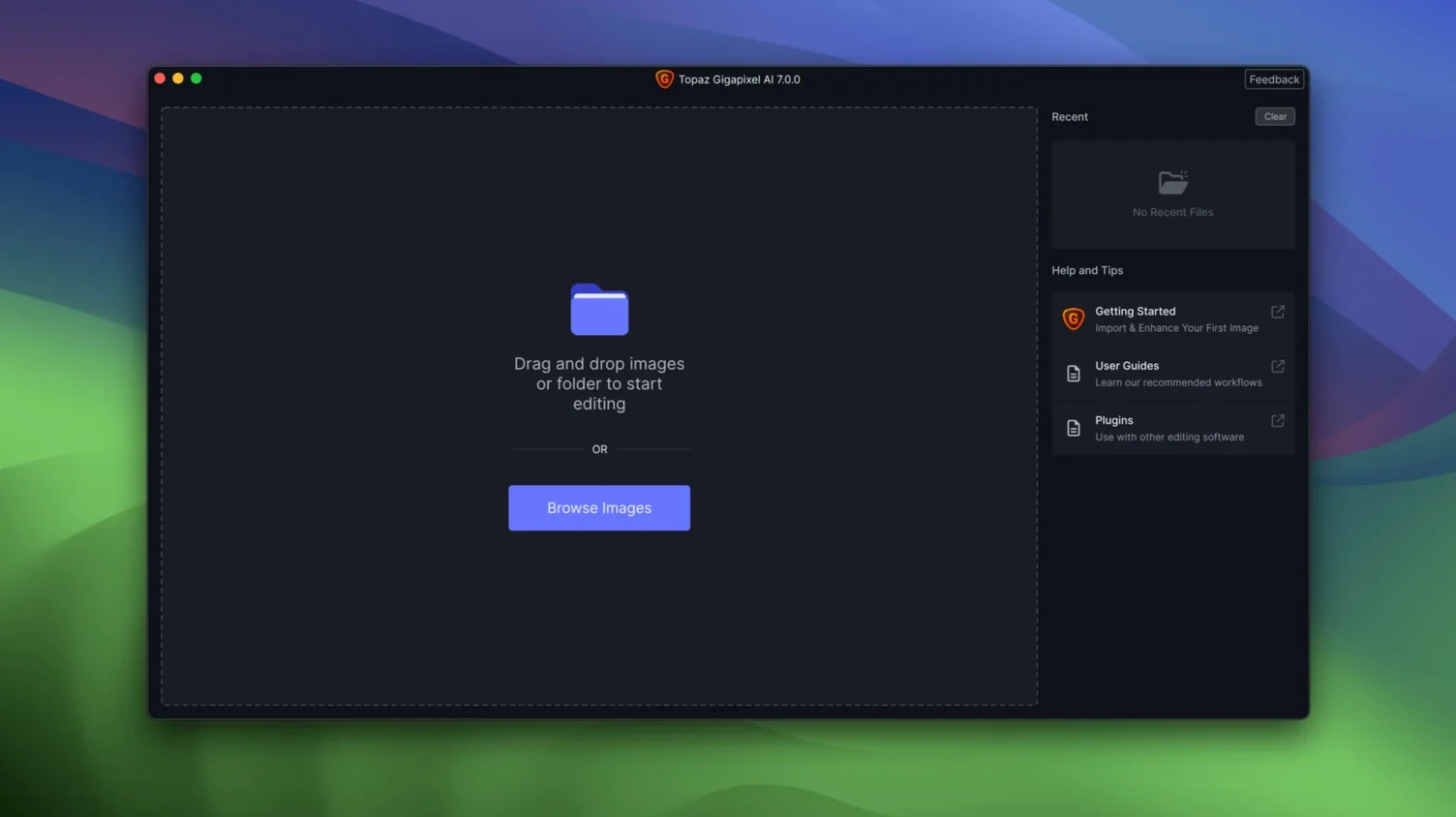
Large preview with side controls: everything in one view
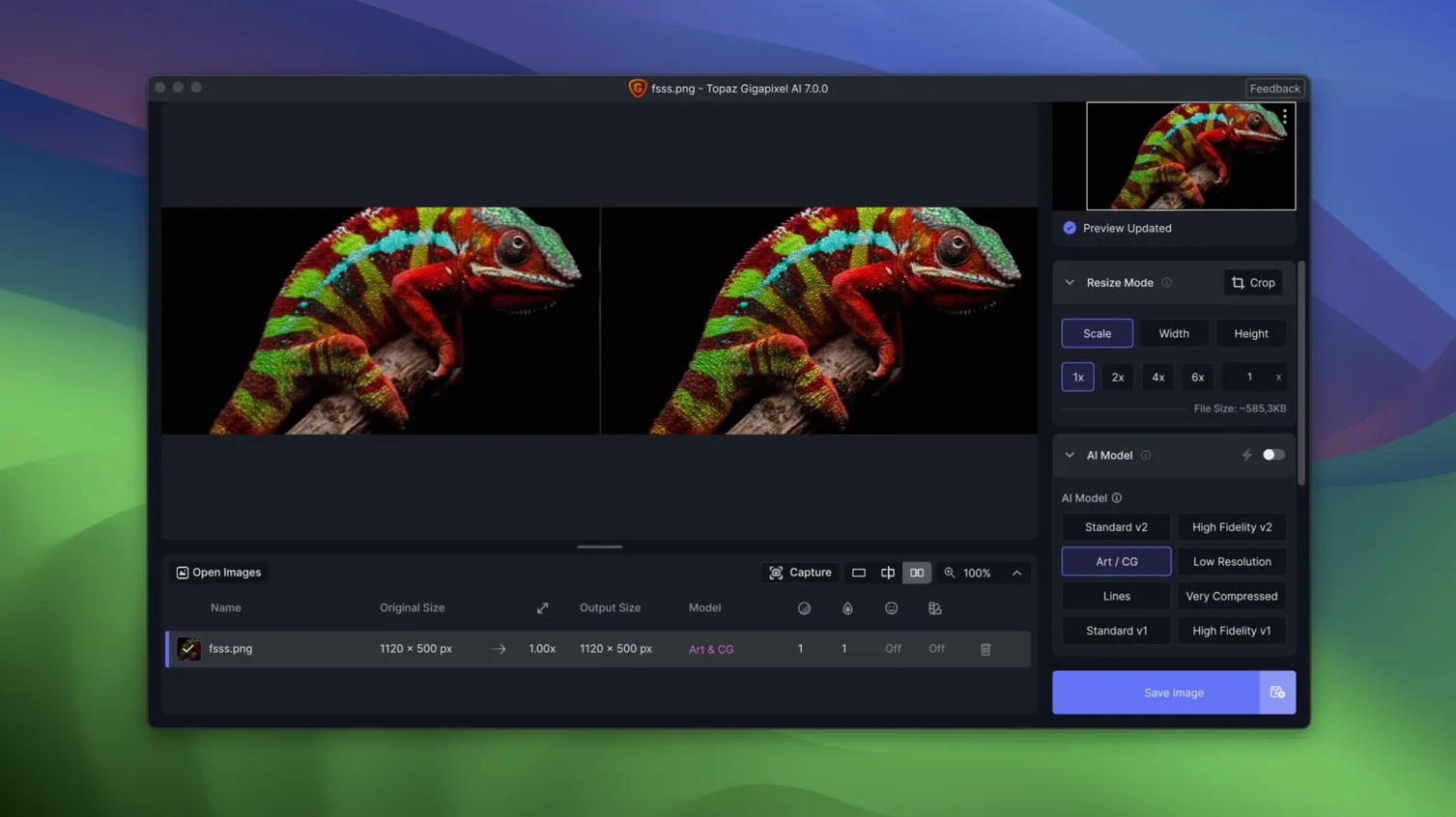
The window is dominated by a large preview pane. Controls sit to the right: a slider for scale, a handful of AI model choices, and a toggle for face refinement. There is no clutter. Dragging the preview lets you compare the original and the upscaled result side by side before committing to a full render. The app speaks only English, but the visual feedback makes the language barrier minimal.
Standard model on line art: sharp strokes without plastic texture
For line art and older photos, the Standard model does most of the work. The designer selects it, watches the preview sharpen the pencil strokes instantly, and notices that the paper texture remains plausible rather than turning plastic. A PNG with compression artefacts cleans up well too—the app smartly separates edge detail from noise. Rendering the final 4× enlargement takes under a minute on a modern Mac. The result slots into the layout without further retouching. In short: a single-purpose tool that handles the one task with precision, leaving the image ready for its next life.
Compared with other upscalers on the Mac, Gigapixel AI occupies a particular niche. Pixelmator Pro includes a machine-learning upscaling feature built right into its editing workflow: convenient if you already own the app, though the control is simpler and the maximum scale more modest. It suits a quick bump in resolution while retouching, not a dedicated enlargement session. Upscayl is an open-source alternative with a clean interface and a choice of community-trained models. Its results on illustrations and crisp digital art can be striking, yet it lacks the face refinement toggle and the fine-grained preview comparison that make Gigapixel AI feel more like a darkroom tool than a utility. Where Topaz shines is in the tension between detail recovery and texture preservation—the models seem to know when a surface should remain slightly uneven rather than polished smooth.
A single portrait, step by step
Imagine a low-resolution portrait from an old webcam capture, 640 by 480 pixels, destined for a printed memorial booklet. The face is small, the skin waxy, and JPEG blocks halo the jawline.
- Open Gigapixel AI and load the image. The preview defaults to the Standard model, which immediately softens the blocky edges but leaves the eyelashes vague.
- Switch the model to Art & CG. The preview updates: the irises gain definition and the compression artefacts around the mouth recede. The face still lacks presence.
- Enable Face Refinement. The app detects the face and redraws the eyes, brows, and lip line with a lighter touch than expected—no uncanny-valley over-sharpening, just a quiet restoration of what the low resolution had obscured.
- Set the scale to 6×. The preview stutters briefly, then settles. The skin texture holds its film-like grain; the catchlights in the eyes remain round, not faceted.
- Render the full image. On an Apple Silicon Mac the export completes in roughly forty seconds. The resulting file opens in Affinity Photo for a final tonal adjustment, then drops straight into the booklet layout at print resolution.
Pass-through for layouts: enlarge, then send to your main tool
Gigapixel AI works best as a pass-through, not a destination. A typical route: an image arrives via AirDrop or a shared iCloud folder, runs through the app for enlargement and artefact removal, then continues into a layout tool or a pixel editor. The app respects colour profiles and preserves transparency in PNG files, so a line-art asset upscaled here will still composite cleanly in Sketch or Figma. Batch processing lets you queue a folder of product shots and walk away; the output folder can be set to the same directory a design system watches, feeding updated assets automatically. For archival work, the app pairs well with Apple Photos or Adobe Lightroom Classic—export small originals, enlarge offline, and re-import the high-resolution versions with the same filenames intact.
The face refinement model also plays nicely with macOS markup tools. A quick screenshot of a video call, enlarged and refined in Gigapixel AI, can be annotated with Preview’s shapes and text for a team profile page, and the result looks deliberate rather than salvaged.
Line art and cleanup: a second scenario
An illustrator scans a pen-and-ink drawing at 300 dpi, but the paper texture and faint pencil guides show through. The file needs to go to a screen printer who requires clean black lines on a pure white ground at twelve inches across. In Gigapixel AI, the Lines model separates the ink from the paper in one pass. The preview shows the pencil ghosts vanish while the varying stroke weights remain intact. A 3× enlargement lifts the image to the required dimensions, and the output PNG—with its transparency channel untouched—drops into the print template without threshold adjustments or manual cleanup. The whole operation takes less than two minutes, turning a hand-drawn original into a production-ready asset without losing the character of the line.
Photographers restoring scanned film negatives get particular value from the combination of enlargement and artefact suppression. A 35 mm frame scanned on a flatbed at 1200 dpi can be pushed to the equivalent of a 4800 dpi scan with the grain pattern held natural. Designers working with historical documents, where the only available source is a small JPEG from a digital archive, use the app to bring text legibility and paper texture back into balance before typesetting surrounds it. The common thread is a need for enlargement that does not shout its presence—the result should simply look as though the image had always been that size.







Correspondence 0
Take a chair or join the table to send a letter.
No correspondence on this note yet. Letters are read before they appear.